Pause the CRM Concierge per CRM
A new switch on the Automatic CRM Sync page lets admins pause the AI CRM Concierge for one CRM and keep every rule in place, with a reminder before a deletion would stop it by accident.
One switch per CRM
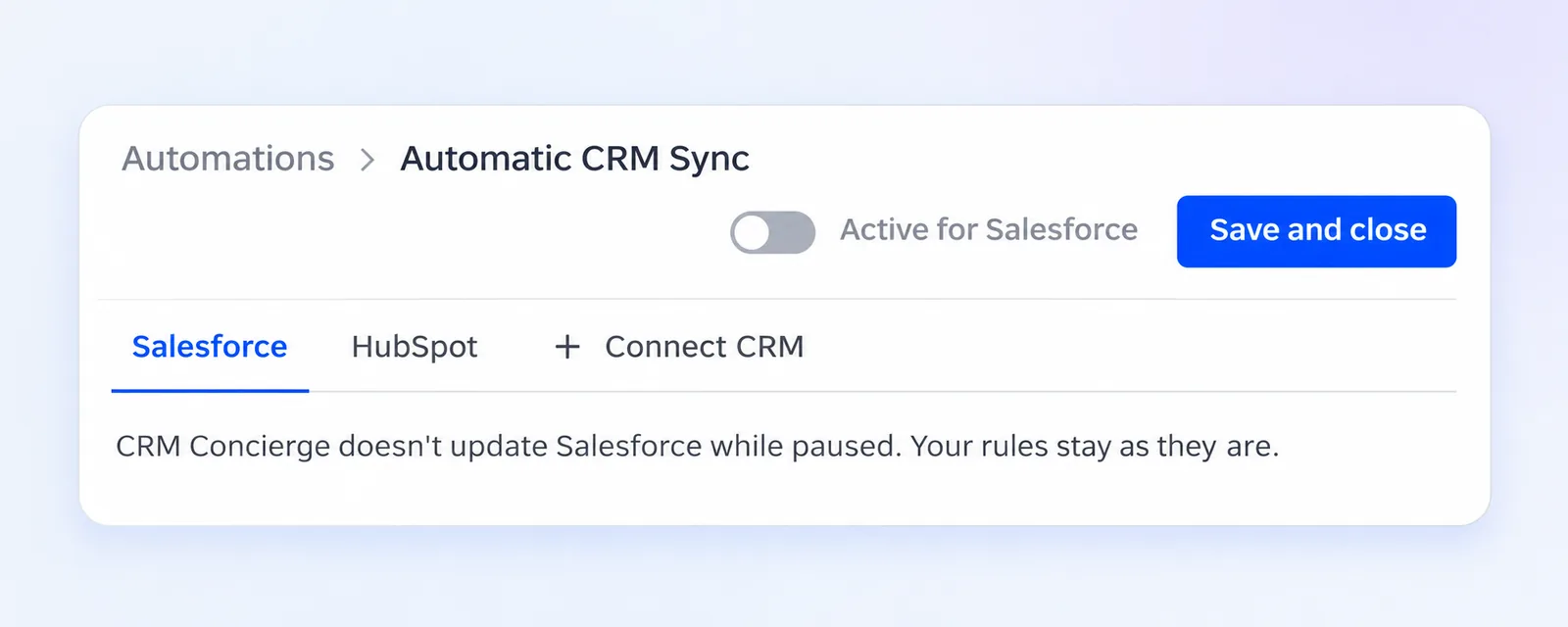
Open Automations, go to Auto-fill CRM fields and you will find a switch at the top of the page labelled Active for Salesforce, or whichever CRM tab you are on. Turn it off and select Save and close, and the Concierge stops updating that CRM after your meetings. Your rules, objects and fields stay exactly as you left them. The switch applies to one CRM at a time, so you can pause Salesforce and leave HubSpot running.
Switch it back on, save, and the Concierge picks up again from the next meeting that matches your rules, without going back over meetings that happened while it was paused. Under each CRM tab a line of text tells you whether the Concierge is updating that CRM or is paused.
A reminder before you delete something
Stopping the Concierge used to mean taking your rules apart. Now, while the Concierge is on for a CRM, removing the last rule that still updates it, or switching off that rule's last object, opens a confirmation headed CRM Concierge will stop updating Salesforce. It offers Pause Concierge next to Remove rule or Switch off, so you can keep the setup and stop the updates instead.
Good to know
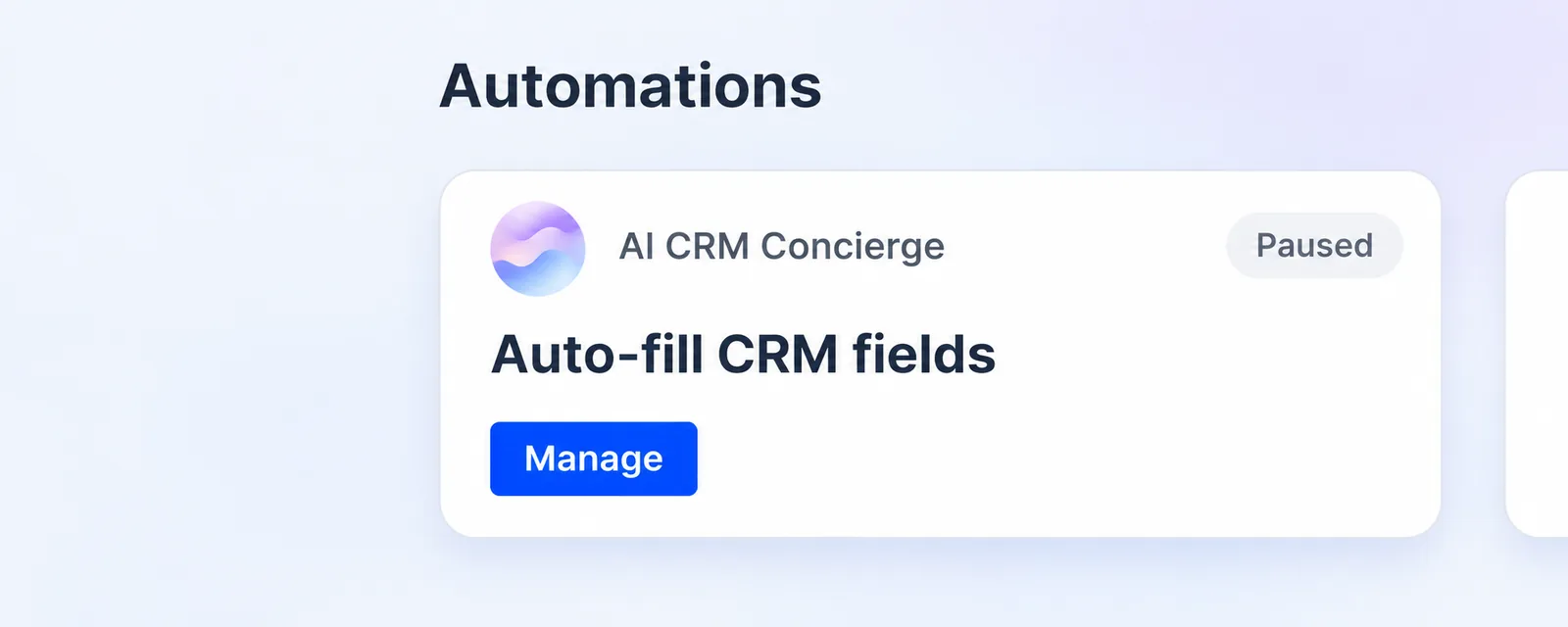
For admins and managers, the Auto-fill CRM fields card on the Automations page shows a Paused label once every connected CRM is paused. A sync you start yourself on a single meeting still follows your rules, even while the Concierge is paused, and a sync that was already running finishes. The switch sits on the Automatic CRM Sync page, which company admins open from the Automations page.
More about setting up the Concierge is in our help center.