Activating Google Single Sign-on (SSO)
Updated July 7, 2026
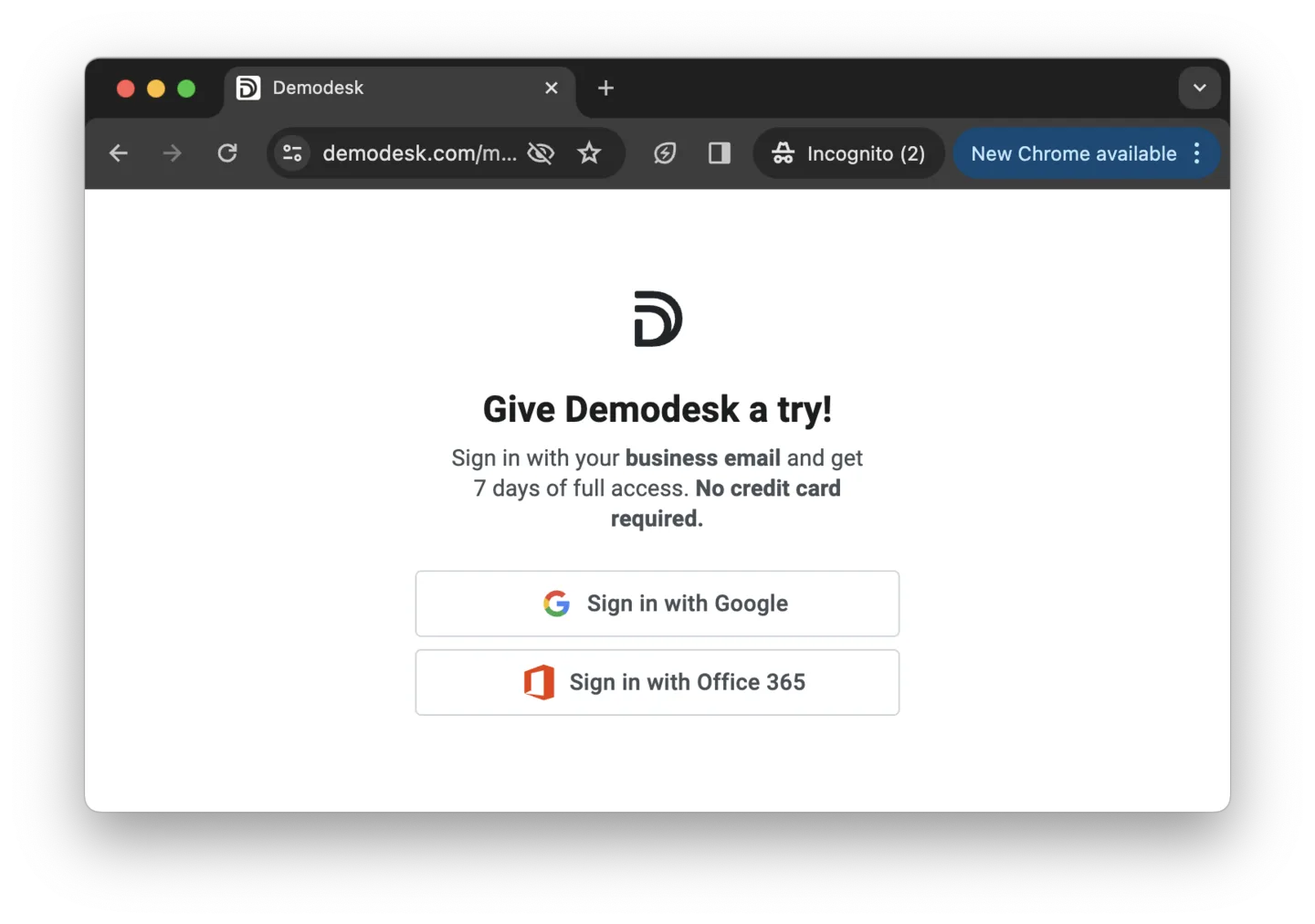
Demodesk integrates Google Workspace (formerly GSuite) SSO via OAuth. It is configured automatically after registering to the platform via "Sign in with Google":
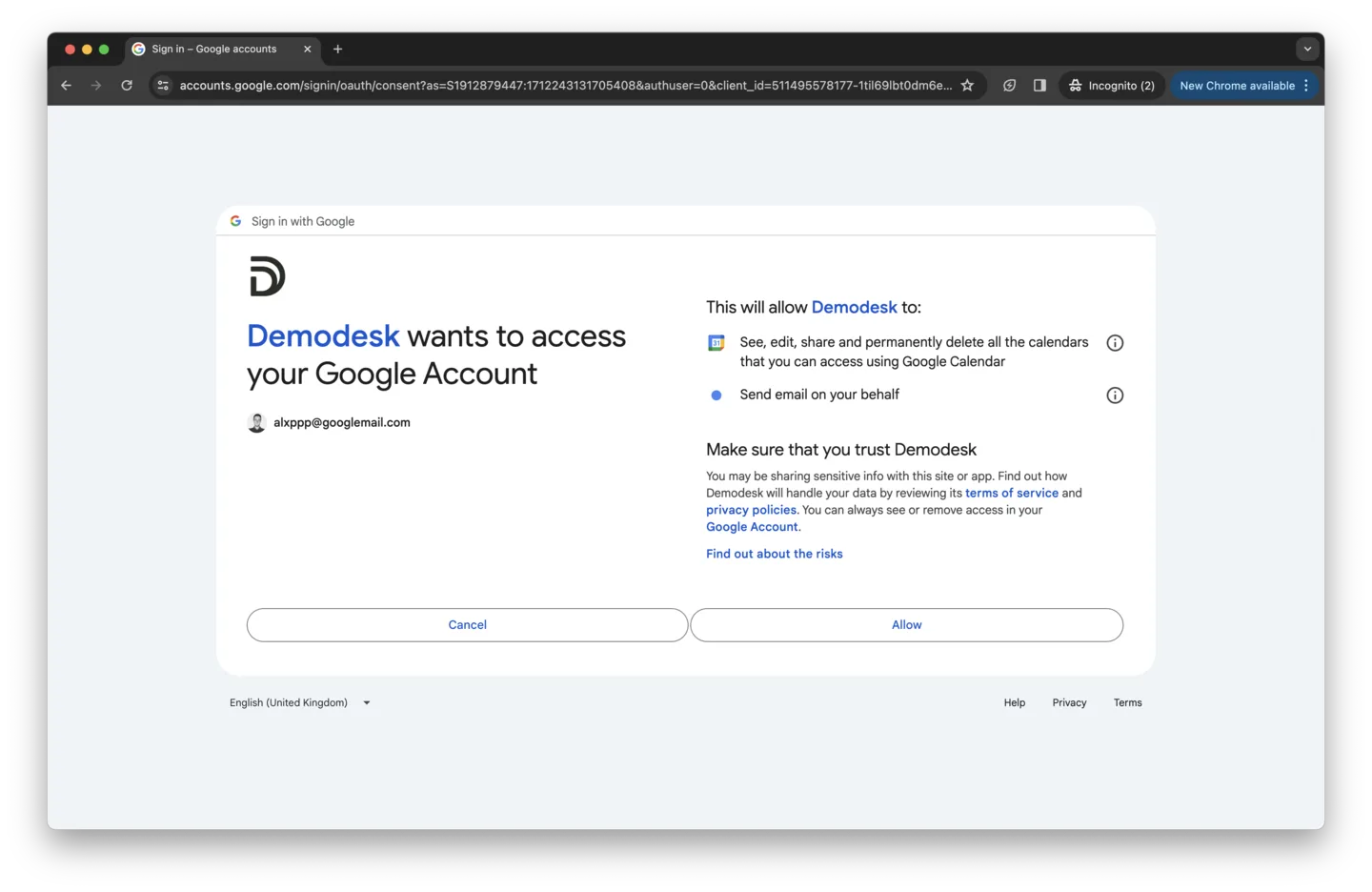
We will ask for permissions for:
- Read and write access to Google Calendar:
This allows us to scan calendars for meeting invites and importing them into the Demodesk Coaching & AI dashboard. - Write access to Gmail (sending emails):
This allows us to send meeting invites, in case they are sent from the Demodesk dashboard.
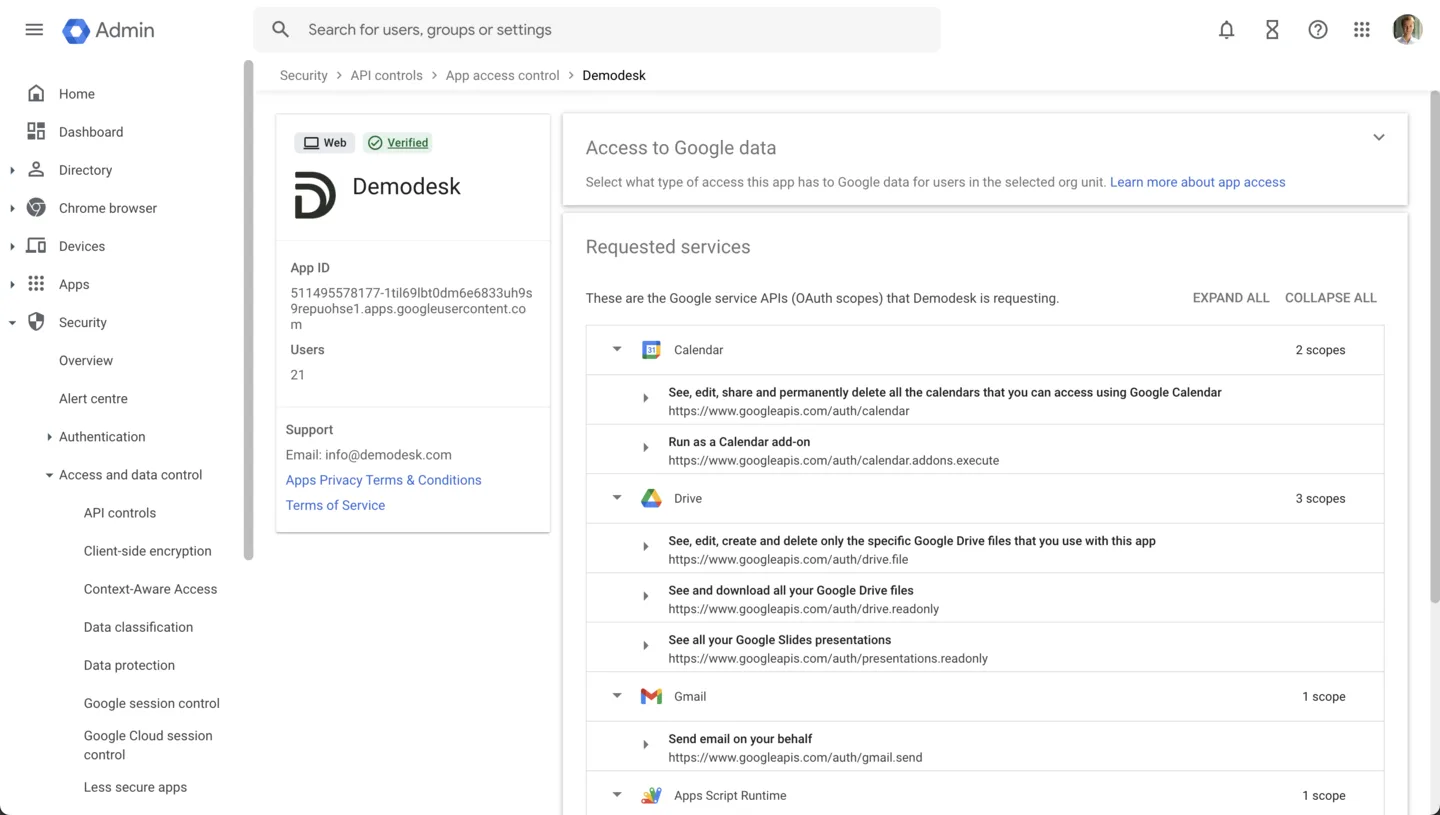
After the first employee signed up, you can see the app configuration in the Google Workspace settings. Security → API controls → App access control → Demodesk:
Configuring Single-Sign-In only
Admins can enable this directly in company settings. Once active, the email and password fields remain visible on the login page, but users will see an error if they try to sign in that way.
- Go to Settings > Company > Profile.
- Under Sign-in, enable Require Google or Microsoft sign-in (disable email/password login).
- Click Save.
Important: Users without a connected Google or Microsoft account will lose access. Make sure all users have linked their account before enabling this setting.
Related articles
More in this category
Still need a hand?
Our support team answers in the app chat, or at support@demodesk.com.