Everything about the Demodesk Notetaker
Updated November 9, 2026
On this page
- How it works
- How to record a meeting spontaneously
- Import and Record meetings via email (alternative to calendar-based sync)
- How it works
- How to let the participants know about the Demodesk Notetaker?
- How to customize the Notetaker?
- How to Manage Your Meeting Recording Preferences
- Record External Meetings (Recommended)
- Record Internal Meetings
- Record meetings where someone else is the organiser
- What happens when multiple internal users attend?
- Import Meetings with No Participants
- Exclude Meetings
- Recording Format
- Record individual meetings
- FAQs
- Troubleshooting: Why the Notetaker Might Not Join
Do you want to get valuable insights out of your customer conversations? Do you want to ensure meetings are getting recorded? Do you want to summarize meetings automatically with AI and be able to share them easily with customers or colleagues? Then Demodesk Notetaker is the right solution for you!
The Demodesk Notetaker is designed to record meetings conducted via Google Meet, Microsoft Teams, or Zoom. It joins scheduled meetings automatically but can be invited manually to join instant meetings. Access to the calendar is necessary for the Notetaker to know which meetings to participate in.
Prerequisites:
- We require an access to your Google/Outlook calendar
- At least one attendee must have an active license in order for the meeting to be recorded and thus imported
If you or a teammate cannot connect Zoom and see a Zoom message about needing approval from an admin, see the FAQs in Zoom Notetaker integration.
How it works
Based on your setting of which meetings you want to record, we will import these meetings into Demodesk, and the Notetaker will join them. The Notetaker asks to join at the scheduled start time of the meeting, not when you arrive. A message will be displayed informing you that the bot wants to join the meeting (just like any external attendee). You can either accept or decline.
If you accept, the bot will record the meeting. If you turn it down, the bot will not be part of the meeting and, as a result, will not be recorded.
Which meetings are considered depends on your recording preferences. Demodesk records meetings you organize. It also records eligible meetings organized by someone else when Record meetings where someone else is the organiser is turned on in your recording preferences.
While the Demodesk Notetaker is designed to automatically join your meetings, you can opt for direct entry or utilize the waiting room feature for participant admission. You can find out more here about enabling the waiting room for Google Meet, Microsoft Teams, and Zoom.
Google Meet
You will notified about the Demodesk Notetaker to join your meeting. Just click "Admit".
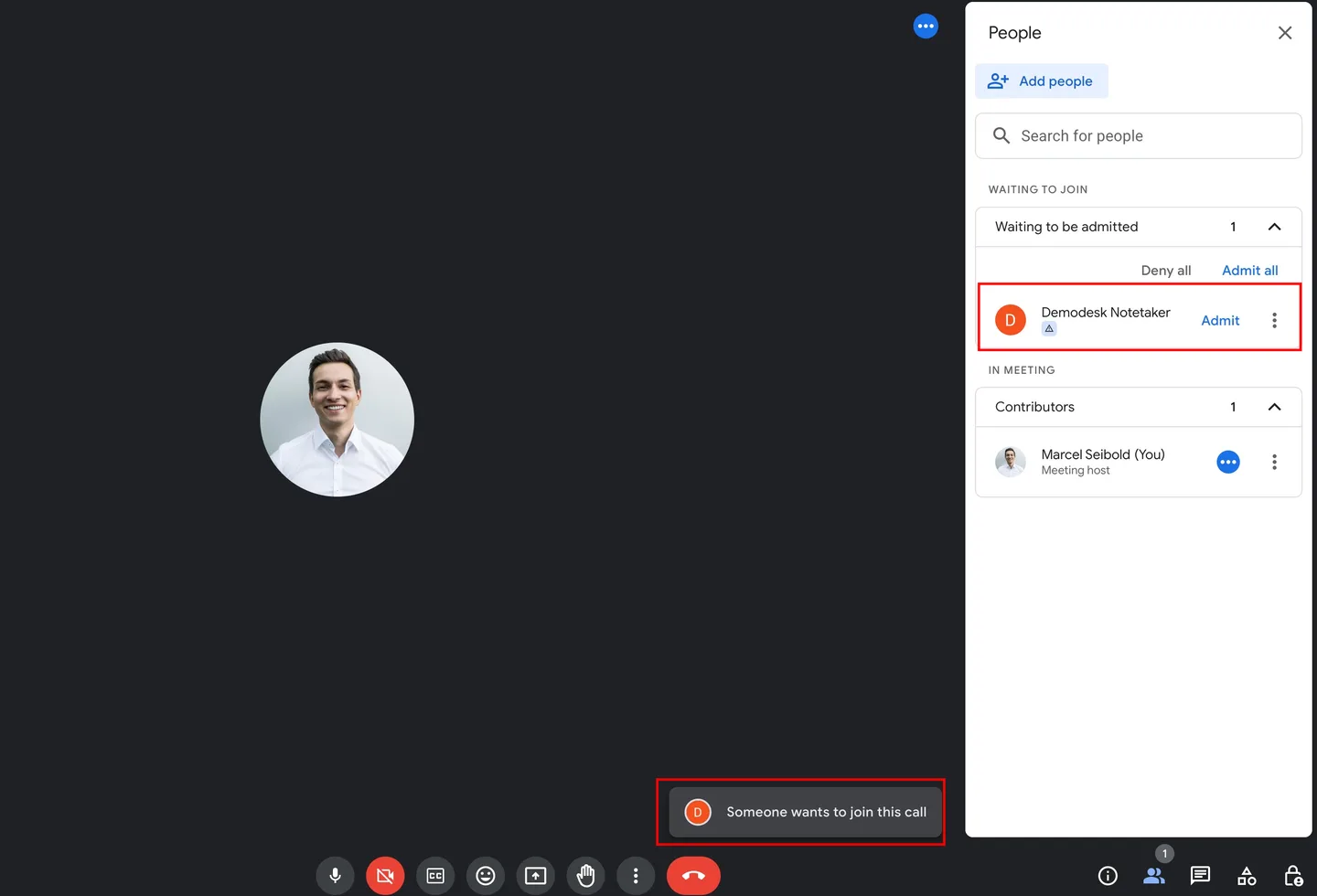
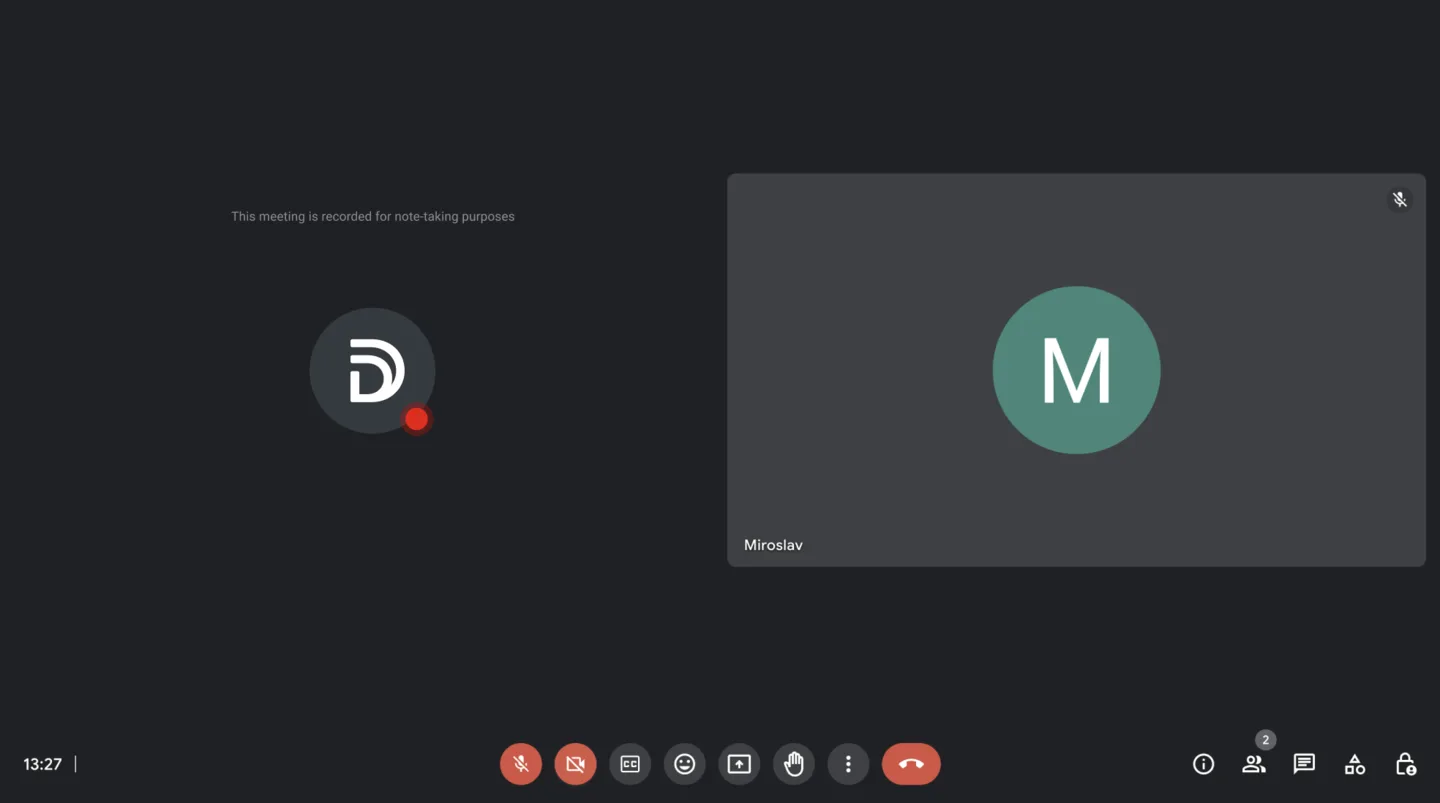
This is how the Demodesk Notetaker will appear in your Google Meet meeting.
Microsoft Teams
In most cases, you will notified about the Demodesk Notetaker to join your meeting. Just click "Admit".
If the Notetaker can join your meetings directly that means you have not enabled the lobby feature for Microsoft Teams. You can learn more here on how to set that up.
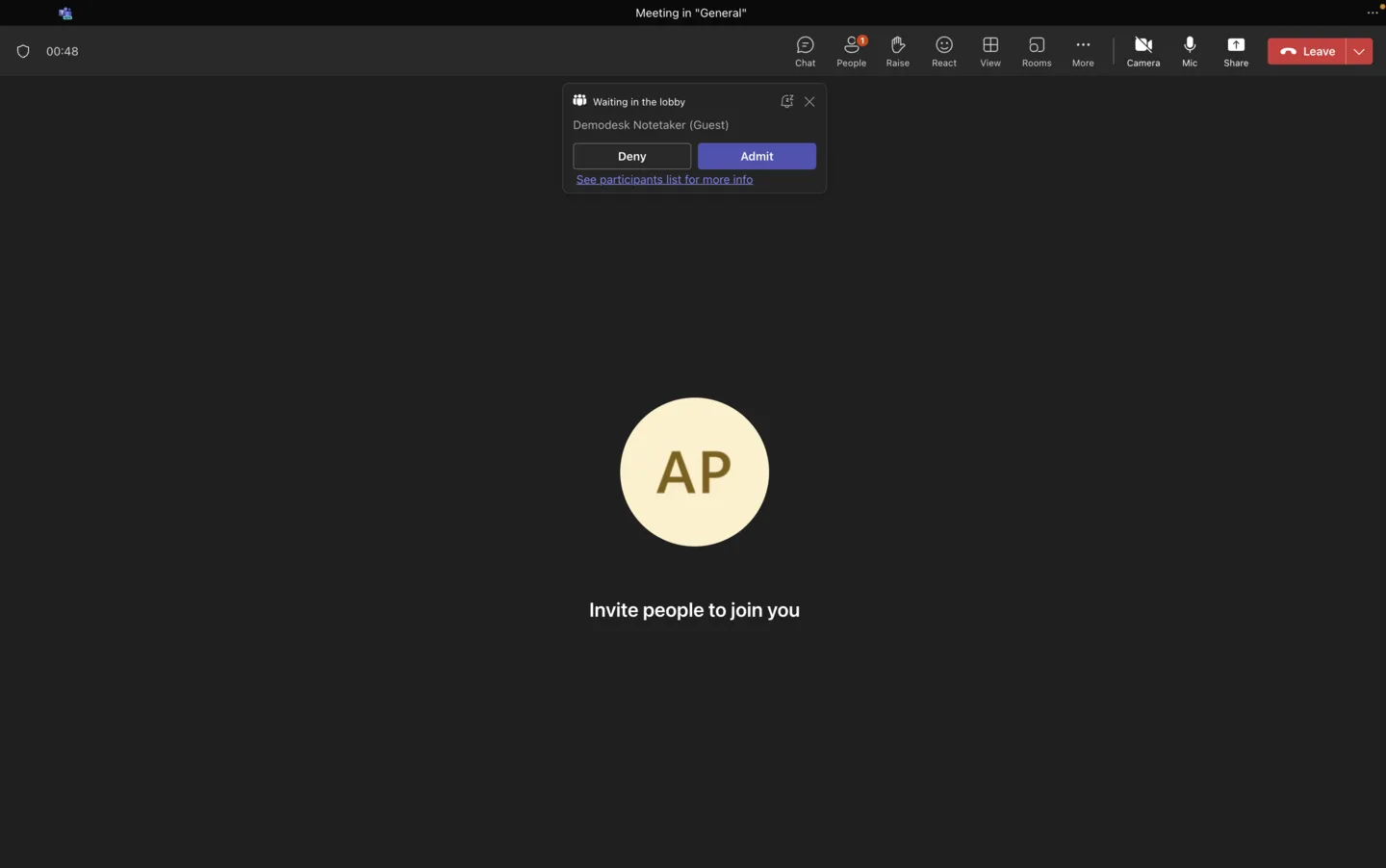
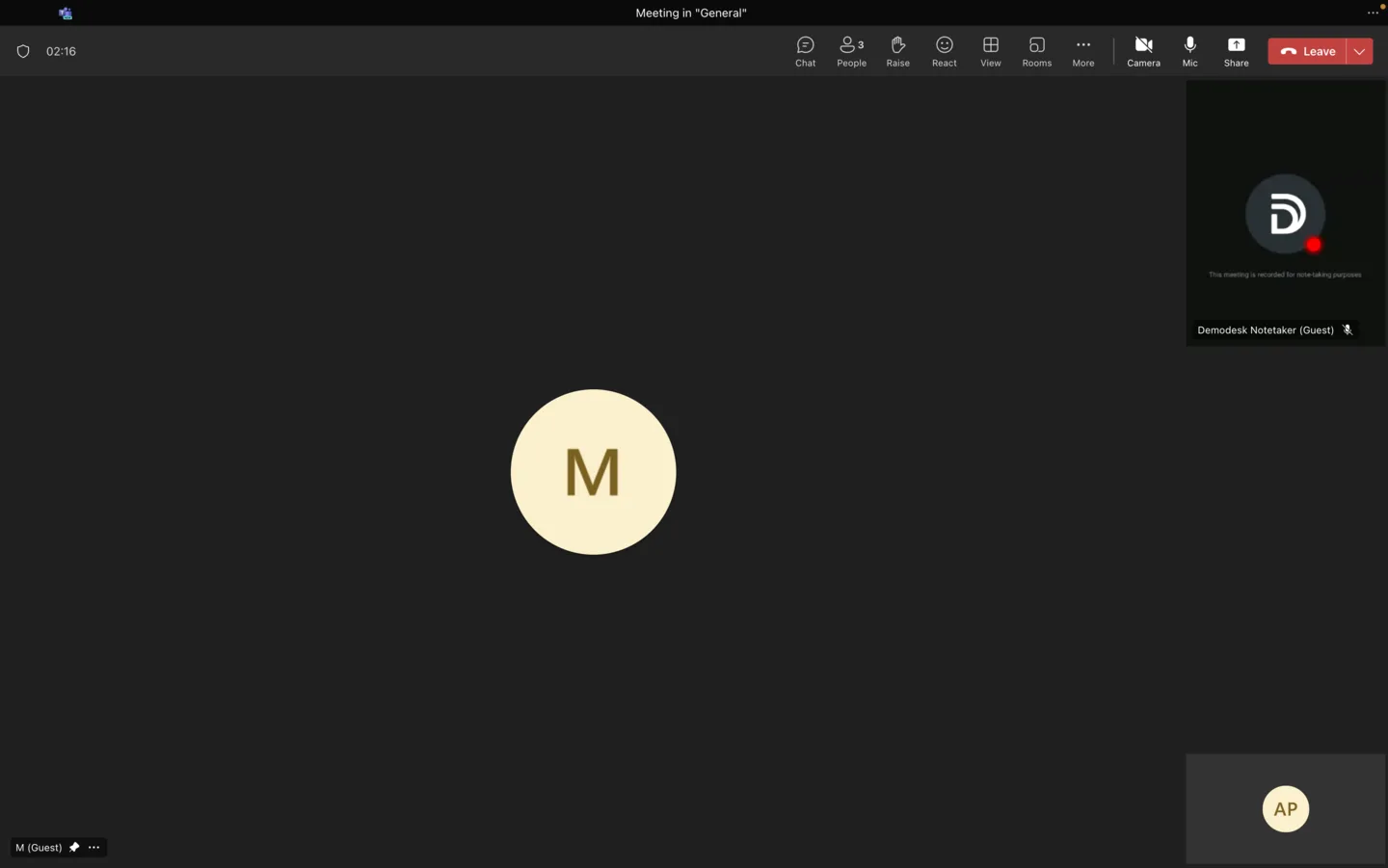
This is how the Demodesk Notetaker will appear in your Microsoft Teams meeting
How to record a meeting spontaneously
-
Open Demodesk and click Record meeting.

-
Get the meeting link from the calendar invite or through the Copy link functionality during the meeting.
Microsoft Teams
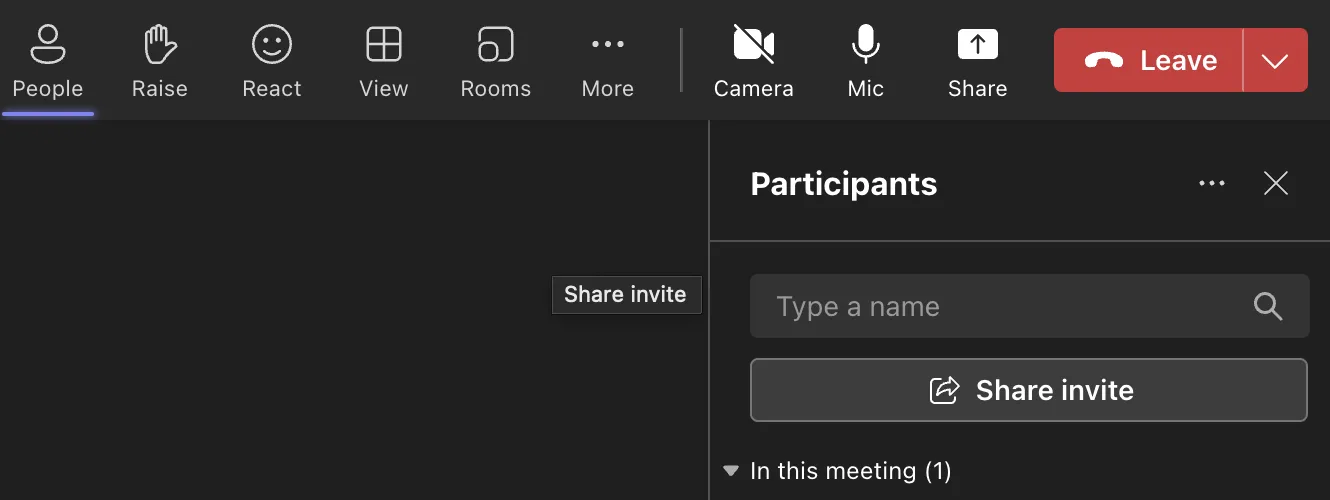
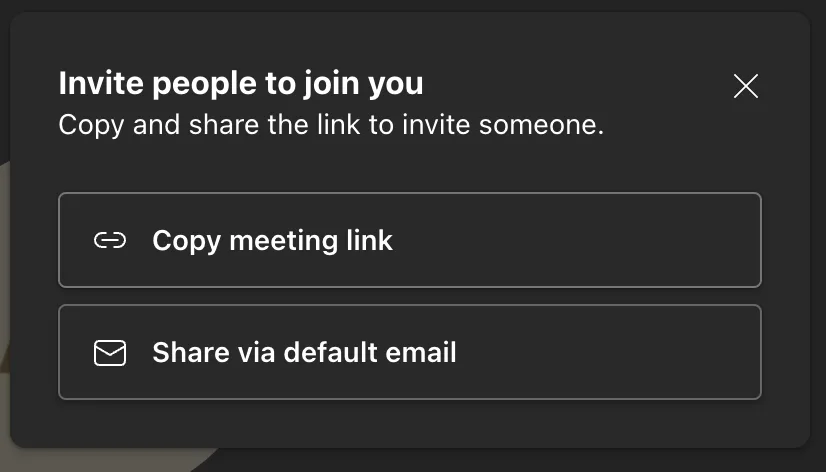
You can get the meeting link during the meeting, by clicking People > Share invite > Copy meeting link.In most cases, the link should look like this:
https://teams.microsoft.com/l/meetup-join/...Links from free Teams at teams.live.com work the same way as teams.microsoft.com links.
Google Meet
Copy the meeting link from your address bar.In most cases, the link will look like this:
https://meet.google.com/...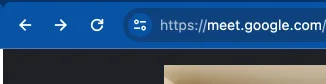
-
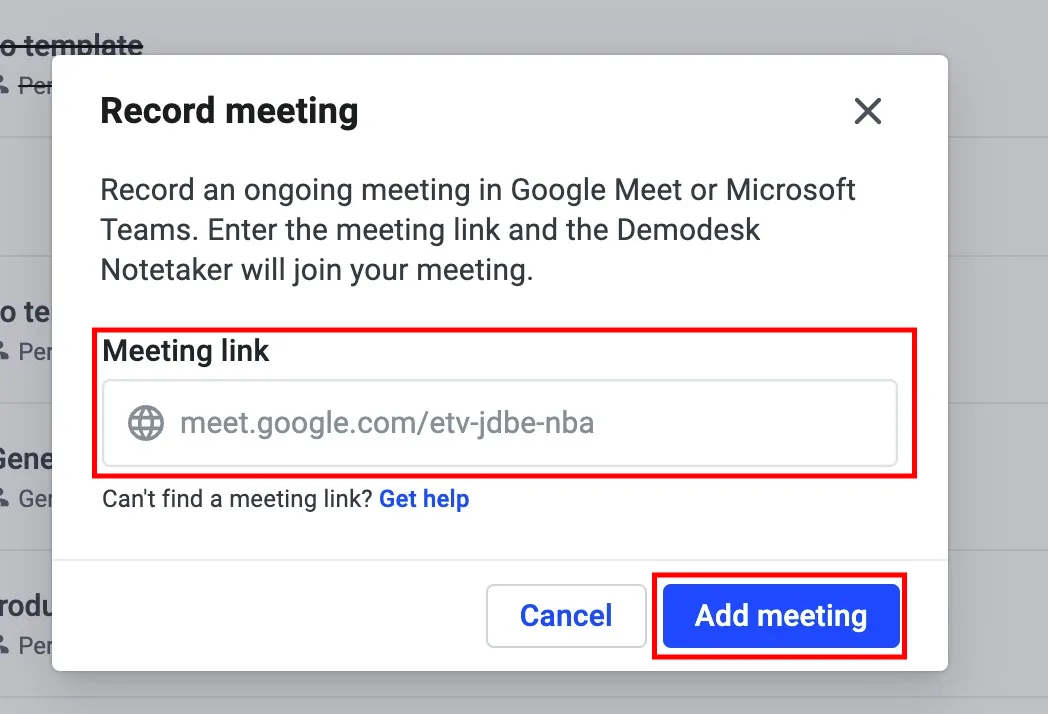
Paste the meeting link into the Meeting link field and click Record meeting in the dialog. The dialog then shows Your meeting is about to be recorded and the Demodesk Notetaker joins your meeting. This process can take up to three minutes. Admit the Notetaker from the lobby when it asks to join.
Import and Record meetings via email (alternative to calendar-based sync)
As an alternative to calendar sync, you can now import and record meetings simply by inviting your company’s dedicated email address as a participant. This is useful for meetings not scheduled via your connected calendar.
How it works
-
Add the email address (e.g.
demodesk-gmbh@agent.demodesk.com) as a guest to your meeting invite. (You'll see your company's dedicated email address in the preferences section)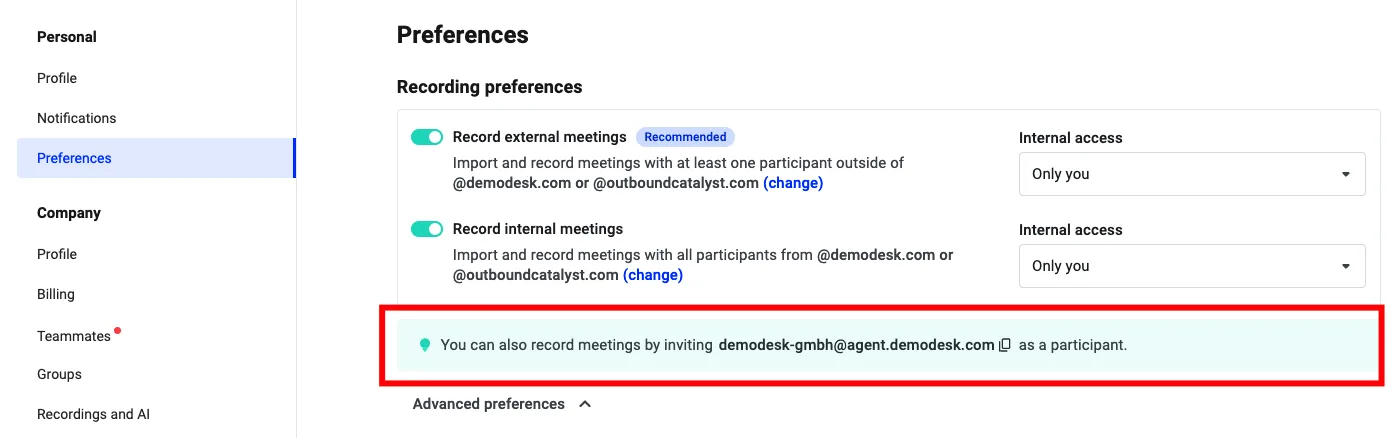
-
The meeting will automatically be imported and recorded in Demodesk.
-
You’ll see the recording and AI-generated notes as usual in your Demodesk workspace.
How to let the participants know about the Demodesk Notetaker?
Please ensure in your company settings that the feature GDPR Recording is enabled.
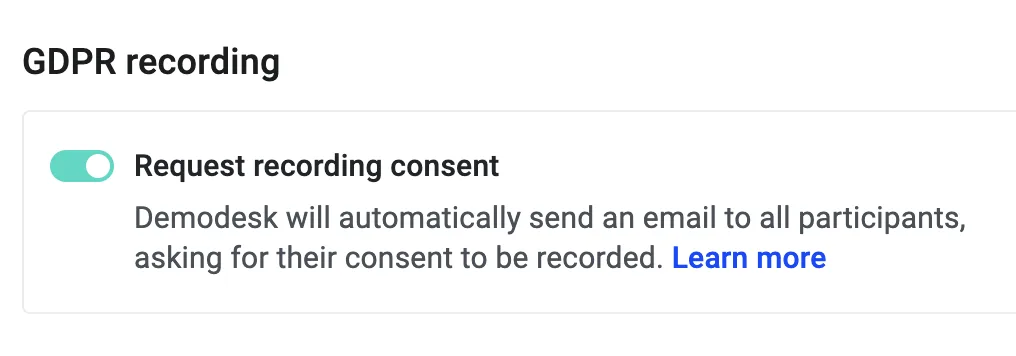
For every scheduled meeting, the Demodesk Notetaker will send an email to all participants one hour before the meeting notifying them that the meeting will be recorded and allowing them to decline consent. If a participant declines consent, then the Demodesk Notetaker will not join the meeting.
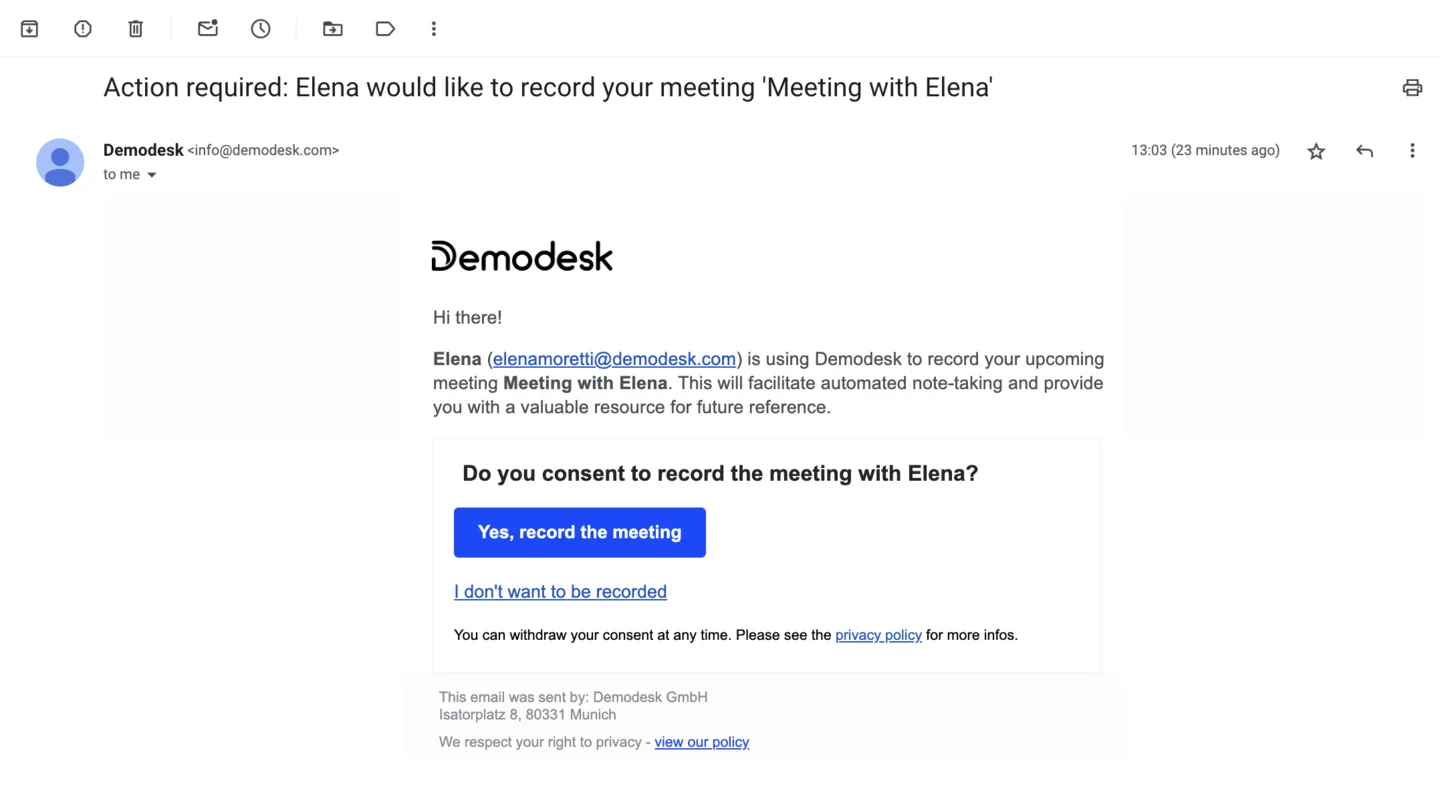
For good measure, we recommend that you inform your prospects and clients of the recording by letting them know about it at the very start of the meeting.
Throughout the meeting, there is a visible recording indicator in the camera feed of the Demodesk Notetaker.
Here's an easy example of how to introduce the Demodesk Notetaker organically in the beginning of the meeting:
Hi, I'd like to record our meeting using the Demodesk Notetaker so I can focus on our conversation. I can also share the recording with you afterwards. Is that fine with you?
How to customize the Notetaker?
To foster a seamless and branded experience during your meetings, Demodesk allows you to customize the Notetaker to match your company's identity.
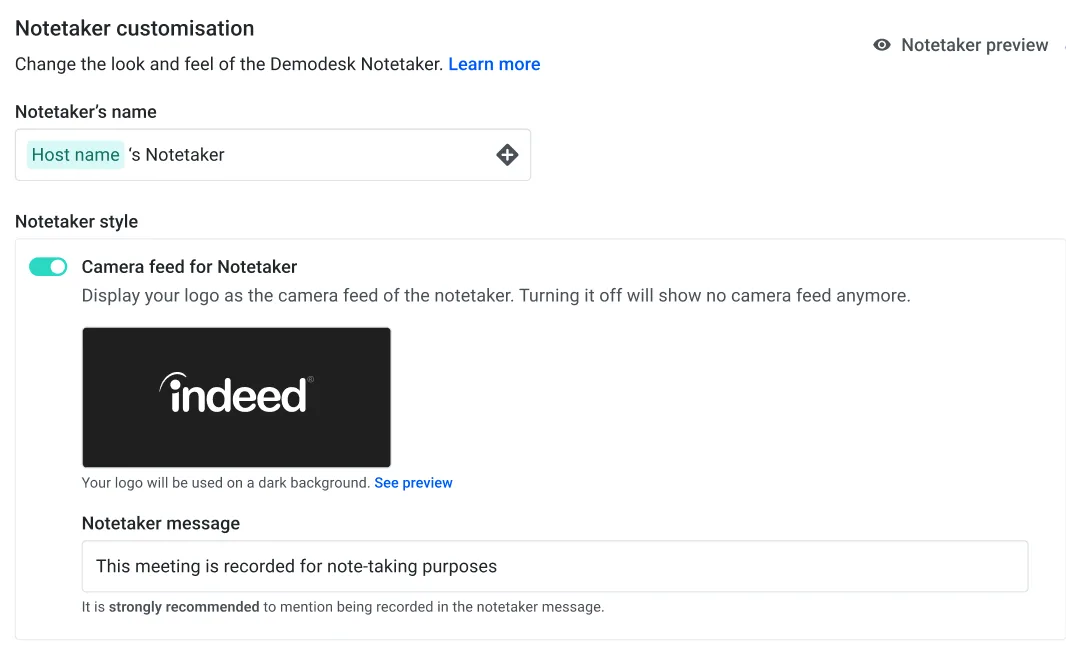
1. Access the Notaker customization: To begin personalizing your Notetaker, you navigate to the Recordings & AI settings.
2. Notetaker's name: By default, we take the name of the meeting host for the Notetaker (e.g. Marcel's Notetaker). You can also use it to reflect your brand. For instance, if your company's name is "Acme Corp," you might name your Notetaker "Acme's Assistant." This impacts the name that will be shown in Google Meet, Microsoft Teams, and Zoom.
3. Camera feed for Notetaker: This allows you to disable the camera feed for the Notetaker. If disabled, it will not have an image in the meeting anymore and will look like a participant with a disabled camera. In Microsoft Teams, it will mean the Notetaker will show up smaller.
4. Logo Upload: Click on the box to upload your company logo. We recommend using a logo with a transparent background for a cleaner look on the default dark background. For a polished look, changing the background color is not possible. Please note that the maximum file size allowed for the logo is 25MB, and supported file types include PNG and JPG. Avoid using images that are taller than they are wide, as this can cause the logo to appear smaller than intended. Additionally, minimize padding around logos to prevent them from becoming too small in the layout.
5. Notetaker message: Here, you can craft a message that will be displayed to all attendees, explaining the Notetaker’s function. You might say, “Please note, this meeting is being recorded to ensure accurate note-taking.” Make sure your message meets legal standards. It’s important to inform attendees about the recording and its purpose. Transparency fosters trust and aligns with best practices. Please note that this message's maximum number of characters is 130.
6. Notetaker preview: After you have made your customizations, use the "See Preview" link to view how the Notetaker will appear during the meeting. This helps ensure everything looks as expected before going live.
7. Save: Once you are satisfied with your settings and the preview, save your changes. Your customized Notetaker is now ready for use in your next Demodesk meeting.
Note: The “Unverified” label may appear for the Demodesk Notetaker in a Microsoft Teams meeting because external participants do not have a trusted relationship with the organizer.
How to Manage Your Meeting Recording Preferences
Within Demodesk, you have the option to record all meetings (Internal and External). Based on your personal preferences, you can change these settings from your account. Here is how you can access these settings:
Note: These switches cover meetings on Zoom, Microsoft Teams and Google Meet, which the Demodesk Notetaker records. Meetings held in Demodesk are not covered. Those are recorded through the Automatic recording option on a meeting type, which only an admin can change. See All about recordings in Demodesk.
-
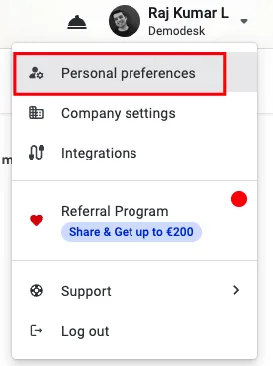
From your Demodesk dashboard, click on your profile at the top-right corner. From the dropdown that opens up, click on Personal Preferences
-
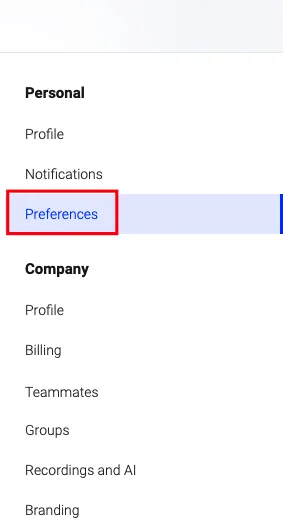
Click on the Preferences option from the list on the left
-
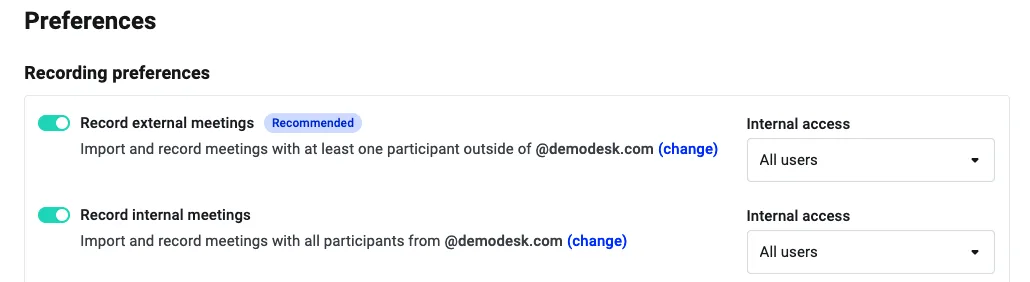
Once you select the Preferences settings, these toggle settings on the right will show up at the top:
Record External Meetings (Recommended)
What it does: This setting allows you to automatically record meetings with participants who are not on your company's Demodesk account. For example, all your meetings with prospects/customers or anyone not directly a part of your team or company will be classified and recorded as external meetings.
How to use it: Navigate to the ‘Recording Preferences’ section in your settings. Here, you'll find the toggle for 'Record External Meetings'. It's recommended to keep this feature turned on to automatically capture external interactions. When enabled, all your external meetings will be imported and recorded without any additional steps required.
Note: The Notetaker will automatically join these external meetings when this setting is enabled. It will check your connected calendars for scheduled meetings and import them to the Demodesk meeting overview automatically. This ensures that all meetings, whether scheduled through Demodesk or another platform, are centrally visible and managed within Demodesk.
The Notetaker will automatically join these external meetings when enabled in the settings. It will check your connected calendars for scheduled meetings and import them to the Demodesk meeting overview automatically. This ensures that all meetings, whether scheduled through Demodesk or another platform, are centrally visible and managed within Demodesk.
Record Internal Meetings
What it does: Enabling this setting will allow the platform to record meetings where all participants are from your organization (all your team members and people from your organization on your Demodesk account)
How to use it: Similar to external meetings, you can toggle on 'Record Internal Meetings' in the ‘Recording Preferences’. This ensures that all internal discussions are captured, which can be invaluable for keeping detailed records, for various purposes, training, or revisiting previous strategic meetings.
Record meetings where someone else is the organiser
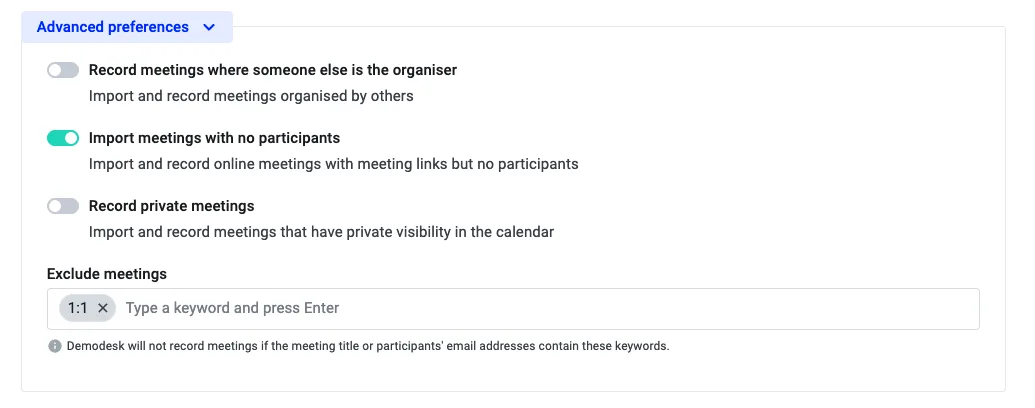
What it does: This setting decides whether Demodesk also imports and records meetings that someone else organized and invited you to. When it is off, only meetings you organize are recorded, and connecting your calendar alone is not enough for a meeting organized by someone else. Check this setting if meetings that a colleague organized are not recorded.
How to use it:
- Go to Settings, then Preferences under Personal.
- In the Recording preferences section, click Advanced preferences.
- Turn on Record meetings where someone else is the organiser.
Your other recording preferences still apply. The meeting also has to match your internal, external and private meeting settings and have a supported meeting link.
📝 Personal preferences for recording access always override company-wide settings. However, company settings define the default visibility for recordings
What happens when multiple internal users attend?
If the calendar organizer is an eligible Demodesk user, Demodesk imports the meeting for that organizer. This happens whatever Record meetings where someone else is the organiser is set to for the other invitees, provided the organizer’s own recording preferences allow the meeting.
If the organizer is not a Demodesk user and multiple internal Demodesk users are invited, Demodesk checks their email addresses in alphabetical order. Only the user whose email address comes first can import the meeting. That user must have Record meetings where someone else is the organiser turned on, and their other recording preferences must allow the meeting.
For example, anna@company.com is considered before david@company.com.
Import Meetings with No Participants
What it does: Enabling this setting allows the platform to import and record meetings that have a meeting link but no participants.
How to use it: Similar to other recording preferences, you can toggle on 'Import Meetings with No Participants' under the Advanced Preferences section. This ensures that all scheduled meetings, regardless of participant attendance, are automatically imported and recorded.
Use-case Example: In HR scenarios, some scheduling tools create two separate events for interviews—one for the interviewer and one for the interviewee. By enabling the 'Import Meetings with No Participants' setting, both events will be imported and recorded, even if one or both attendees haven't joined. This ensures all relevant meetings are captured, even without active participants.
Exclude Meetings
What it does: This setting allows you to define keywords that prevent the Notetaker from joining certain meetings. If a meeting title or a participant's email address contains any of the specified keywords, the Notetaker will automatically skip that meeting.
How to use it: Under the Advanced Preferences section, find the Exclude meetings field. Type a keyword and press Enter to add it. You can add multiple keywords. For example, adding "1-1" will prevent the Notetaker from joining any meeting with "1-1" in the title.
Use-case example: If you want to keep your internal 1-on-1s unrecorded, simply add "1-1" as a keyword. The Notetaker will skip those meetings automatically without you having to manually turn off recording each time.
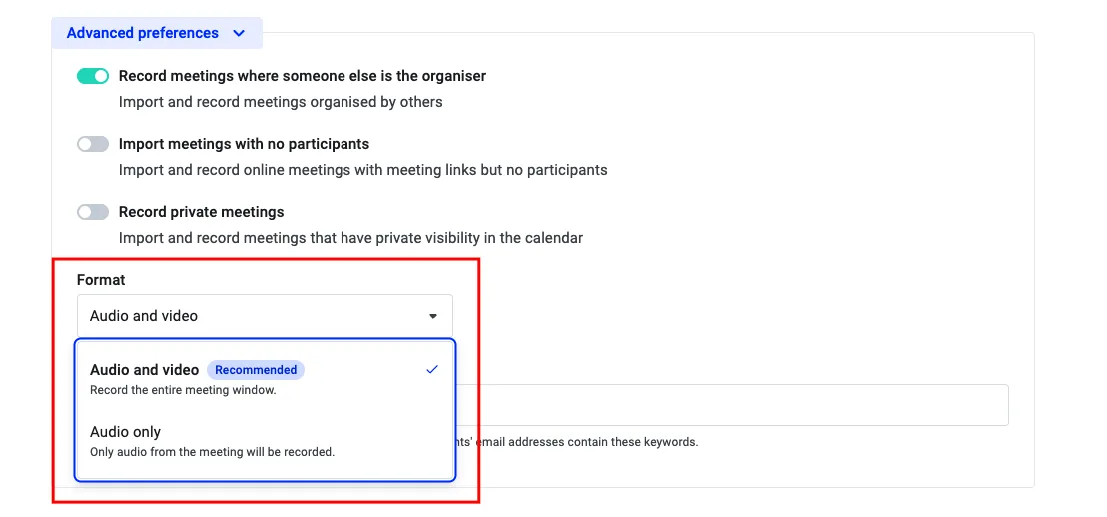
Recording Format
You can alsochoose the format in which your meetings are recorded
- Audio and video (Recommended) — Records the entire meeting window including video
- Audio only — Only the audio from the meeting will be recorded
Record individual meetings
Additionally, Demodesk allows you to seamlessly turn the recording feature on or off for individual meetings making it easier to decide and action on the go. Within your dashboard, you will see a Record Meeting button, indicated by a tiny circle, that can be toggled on/off for a particular meeting.

When you click on the button for this particular meeting, it will be set to record:

Similarly, when you click on it again, the recording for his particular meeting will be turned off.
Should you have any questions or require further assistance, please do not hesitate to contact our support team.
FAQs
How do I stop the Notetaker from recording a meeting?
There are two ways, depending on whether you want to skip one meeting or every meeting of a kind.
One meeting
- Open your meetings dashboard and find the scheduled meeting.
- A meeting that is set to be recorded shows a Rec label with a small circle. Move your mouse over the label and click Do not record.
- The label turns into a Record meeting button. Click it if you want the meeting recorded after all.
You can do this for your own meetings. Managers and company admins can also do it for the meetings they see in their list.
Every meeting with a certain word in it
For recurring meetings such as 1:1s, keywords are the better choice, because you set them once.
- Click your profile at the top right and open Personal preferences.
- Open Preferences under Personal and go to the Recording preferences section.
- Click Advanced preferences.
- In the Exclude meetings field, type a keyword and press Enter. You can add as many keywords as you need.
Demodesk then skips a meeting when the keyword appears in the meeting title, in the organiser's email address or in a participant's email address. Capitals do not matter, and part of a word is enough.
A new keyword also applies to the meetings that are already in your list, so upcoming meetings matching it are no longer set to be recorded. Saving a recording preference re-applies all your preferences to your upcoming meetings, so a single meeting you switched on or off by hand follows your preferences again. Recordings that already exist are not affected.
Why does the Notetaker join late, and can it join earlier?
The Demodesk Notetaker asks to join at the scheduled start time of the meeting, up to 20 seconds before it on Google Meet, Zoom and Webex and right on time on Microsoft Teams. It does not wait for you to arrive, and there is no setting that makes it join earlier.
What usually looks like a late join is the waiting room. If your meeting has a waiting room or a lobby, the Notetaker waits there for up to 8 minutes until someone in the meeting admits it, and it only shows up as a participant after that. Admit it as soon as you see the request, and the recording starts from that moment.
If a meeting is already running, you do not have to wait for the next one. Use the Record meeting button on your meetings dashboard with the meeting link, as described in the next question. Joining this way can take up to three minutes.
How do I get the Notetaker into a meeting I have a link for?
You do not need a calendar event. Paste the link into the Record meeting dialog and the Demodesk Notetaker joins the meeting, even if it is already running.
- Open your meetings dashboard and click Record meeting.
- Paste the link into the Meeting link field.
- Click Record meeting in the dialog.
- The dialog shows Your meeting is about to be recorded. Admit the Notetaker from the lobby when it asks to join.
You can paste a Google Meet, Microsoft Teams or Zoom link. Microsoft Teams links work whether they come from teams.microsoft.com or from free Teams at teams.live.com.
Which email address do I invite to record a meeting?
There is no general Demodesk address. Every company has its own address, and it only works on the Coaching & AI and Capture plans.
- Click your profile at the top right and open Personal preferences.
- Open Preferences and go to the Recording preferences section.
- Your company's address is in the line "You can also record meetings by inviting ... as a participant". Click the address to copy it. It looks like
your-company@agent.demodesk.com. - Add it as a guest to the calendar invite before the meeting starts.
If the meeting is already running, use the Record meeting button on your meetings dashboard instead, paste the meeting link into Meeting link and click Record meeting. The Notetaker can join an ongoing meeting, so you do not have to start a new one.
How do I tell Demodesk which email domains are internal?
Someone with the Admin role sets this in Settings, under Company > Recordings and AI, in the field Internal E-Mail domains. The page is available on the Coaching & AI and Capture plans, and only someone with the Admin role can open it.
- Open Settings and click Recordings and AI under Company.
- Click into the Internal E-Mail domains field.
- Type one domain, for example
company.com, and press Enter. Repeat for every domain your colleagues use, including addresses such ascompany.onmicrosoft.com. - Click Save.
A meeting is classified as internal when every guest's email address ends in one of the listed domains or in the host's own email domain. All guests have to match, so a single guest on any other address makes the whole meeting external.
Each entry has to be the exact domain. company.com does not cover mail.company.com, so add that subdomain as its own entry.
Your change applies to meetings that reach Demodesk after you save. Meetings that are already in Demodesk keep the internal or external classification they have.
Where is the data hosted?
All data is processed within the European Union.
When is the recording available?
Recordings via Demodesk's Notetaker are available instantly.
How can I activate Demodesk's Notetaker?
You can enable Demodesk's Notetaker through your account manager.
Will I get the summary if a colleague's notetaker recorded the meeting?
The recap follows the setting of the colleague whose notetaker recorded the meeting, not your own setting. Meeting Recap explains what each option sends to colleagues and where you can read the summary in Demodesk.
Does Demodesk record the chat of a meeting?
No. In a Google Meet, Microsoft Teams or Zoom meeting, the Demodesk Notetaker records the audio and the video of the call. It does not collect the chat of that meeting, so chat messages are not part of the recording, the transcript, the meeting summary or the AI features.
The chat of a meeting held in Demodesk is not recorded either. See How to chat with my participants in a meeting.
Is Demodesk secure?
Demodesk prioritizes security, employing robust technical and organizational measures. These include encryption of recordings, both at rest and in transit, along with authorization and log monitoring, restricted access to recordings, and comprehensive physical and IT security protocols.
Why did the Notetaker leave my meeting?
The Notetaker will automatically leave your waiting room if it isn’t admitted within 8 minutes. It may also exit a meeting if it detects that no participants are present. For example, if the host is completely silent, the system might mistakenly assume the meeting is empty.
If this happens, you can simply re-invite the Notetaker by using the “Record meeting” feature again.
Troubleshooting: Why the Notetaker Might Not Join
-
Internal/External Meeting Settings & Email Domain Classification: Your calendar event might not match your chosen internal or external recording settings. Verify that your meeting aligns with your Recording Preferences (e.g., Record Internal Meetings, Record External Meetings), and ensure that every domain your colleagues use is listed in the Internal E-Mail domains field in Settings > Company > Recordings and AI. If a domain isn’t listed or is added incorrectly, Demodesk could misclassify the meeting, and the Notetaker won’t join. See the FAQ “How do I tell Demodesk which email domains are internal?” above.
-
No-Participant Meetings: By default, Demodesk won’t import a meeting if no participants are added to the event. To include these events, make sure to enable the Import Meetings with no participants toggle here in the Advanced Preferences.
-
Event is Marked Private: Private events are excluded by default. If you want to record a private event, you can make the event public on your calendar.
-
Missing or Unsupported Meeting Link: A valid Google Meet, Microsoft Teams, or Zoom link must be present. If the link is missing, Demodesk cannot import the event.
-
Event Organizer Not a Demodesk User: If the meeting organizer is not a Demodesk user, and nobody has Record meetings where someone else is the organiser turned on, the Notetaker will not join.
Consider turning on Record meetings where someone else is the organiser if you’d like the Notetaker to join meetings organized by non-Demodesk users.
-
Different or Secondary Calendar: The event might be on a different calendar than your main one. Demodesk only imports events from the one it is connected to here.
-
Unhealthy or Non-Functioning Calendar Connectivity: Even if you initially granted permission, the connection between Demodesk and your calendar may have lapsed. Please try reauthorizing your calendar in Account Settings to make sure you have a healthy link.
-
Mixed Google & Outlook Connections: If you have both Google and Outlook connected, Demodesk can only be set to import from your main default calendar (selected by you here).
-
Outlook On-Premise or Missing Licenses: If your Outlook account is hosted on-premise or lacks proper permissions/licensing, Demodesk may not be able to import your events. Confirm that your Outlook setup is cloud-based (Microsoft 365) and that you have the right licenses to integrate with Demodesk.
Tip: The Notetaker can also join ongoing meetings if added manually.
Related articles
More in this category
Still need a hand?
Our support team answers in the app chat, or at support@demodesk.com.