Connect a Zoom personal room for Demodesk Scheduling
Updated July 28, 2026
This connection is only for Demodesk Scheduling. To record and transcribe Zoom meetings with Coaching & AI, use the Zoom Notetaker integration instead.
Now you can use the Demodesk capabilities with your favorite videoconferencing product. All you need is your personal room link in Zoom and we show you how to get it in 7 simple steps.
-
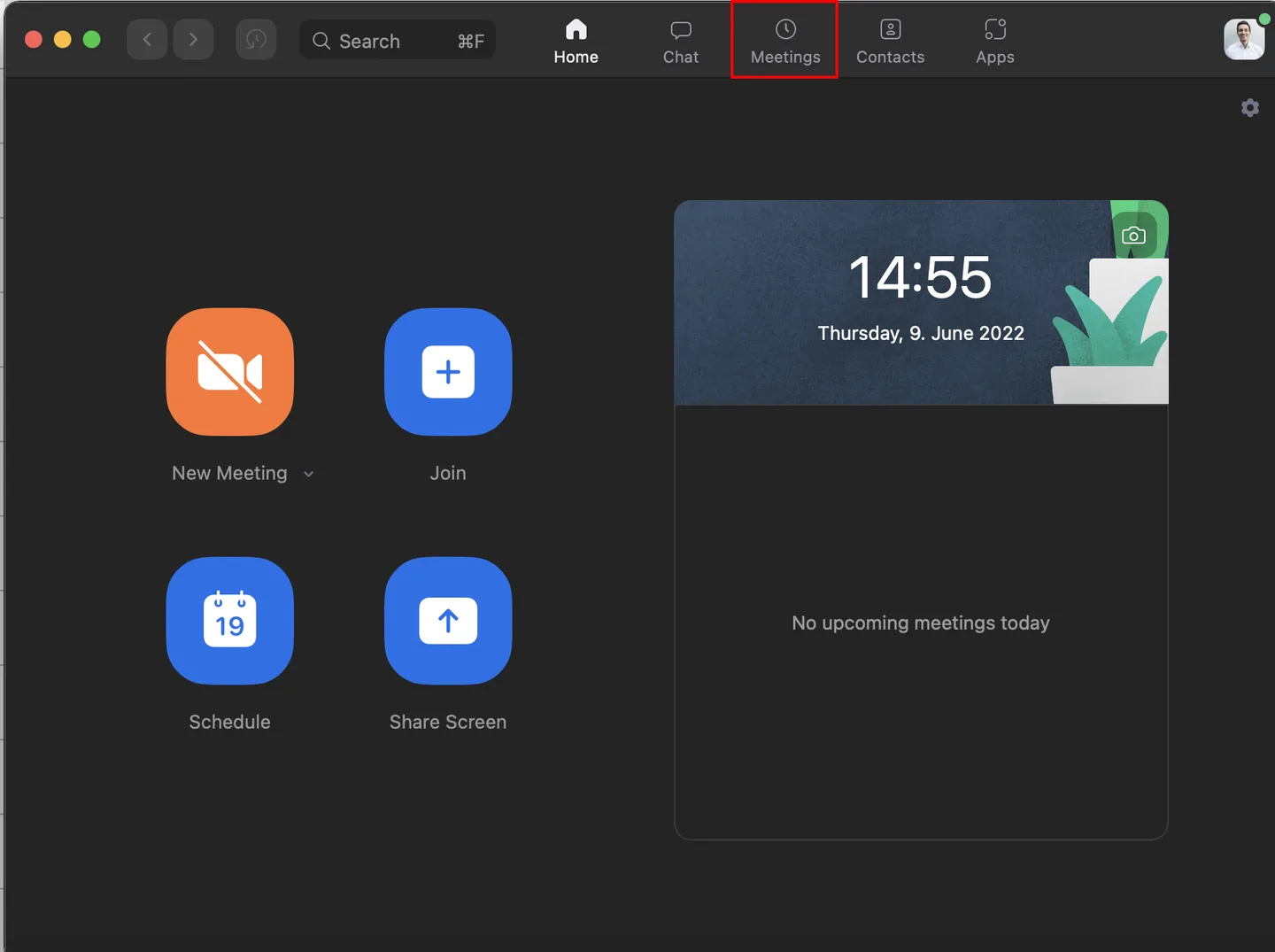
Navigate to the Zoom application and click on "Meetings":
-
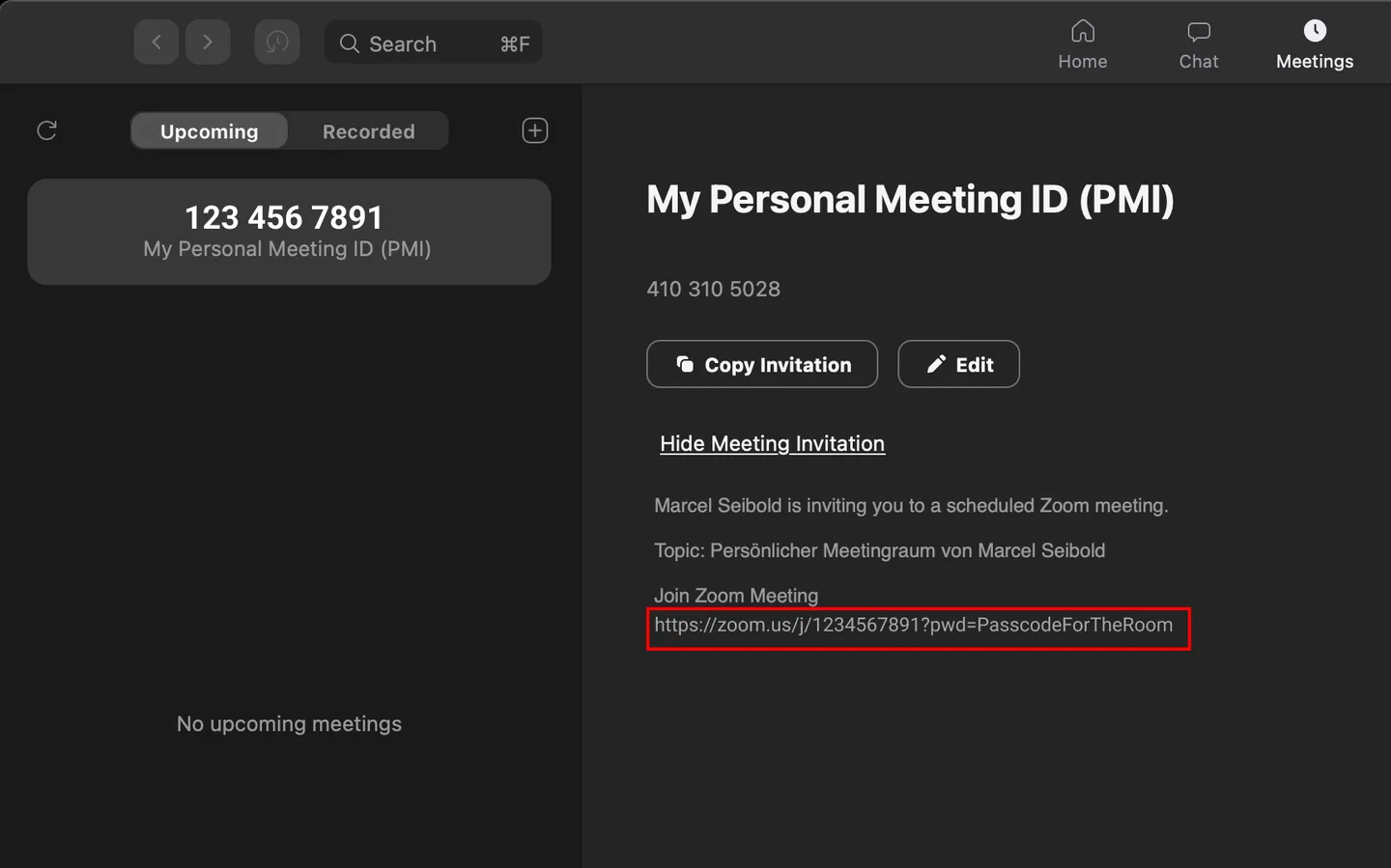
In the Meetings section, locate "My Personal Meeting ID (PMI)" and click "Show Meeting Invitation".
-
Copy the link under “Join Zoom Meeting”:
-
Go to your Demodesk connections settings. You need to scroll down to "Video conferencing". Click "Connect":

-
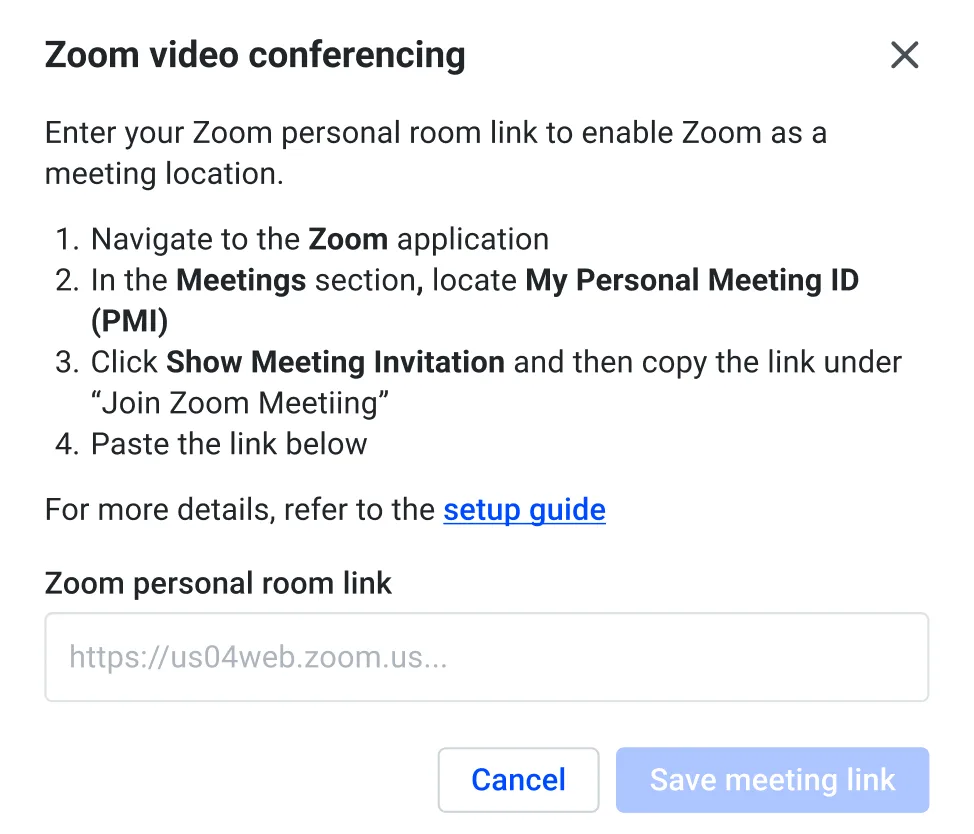
Paste the link into the modal that opens:
-
Update meeting type to use Zoom as the meeting location. Then every meeting scheduled will use the Zoom personal room link from the host.
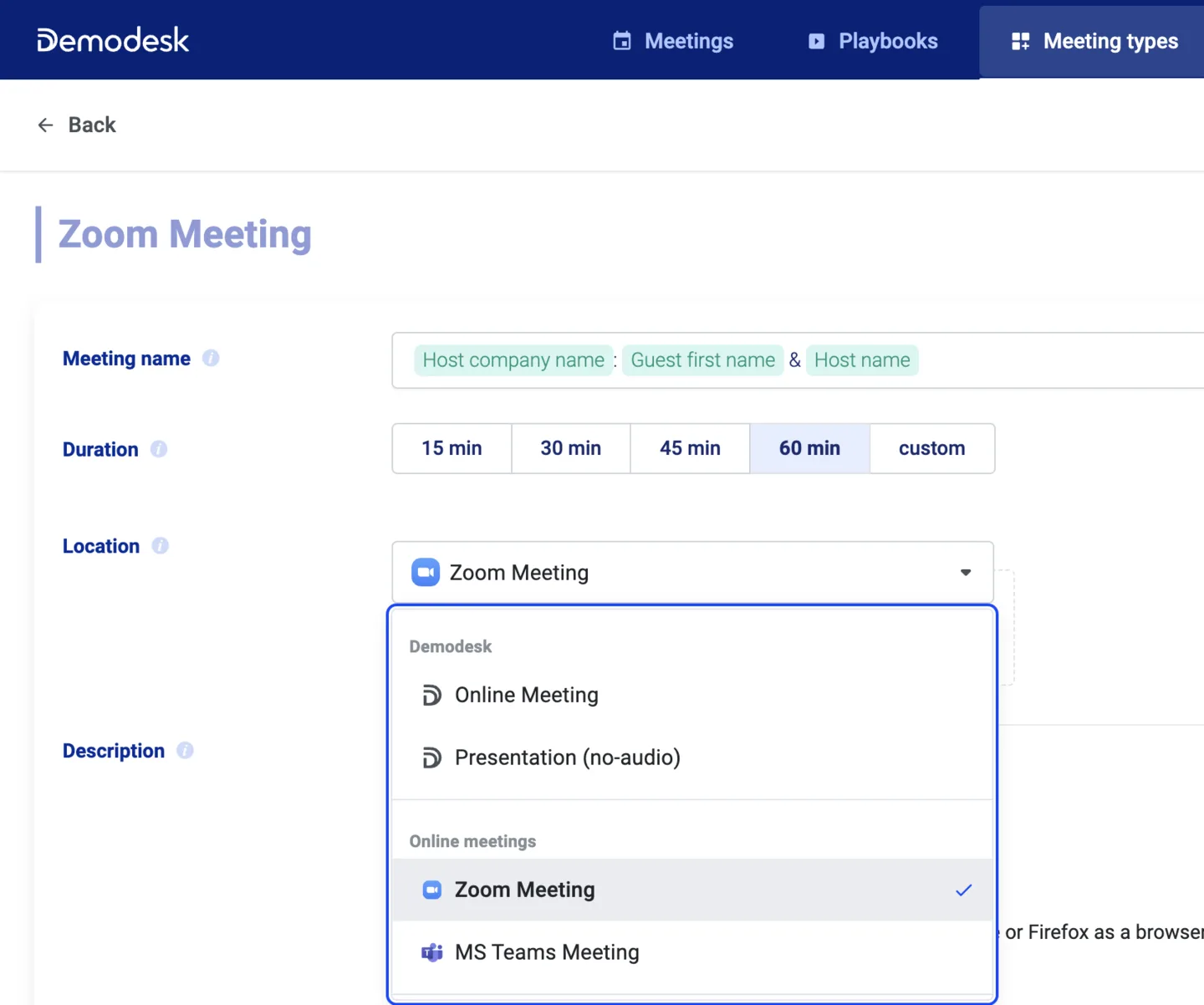
- Make sure you remove any tokens related to the meeting from your calendar description, email invites, and reminders (e.g. Meeting location, Host lobby link). They would be empty otherwise.
Related articles
More in this category
Still need a hand?
Our support team answers in the app chat, or at support@demodesk.com.