Automatically Fetch Transcripts from Demodesk Using n8n
Updated September 23, 2025
On this page
If you're using n8n for workflow automation, you can automatically receive meeting transcripts from Demodesk whenever a recording is processed.
What You’ll Need
- An active Demodesk admin API key
- Access to n8n
- A workspace where recordings + transcription are enabled in Demodesk
Step-by-Step: Get Transcripts from Demodesk into n8n
1. Set Up the Webhook Trigger in n8n
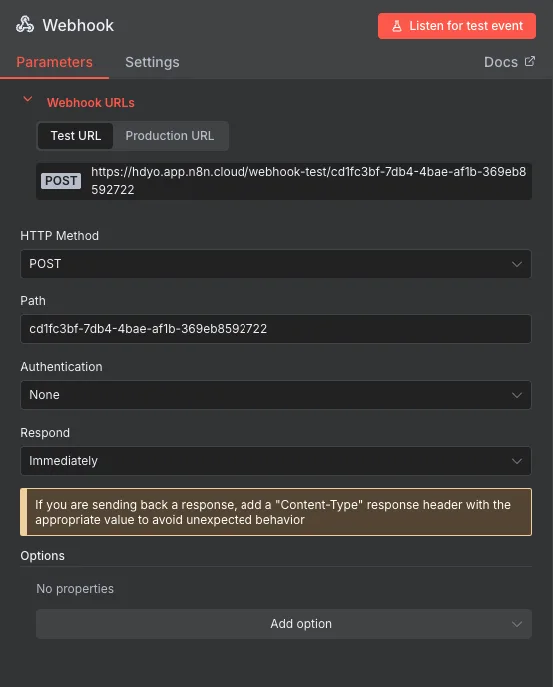
- In your n8n canvas, create a new workflow
- Add a Webhook node
- Set HTTP Method to
POST - Leave authentication set to None
- Set HTTP Method to
- Copy the Production URL from the Webhook node and share this with Demodesk so they can set up the Webhook for you.
2. Fetch the Transcript via HTTP
- Add an HTTP Request node after your Webhook
- Configure it as follows:
| Field | Value |
|---|---|
| Method | GET |
| URL | https://demodesk.com/api/v1/recordings/{{ $json["body"]["data"]["attributes"]["token"] }}/transcript |
| Authentication | None |
| Send Headers | ✅ Yes |
| Headers | api-key → your API keyAccept → text/plain |
| Response Format | String |
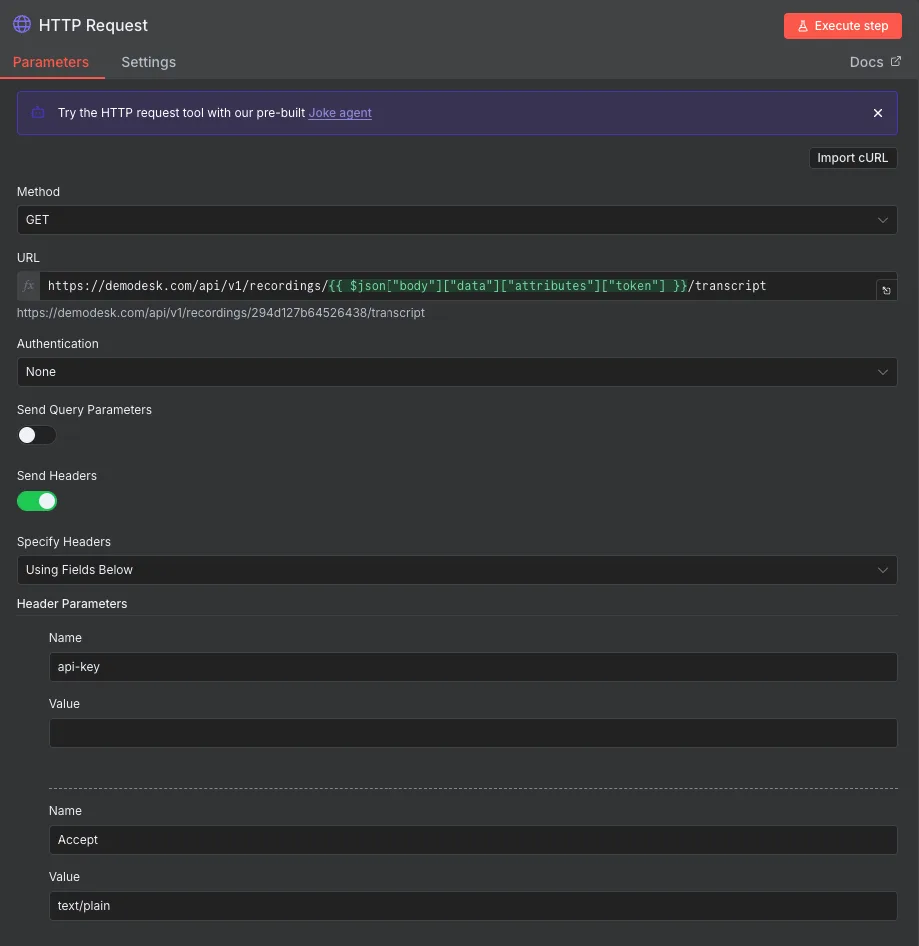
This pulls the plain-text transcript of the meeting that just finished.
4. What Happens Next?
Once you receive the transcript, you can:
- Store it in Google Drive, Notion, Dropbox, Airtable, etc.
- Send it via Slack, email, or any other app
- Convert it into a
.txtfile usingConvert to File
The output from the HTTP node ($node["HTTP Request"].text) contains the full transcript.
💡 Example Use Cases
- Upload each transcript to a Dropbox folder with the meeting name
- Push the text into Notion or Google Docs for internal review
- Trigger a Slack alert if certain phrases are detected in the transcript
Common Issues
Webhook not firing?
- Make sure the meeting is recorded and the transcript feature is enabled
API key errors?
- Use an Admin-level API key
Still Need Help?
If you’re unsure how to proceed or if you’re getting errors, reach out to our Support Team.
Related articles
More in this category
Still need a hand?
Our support team answers in the app chat, or at support@demodesk.com.