PowerPoint integration
Updated February 6, 2024
On Demodesk, you have multiple ways to integrate PowerPoint presentations: uploading a PPTX directly in a playbook, adding a PowerPoint link in playbooks (using the virtual browser), or presenting them as PDFs. This article will provide a comprehensive guide to these options:
Use PowerPoint in a playbook
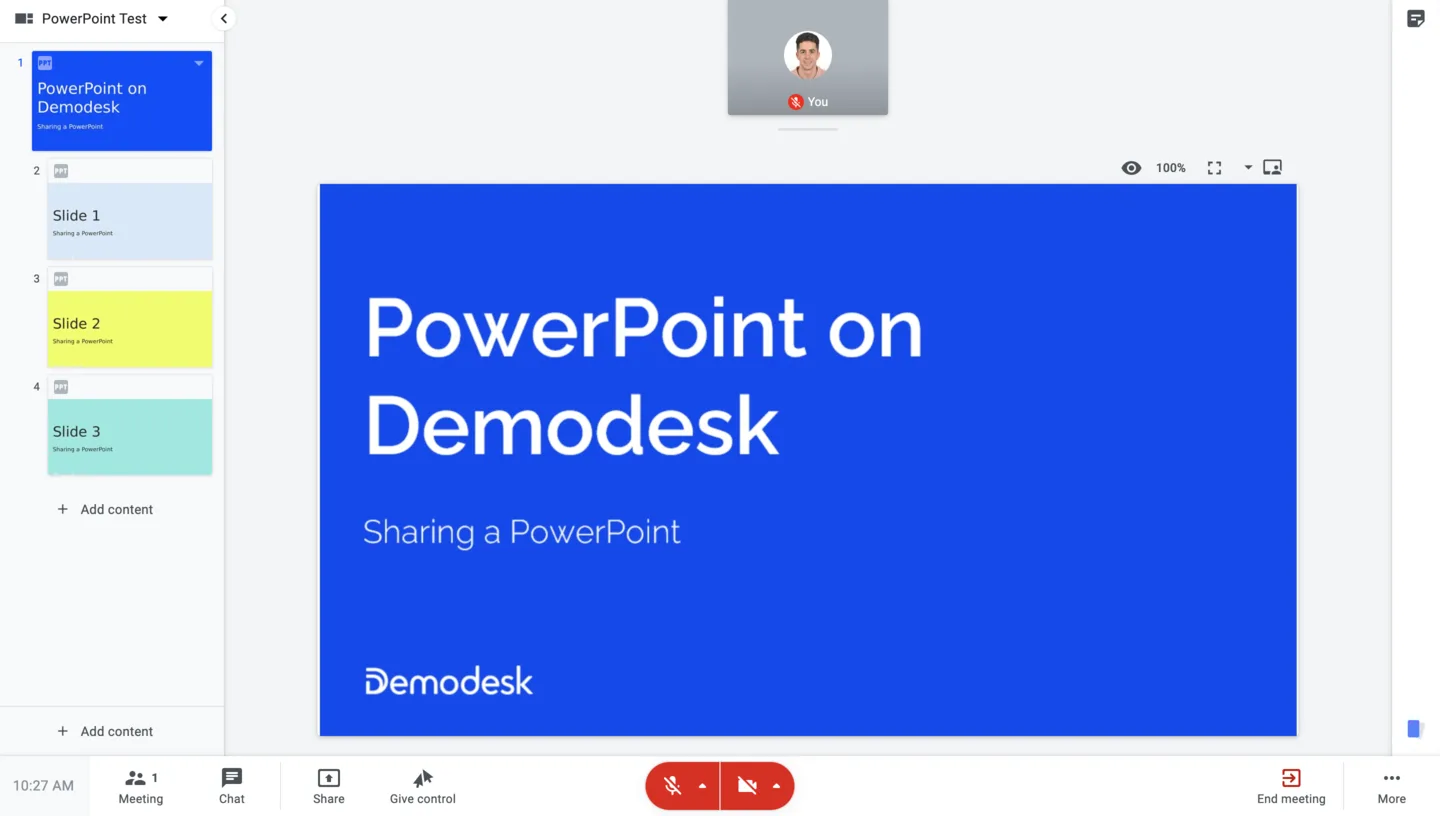
One way to deliver a PowerPoint presentation during a meeting is by including it in a playbook, by uploading it as a document, as demonstrated below. This allows you to include notes for each slide, providing valuable support during your conversation with the customer, eliminating the need for multiple screens or constant switching between notes and the presentation. Please note for this approach there is a file size limit of 25 MB. A recommended option is to always compress your PowerPoint presentation to reduce the file size.
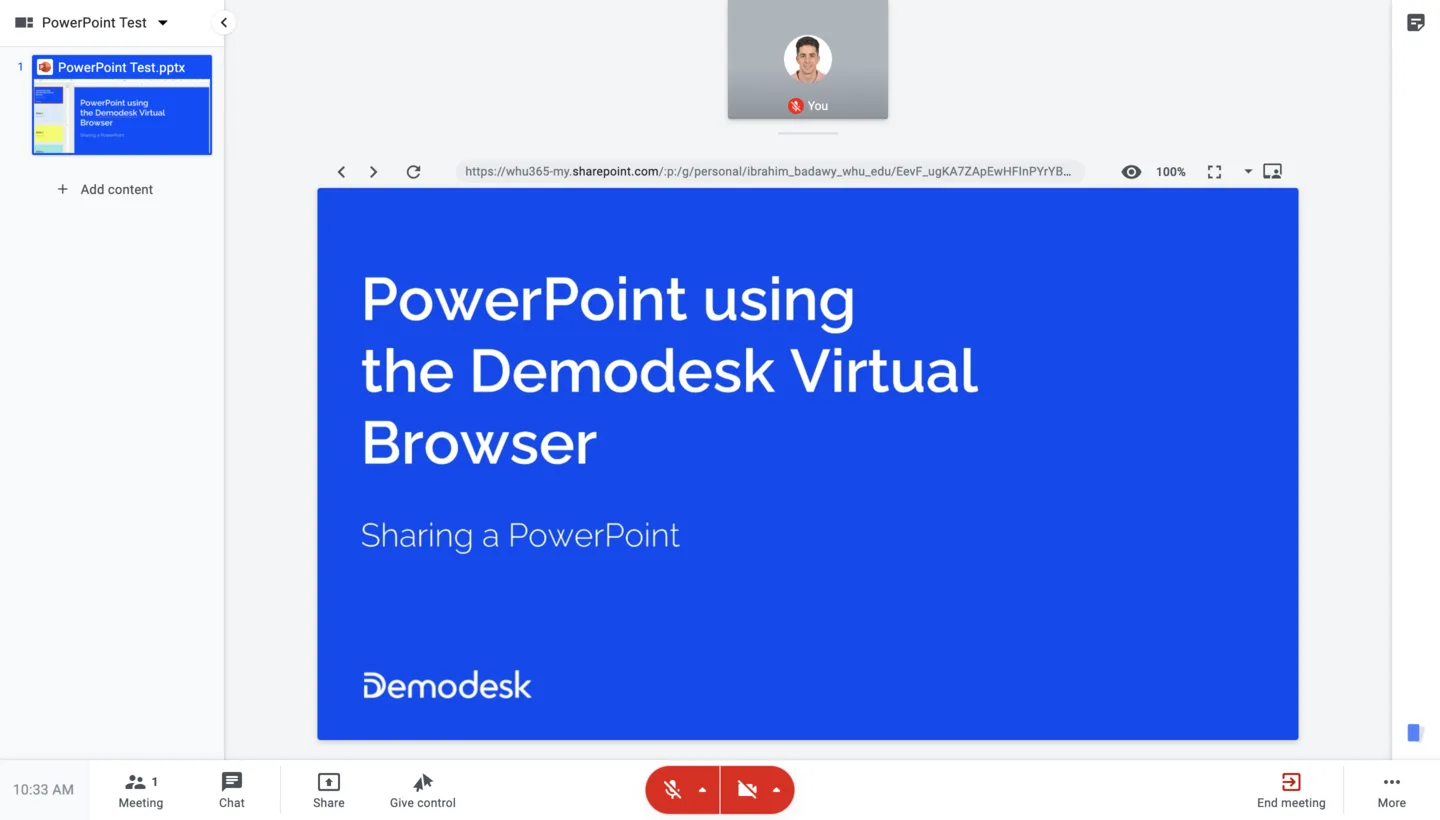
With this method, the PowerPoint presentation will appear as follows during a Demodesk meeting:
Add a PowerPoint link in a playbook
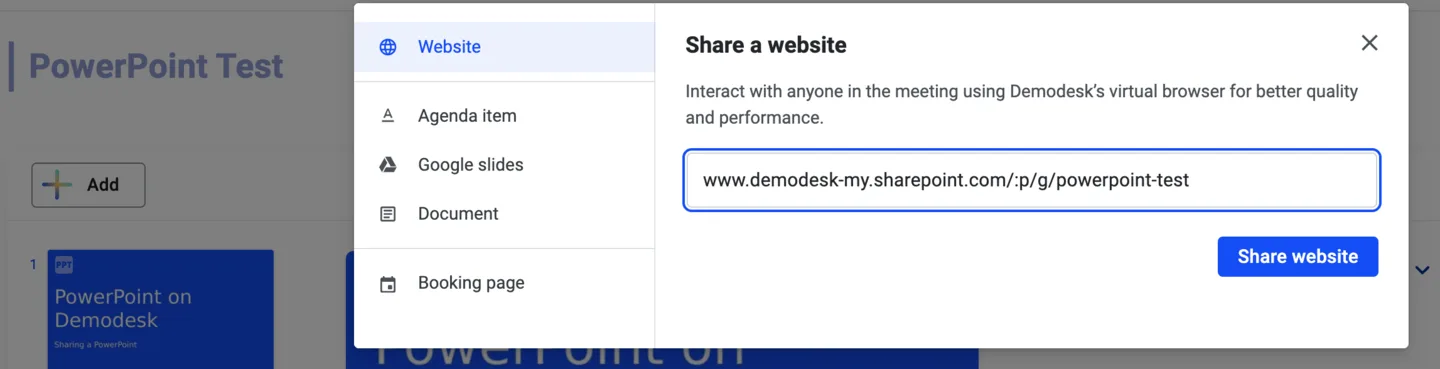
Another approach is to integrate the PowerPoint presentation as a web link directly into the playbook. For instance, you can utilize a SharePoint or Google Drive link, as illustrated below. This method improves reliability and ensures that your playbooks remain current without requiring manual updates. In addition, this option enables you to activate the Demodesk interactivity feature with your guests.
ℹ️ Please note: If you haven't added a presentation link to a playbook and you're already in a meeting, there's no need to worry. You can use the Demodesk Virtual Browser to share presentations during the meeting by simply using the link, such as a SharePoint link as well.
Using this method, the PowerPoint presentation will appear as follows during a Demodesk meeting:
Share a PDF
If you prefer to present the PowerPoint deck as a PDF, Demodesk offers this option as well. You can achieve this through the "Upload a Document" section within a playbook, as depicted below. This feature supports PDF, PPTX, and JPG formats. Please note that animations are not supported in PDFs.
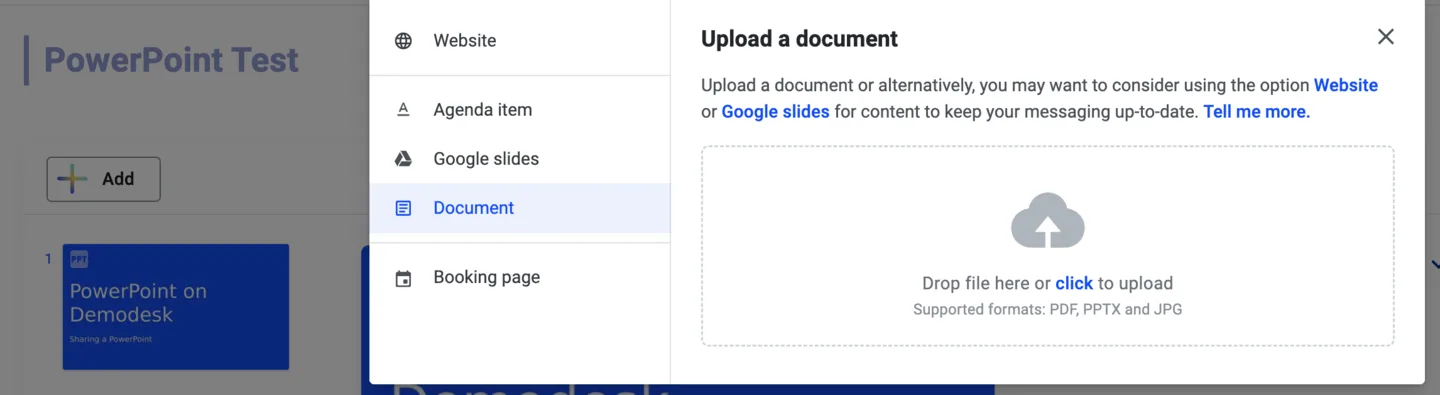
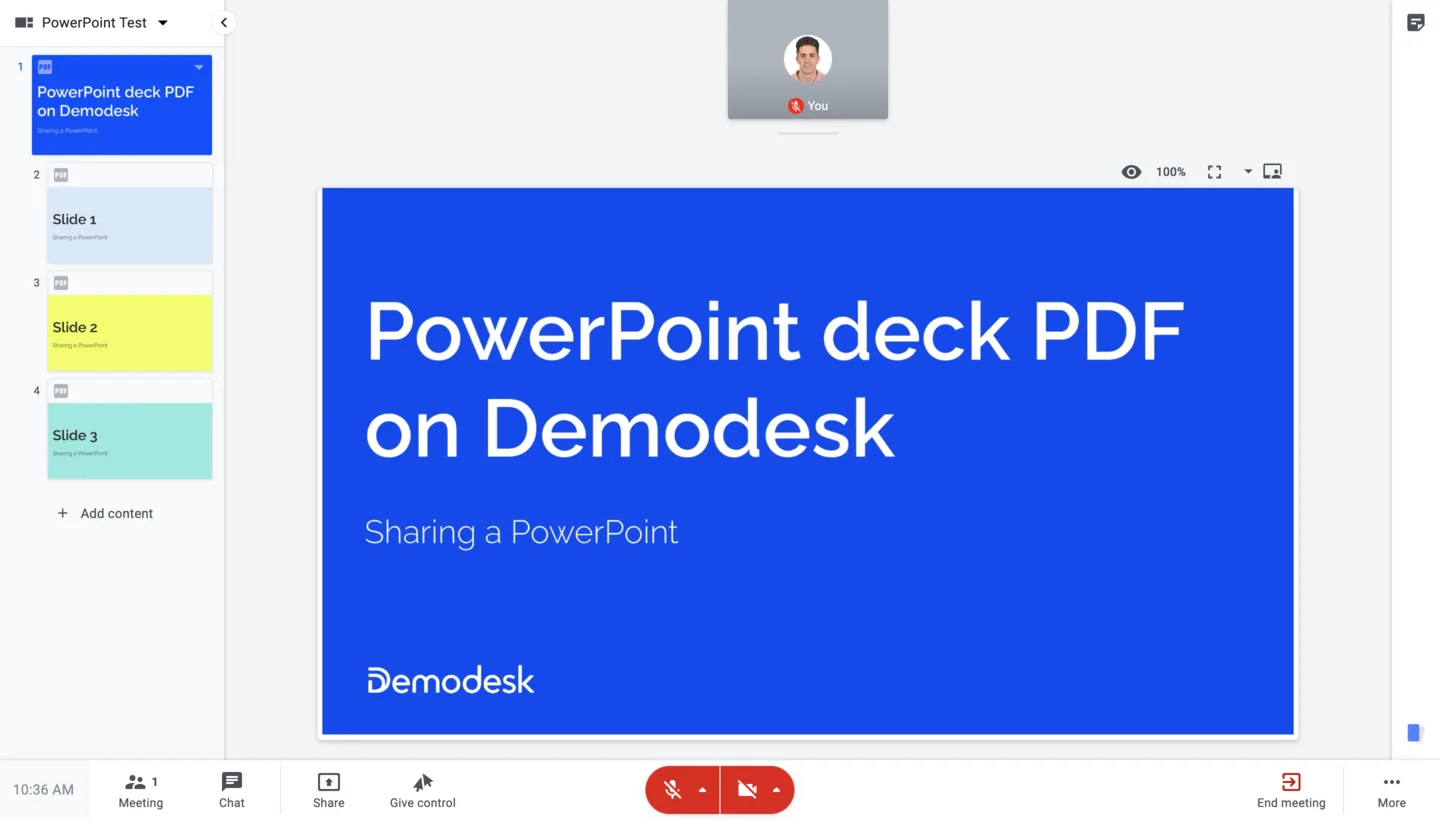
During a Demodesk meeting, this approach will appear as follows:
ℹ️ Please note: While it's not our recommended method, you do have the option to share your local desktop to present a PowerPoint during a meeting.
Related articles
More in this category
Still need a hand?
Our support team answers in the app chat, or at support@demodesk.com.