How to prepare your meetings
Updated July 28, 2023
On this page
Make the most of Demodesk features by completely customising your meetings to your needs. This article will show you how to optimally prepare your meetings and adjust your slides before and within the demo!
At Demodesk, the core structure of the meeting depends the Playbook, hence we will focus on it in this article. Playbooks work as a template or script for your Demodesk meeting. They help you to keep a clear structure and never lose track.
Make sure to be familiar with the usage of Playbooks before reading this article, as we are going to discuss best practices.
⚡Pro Tip: Utilise Playbooks to ensure structured, consistent, and seamless communication with your clients. If you want to learn more about Playbooks, read this article.
Now that you're well-acquainted with playbooks, here's an outline of the article's contents:
- How to prepare your Playbook before the meeting
- How to use Google Slides in your Playbook
- How to update your Playbook in the meeting
How to prepare your Playbook before the meeting
The "prepare" button will be displayed next to individual meetings on the meeting page only if the meeting has not yet started (i.e., it is more than 5 minutes before the scheduled start time).

Once you click on it, you can:
- change the slides
- add notes
- start the meeting from that screen
Demodesk allows you to adjust the Playbook right before the meeting without changing the original Playbook template. You just need to follow some easy steps to do so:
- Go to your upcoming meetings in the dashboard
- Click on Prepare
- Choose Playbook at the top, right under the Scheduling toggle button
- Click on Customize
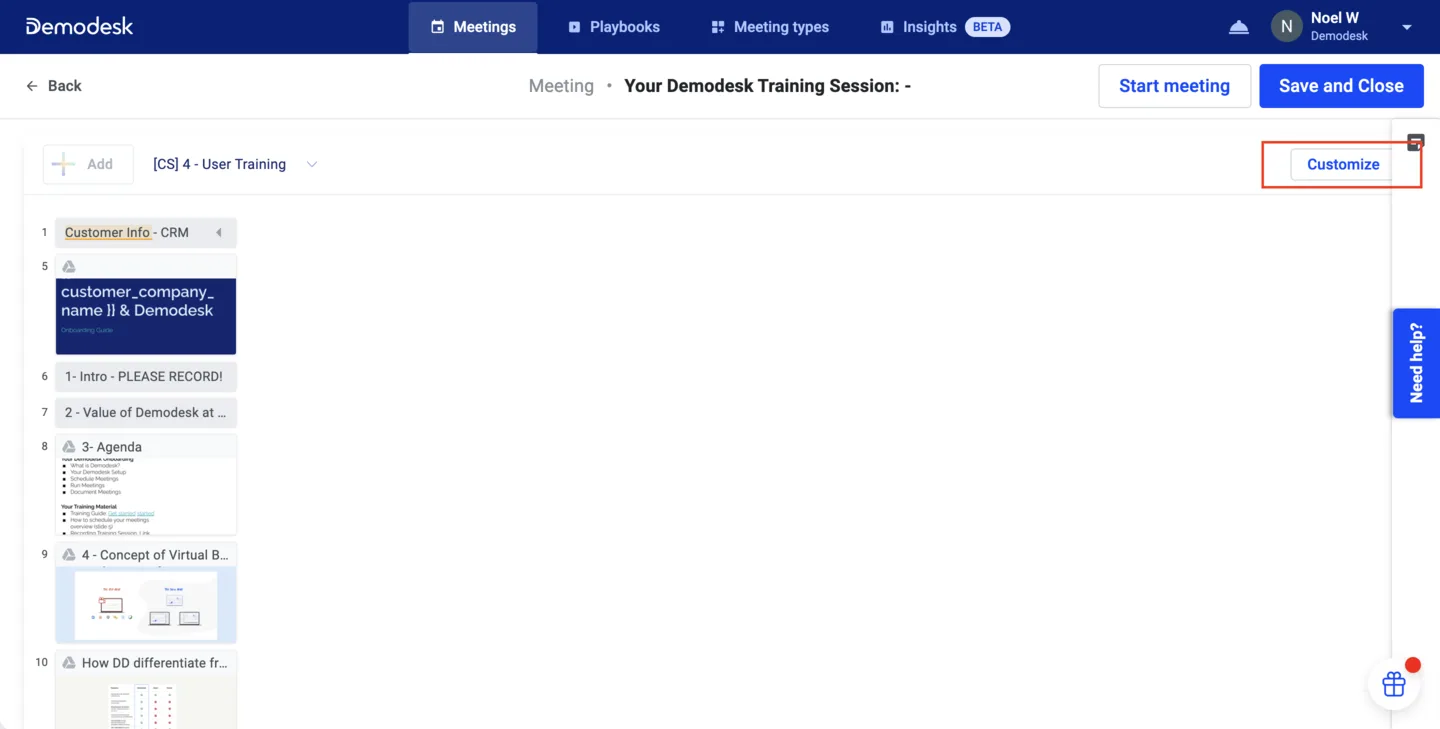
- Make your changes
- The new version will now be saved as customized
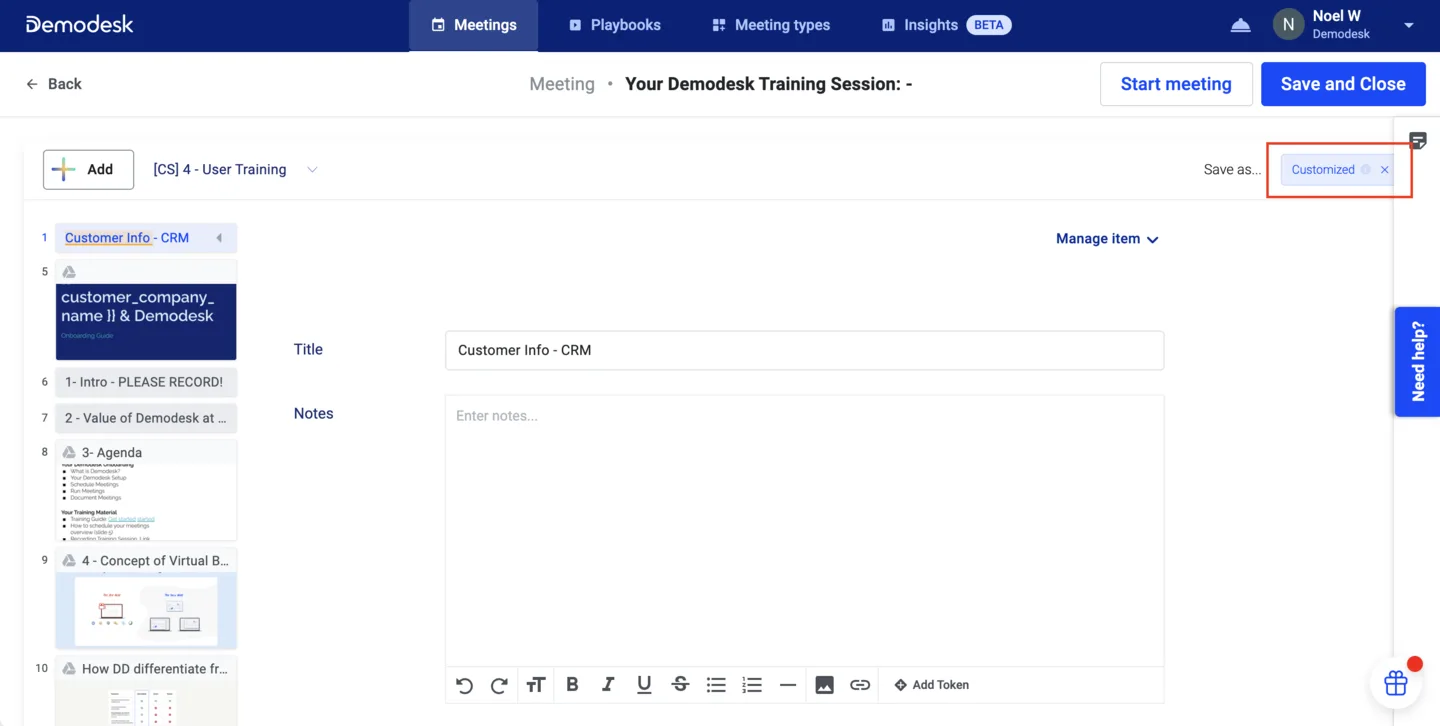
How to use Google Slides in your Playbook
While we provide standardised Playbooks, there might be a situation where you need to use Google slides to customise your presentation. No Problem! That can easily be done with Demodesk as well, just check your settings. For a more detailed description of how to find the right settings, take a look at this article about tokens.
When everything is set up, you can customize your presentation to your customer. That means the usage of Tokens will ensure, that specific information will automatically be adjusted to your guest.
How to update your Playbook in the meeting
Imagine being in a rush and not being able to give your presentation the last final touch before your meeting. Situations like this are no reason to become nervous anymore,
Demodesk allows you to update the Playbook within the meeting!
-
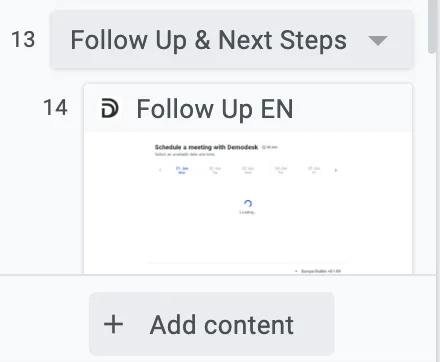
Edit the Playbook: Add an item during the meeting by clicking on Add content at the bottom of the left sidebar. You can then choose what type of content you'd like to share (e.g Website, Local desktop, etc.). Simply use drag and drop to change the order of your items.
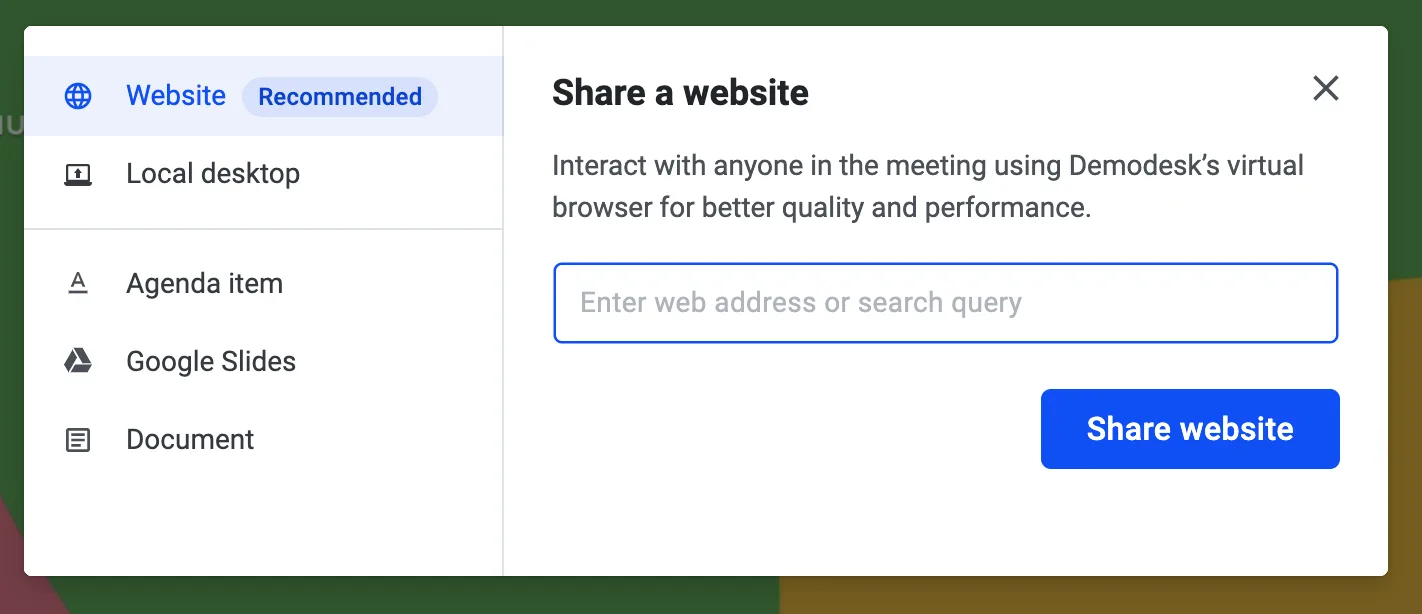
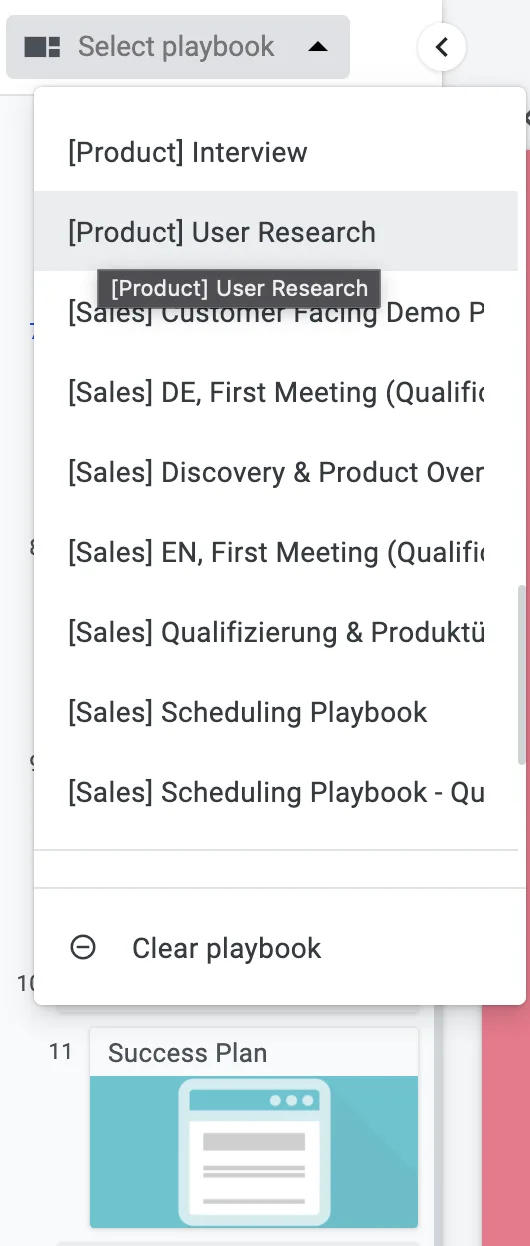
Change the Playbook: Change the whole Playbook by clicking on the top of your left sidebar and choose select the relevant Playbook.
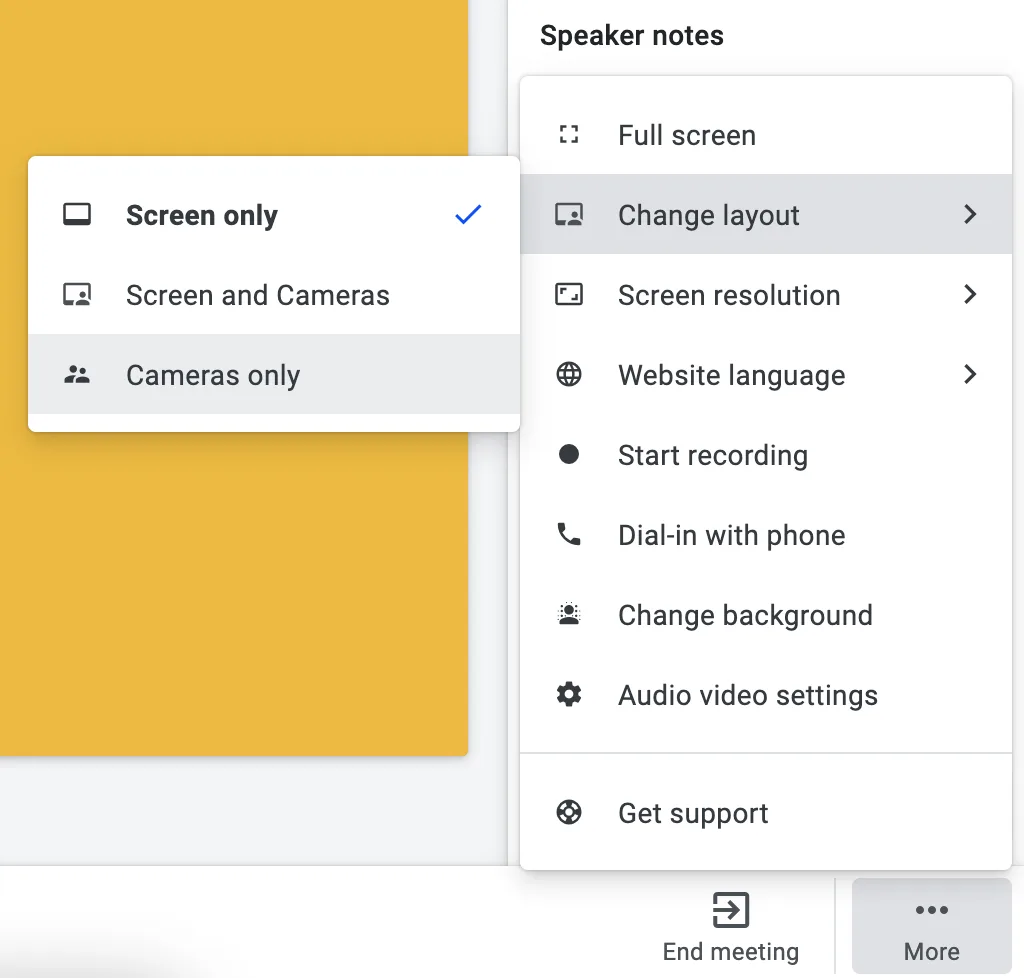
⚡Pro Tip: Make sure to change it in a camera-only layout, then the customer won't notice that you are make changes (as shown by the image below).
Related articles
More in this category
Still need a hand?
Our support team answers in the app chat, or at support@demodesk.com.