Outreach integration
Updated December 15, 2023
On this page
Looking for a powerful way to connect business development and sales? If you are using Outreach for Sales Engagement, you will not want to miss this integration. You can guide your customers from emails and phone calls directly to booked meetings, qualify them, and always have helpful insights available in your demos.
You can integrate routing or booking links into your sequences, so your prospects can book meetings themselves. These booking links can contain qualifying questions and you can customize the design via your white label settings. Also, if you use the Outreach event templates, every meeting that contains your Demodesk lobby as the location will be synced and held in Demodesk to guarantee a best in class meeting content.
- Use Outreach Scheduling with Demodesk Location
- Use Outreach Cadences with Demodesk Booking Links
- Troubleshooting for Salesforce and Outreach Integration
1. Use Outreach Scheduling with Demodesk Location
If you want to use Demodesk for meetings but Outreach to schedule them, you can use the lobby link as a location to sync events to Demodesk.
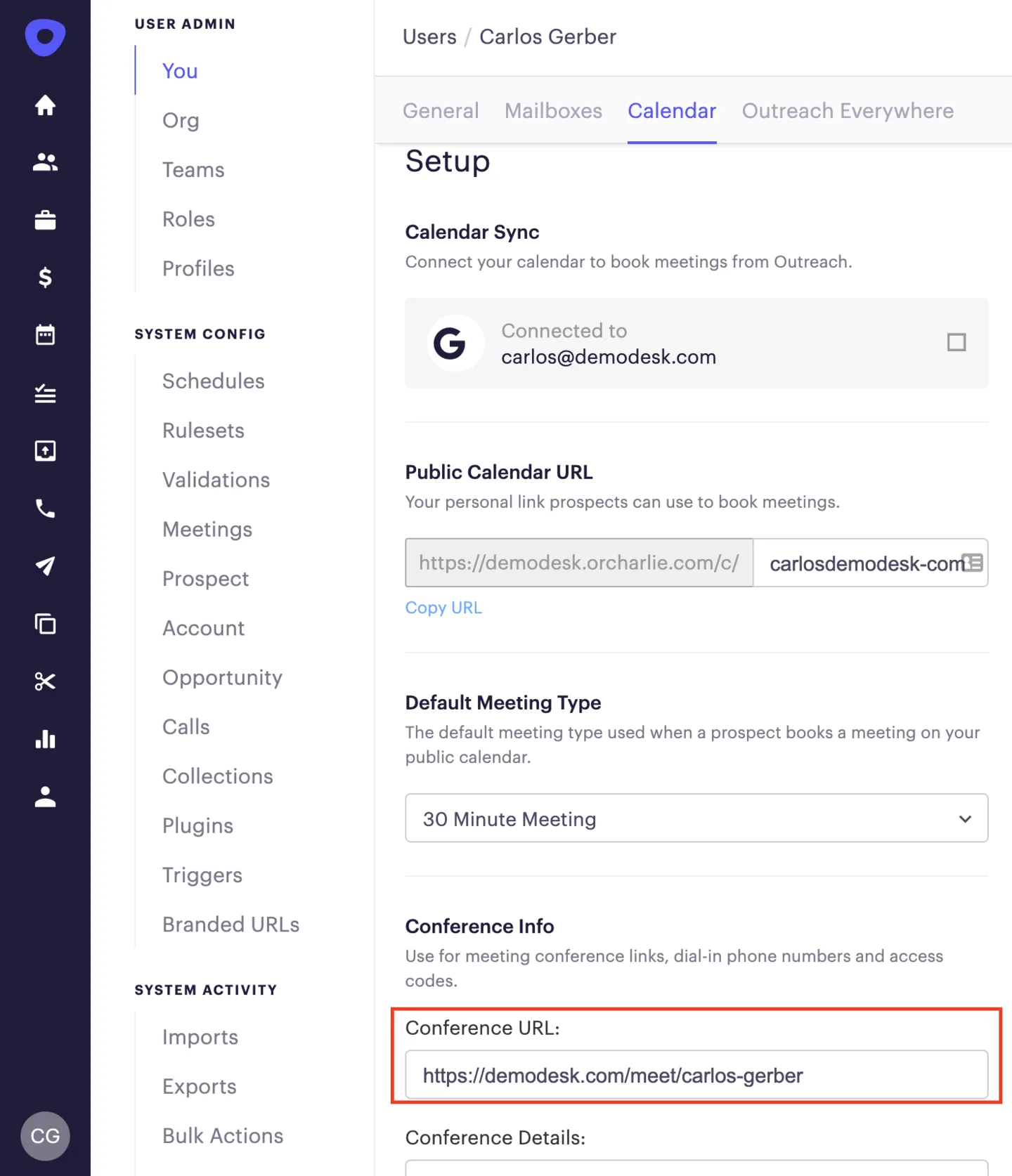
Every user should set the Demodesk lobby as their conference URL in Outreach. When a meeting is booked via Outreach, it will also appear in your Demodesk meetings and use the user's default event type and playbook.
2. Use Outreach Sequences with Demodesk Booking Links
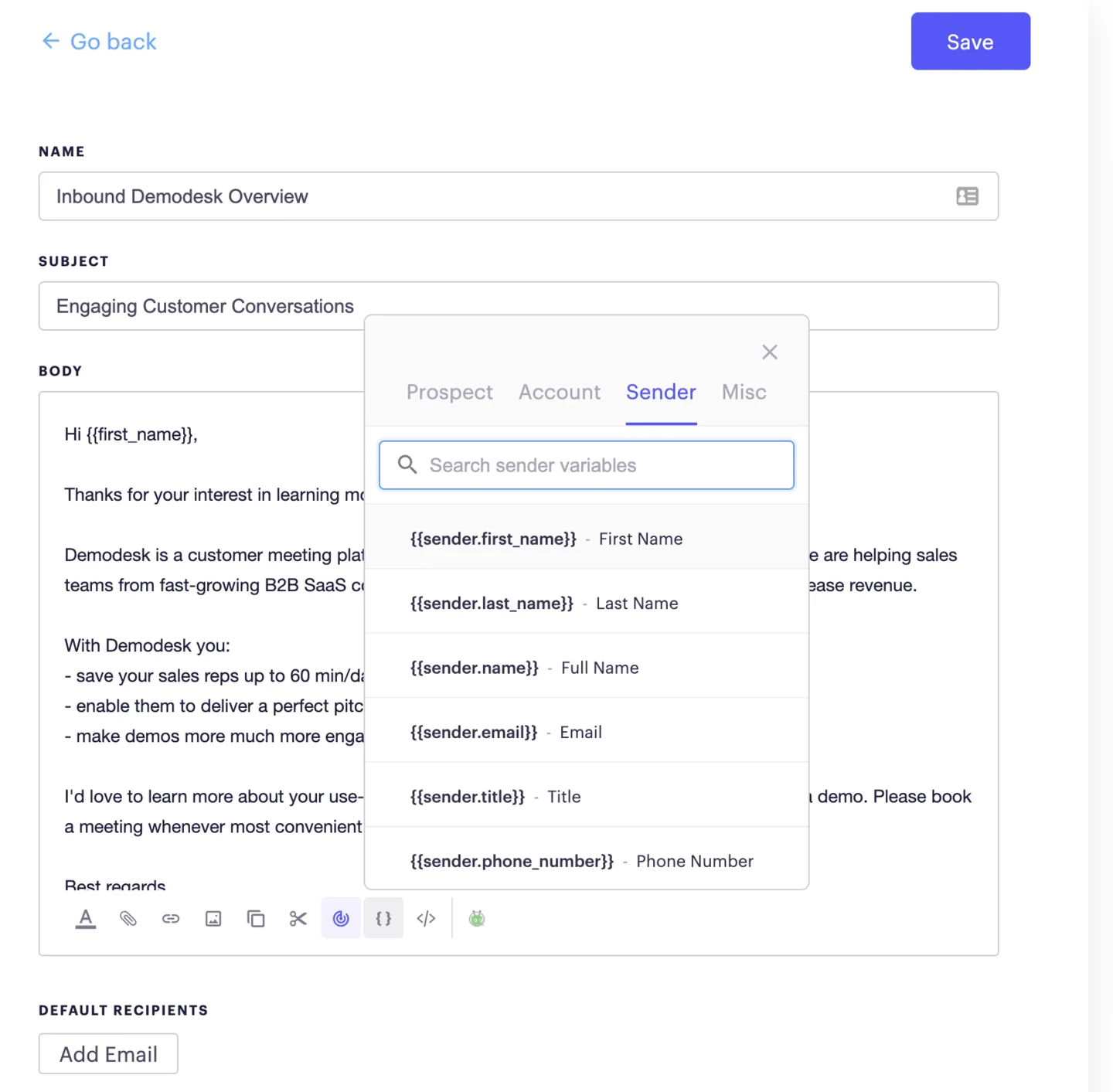
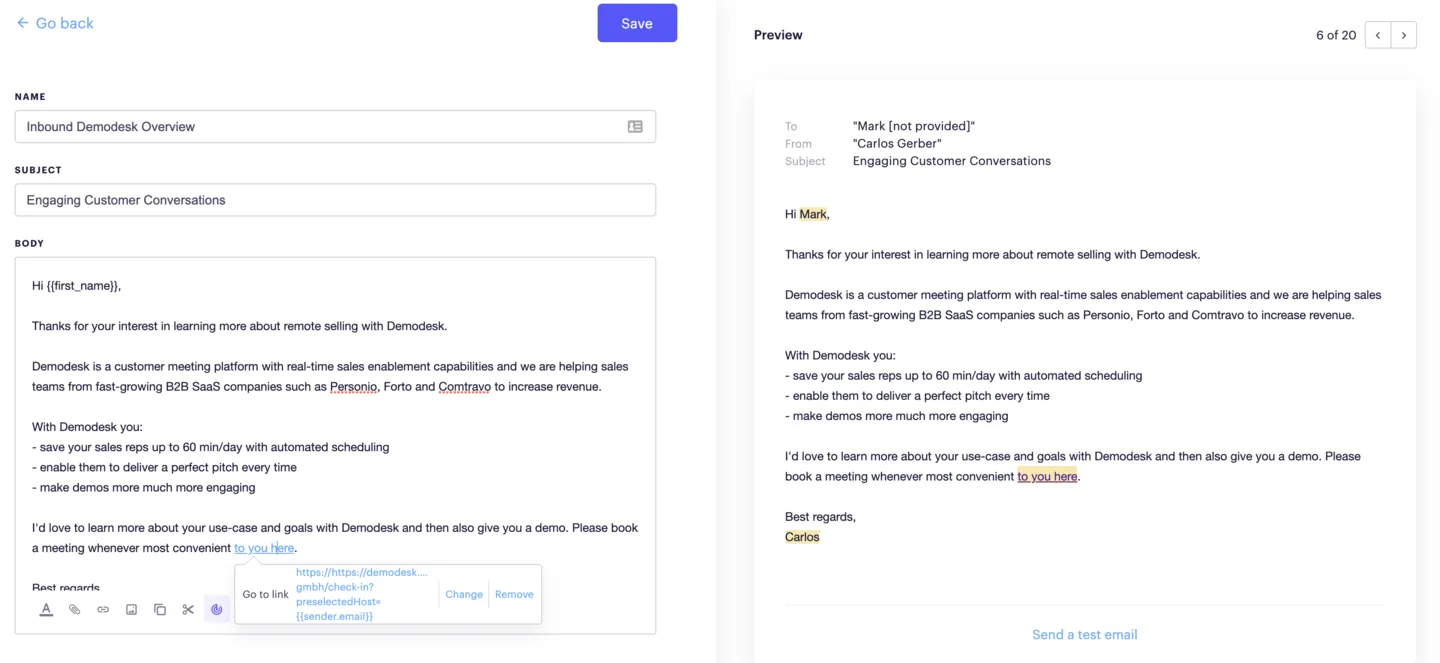
For the best experience, use our routing and booking pages in your outreach templates. Prospects will receive a call to action tailored to their needs and let you preselect the right content for every customer. To achieve that, insert your routing or booking links in your templates. If you always want dynamic booking links that adjust to the sender, please add "?preselectedHost={{sender.email}} at the end of the URL.
For the event type Check-In of the Company Demodesk Gmbh, the booking link in your Outreach Sequence would look like the following:
https://demodesk.com/book/demodesk-gmbh/check-in?preselectedHost={{sender.email}}
After you have implemented the booking link, test the email and check if the event type works. If not, check the following:
- Is the sender assigned to the event type?
- Did you click to insert the right booking link?
- Any typos in "?preselectedHost="?
3. Troubleshooting for Salesforce and Outreach Integration:
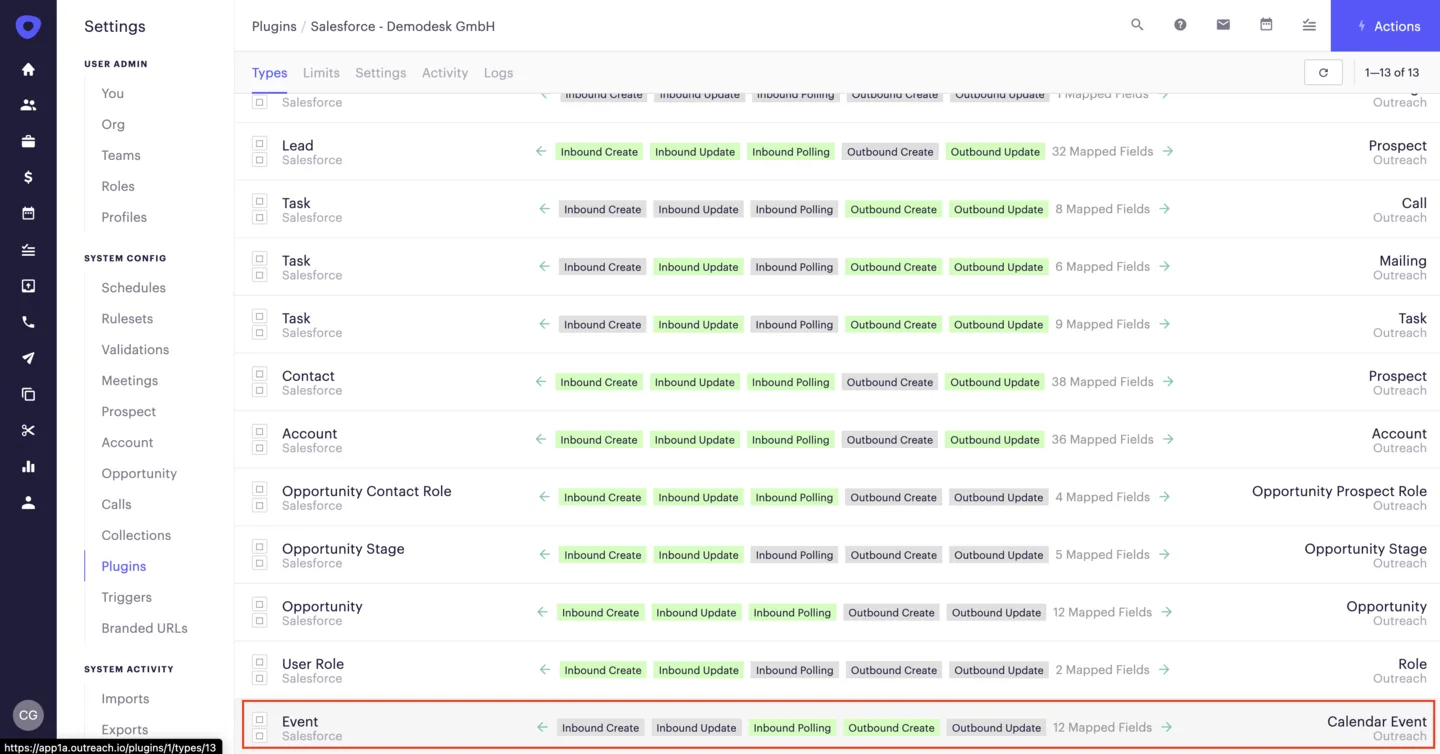
When set to active, Outreach and Demodesk both sync your meetings to Salesforce. If you are experience duplicates in your Salesforce instance, please follow the following steps:
-
Go to your Outreach Plugin Settings here
-
Go to the event sync settings
-
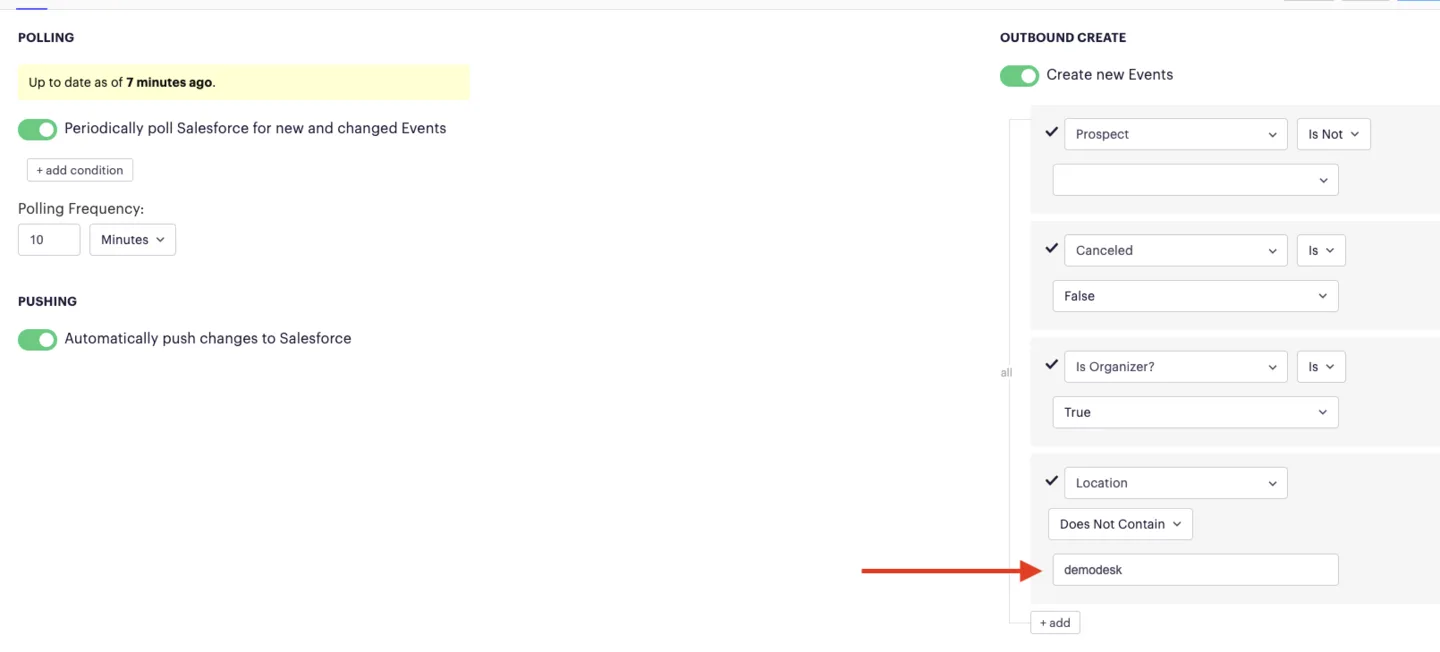
Setup a condition to prevent Demodesk meetings from being synced.
"Location" - "Does not Contain" - "demodesk"
- To ensure your Demodesk are still properly created in Salesforce, make sure all your users are properly connected to Salesforce. You can check the integration status here.

Related articles
More in this category
Still need a hand?
Our support team answers in the app chat, or at support@demodesk.com.