Salesforce Integration settings in Demodesk
Updated August 31, 2026
On this page
- Tokens
- Sync your meeting notes to Salesforce
- AI summaries in Salesforce: Choose the right destination
- Important: Avoid calendar overwrite or unwanted exposure (Einstein Activity Capture)
- Default Token Connections
- A note on Event > Type
- Meeting Status API Names
- Required Salesforce Permissions
- FAQs
- Troubleshooting
- Did you check our help center for help?
- I have meeting duplicates on Salesforce
- My meetings are not synced to Salesforce, even though I have connected my Salesforce account
- I get an error message when connecting Salesforce on Demodesk
- Are contacts automatically added to an account when created by Demodesk?
Once your Salesforce account is connected to Demodesk, you can set up the integration on the Integrations page so that it smoothly works with your Salesforce setup.
In essence, you can control whether Demodesk should create the following objects:
-
Events
-
Leads/ Contacts
-
Opportunities
-
Accounts
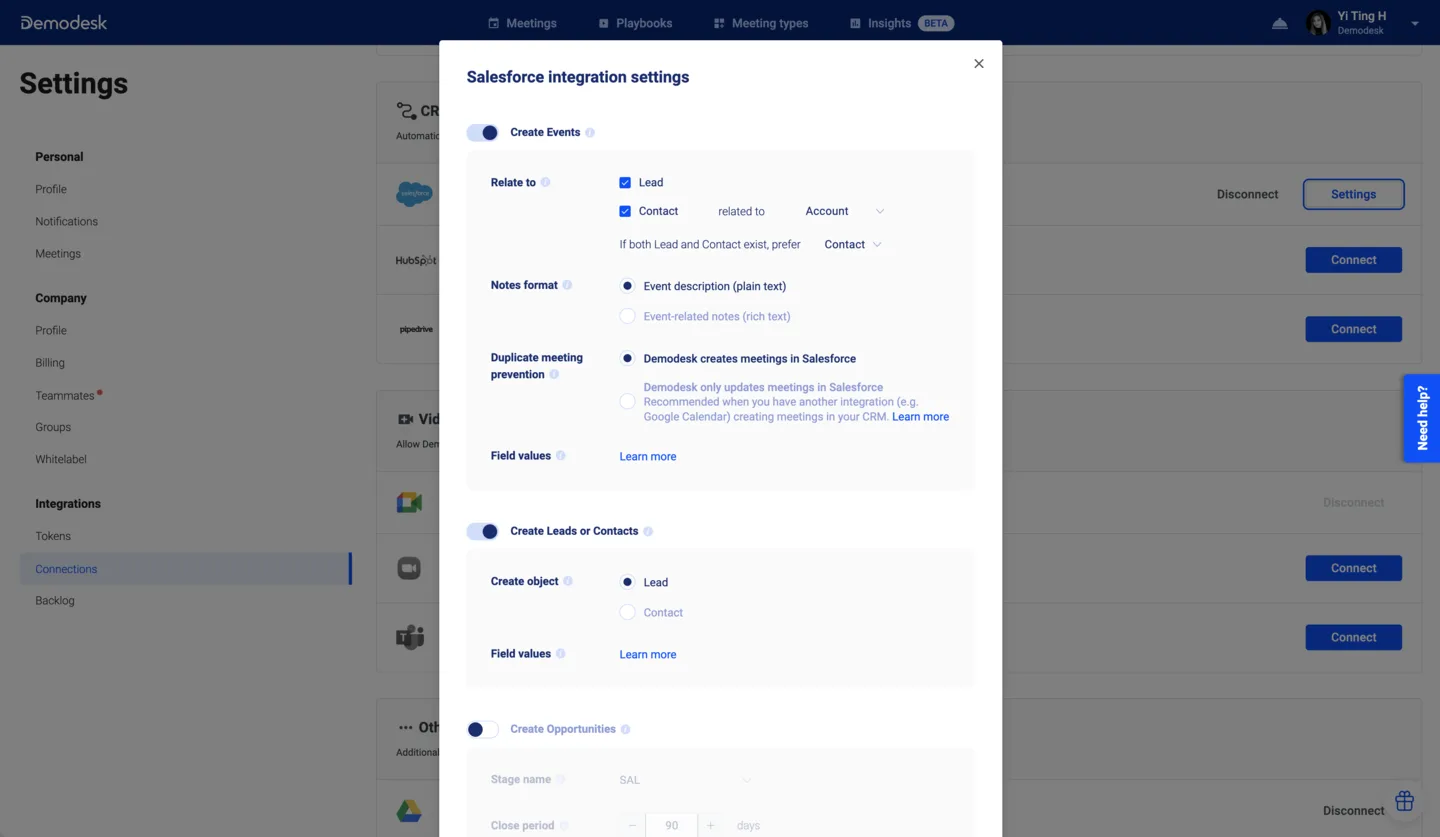
If you turn the creation of these objects on, we first check if the objects already exist for the given email address to avoid their duplication.
Some of these objects require some fields to be filled as they are created. E.g. you need to set an Expected Close Date and a Stage to create an Opportunity.
Example: Precisely that means when scheduling a meeting through a booking page, the integration first checks if a Lead or Contact for the customer's email address exists already in your Salesforce.
If creating an Opportunity and/ or Account is enabled, the integration also checks if a respective object already exists for the Contact/ Lead and only creates a new one if that is not the case.
Tokens
Moreover, you can connect Tokens to Salesforce. If you connect Tokens to booking questions, you can sync the information you collect directly to Salesforce fields.
By default, we connect some of the system tokens in Demodesk to standard fields in Salesforce. A detailed list of the default connection, you find here.
More on that Tokens and the connection to a CRM, you can find here.
Sync your meeting notes to Salesforce
Sync all your notes directly to the correct fields in Salesforce. After you have properly set up, connected, and integrated your custom tokens within your playbook, you can use them in the speaker notes and update them after the meeting has ended.
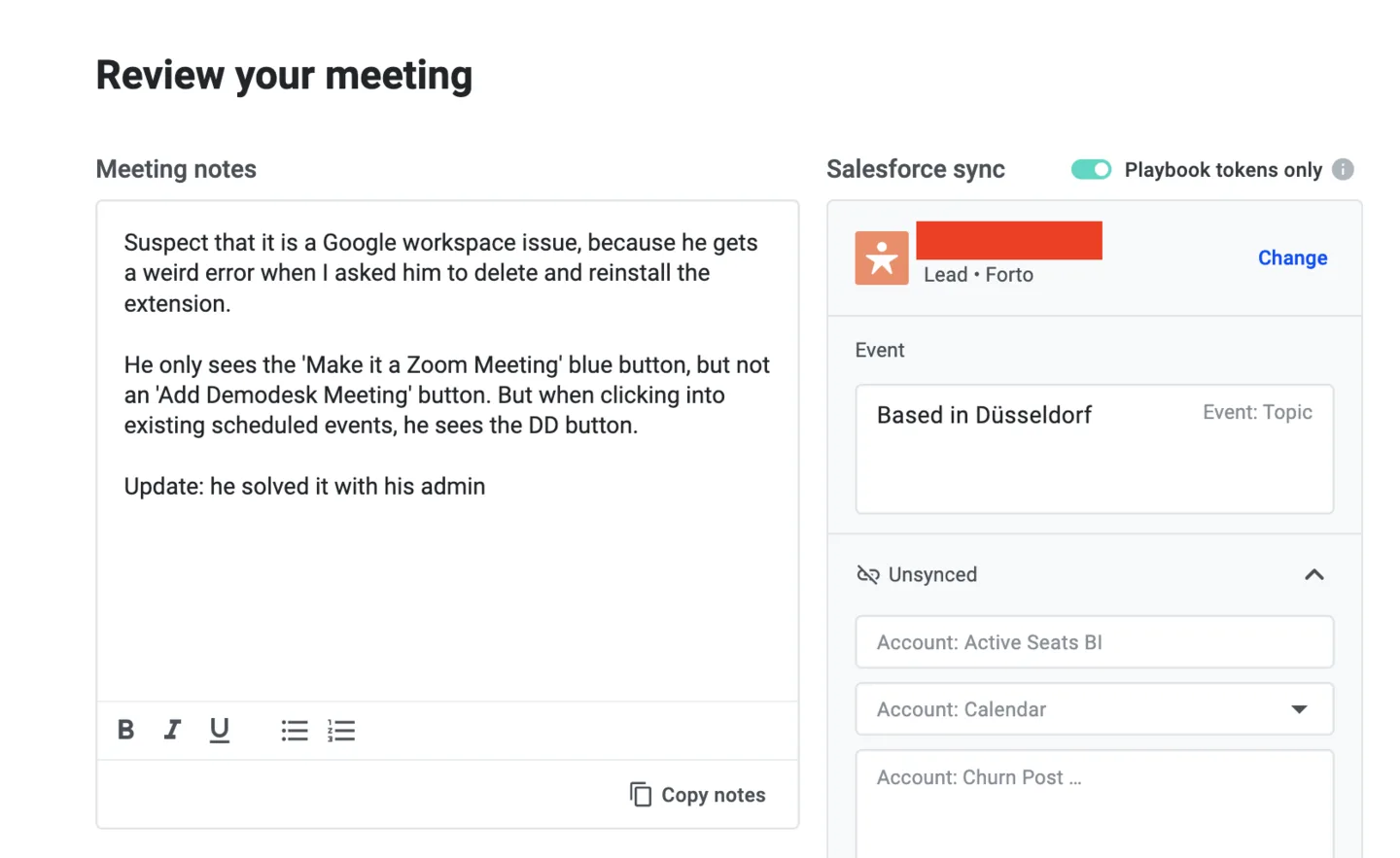
There are two possible destinations for syncing notes to Salesforce (for selection in the Integration Settings in Demodesk).
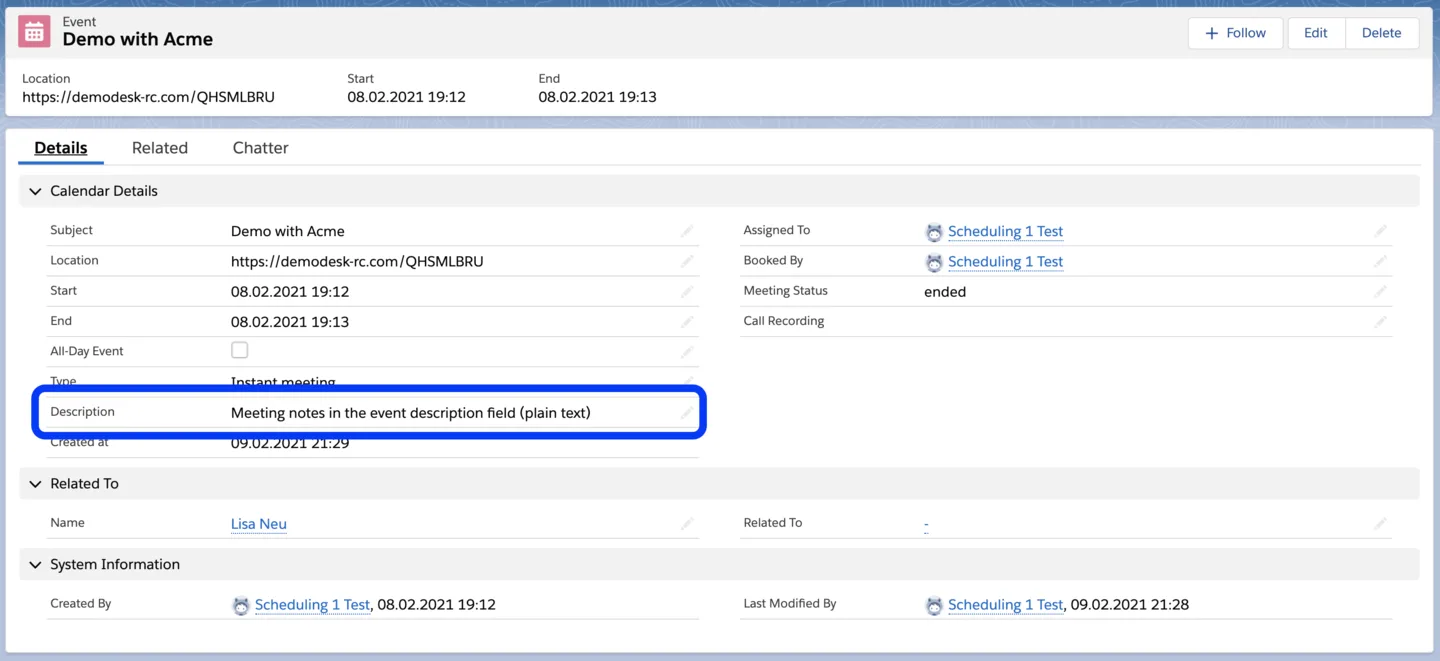
- Event description
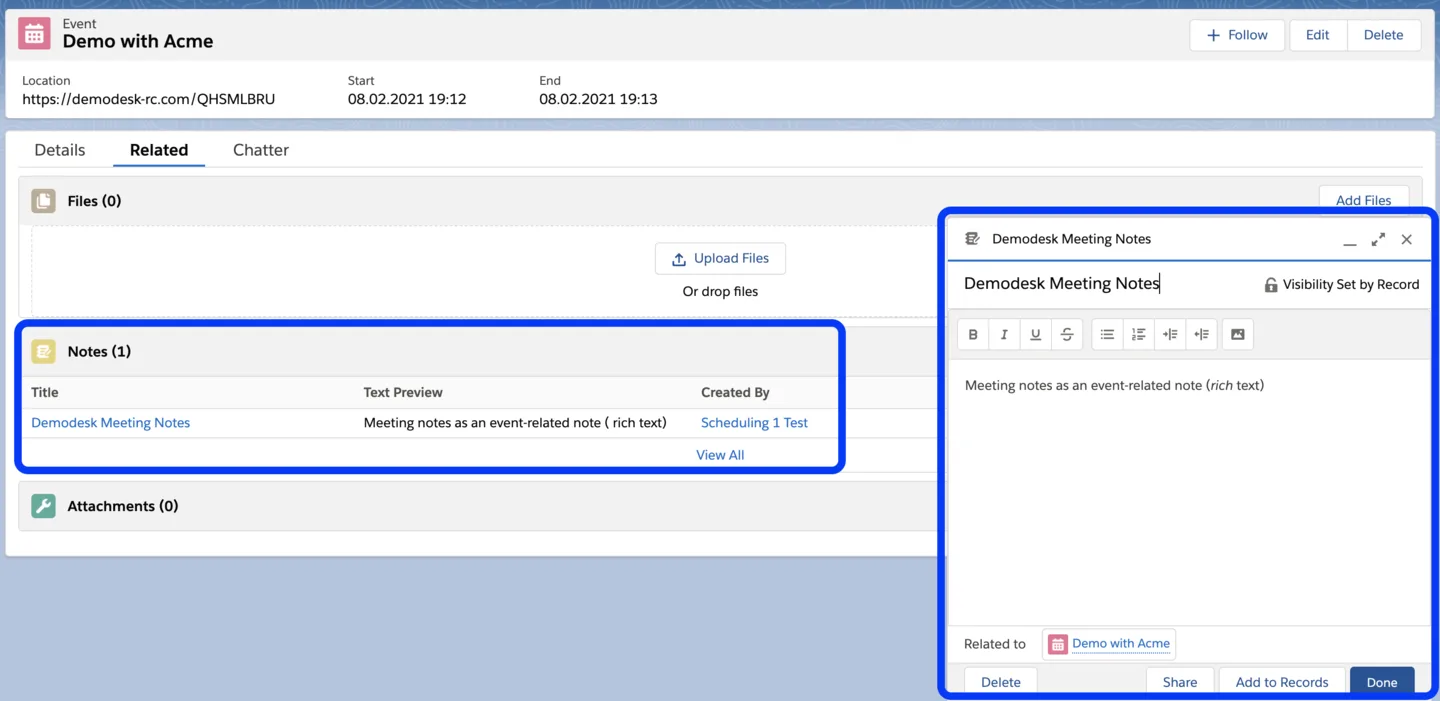
- Event-related Note
By default, your notes are synced to the Event's description field. This field only supports plain text.
Alternatively, you can also select to create a Note that is related to the Event. Notes are capable of rich text. If you format your meeting notes in Demodesk, the formatting is also visible in Salesforce.
Note: We recommend event-related notes if you sync between your email/calendar provider and Salesforce enabled. In that case, this option prevents your meeting notes from being synced to the calendar description, which is also visible to your guest(s).
Note: If you are using this option, please make sure to enable Notes in your Salesforce settings.
AI summaries in Salesforce: Choose the right destination
If you enable AI summaries (or sync meeting notes that include AI-generated content), you can control where the text is stored in Salesforce:
- Event description: Writes into the Salesforce Event’s Description field (plain text only).
- Event-related Note: Creates a Note related to the Event (supports rich text).
Recommendation: If your Salesforce setup syncs events back to your calendar (for example via Einstein Activity Capture or other calendar sync tooling), use Event-related Note. This helps prevent meeting notes or AI summaries from being copied into the calendar event description, which can be visible to meeting guests.
Important: Avoid calendar overwrite or unwanted exposure (Einstein Activity Capture)
Some Salesforce configurations update the calendar event content after Demodesk has written the summary. If Salesforce syncs the Event Description back into Google Calendar or Outlook, it can:
- overwrite the calendar event description, or
- expose summary content to external attendees.
To avoid this:
- Prefer Event-related Note for meeting notes and AI summaries.
- If you must use Event description, make sure Salesforce is not syncing Event Description back to the calendar (review Einstein Activity Capture and any event sync settings).
Default Token Connections
By default, we connect some system tokens in Demodesk to standard fields in Salesforce (see below for more details).
| Demodesk Token Names and Slugs | Salesforce fields |
|---|---|
| Participant company name (customer_company_name) | Account > Account Name |
| Participant email (customer_email) | Contact > Email |
| Participant first name (customer_first_name) | Contact > First Name |
| Participant last name (customer_last_name) | Contact > Last Name |
| Participant email (customer email) | Lead > Email |
| Participant first name (customer_first_name) | Lead > First Name |
| Participant last name (customer_last_name) | Lead > Last Name |
| Participant company name (customer_company_name) | Lead > Company |
| Participant company name (customer_company_name) | Opportunity > Opportunity Name |
| Static value specified in the integration settings | Opportunity > Stage |
| Static time offset specified in the integration settings | Opportunity > Close Date |
| Meeting type name (demo_template_name) | Event > Type |
| Salesforce account if the demo host | Event > Owner |
| (host_company_name): Demo with (host_name) | Event > Subject |
| Link to demo (demo_link) | Event > Location |
| Meeting (demo_date) | Event > Start Date Time |
| Demo scheduled duration in minutes | Event > DurationInMinutes |
| Matched by email | Event > WhatId |
| Meeting status (demo_status) | Status of the meeting. "Scheduled", "In progress", "No show", "Held", "Canceled" |
| Booker name (booker_name) | Event > Booked By |
A note on Event > Type
By default Demodesk writes the name of the meeting type into the Salesforce Event’s Type field. This applies to every meeting, including instant meetings, since a meeting always has a meeting type.
If you connect a token to Event > Type, that token replaces the default. This is what the "How can I automatically sync meeting activity types?" setup below does, and it is worth understanding before you use it. That setup connects a token to Event > Type and gives it a default answer on a hidden booking question, so from then on the Event’s Type is that default answer rather than the meeting type name, on every meeting of that type. Demodesk only falls back to the meeting type name when the token’s value is empty.
If you want each meeting type to land a different value in Salesforce, that is exactly what the setup is for, and you set the default answer per meeting type. If you simply wanted the meeting type name, do not connect a token to this field.
Meeting Status API Names
To avoid disruptions, kindly enter the meeting status in your CRM, as presented below.
| Meeting Status | Meeting API Name |
|---|---|
| Scheduled | scheduled |
| In progress | in_progress |
| No show | no_show |
| Held | held |
| Canceled | canceled |
Required Salesforce Permissions
To ensure the Salesforce sync works correctly, please make sure the Salesforce user you connect has the following permissions:
- API Access: The user must have API access enabled.
- Object Permissions: The user needs permissions for these standard objects:
- Account
- Contact
- Event
- Lead
- Opportunity
- User
- Record Update Permissions: The user must also have permission to update the records Demodesk will modify on their behalf:
- Events
- Leads
- Contacts
- Opportunities
- Accounts
FAQs
Here are some of our frequently asked Salesforce questions:
Troubleshooting
The following are some Salesforce troubleshooting tips:
Related articles
More in this category
Still need a hand?
Our support team answers in the app chat, or at support@demodesk.com.