How to install and manage the integration for HubSpot
Updated August 31, 2026
On this page
In this article, in-depth information on defining the interactions with HubSpot is provided. In general, this HubSpot sync feature is accessible to users with Scheduling and Business licenses. Please note that this article is specifically intended for admins - as they have the ability to configure this integration. The following are the sections of this article:
Installation
Before you begin... ensure that you are:
- An admin in Demodesk
- An admin in HubSpot
- You use the same email address for HubSpot and Demodesk
- Visit your Connections page.
- Scroll down to the CRM section
- Click Connect HubSpot to authenticate and connect.
- Congratulations! 🎉 Your connection is now activated for your company. All users' activities are now automatically synced with HubSpot as per your settings (see further below).
Integration settings
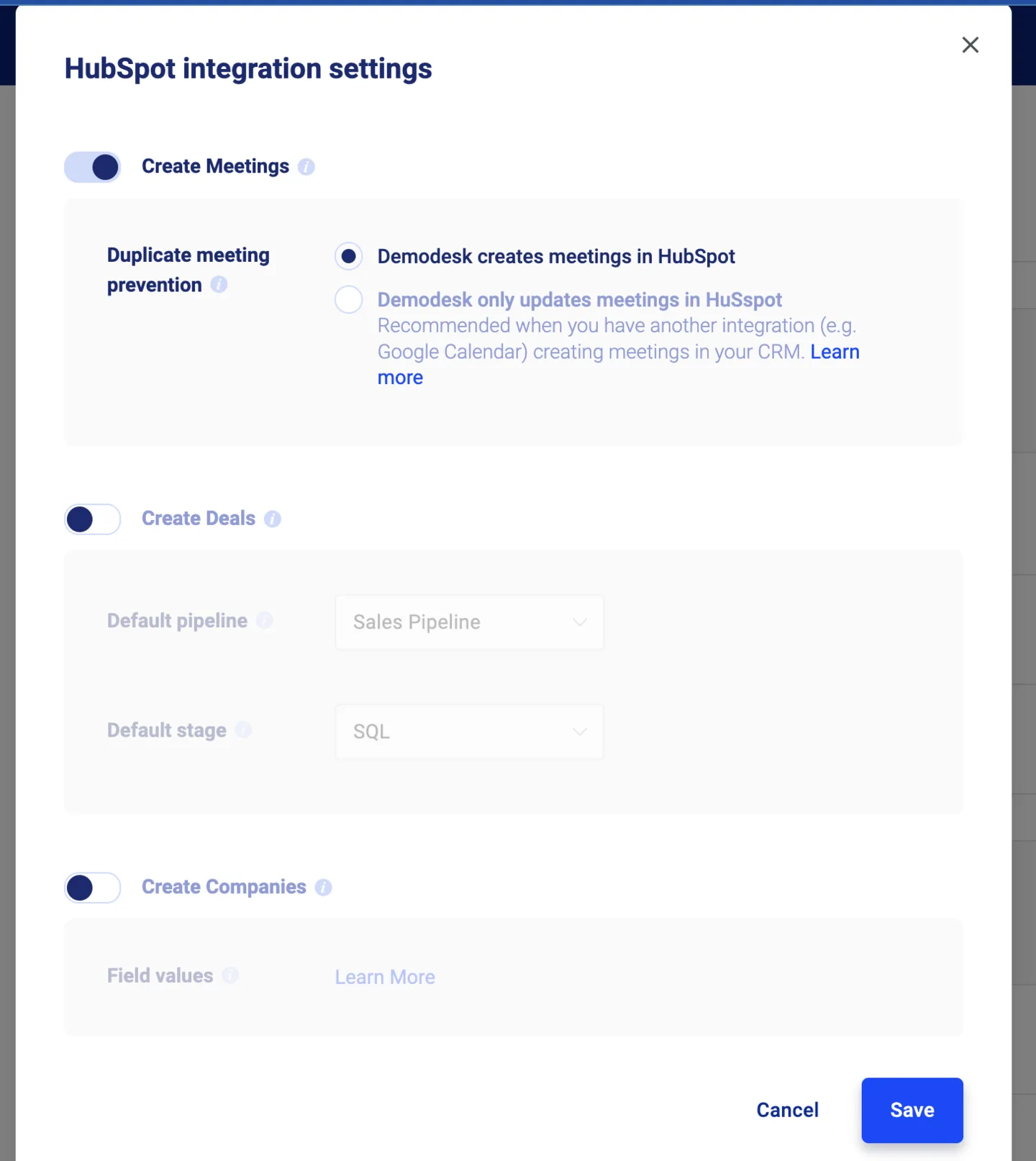
Your integration settings in Demodesk define how Demodesk interacts with HubSpot for the whole company. In essence, you can control whether Demodesk should create the following objects and their properties:
- Meetings
- Deals
- Companies
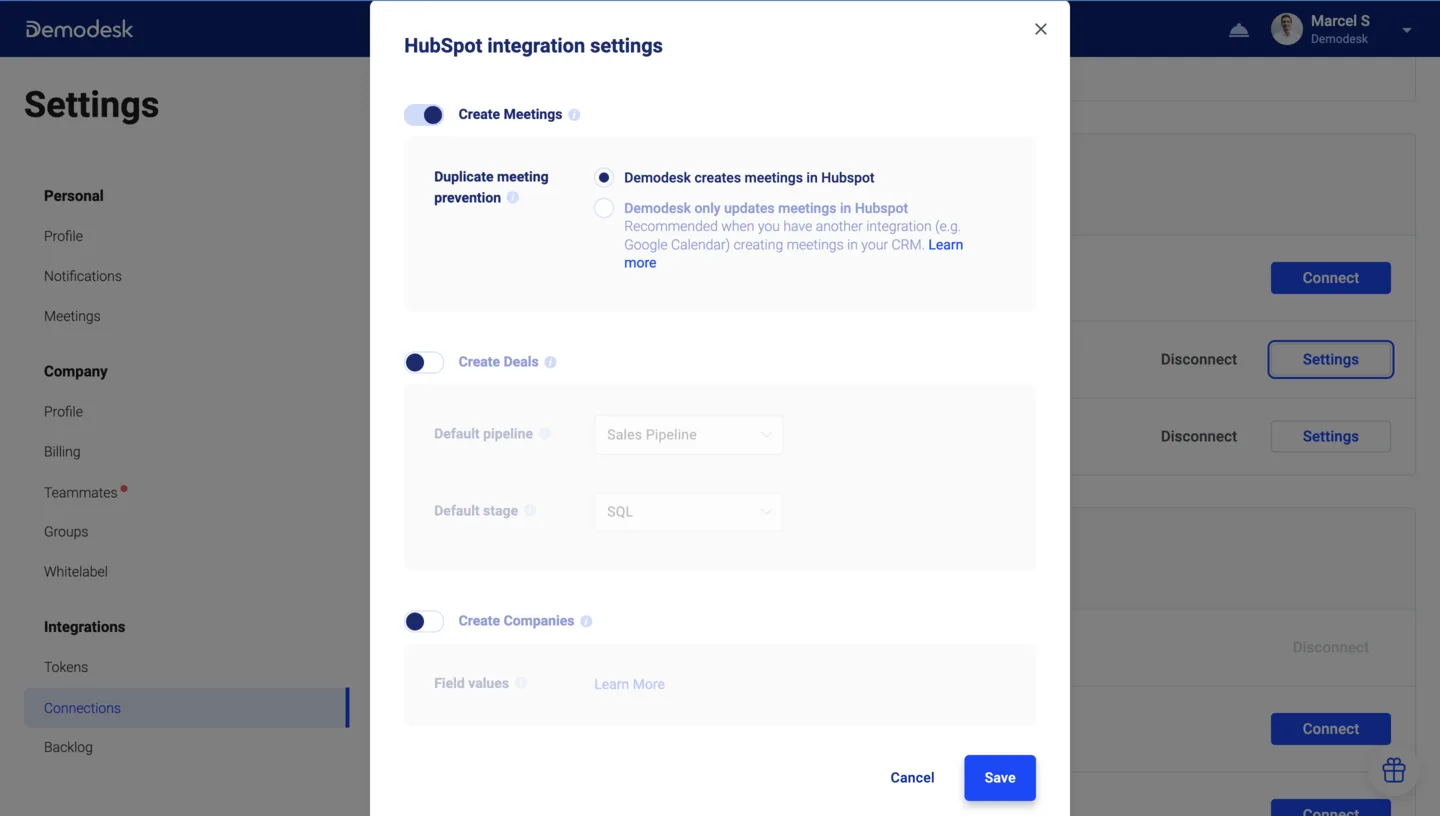
Create meetings
Set if meetings should be created in HubSpot
- Demodesk creates meeting in HubSpot: Select this option if your calendar is not directly synced with your CRM.
- Demodesk only updates meetings in HubSpot: Select this option if your calendar and HubSpot are synced directly. Demodesk will look for the meeting in HubSpot and only update it. If the meeting is not found, then we will throw an error after a day of trying to update the meeting in the integration logs.
If you have duplicate meetings in HubSpot then this is due to HubSpot's calendar sync. Select the option "Demodesk only updates meetings in HubSpot".
Create deals
To create HubSpot deals via Demodesk automatically, you need to set a Pipeline and a Stage. These values are needed in order to create the object in HubSpot. You can specify the default values in the integration settings.
Create companies
Demodesk checks if the existing contact has an associated company to it. If that is the case, Demodesk does not make any changes. In case there is no associated company, Demodesk creates a new company. You can disable Demodesk creating new companies in the integration settings.
Default connections
By default, we connect some system tokens in Demodesk to standard fields in HubSpot (see below for more details).
| Token in Demodesk | Property in HubSpot |
|---|---|
| Guest first name | First name (Contact) |
| Guest last name | Last name (Contact) |
| Guest company name | Name (Company) |
| Meeting name | Title (Meeting) |
| Meeting date time | Start time (Meeting) |
| Meeting participants | Attendees (Meeting) |
| Meeting duration (scheduled) | Duration (Meeting) |
| Meeting status | Outcome (Meeting) |
| After scheduling: Booker, Meeting status, Event type, Playbook, Meeting link After the meeting: Meeting notes | Attendee description (Meeting) |
Canceled meetings
When do you need it...if you have HubSpot's calendar sync active.
Before you begin...this feature needs to be activated for you. Please inform your account manager to enable it for you.
- If a meeting is canceled in Demodesk, it is deleted from the calendar (for Google & Outlook). If the sync between the calendar and HubSpot is enabled, the meeting will also be deleted in HubSpot. This prevents tracking/reporting on canceled meetings in HubSpot.
- To solve this, we have implemented a feature that doesn’t remove canceled meetings from Google Calendar. The following will happen:
- The meeting is canceled in Demodesk
- We add “Canceled: “ to the meeting title
- All participants are set to “not going” in the calendar → the meeting stays in the calendar, but appears as canceled (cross-through)
- The meeting stays in HubSpot; we update the meeting status to “Canceled”
Note: If the meeting is deleted in the calendar, the sync between the calendar and HubSpot will also delete it in HubSpot. This is out of our control.
In case you need to reschedule after the meeting is canceled, we can still ensure the sync:
- Reschedule in Demodesk
- Host response is set to “going”, participants are set to “no response” (meeting is not crossed-through anymore)
- In HubSpot, we update the meeting status to “Scheduled”
Disable Sync for Individual Users
Users can disable HubSpot sync for themselves without disconnecting the rest of the team, even with company-wide integration enabled.
For Admins: Admins manage the company-wide integration settings. They can disconnect the entire team if needed.
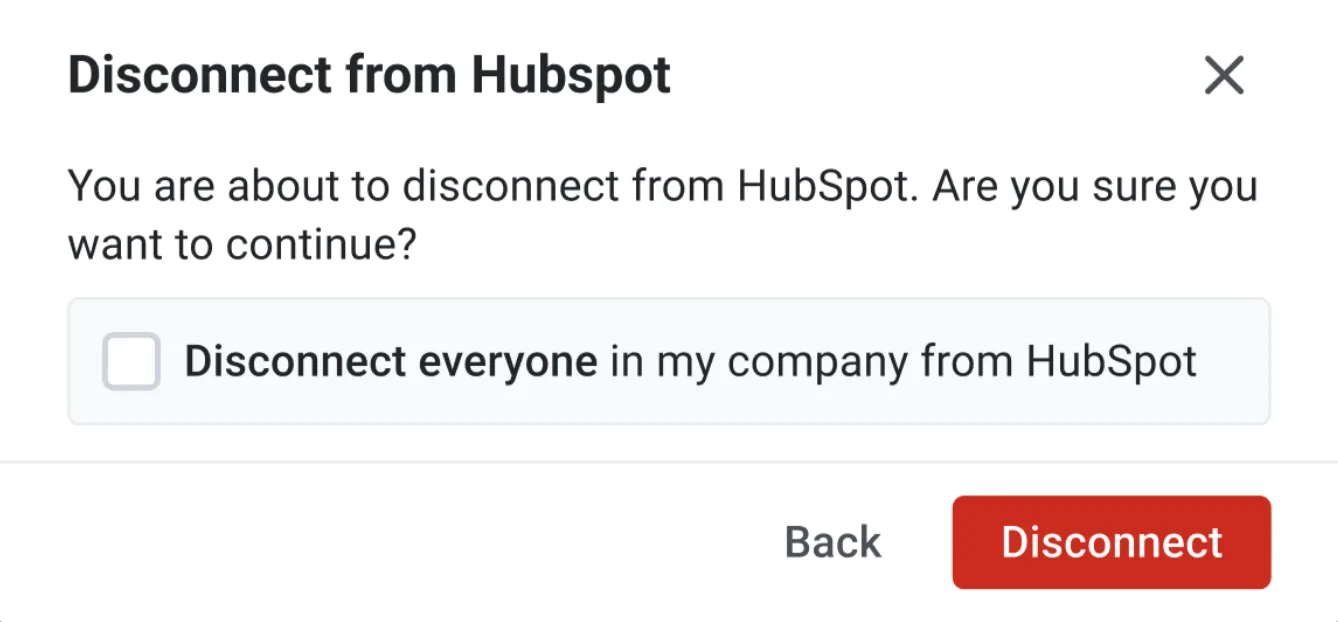
For Users: Users can turn off HubSpot sync individually without affecting others. When disabled, the HubSpot logo won’t appear in their profile. Users can reconnect anytime by clicking “Connect.”
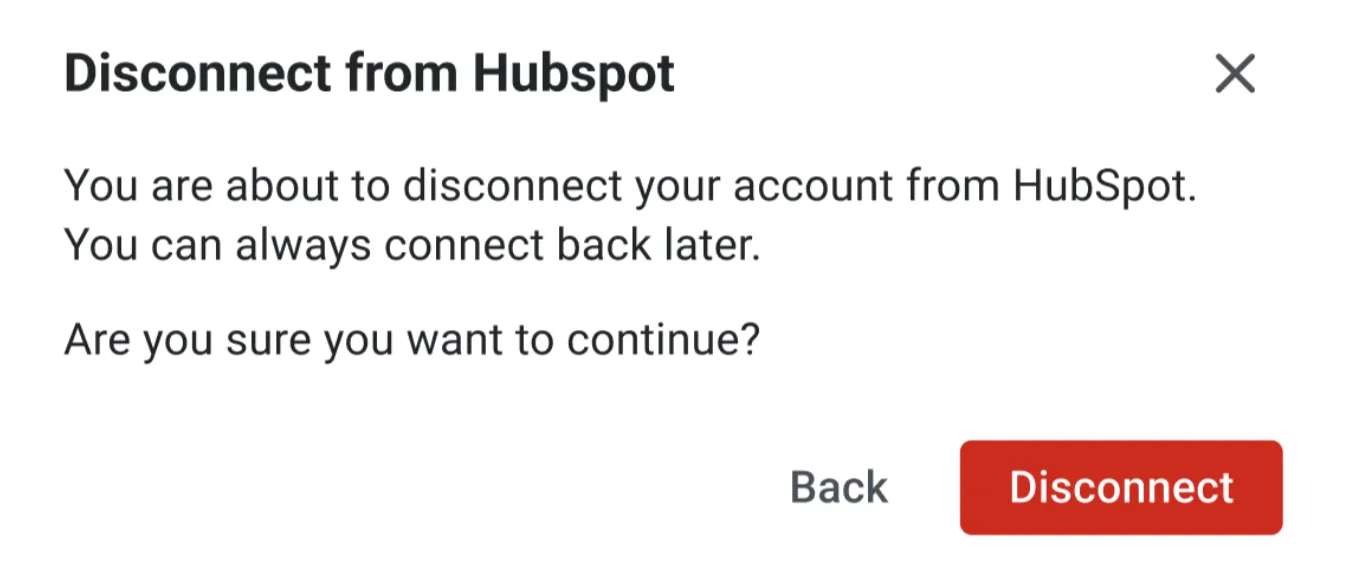
Steps to Disable Sync:
- Go to your Demodesk profile settings.
- Find CRM sync settings under Connections.
- Click on the Disconnect button to turn the sync off for your account.
📝 Note: Disabling sync for an individual does not impact the rest of the team’s sync settings.
FAQs
Q: I cannot connect with HubSpot
Q: I have multiple CRMs connected, is that a problem?
Q: A HubSpot meeting is not created.
Q: I have meeting duplicates in the CRM.
Q: The meeting could not be updated in HubSpot.
Q: Why is my canceled meeting not in HubSpot?
Q: The participant was not created as a contact in HS (nor updated).
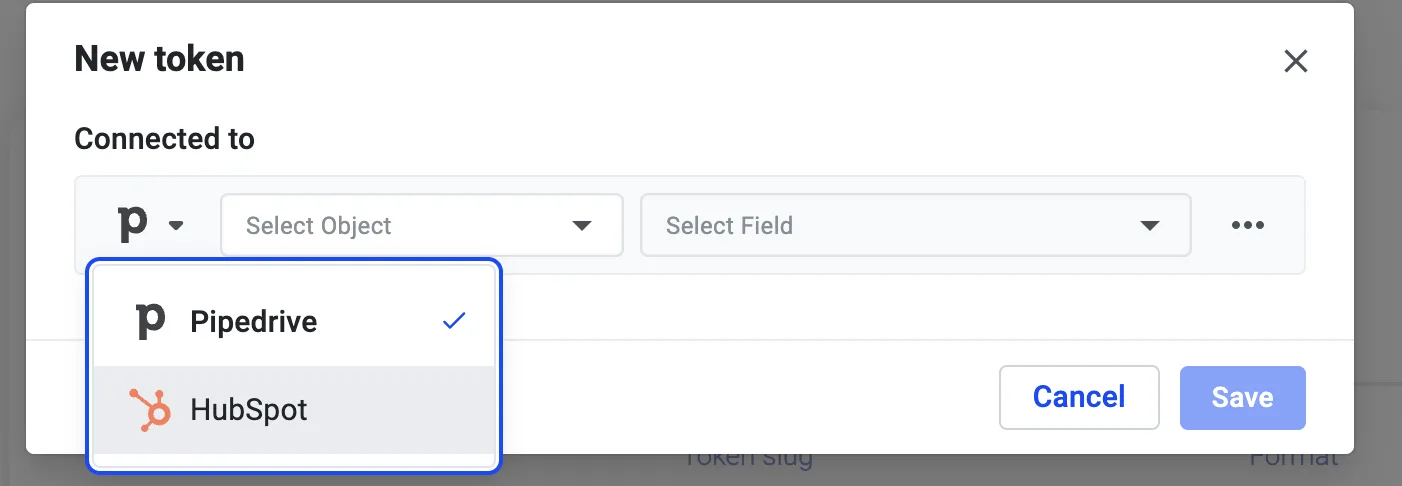
Q: I do not want to use the company-level integration for HubSpot. What can I do?

Q: How can I uninstall the Demodesk integration for HubSpot?

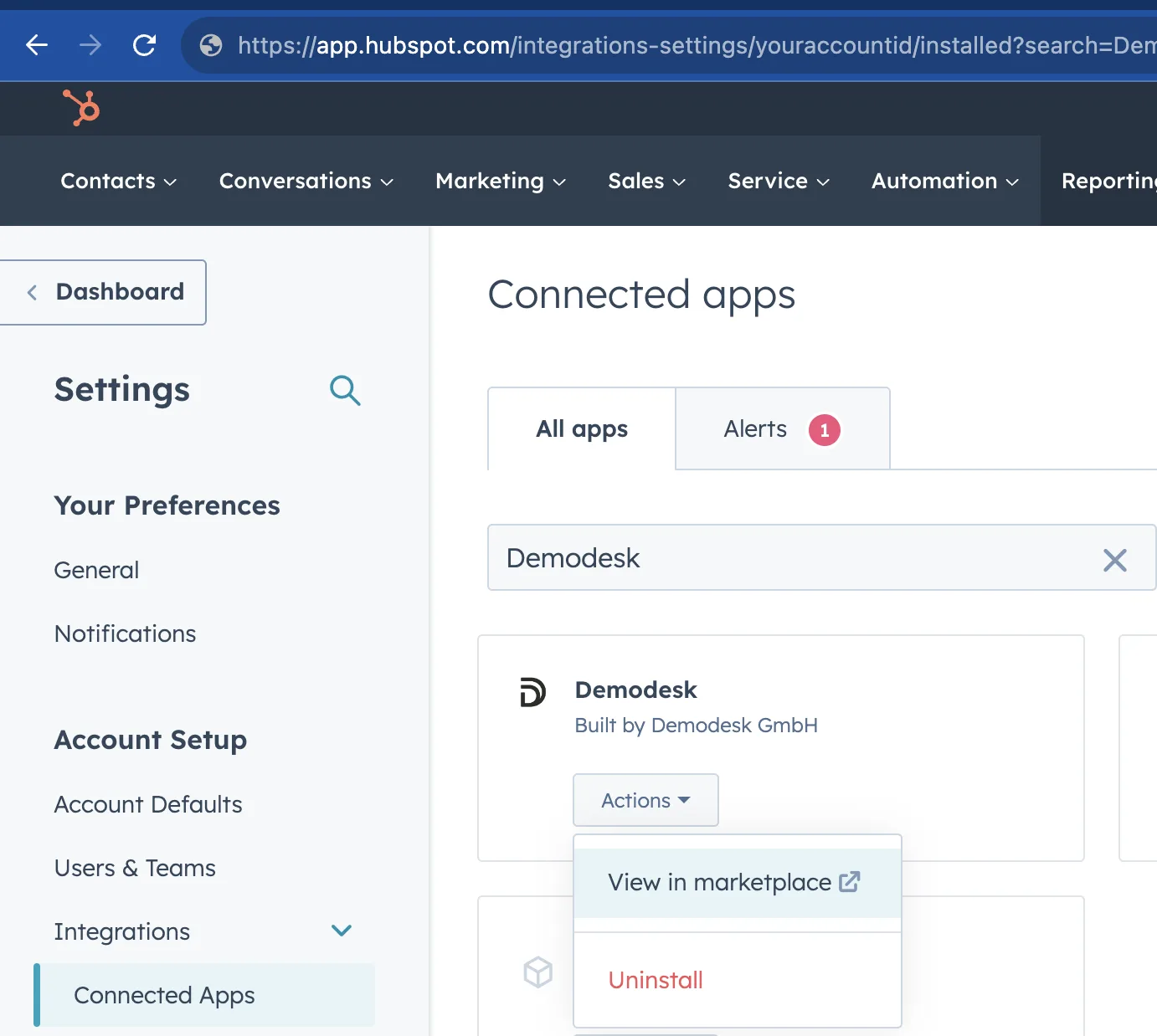
Q: Why are some meetings getting deleted and re-created in HS?
Q: Are contacts created by Demodesk marked as a marketing contact?
Q: Are contacts created by Demodesk marked as contacts or leads?
Q: I connected a token to a HubSpot property and nothing is written to it.
Related articles
More in this category
Still need a hand?
Our support team answers in the app chat, or at support@demodesk.com.