Dialers
Updated October 26, 2026
You can import dialer recordings into Demodesk via your CRM. Compared to pulling them directly from the dialer itself, this helps us to correctly associate the call with the Contacts, Accounts, Opportunities, etc. to have more context when viewing recordings in Demodesk.
How does it work?
- Salesforce: Ensure that call details are logged in Salesforce as Task objects (this is the default with most dialers).
- HubSpot: Ensure that the call is logged in HubSpot as a call on the relevant contact, company, or deal. Demodesk reads the recording from the HubSpot call object. A meeting activity is not picked up.
- Pipedrive: Ensure that the call is logged in Pipedrive as an activity and that the link to the recording is in the note or the description of that activity.
Dialer compatibility
We have tested our integration with the following dialers:
- Aircall
- Cloudtalk
- Groove
- HubSpot Dialer
- OnOff
- Outreach
- Ringover
- Twilio Flex
- Justcall
If you have another dialer the integration will still likely work as the recording interface is standardized in Salesforce/HubSpot and we simply pull recordings from there.
Setup
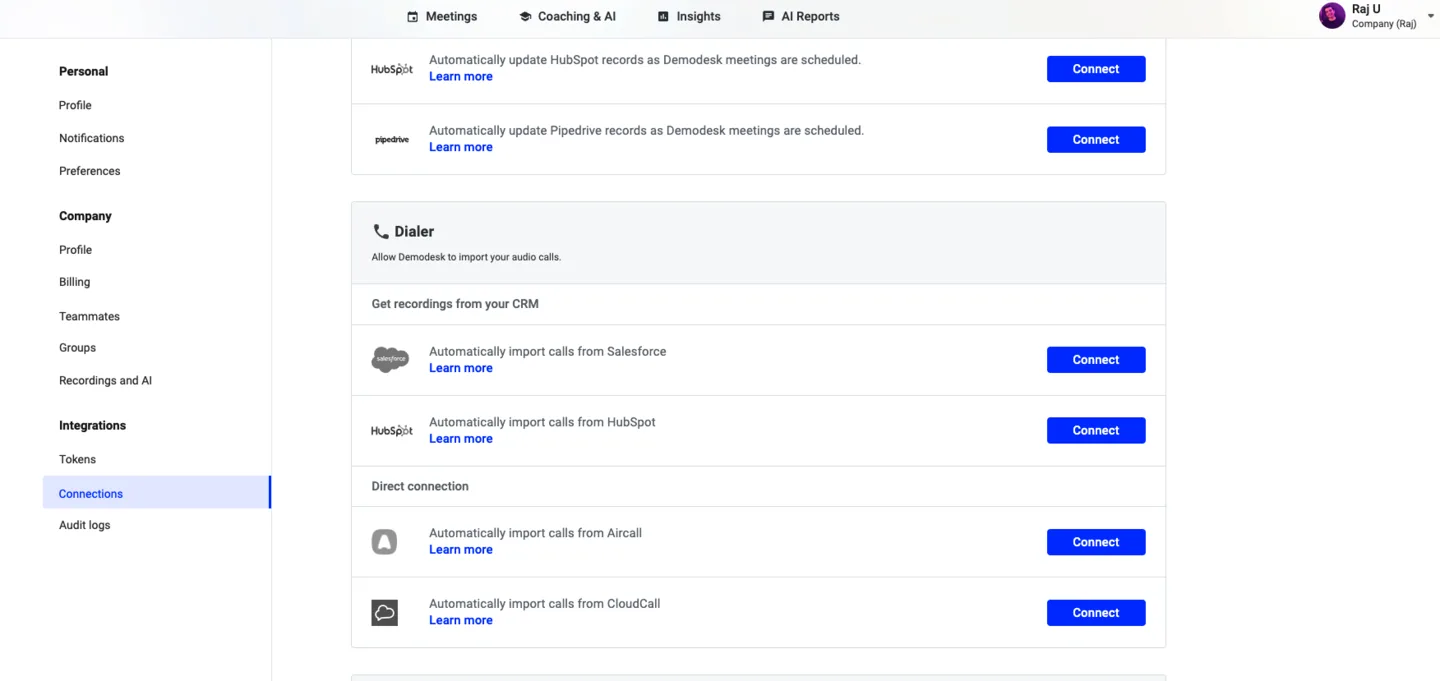
- Go to Settings > Integrations > Connections.
- Under CRM, connect Salesforce, HubSpot or Pipedrive.
- Scroll down to Phone Call Recordings and, under From your CRM, turn on the switch next to your CRM.
- In case you are using Aircall, please ensure you are following the additional steps here.
The switch is off until someone turns it on, and only company admins can change it. If you are not a company admin, you can see the switch but not change it.
Get your HubSpot calls into Demodesk
Demodesk imports phone calls from HubSpot call objects. This covers calls made with HubSpot's own calling tool as well as calls that another dialer logs into HubSpot as a call.
This is not the same as the HubSpot meeting sync, which sends Demodesk meetings and their recording links to HubSpot. That sync does not bring phone calls into Demodesk. See How to install and manage the integration for HubSpot for the meeting sync.
A few things to know:
- The setting is available on every plan. Nothing beyond connecting HubSpot has to be enabled for you.
- The setting is not in the HubSpot integration settings. It sits under Phone Call Recordings, in the From your CRM list on the Connections page.
- Only calls from the day you turn the switch on are imported. Calls from earlier days stay in HubSpot and are not brought in.
- The call has to belong to someone who has a Demodesk account in your company. Demodesk matches the owner of the HubSpot call by email address. For calls recorded in Aircall, the email address of the Aircall user who took the call is checked first.
- If neither email address matches a Demodesk user in your company, the call is skipped and the reason is listed under Settings > Integrations > Audit logs.
- The call needs an audio recording link that Demodesk can reach. A call without one is not imported.
Sync Dialer Calls to Your CRM
You can now sync Dialer calls automatically to your CRM alongside regular meeting recordings, ensuring no call details slip through the cracks.
Key facts about this feature:
- Works with both, Salesforce and HubSpot.
- Can be easily turned on or off in the CRM integration settings.
- Updates only Task and Call objects by attaching the Primary Summary as a note, keeping your CRM tidy and complete.
- In Salesforce, if your company uses Content Notes (controlled by event settings), a Content Note will be created and linked to the Task.
This helps you maintain a cleaner dashboard, avoid duplicate entries, and streamline your CRM workflow, so you can focus more on the conversation, not the documentation.
How to enable Dialer call syncing:
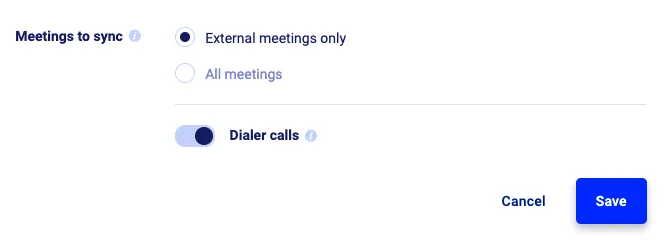
- Open your Demodesk Integration Settings.
- Navigate to your connected CRM (Salesforce or HubSpot).
- Under Meetings to sync, activate the toggle Dialer calls.
FAQs
Q: How do I get my HubSpot calls recorded in Demodesk?
Q: Does the HubSpot integration already bring my calls in?
Q: One of my HubSpot calls is missing in Demodesk.
Related articles
More in this category
Still need a hand?
Our support team answers in the app chat, or at support@demodesk.com.