Sync your notes to Salesforce
Updated May 12, 2023
Want to save an hour every day? Sync all your notes directly to the right fields in Salesforce. After you have properly set up, connected and integrated your custom tokens within your playbook, you can use them in the speaker notes and update them after the meeting has ended on the meeting review page.
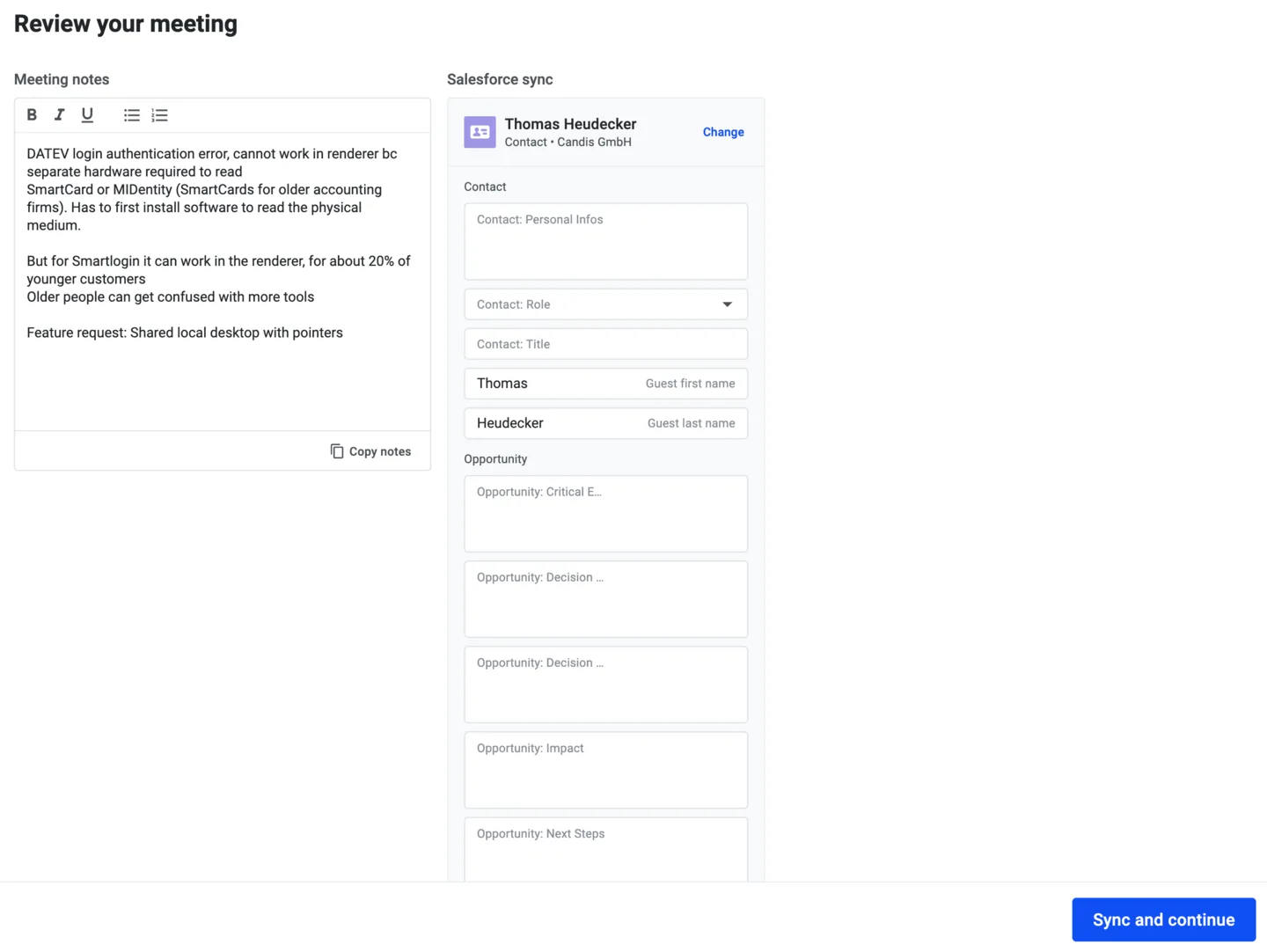
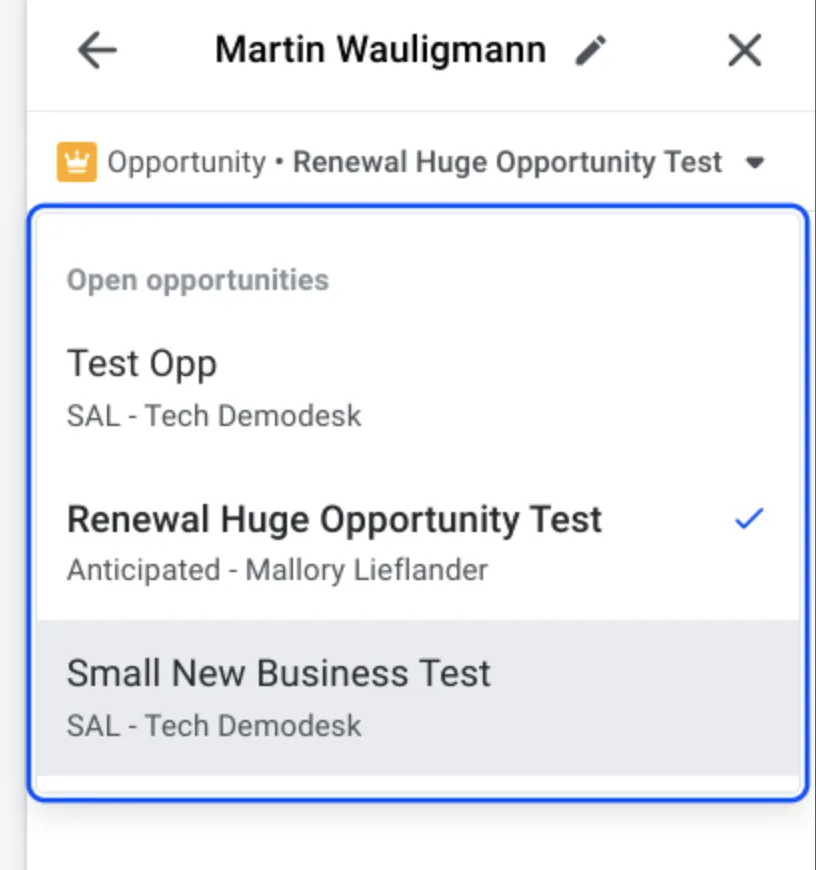
NEW: You can now select account/company-level and contact-level opportunities/deals in the dropdown. We show all open Opportunities related to the account, even if the contact is not associated with the Opp.
For syncing notes to Salesforce, there are two possible destinations (for selection in the Integration Settings in Demodesk).
- Event description
- Event-related Note
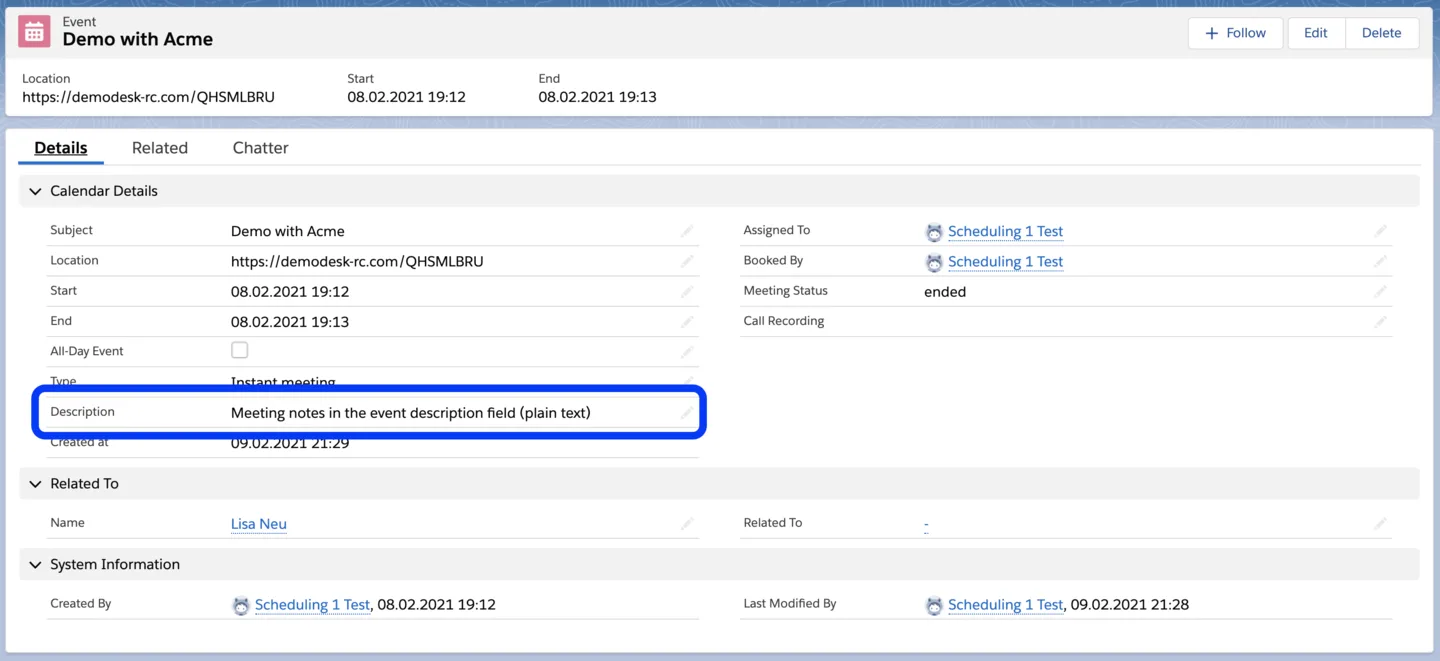
By default, your notes are synced to the Event's description field. This field only supports plain text.
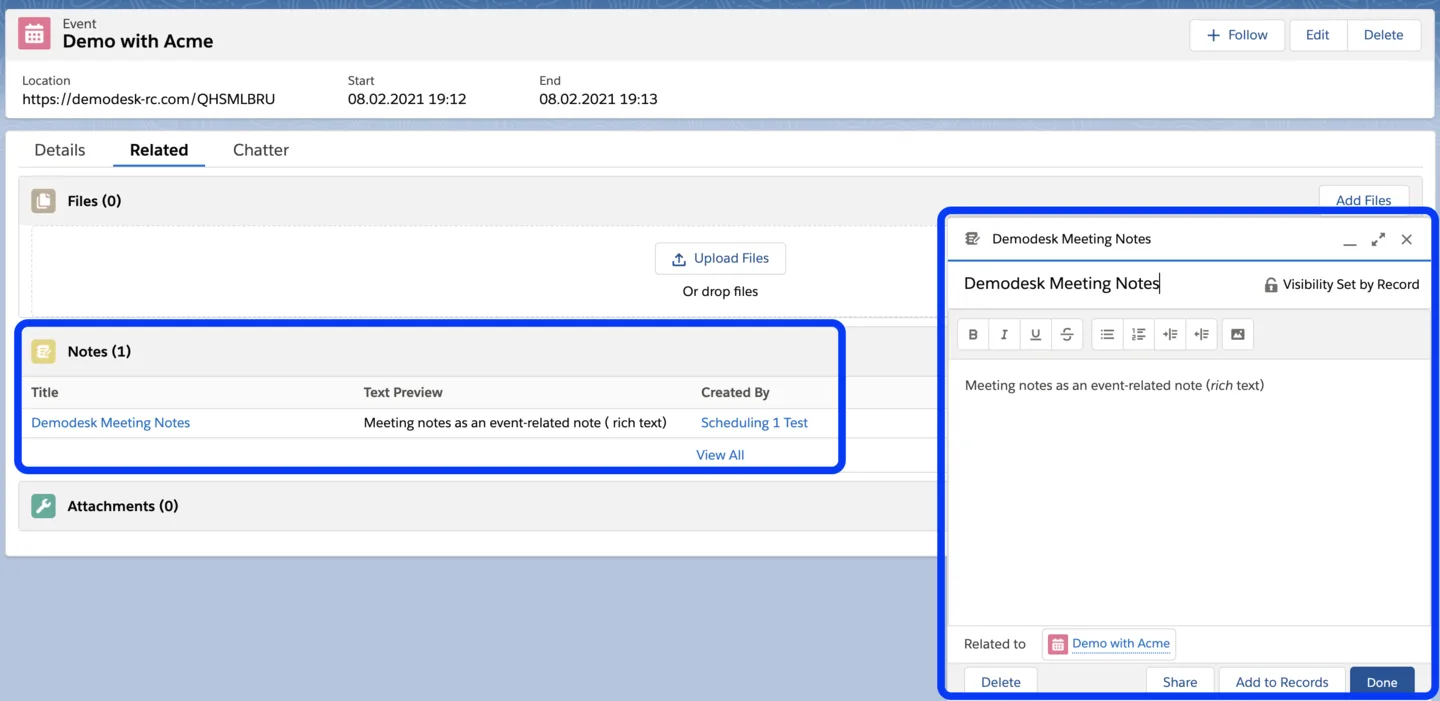
Alternatively, you can also select to create a Note that is related to the event. Notes are capable of rich text. If you formatted your meeting notes in Demodesk, the formatting is also visible in Salesforce.
Note: We recommend event-related notes if you have the sync between your email/calendar provider and Salesforce enabled. In that case, this option prevents that your meeting notes are synced to the calendar description which is also visible to your guest(s).
If you are using this option, please make sure to enable Notes in your Salesforce settings.
Related articles
More in this category
Still need a hand?
Our support team answers in the app chat, or at support@demodesk.com.