Report data in your CRM
Updated August 1, 2023
On this page
Demodesk logs all relevant information back to your CRM so you can track relevant data and run extensive reports. To enable data logging in your CRM, you need to integrate Demodesk with your Salesforce account.
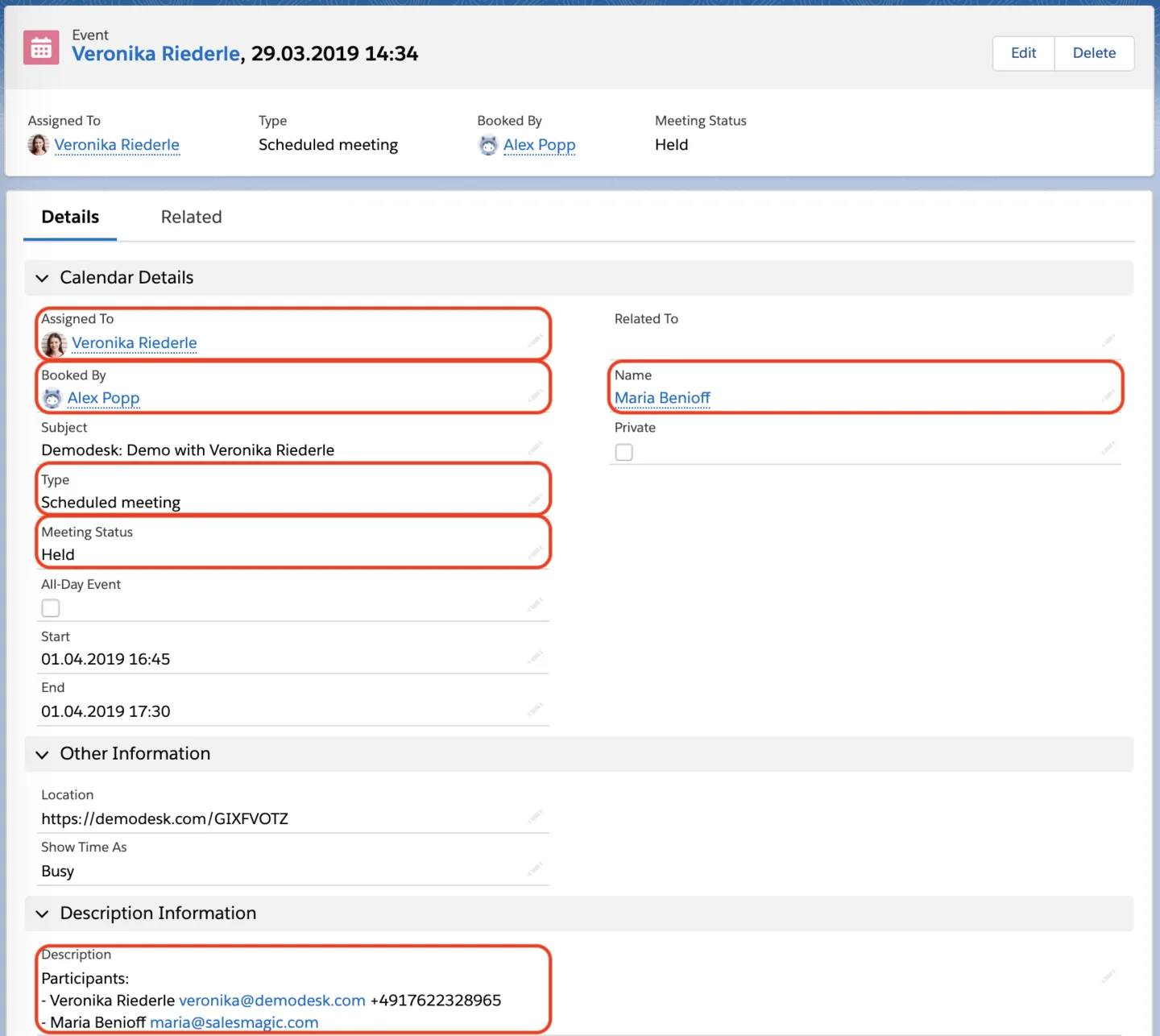
Demodesk automatically logs every meeting as Event in CRM. See below for an overview of activity fields and labels that are reported.
ℹ️ Did you know that Demodesk provides a full overview of Demodesk activities catering for your reporting needs? Take a look at this article to find out how to use our Insights Dashboard and analyse your data
List of event objects
Event owner (meeting host, e.g. Account Executive)
Field Label: Assigned To
Field Name: OwnerId
Data Type: Lookup (User, Calendar)
Note: Event owner must connect his Salesforce Account w/ Demodesk
Contact/Lead (meeting invitee, e.g. Customer)
Field Label: Name
Field Name: WhoId
Data Type: Lookup (Contact, Lead)
Note: Demodesk uses the email address of the contact/lead to assign the event. If no email address is found – i.e. contact/lead not yet existing in Salesforce – Demodesk creates a new lead
Type (meeting template)
Field Label: Type
Field Name: Type
Data Type: Picklist (Instant meeting, meeting templates)
Note: Name of the meeting template is logged as Type. If an instant meeting was held, then "Instant Meeting" is logged; Field needs to be added to the event page to be visible
Participants (meeting participants and invitees)
Field Label: Description
Field Name: Description
Data Type: Long Text Area(32000)
Note: All invitees and participants are logged in the event description field and will be updated after the event
List of custom event objects
Booker (user who booked the meeting, e.g. SDR)
Field Label: Booked By
Field Name: Booked_By
API Name: Booked_By__c
Data Type: Lookup (User)
Note: Field needs to be added to the event page to be visible
Meeting Status (track if an Event is Scheduled, Held, Canceled, NoShow)
Field Label: Meeting Status
Field Name: MeetingStatus
API Name: MeetingStatus__c
Data Type: Picklist (Scheduled, Held, Canceled, No show)
Note: Events are automatically updated once Meeting Status has changed; Field needs to be added to the event page to be visible
⚠️ To avoid disruptions, kindly enter the meeting status as required. For instance, use the API name "no_show" for the "no show" status. For more information, please refer to this article.
1. Creating custom event objects
For creating the custom fields "Booked By" and "Meeting Status" go to
"Setup" > "Objects and Fields" > "Object Manager" > "Activity" > "Fields and Relationships" > "New"
Once set up as described in the list of custom objects above, custom fields can be added to the layout as predefined fields.
2. Adding event objects to the layout
For adding the necessary fields to your event layout, go to *"Setup" > "Objects and Fields" > "Object Manager" > "Events" > "Page Layouts" > "Event Layout"*drag and drop the the following fields to the layout.
Once set up, the event layout will display the added fields:
Related articles
More in this category
Still need a hand?
Our support team answers in the app chat, or at support@demodesk.com.