Zoom Notetaker integration
Updated August 26, 2026
On this page
This guide is for Coaching & AI users who want Demodesk to automatically record and transcribe their Zoom meetings. Once set up, Demodesk sends its Notetaker to join your scheduled Zoom calls, records them, and saves the transcript to your dashboard, with no manual clicks needed.
To use a Zoom personal room as a booking location for Demodesk Scheduling instead, see “Zoom for Scheduling”.
Before you start
Make sure your calendar and email are connected to Demodesk. This is what lets Demodesk automatically detect and import your scheduled Zoom meetings.
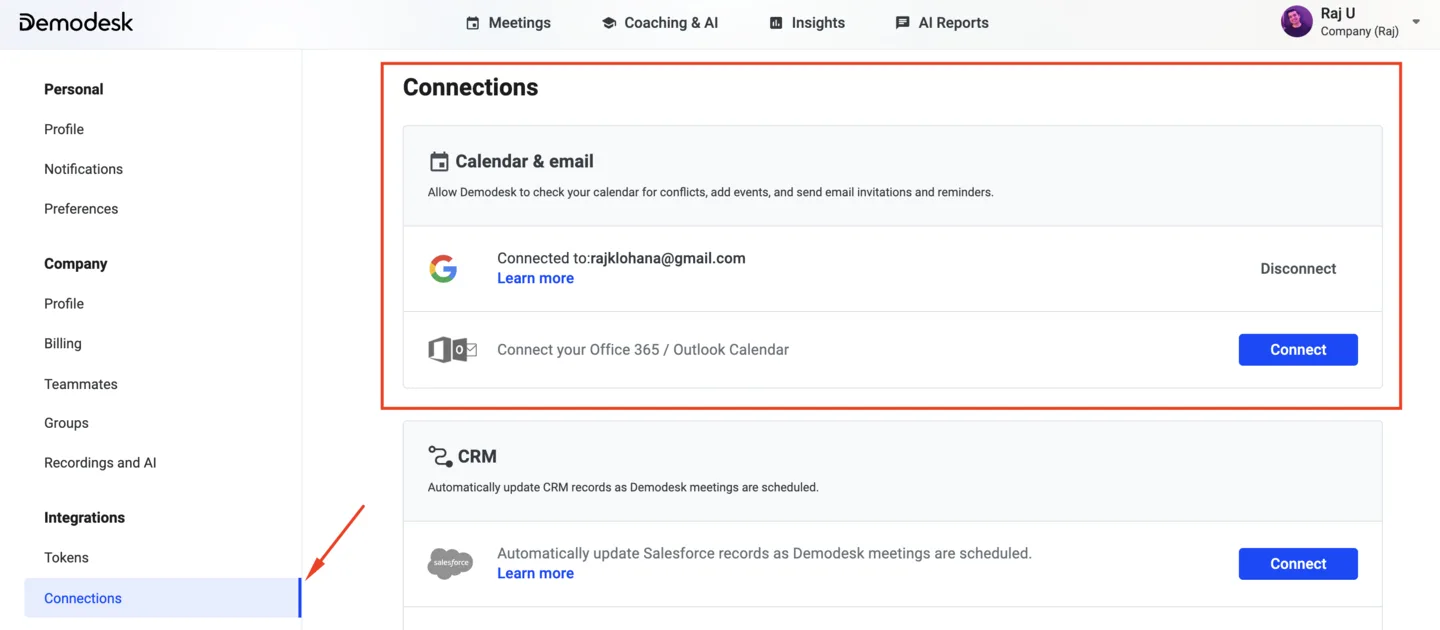
👉 Learn how to connect your calendar and email here.
Connect Zoom
-
Log in to Demodesk and go to your Connections page.
-
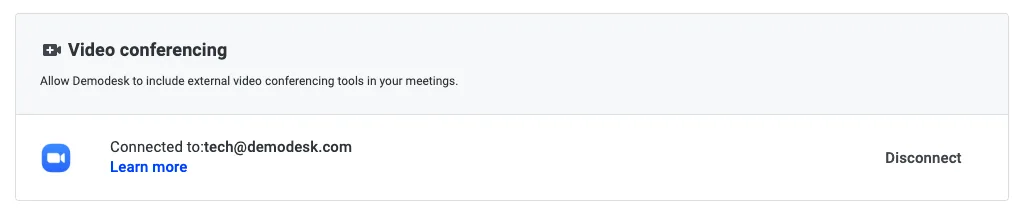
Scroll down to the Video conferencing section.

-
Click Connect next to Zoom.
-
On the authorization screen, click Allow to grant Demodesk access to your Zoom account.
-
That’s it! Your Zoom account is now connected ✅
How it works
Once your calendar and Zoom are connected, Demodesk handles the rest:
- It detects any calendar event with a valid Zoom link in the location field.
- The Notetaker automatically joins the meeting at its start time.
- The meeting is recorded and transcribed, and saved to your Demodesk dashboard.
You can also add a Zoom meeting manually by copying the invite link and pasting it into Demodesk.
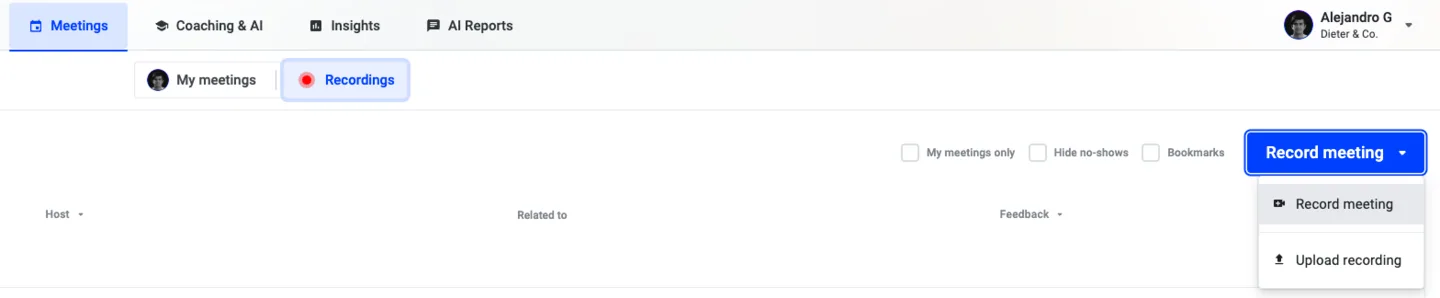
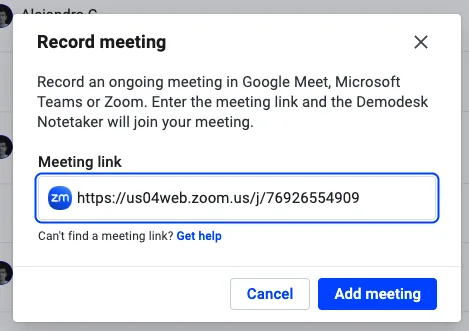
That’s it! 🎉 The Notetaker joins at the start time, and the recording is transcribed and saved to your Demodesk dashboard automatically.
View and share your recordings
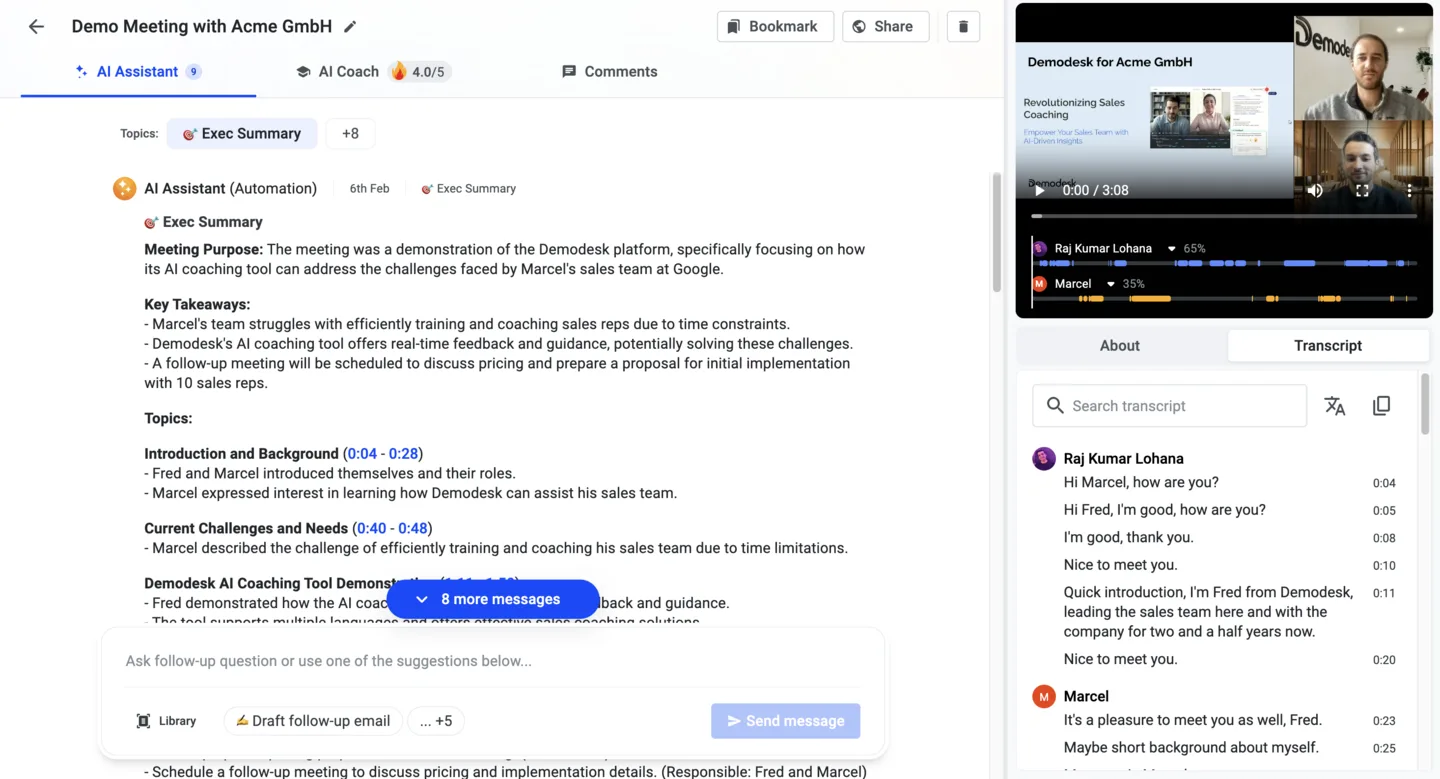
After the meeting ends, the recording and full transcript are saved to your Demodesk dashboard. You can review them, share them with teammates, or use them to prepare follow-ups and reports.
Disconnect Zoom
-
Log in to Demodesk and go to your Connections page.
-
Scroll down to the Video conferencing section and click Disconnect.
FAQs
Related articles
More in this category
Still need a hand?
Our support team answers in the app chat, or at support@demodesk.com.