Automated emails in Demodesk
Updated November 21, 2022
This overview is designed to provide you with a checklist you can go back to every time to check whenever a question comes up. We added all kinds of actions that can happen to trigger an email, so make sure to save this article.
We will show you what happens when you schedule a meeting via the booking page, the dashboard or Google calendar
| Demodesk use case | What's happening |
|---|---|
| Scheduling a Meeting via Demodesk | Email invitation will be sent according to the template in the Meeting Type, that you chose during the booking process. This article will give you more information about Meeting Types. |
| Scheduling a Meeting via the Demodesk booking page | Email invitation will be sent according to the template in the Meeting Type that you chose. This article will give you more information about booking pages. |
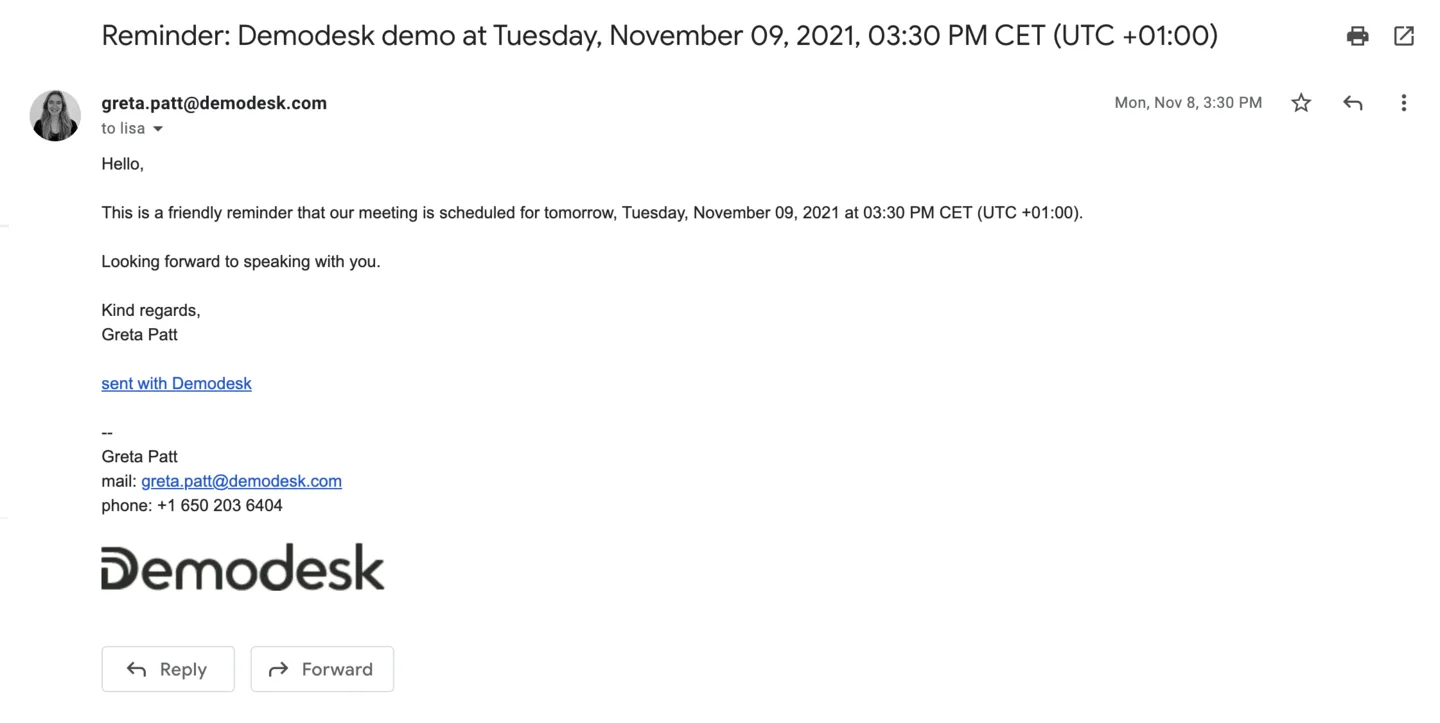
| Reminder emails | Reminder emails will be sent before the meeting, the exact time and content can be adjusted in your Meeting Type, learn how to do it here. |
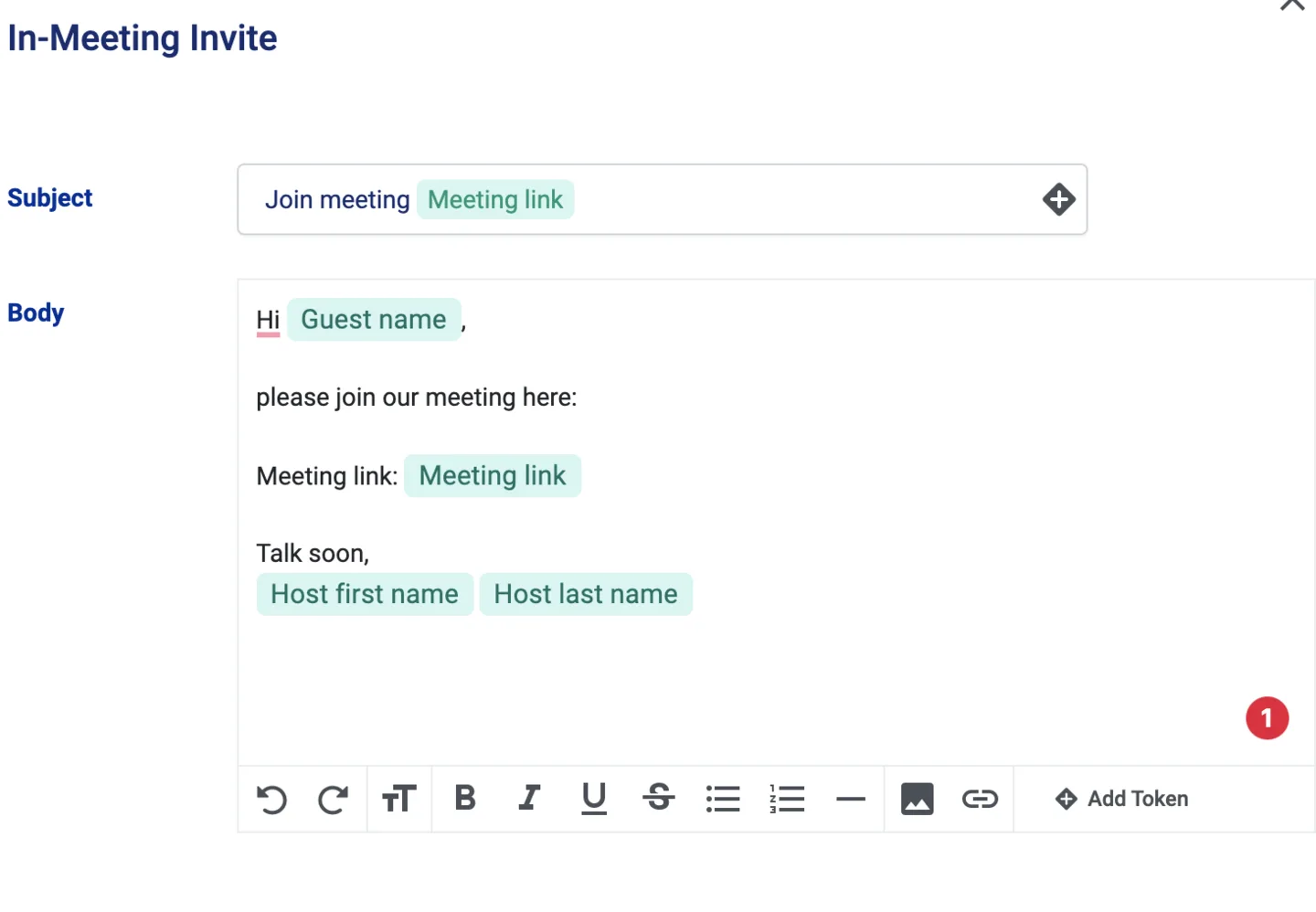
| In-meeting Invite | You can invite additional guests even when the meeting is already running, check this article for more information.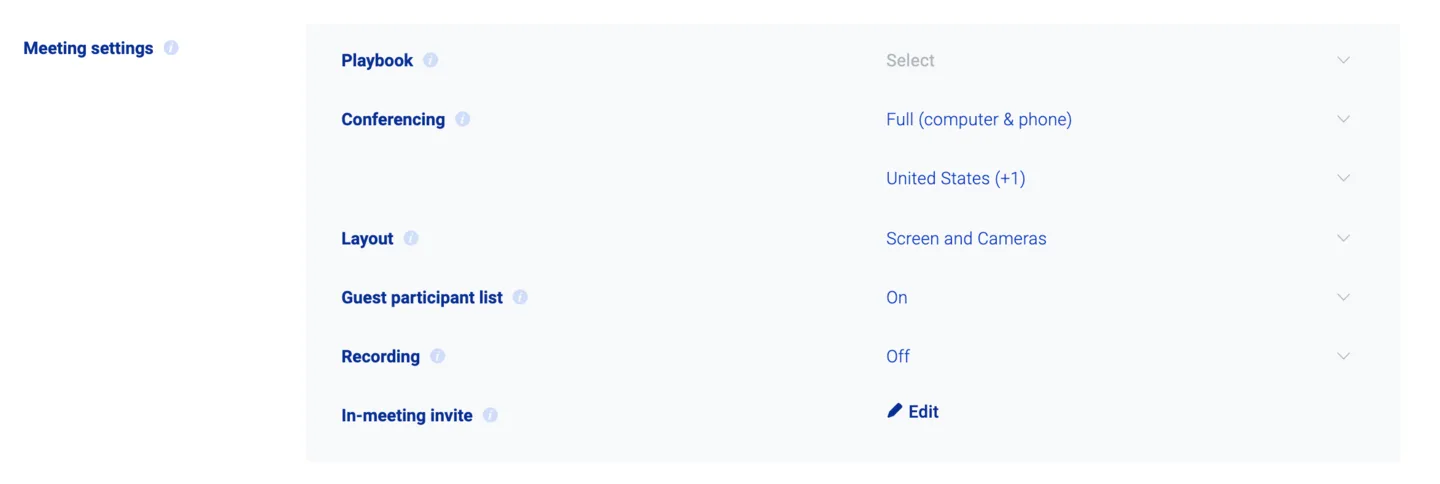 |
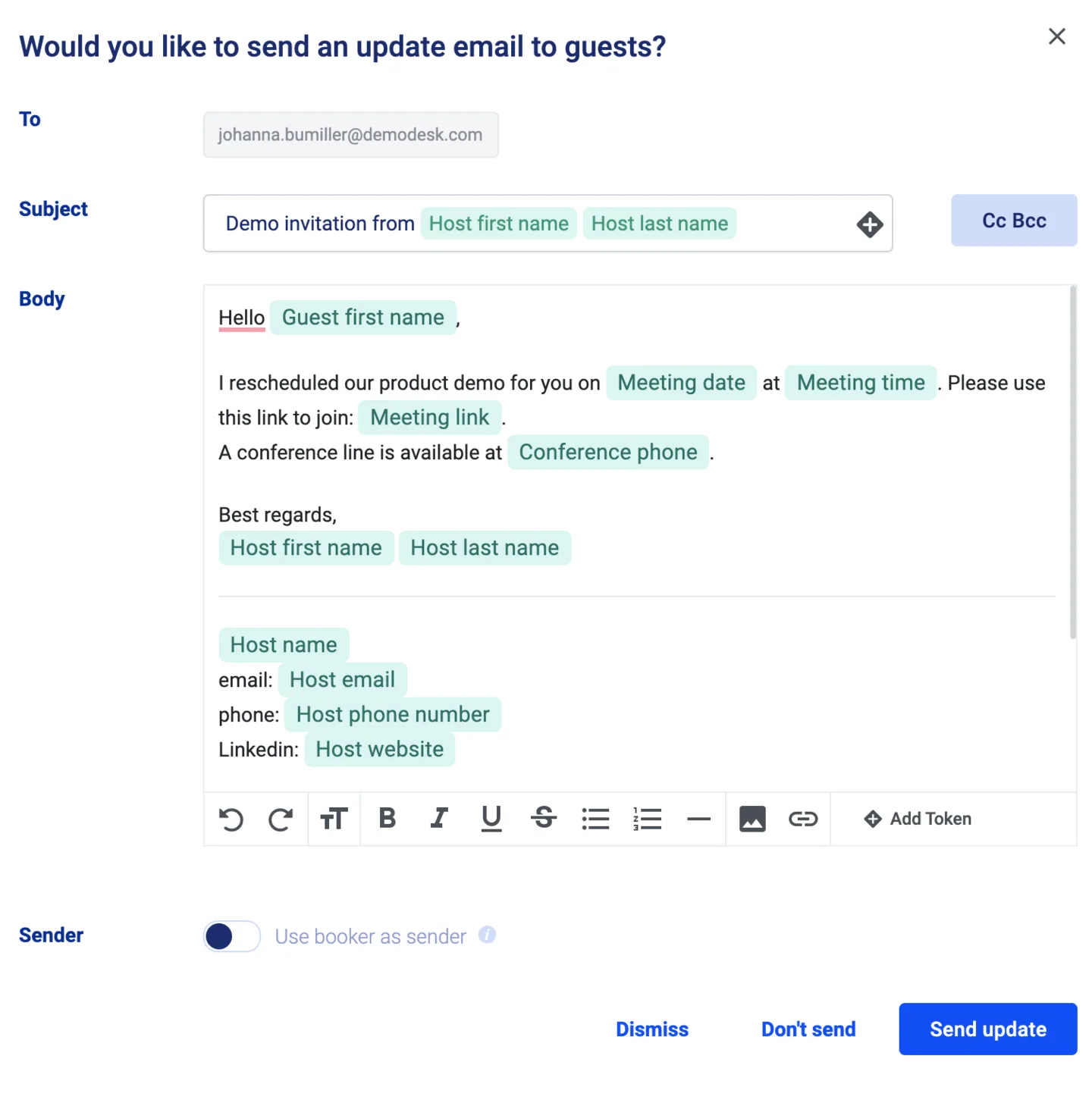
| Changing the Meeting Time | When you change the time via your Demodesk Dashboard, you can choose whether you want to send the google update only or also an additional invite, which can be customized. |
| Change the host of your meeting | The new host will receive a handover email, the guests will not get any update email. |
| Guest accepts the invite | Google generates an automated email which informs you if a guest accepted your invite. |
| Guest declines the invite | Google generates an automated email which informs you if a guest declined your invite. |
You cannot only schedule meetings via our Dashboard but also via your Google calendar. Demodesk offers an extension that can be used within the Chrome browser.
Why? The Demodesk chrome extension makes scheduling out of Google calendar a lot easier and allows you to have the most important Demodesk functionalities always at hand.
Things to consider:
- Scheduling with the extension allows you to use only your default Meeting type.
- Meetings scheduled via the extension might not be related to your CRM (only Pipedrive).
| Use cases: via Google | Whats happening |
|---|---|
| Scheduling a Meeting via Google Calendar | Google meeting invitation is sent, according to your default Meeting Type. |
| Reminder emails | Reminder emails will be sent out before the meeting, the template can be found and adjusted in your default Meeting Type. |
| Changing the Meeting Time with your Google Calendar | The guests will receive a new invite with the changes, it cannot be customized. The response status of the guests will be reset. |
| Guest accepts the invite | Google generates an automated email that informs you if a guest accepted your invite. |
| Guest declines the invite | Google generates an automated email that informs you if a guest declined your invite. |
Example Emails
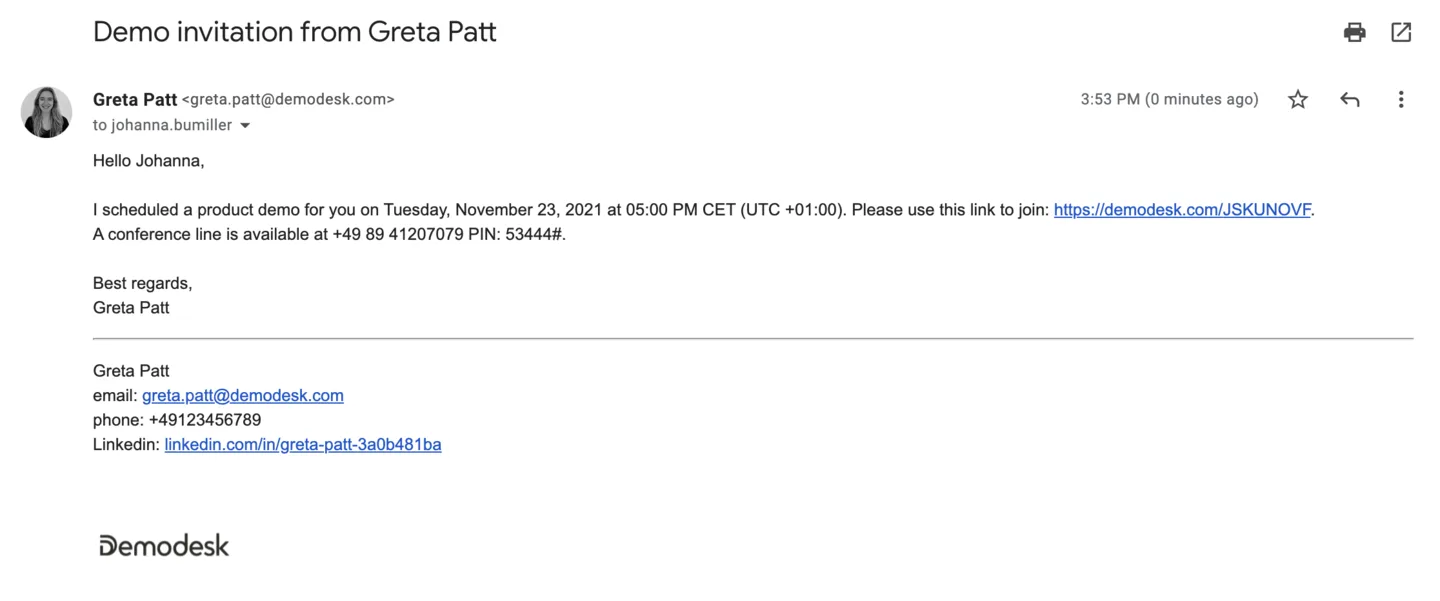
- Scheduling a Meeting via Demodesk
- Reminder emails
- Update the Meeting via Demodesk
- the standard text is based on the email invite template
-
In meeting invite
Related articles
More in this category
Still need a hand?
Our support team answers in the app chat, or at support@demodesk.com.