Hidden booking questions: source and conversion tracking
Updated February 6, 2024
On this page
Using hidden booking questions is a way to enable CRM UTM source tracking on Demodesk, if you are using Salesforce and Pipedrive or wish to gather such information from booking links. This article will provide a comprehensive guide on how to configure this tracking.
If you are a HubSpot user and you are using the Demodesk booking page as an iframe and wish to enable marketing tracking in general or source tracking in CRM, do not follow this article - please use this guide instead.
This article is structured into the following sections:
How to set it up
To establish the entire system correctly, it is essential to have close collaboration with your developers, as certain steps require their input. In this article, we divide the setup process into two sections: one that you should handle and the other for your developers.
Your tasks:
The following are the tasks you need to take care of to establish hidden booking questions for source tracking in your CRM.
- In Demodesk: Go to Tokens: Set up custom tokens for the UTM data you are interested in (eg.
utm_source). Connect them with the respective field in the CRM - Go to respective Meeting type: Add tokens to the booking page as hidden booking questions as detailed in this article
- Provide a list of the relevant token slugs (created) along with the remaining instructions to your web developer.
- Also share our code snippet for the booking or routing page with your developer
Below, you will find a table displaying a selection of system token slugs. Please note that you can view the names of your tokens and their corresponding slugs here
| Token name | Token slug |
|---|---|
| Booker email | booker_email |
| Booker first name | booker_first_name |
| Booker last name | booker_last_name |
| Booker name | booker_name |
| Booker phone number | booker_phone |
| Booker slug | booker_slug |
| Booker title | booker_title |
| Booker website | booker_website |
| Guest company name | customer_company_name |
| Guest email | customer_email |
| Guest first name | customer_first_name |
| Guest last name | customer_last_name |
| Guest phone | customer_phone |
| Host company name | user_company_name |
| Host email | user_email |
Web developer’s tasks:
After successfully completing the tasks mentioned above, your web developer should step in to ensure the implementation of the connection. The below information is directed at your web developer.
- From your Demodesk administrator, you received a code snippet and a list of "token slugs"
- You will modify the snippet to pass the UTM params from the parent page's URL to the iframe URL (which will then prefill hidden booking questions for the UTM parameters)
- To do so, write a small JavaScript snippet that, on page load, extracts UTM parameters from the URL
- Generate a string of URL parameters where the parameter keys correspond to the UTM token slugs you get from your Demodesk administrator, and the UTM parameter values you extracted from the URL (for example “
&utm_source_token=${utm_source)&utm_campaign_token=…“) - Modify the original Demodesk snippet to also pass this parameter string to the iframe
💡 The following snippet can be used as a starting point (you can make a copy of this snippet here)
Make sure to adapt the following:
- Change
utmToTokenMappingto match the slugs you received from your Demodesk admin - Change the line
var r="https://demodesk.com..."to load your booking page instead of the example booking page (take the URL path from the code snippet you received)
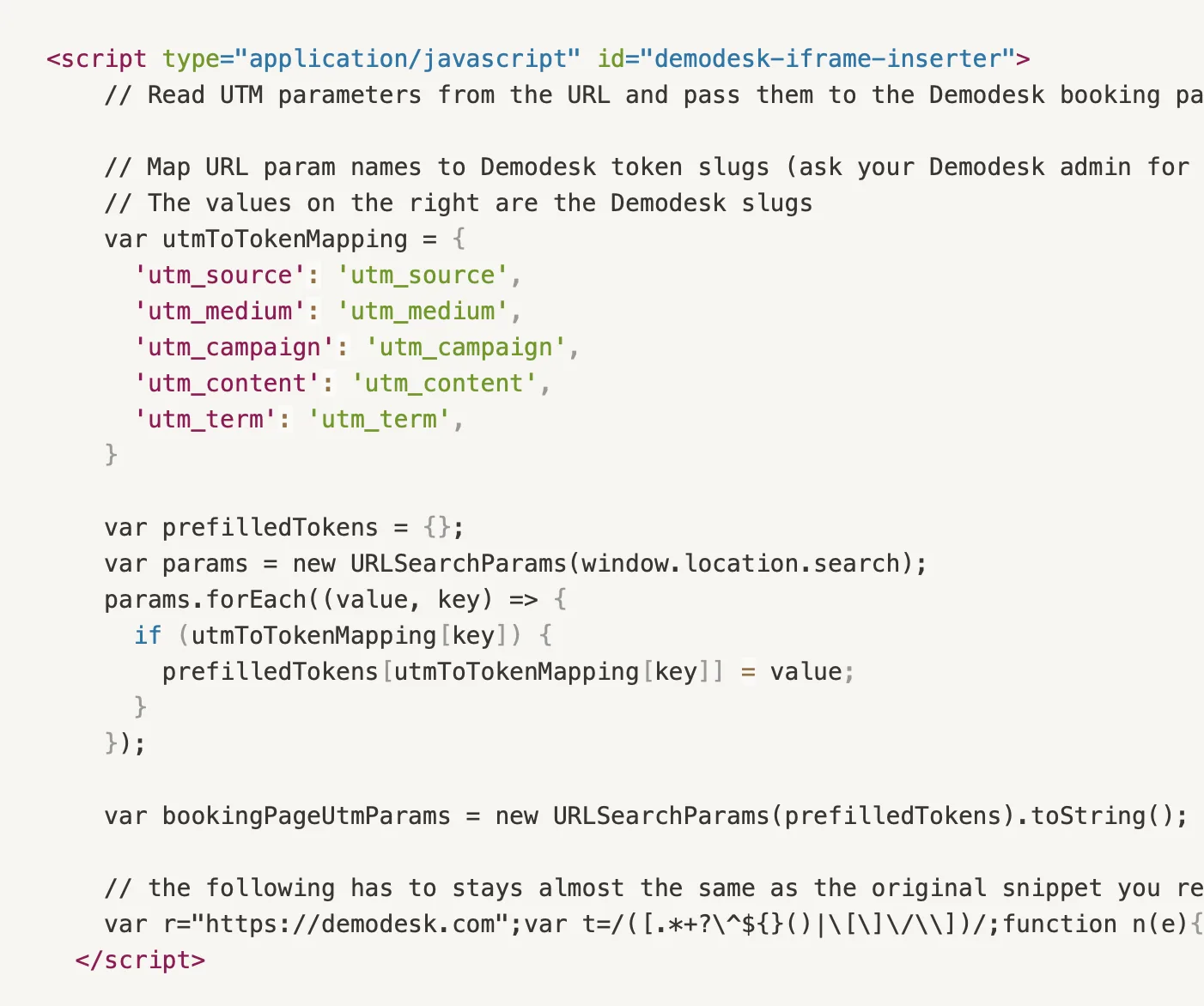
- To test whether your prefilling of form values is functioning, you can locate the element with the class "hidden-question" and remove the "display: none" property. You should now see additional form fields for the UTM parameters. Also, make sure that the URL of the iframe includes the UTM parameters correctly.
Tracking Methods
A button opens the booking page:
🪛👩💻 This needs to be done by your website developers
- Button opens booking page: on the parent page, extract URL variables and append them to the URL of the booking page you are opening
Iframe:
🪛👩💻 This needs to be done by your website developers
- Parent page: extract UTM parameters from the URL
- Parent page: adjust the Demodesk code snippet by adding GET Parameters to the iFrame URL for each pair of token slug and the UTM value from the URL
ℹ️ Helpful information for developers
- We already add a Demodesk iframe to let visitors book meetings with us and would like to pass the UTM parameters from our URL to the Demodesk iframe
- We should not load the iframe on page load anymore, but first, see whether we have to modify the URL
- The parameters from our URL need to be appended to the Demodesk iframe url before(!) the iframe loads
- Important: The parameter names for the Demodesk url are different than the real UTM parameter names as shown here
⚡ Pro Tip: For testing purposes, it is advisable to temporarily make the UTM booking questions visible so that the developers can easily verify whether the process has been successful
Related articles
More in this category
Still need a hand?
Our support team answers in the app chat, or at support@demodesk.com.