Notifying the parent window of interactions on the booking page
Updated September 9, 2024
On this page
This article shows you how to use Demodesk booking page to gain insightful information or have specific actions, once you have added it on your website. It is meant for source and conversion tracking in your marketing tool or CRM (for HubSpot only). If you are looking for source and conversion tracking for your CRM and you are a Pipedrive or Salesforce user please refer to this article. Please note that this article applies to routing forums as well.
🪛👩💻 Please note: This article is technical, but it is worth reviewing the use cases to determine their potential benefit for you. If you decide to implement any of these features, you will need the assistance of a web developer.
The following are some source and conversion use cases that can be achieved using Demodesk booking pages:
- Conversion tracking of bookings via Google Analytics or HubSpot
- Hide or show content after the booking process
- Redirect to a different page after the booking process
- React to actions that are triggered by the booking page
This article is divided into the following sections:
- Add a booking page
- Receive events when addinng a booking page as an iframe
- Receive events when opening the booking page in a new tab
- Listening to events from the booking page
- Create Google Tag Manager Trigger
- HubSpot - Merge web analytics data with Contact
Add a booking page
The first step is to add a booking page to your website. You can add the booking page as an iframe by, for example, using the Demodesk code snippet as detailed in this article. In doing so, to enable source and conversion tracking, you should ensure that the information transmitted from the Demodesk iframe to your website is received (listened to), enabling you to monitor the specific information you require.
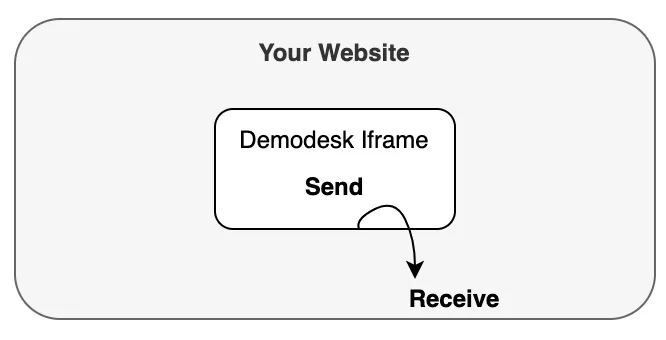
As a developer, you can subscribe to these events to fire analytic tracking events or customize your own website/app. This is done via window.postMessage() which means you can receive these events in the following two situations:
- You add the booking page as iframe as detailed here
- You open the link to the booking page with
window.openas demonstrated here
Related articles
Still need a hand?
Our support team answers in the app chat, or at support@demodesk.com.