Meeting Scorecards in Coaching & AI
Updated July 28, 2026
On this page
Why is this important?
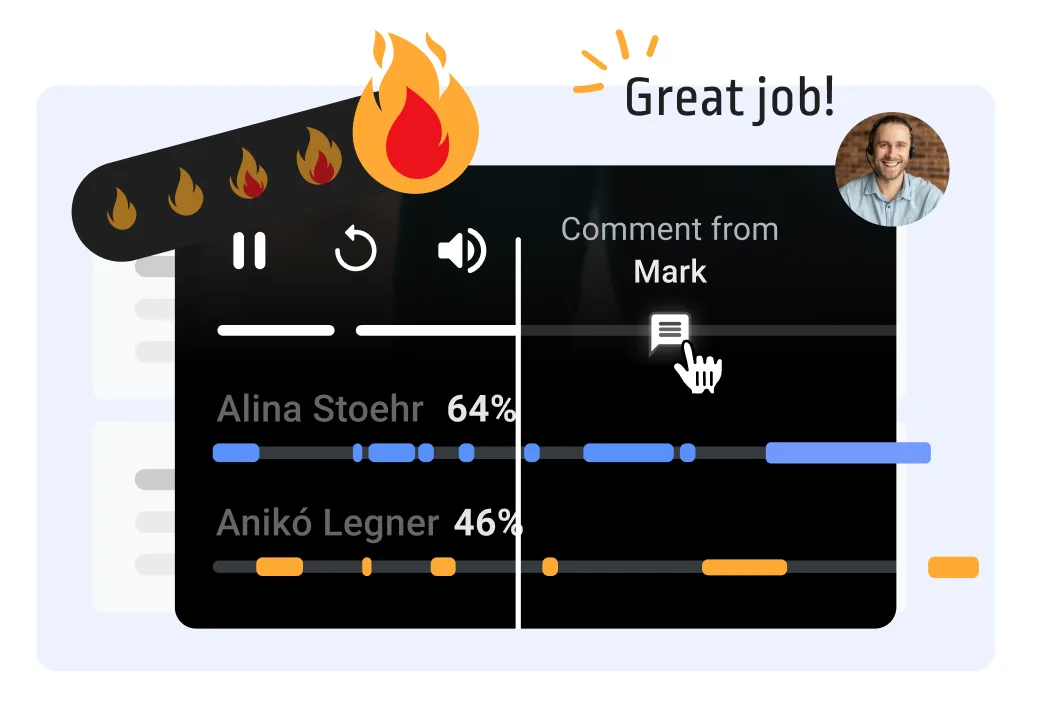
Meeting scorecards help you define the performance criteria for success and reviewing it as part of your sales coaching framework for continued success and to elevate your team's performance.
- Team Consistency: With standardized feedback templates, everyone is on the same page, ensuring a uniform feedback experience.
- Structured Feedback: No more ambiguous or generic feedback. Our templates ensure feedback is actionable, specific, and aligned with best practices.
- Scale Your Coaching: Sales leaders can now effortlessly pinpoint areas for improvement and provide targeted coaching, ensuring the entire sales team thrives.
- Fostering a Feedback Culture: Create an environment where feedback is not just given and received but is actively sought after for growth, leading to alignment across teams, departments, and organizations.
Concepts
Meeting scorecards
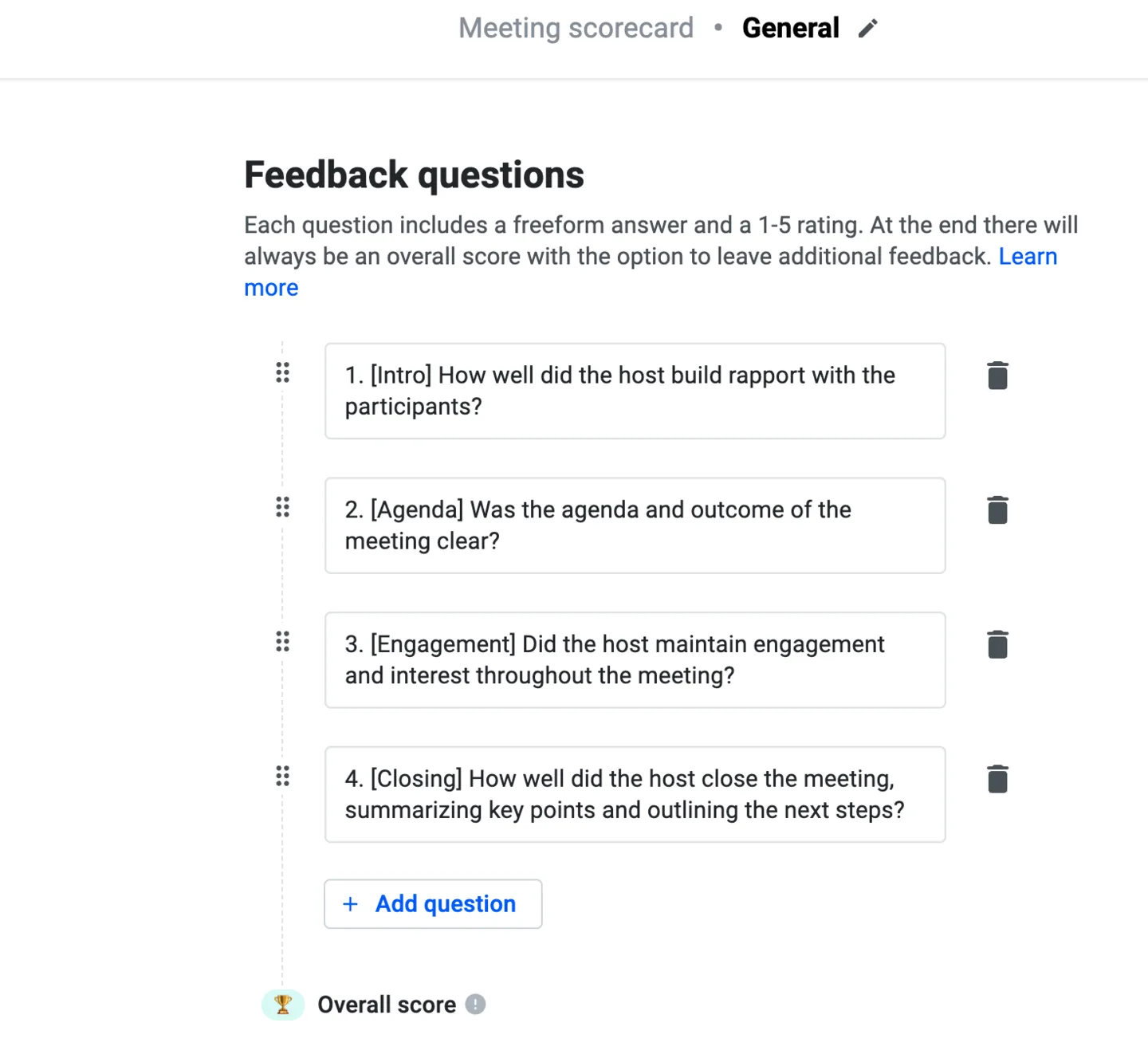
Scorecards are a set of questions you can define freely, always including a 1-5 rating and an overall rating. This way, you can ensure that every recording is rated on the same criteria and that the understanding of outstanding performance is aligned across teams.
As a best practice, we recommend adding context to each question.
For example, you could explain why the question matters, which segment of the conversation it relates to, and explain what a perfect score would look like.
How Are Scores Assigned?
Scores in the meeting scorecards are assigned on a scale from 1 to 5, with 1 being the lowest and 5 being the highest. Here's how the AI Coach evaluates and assigns scores:
- Score of "1" (Poor Performance): The participant fails to meet the criteria, neglects key steps, or misunderstands what’s required. For yes/no questions, this score is applied when the answer is “No” (e.g., "Did the sales representative mention explicitly that the meeting is being recorded?" If the sales representative failed to mention that, the score assigned will be 1)
- Score of "2" (Below Average Performance): Effort is evident, but significant gaps remain. Responses may lack detail, accuracy, or structure, making the overall execution fall short of expectations.
- Score of "3" (Moderately Good Performance): The participant meets many criteria but lacks consistency or polish. While the performance is solid, some areas—like clarity, personalization, or thoroughness—need improvement.
- Score of "4" (Good Performance): A strong, well-executed performance that ticks almost every box. With minor tweaks, such as refining phrasing or adding extra depth, it could reach perfection.
- Score of "5" (Excellent Performance): Outstanding execution with no weaknesses. The participant fully meets or exceeds expectations, delivering a performance that adds significant value to the meeting. For yes/no questions, this score is applied when the answer is “Yes” (e.g., "Did the sales representative mention explicitly that the meeting is being recorded?" If the sales representative explicitly mentioned that, the score assigned will be 5)
In addition to the score, the AI Coach provides detailed reasoning and actionable advice for each score to help participants understand their performance and improve over time. If a score cannot be assigned due to insufficient or irrelevant context, the AI Coach will use a null score. This is only be applied when the evaluation section is completely unrelated to the meeting being assessed.
Meeting feedback
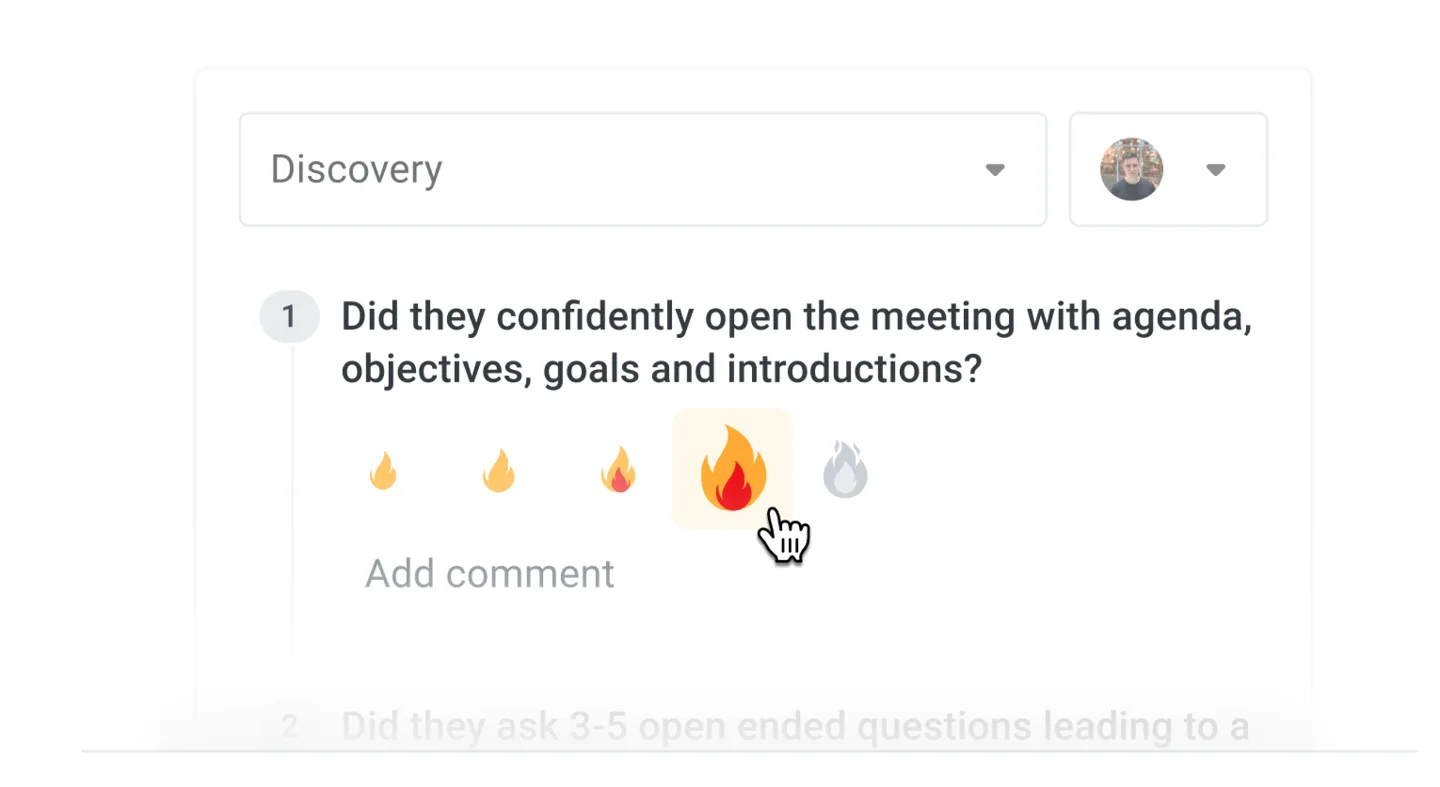
When a user submits feedback on a recording using a scorecard, we call this meeting feedback. All questions in Meeting feedback are optional except for the overall rating, which allows for monitoring quantitative feedback trends.
How to manage meeting feedback templates
Create your first scorecard
- Open to the Coaching Tab. Please note that you need to be an admin to do that.
- Enter a meaningful name, indicating which team or role is considered (e.g. AE - Demo vs SDR - Discovery)
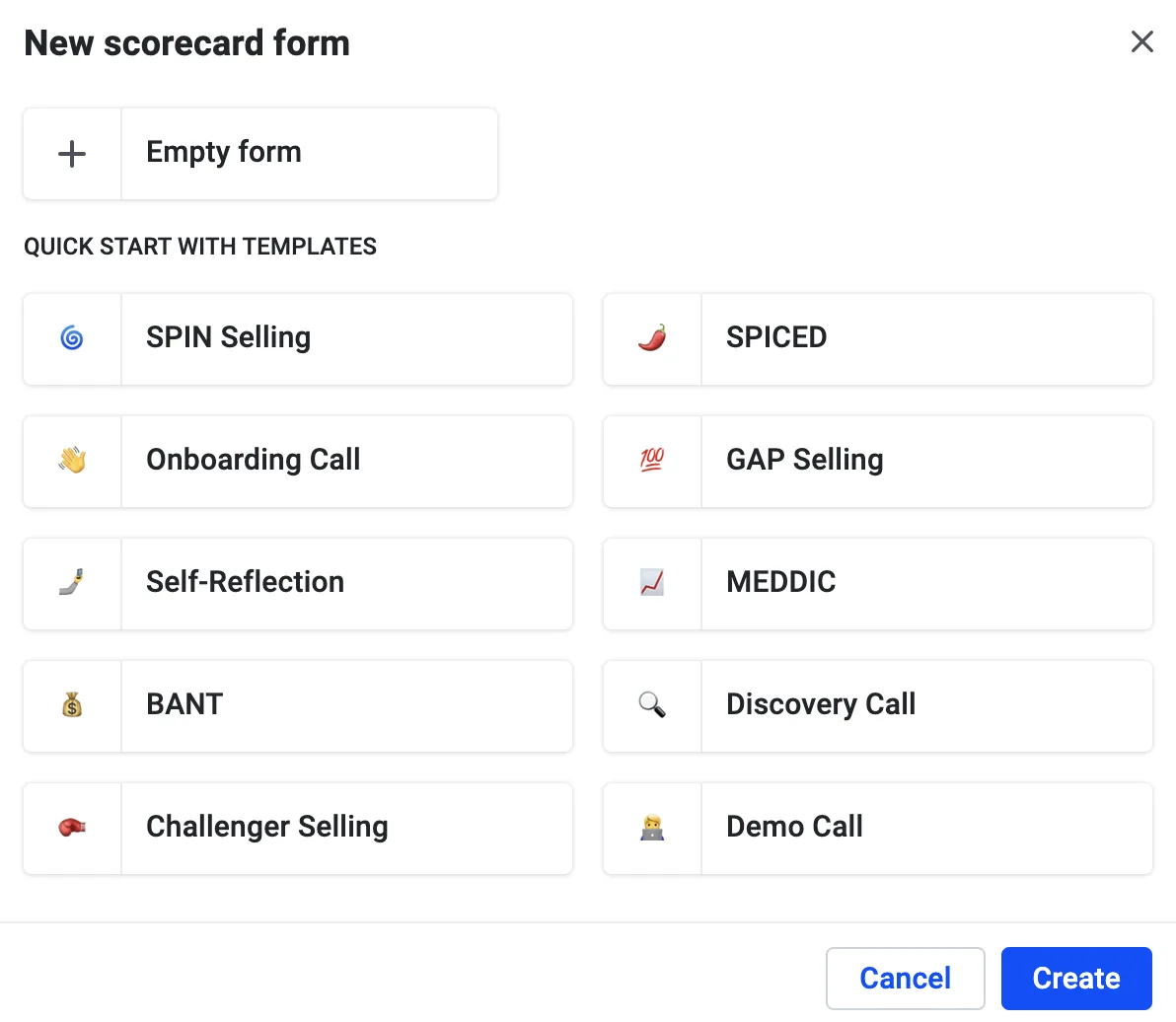
- Choose either an empty form or one of our templates as the foundation for your scorecard form.
- You can now add/edit the questions you desire. We recommend a maximum of 10 so as not to overwhelm your team.
- You did it. Congratulations on your first scorecard! 🎉
⚡Pro Tip: Upon clicking "New Scorecard," you have the option to begin with an empty scorecard, allowing you to edit it from scratch. Alternatively, you can choose from one of the Demodesk templates to speed up the process, as shown below.
Enhancing Your Meeting Scorecards: Question Library & AI Auto-Optimization
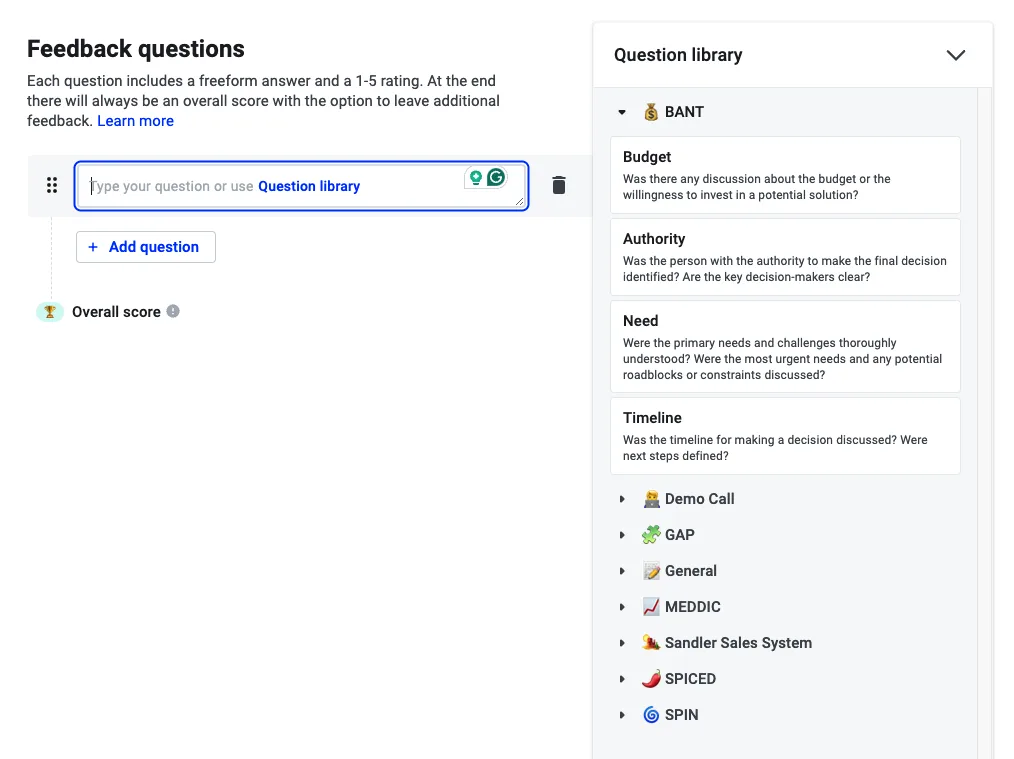
To create a scorecard, you can either select relevant questions from the library or add your own custom questions to suit your specific needs. Feel free also to mix & match questions from our Library with your custom ones.
Using the Question Library
The Question Library offers a set of predefined questions aligned with popular evaluation frameworks such as BANT, SPICED, and MEDDIC.
Adding Custom Questions
You don't find a question that fits your purpose in our library? Don't worry, we've got you covered! You can add your own custom questions and our AI-powered optimization will help you improve them. You just need to click on "Save" after you have crafted your scorecard, and our question optimization will run automatically and provide you with suggestions.
Guidelines for Prompting Effective Questions:
- Keep questions short and focused on a single topic.
- Avoid using "I" or "You" to prevent confusion. Instead, refer to specific roles (e.g., "How did the sales rep handle objections?").
- Focus on observable actions during the meeting (e.g., "Did the sales rep get buy-in for the agenda?").
- Avoid subjective or visual questions (e.g., "Did the sales rep smile?" is not supported).
- Always provide context when necessary (e.g., define terms like "Tier 2 cities" if needed).
Scoring Criteria (for custom questions)
When adding a custom question, you'll see a "Scoring Criteria" field underneath it. Use this to tell the AI exactly what to look for when scoring that specific question — for example: "Rep should mention tiered pricing and confirm the customer's key success metrics."
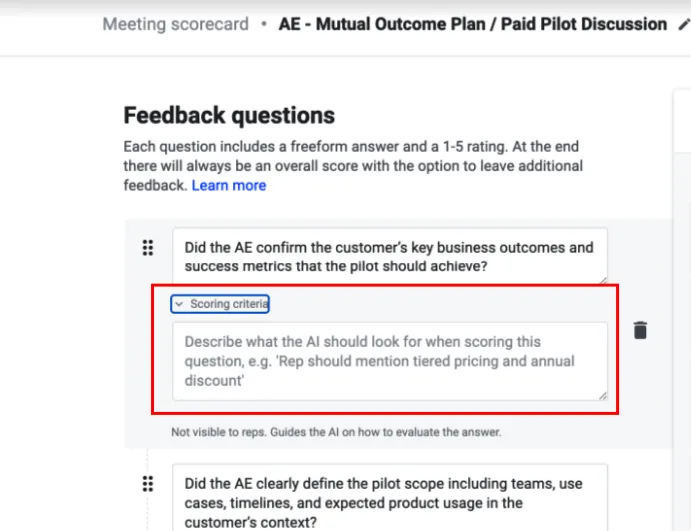
This field is hidden from reps — only the AI uses it. It gives you question-level control over how strictly or specifically each item is evaluated.
⚠️ Note: Scoring Criteria is only available for custom (user-generated) questions. It does not apply to questions added from the system question library.
Custom Context (Advanced Settings)
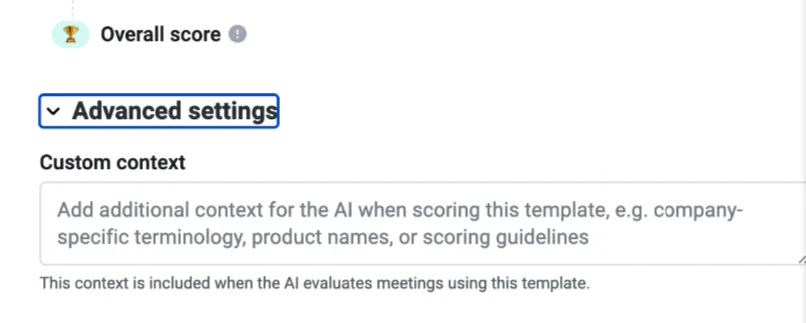
At the template level, under Advanced Settings, you'll find a "Custom Context" field. Use this for broader guidance that applies across the entire scorecard — such as your company's product names, internal terminology, or general scoring philosophy.
This is useful when your AI needs background knowledge to score accurately, for example: "We sell to mid-market HR teams. Our product is called Demodesk."
Edit / Duplicate / Deactivate / Delete scorecards
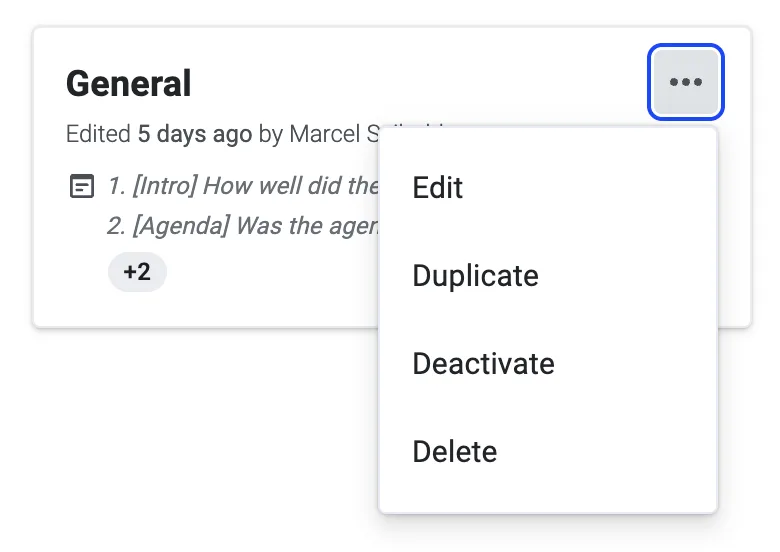
All your actions on scorecards can be triggered by clicking on "..."
- Edit: Allows you to edit an existing scorecard.
- Duplicate: Allows you to duplicate an existing scorecard
- Deactivate: This means a scorecard can no longer be selected for meeting feedback. This is useful if you want to stop using a scorecard or are not finished updating it yet.
- Delete: You can delete the scorecard. Please note that there is no way to recover it so make sure you want to do it.
Rollout a scorecard to your team
Start with creating your first scorecard - either by scratch or using one of our templates as the starting point. Think about what you want to improve in your team. Is your goal to have better discovery meetings, or should the product demo improve? You should create a scorecard for that specific goal. Consider what a perfect meeting would look like and formulate that as questions (e.g. "Did the sales rep get a buy-in for the agenda"). We recommend starting with one or two scorecards initially so as not to overwhelm your team to minimize your setup effort and get results immediately. You can always create more later.
Once you are happy with your results, activate the scorecard so it is available for your team. Ideally, you walk your team through the scorecard and get their buy-in by also giving them an opportunity to provide feedback. Make sure you set clear goals and a clear cadence on how many recordings should be scored per month for maximum impact.
Good to know:
- You can re-order your questions.
- Every question will have a quantitative rating option from 1-5 and a comment box to add qualitative feedback.
- The overall score will be added automatically.
- You can deactivate scorecards if you are still working on them and you do not want your team to use them already.
Who Can Delete Feedback?
-
Users
Users can delete feedback only for their own meetings. When doing so, they must provide a reason for deleting their score. This reason is then made visible to Managers and Admins for review. -
Managers and Admins
Managers and Admins can delete feedback from any meeting recording, provided they have access to that recording.
Templates:
Demodesk offers a library of templates for your scorecard form that you can use and customize as needed, when creating a new scorecard. Additionally, feel free to explore the additional templates below, which you can easily copy and paste into your scorecard.
How to give feedback
Submit your first meeting
- Open a recording from the recording list
- Click Give feedback
- Selec the scorecard and the feedback recipient
- Fill out the rating for each question and consider adding a comment to each question to give more context. The more thorough you are the more helpful it will be for your team.
- Fill out the overall rating which is the only required field and add some motivational feedback.
- The feedback recipient will receive an email with the overall and your overall comment if applicable.
- You did it. Congratulations on your first scorecard! 🎉
Good to know:
- Every user who has access to the recording can submit a meeting feedback
- Only activated meeting scorecards can be selected for feedback
- Every question will have a quantitative rating option from 1-5 and a comment box to add qualitative feedback.
- The overall score will be added automatically.
- Users can delete their own meeting feedbacks. Admins can delete all meeting feedbacks.
- Host and team members can be selected for a meeting feedback. Shadows are excluded.
- There is no limits on how many meeting feedbacks can be submitted per recording.
How to get notified about feedback
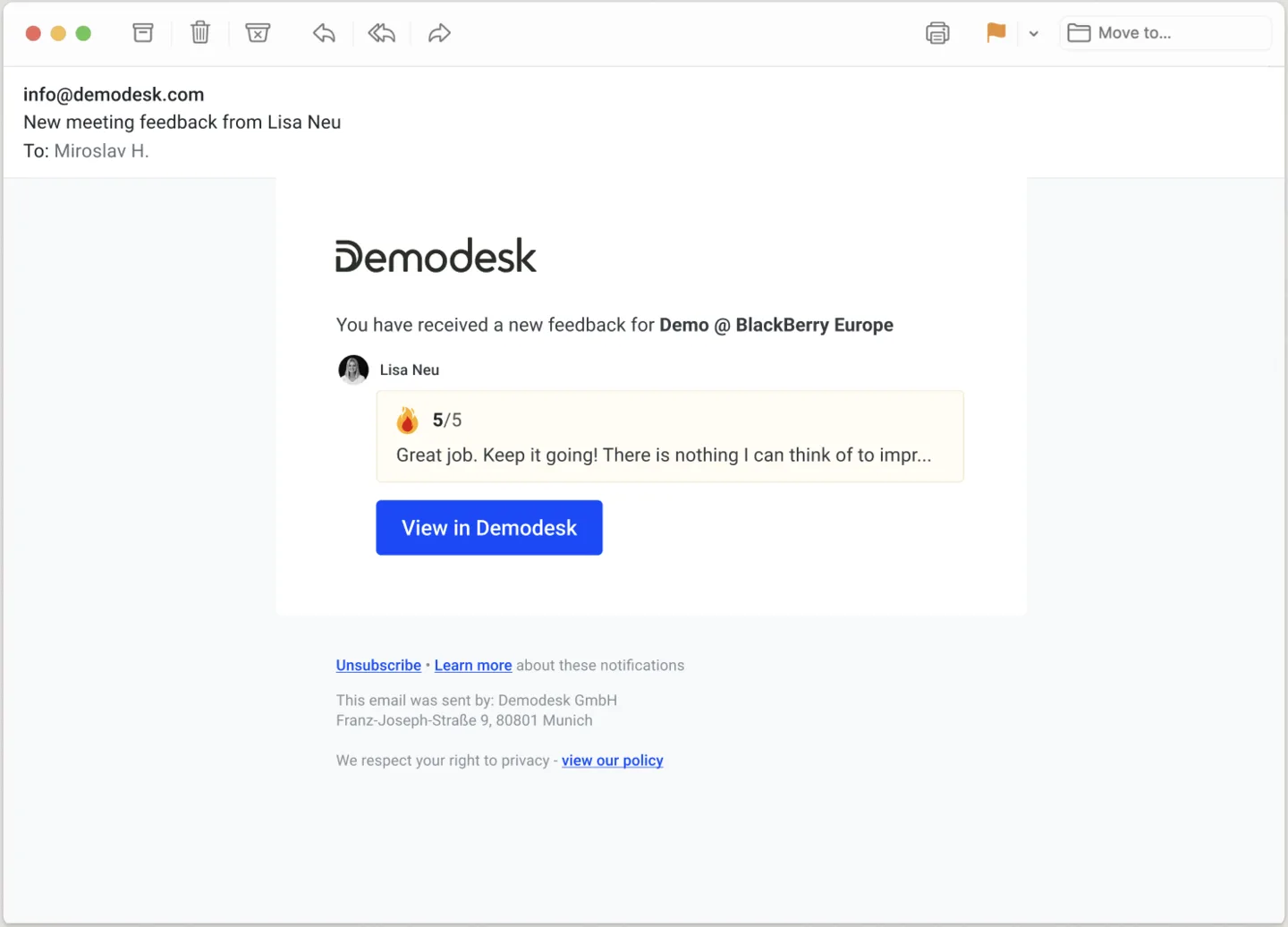
You will be automatically notified by email whenever someone gives you a meeting feedback. Click on the link to get redirected to the specific recording and feedback.
How to change visibility of meeting feedback
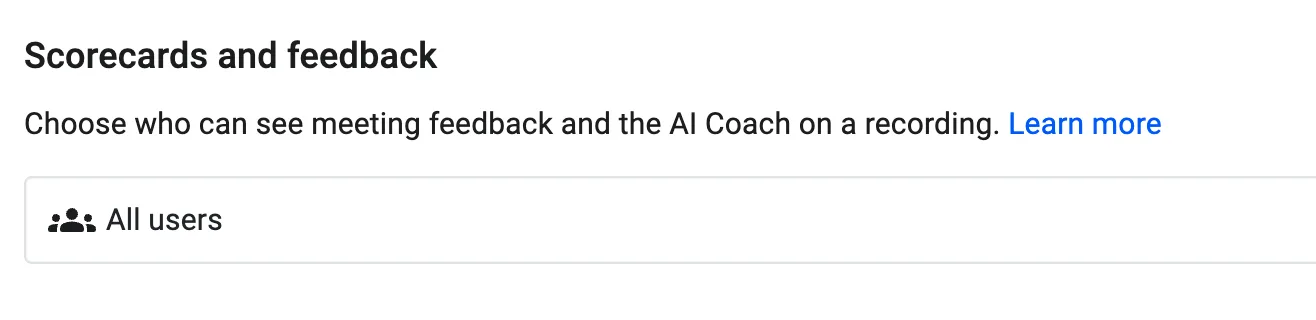
You can control who can see meeting feedback on a recording. In general you will always see the meeting feedback you provided as long as you have access to that recording. Besides that, you can control if only the host, manager, and company admin can view meeting feedback submitted by a scorecard or every teammate with access to the recording. You can set it up in the settings.
How to implement meeting feedback in your sales culture?
- Create a meeting scorecard suited for your organization: Begin by crafting a feedback template that encapsulates the core competencies and best practices you want your team to embody.
- Bi-weekly Review Session: Let your team pair up bi-weekly to give each other feedback on a recording they pick.
- 1-1 feedback: Go through the recordings of your direct report and submit a meeting feedback. Ideally take a recording from an opportunity that is currently a priority.
- Continuous Iteration: The beauty of feedback is in its repetition. The more frequently you engage in this process, the more refined your sales techniques become.
Best Practices for Effective Feedback:
- Be Precise: Aim for clarity. For instance, instead of "Good job on the pitch," say, "Your explanation of the value proposition resonated with the client's needs."
- Constructive Criticism: Always pair critiques with suggestions for improvement. This ensures the feedback is actionable.
- Open Dialogue: Encourage a two-way conversation. Feedback should be a dialogue, not a monologue.
- Embrace Feedback: Receiving feedback is as crucial as giving it. Approach it with an open mind and a willingness to learn.
In Conclusion
The Meeting Feedback Feature is more than just a tool; it's a catalyst for growth, fostering a culture of continuous learning and collaboration. By standardizing the feedback process, we aim to empower each member of the Demodesk family to achieve sales excellence. Let's embark on this journey of growth and excellence together. Happy feedback sharing!
FAQs
Q: Who can give meeting feedback?
A: Meeting Scorecards are available to users with a Coaching & AI license. so any one who has a Coaching & AI seat can give feedback.
Q: Who can get meeting feedback?
A: You can give feedback to the host or any teammate that was part of the meeting.
Q: Is there a limit on feedbacks for a recording?
A: No. Users can give feedback on the same recording multiple times using the same scorecard, however they will be warned that there is already a score.
Related articles
More in this category
Still need a hand?
Our support team answers in the app chat, or at support@demodesk.com.