Better AI Coach customization and so much more!
AI Coach Questions Library, new Insights Dashboard, feedback language, scorecard filters and recording uploads.
Highlights
- ✨ AI Coach Questions Library
- 📊 New Insights Dashboard
- 🤖 Optimize your scorecard questions
- 💬 Define the language of feedback
- 🎯 Filter for scorecards in the recordings list
- 📤 Upload recordings from anywhere
✨ AI Coach Questions Library
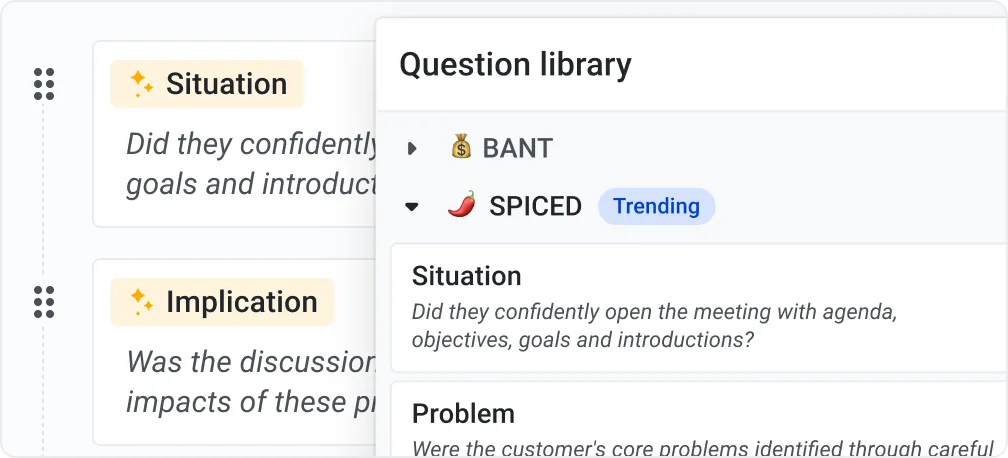
A curated collection of AI-optimized questions you can add to your scorecards – for custom scorecards or to extend default ones. We continuously refine existing questions and add new ones. Open or create a scorecard, browse the library and add the questions you need. Open scorecards.
📊 New Insights Dashboard
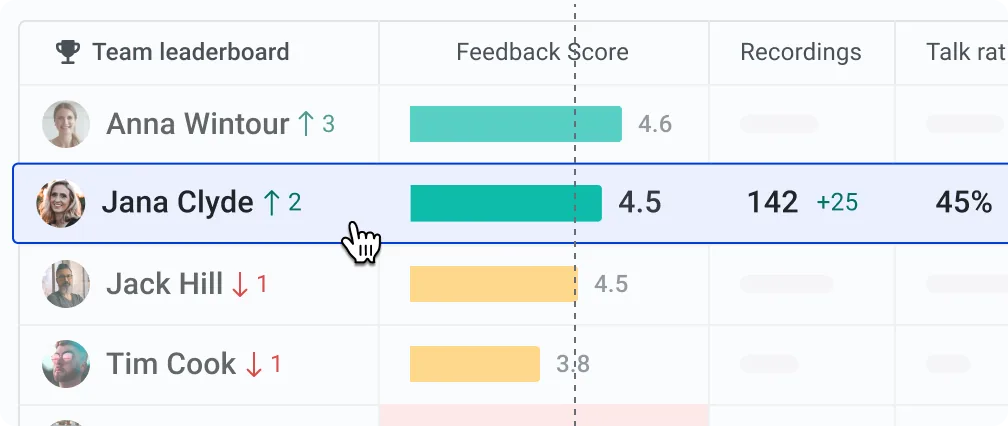
The new Coaching & AI Insights Dashboard tracks your team's performance:
- Overview – Compare scores in a leaderboard to spot top performers and those who need support.
- Scorecard – Compare scorecard averages or drill into scores question by question over time, plus a feedback grid.
- Team Member – Detailed performance view for individual reps.
🤖 Optimize your scorecard questions
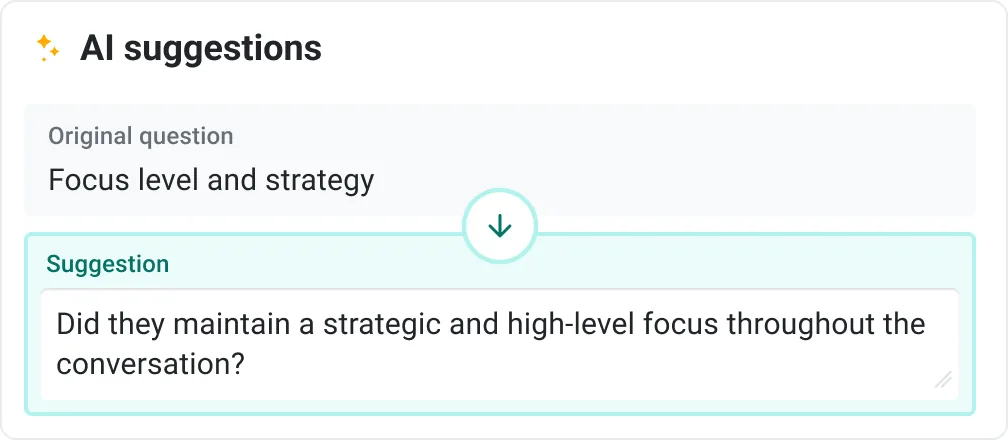
When you save a scorecard, AI reviews your questions and suggests improvements. Keep your original or accept the suggestion – better questions mean more accurate AI Coach feedback.
💬 Define the language of feedback
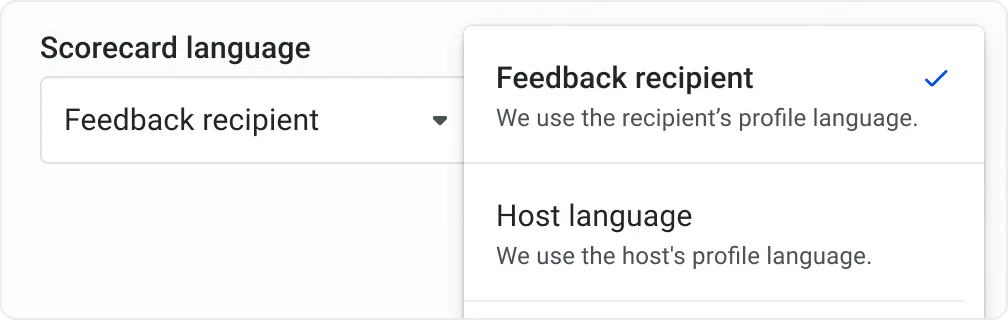
Set the language the AI Coach uses to fill out scorecards in scorecard automations. By default, feedback is given in the recipient's profile language, and you can always translate it in the UI.
🎯 Filter for scorecards in the recordings list
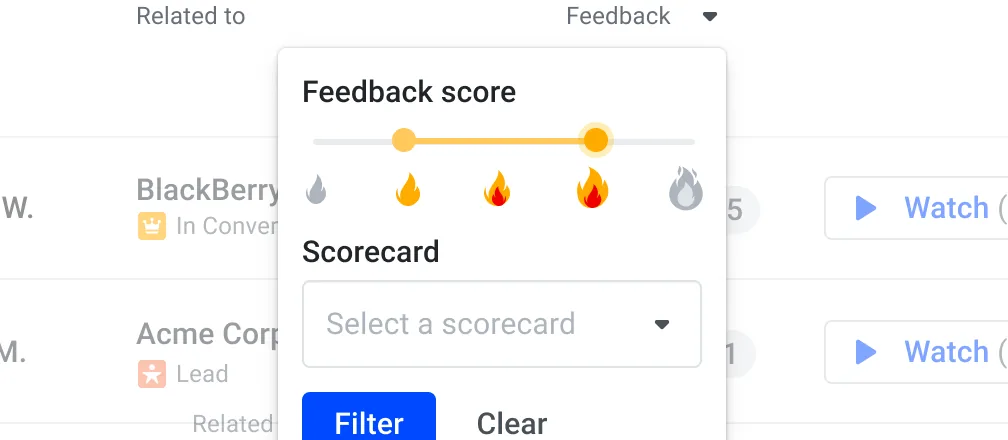
Filter your recordings by scorecard used and feedback score to find great examples to share as best practices.
📤 Upload recordings from anywhere
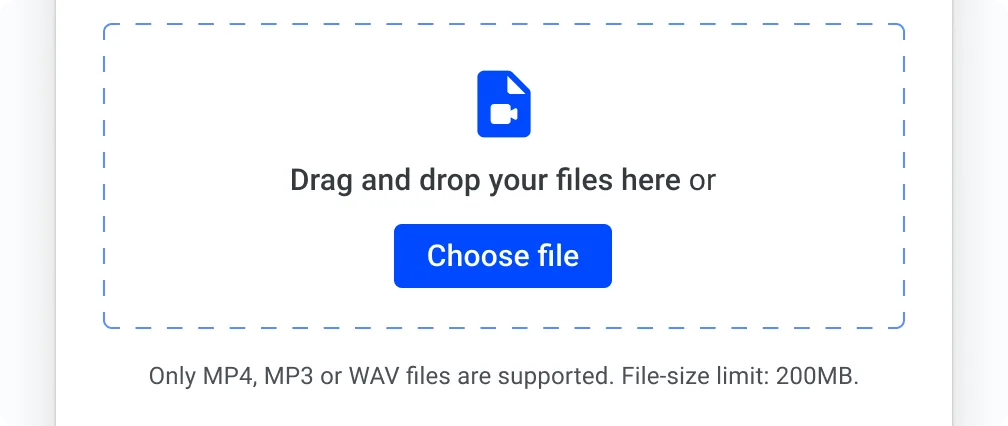
Manually upload any recording, e.g. from in-person meetings: click "Record meeting", then "Upload recording". You get automatic transcription, speaker identification and editable recording names.