Limit recordings to the host and internal participants, and stop the AI mid-answer
Limit a recording to the host and internal participants, stop the AI Analyst mid-answer, and see which tools the AI can use right under the chat box.
Limit a recording to the host and internal participants
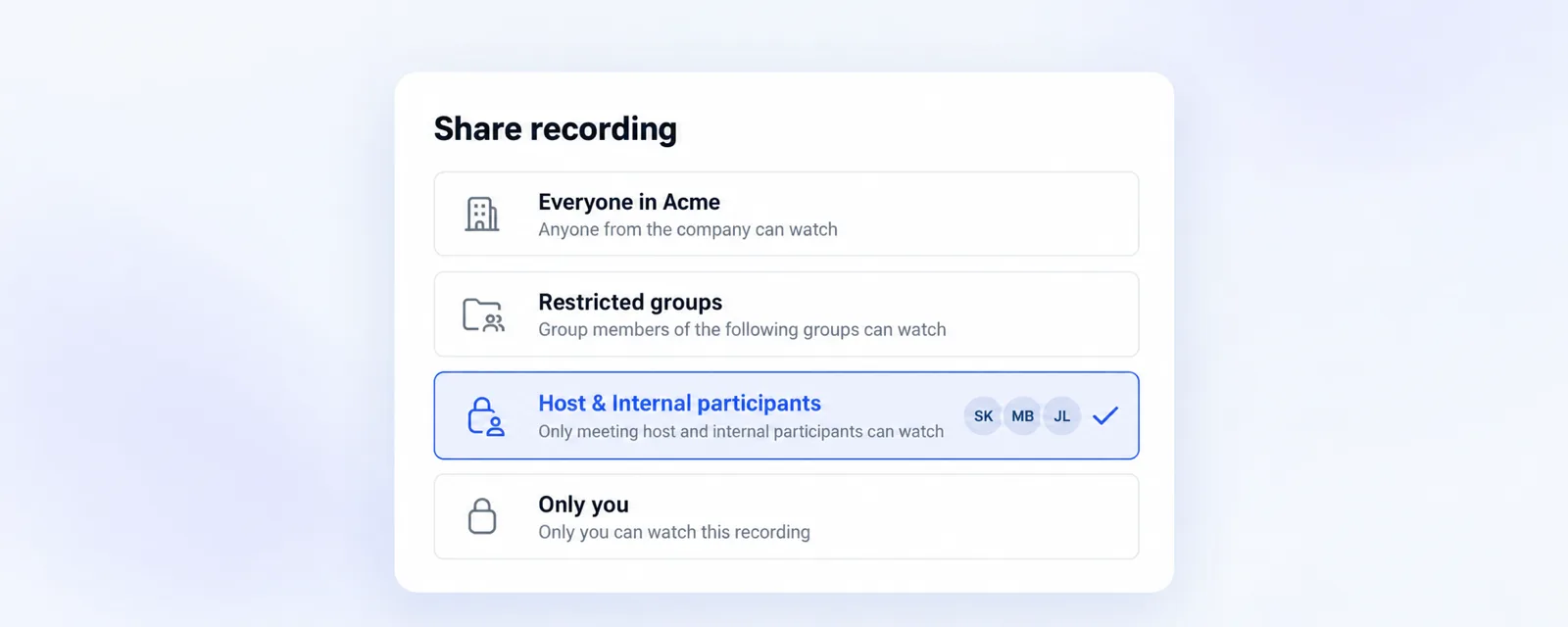
Recordings now have a new internal access level, Host & Internal participants: only the meeting host and the internal participants can watch it. Managers and admins who were not in the meeting do not see it. Choose it in a recording's Share recording settings, or make it your default under Settings > Personal > Preferences > Recording preferences > Internal access, separately for Record external meetings and Record internal meetings.
Stop the AI mid-answer
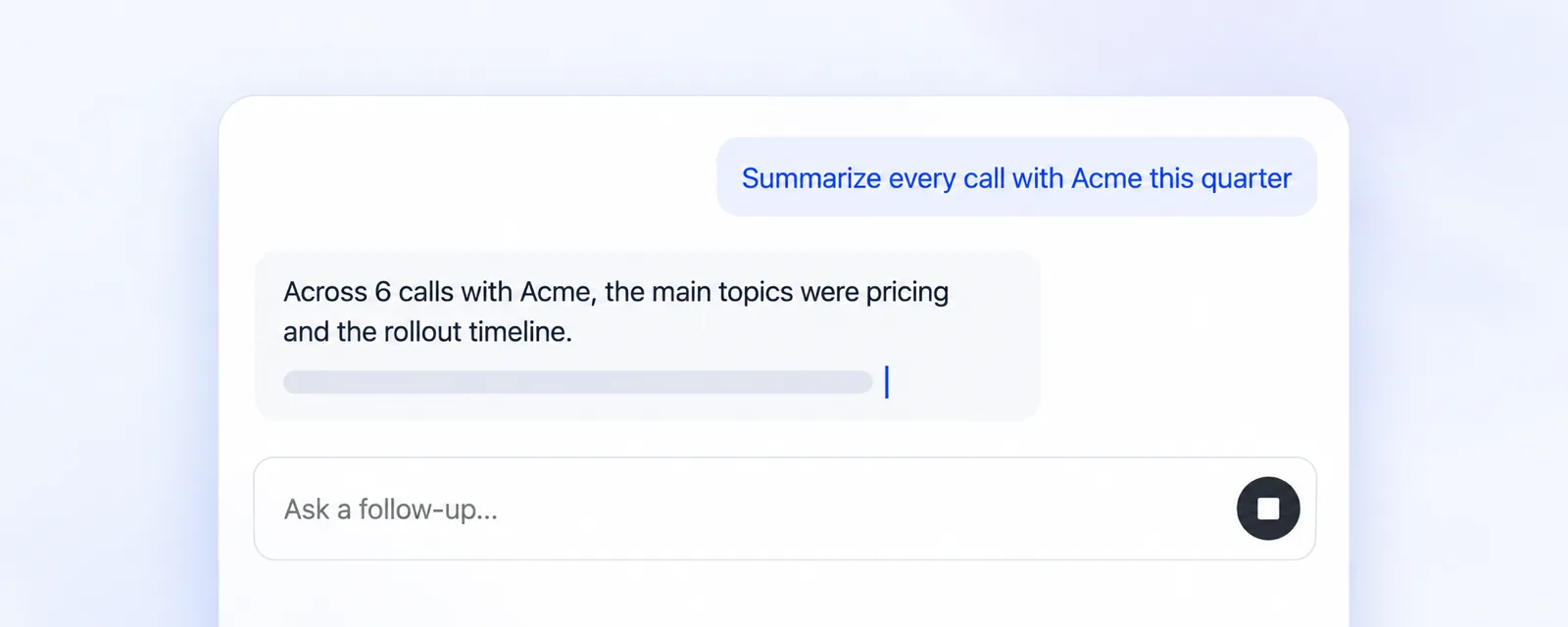
While the AI Analyst is writing, the send button turns into a stop button. If the answer is going in the wrong direction, stop it and ask differently. Whatever it already wrote stays in the chat.
See which tools the AI can use
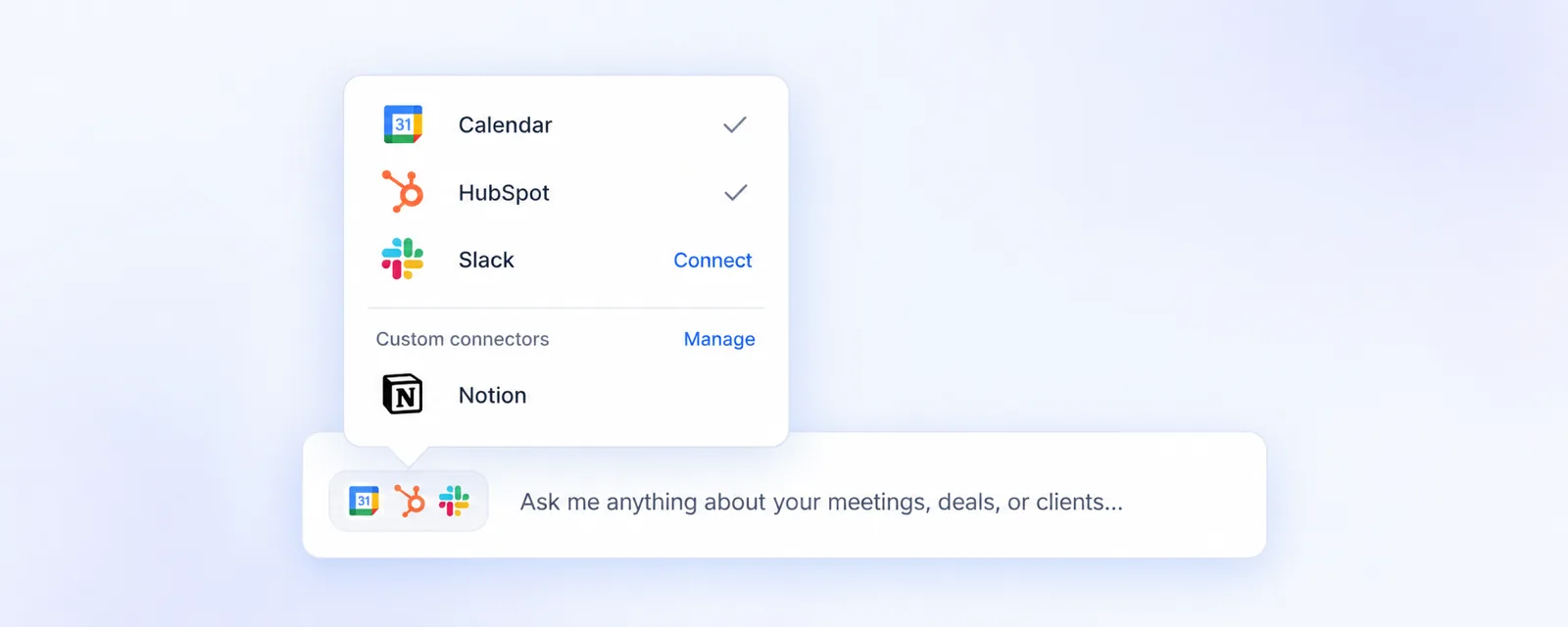
The icons under the AI Analyst's chat box show which of your tools it can use, such as your calendar, your CRM and Slack. Click them to see the list. Admins can start connecting Slack from there, and admins and managers can open Custom connectors with Manage.