Connect Microsoft Dynamics 365
Microsoft Dynamics 365 is now a CRM you can connect in Demodesk. Enter your organization URL, sign in with Microsoft, and Demodesk starts learning your Dynamics setup.
Connect it from your Connections page
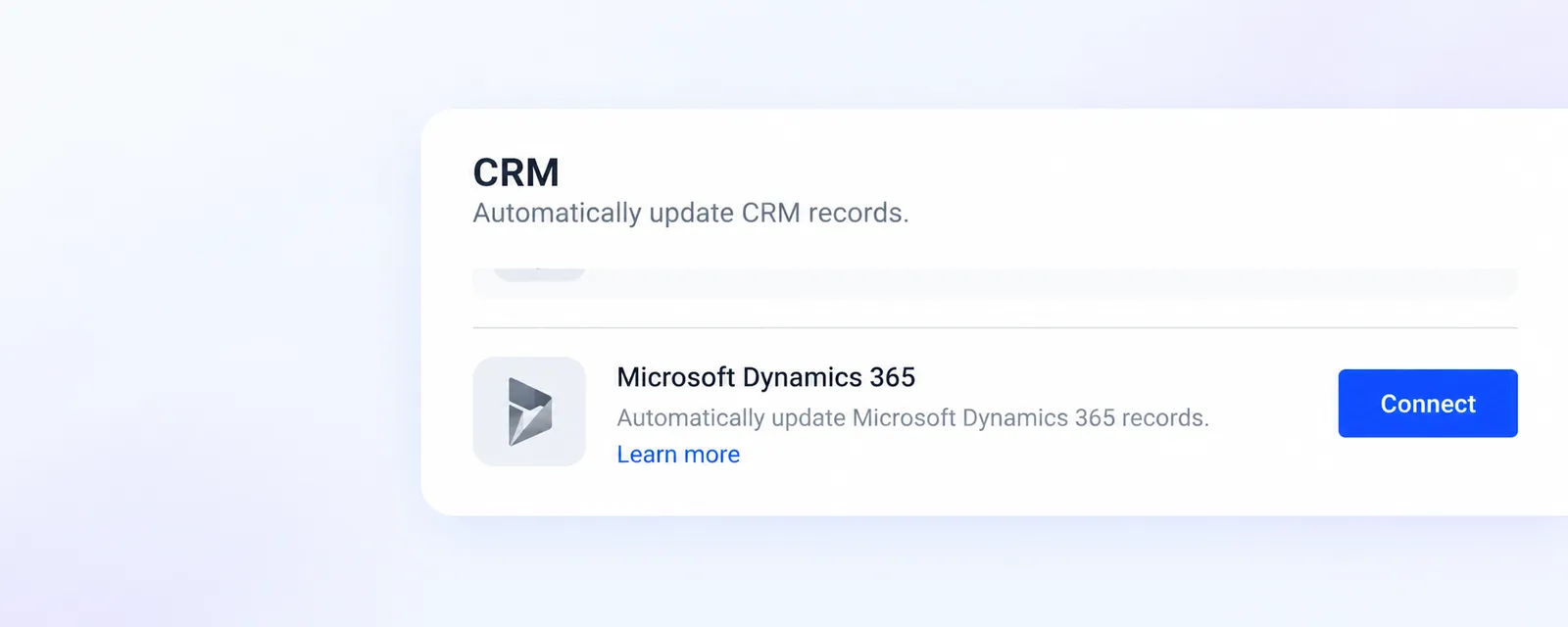
Go to Settings > Integrations > Connections. In the CRM section you now find a Microsoft Dynamics 365 card with a Connect button, where it used to say the integration was coming soon. Everyone connects their own Dynamics 365 account from their own page. If your company has set integrations to start out blocked, the button on the card stays disabled until that changes.
What you enter
Connect opens a short dialog asking for your Organization URL, the address of your Dynamics 365 organization as it appears in your browser, for example https://yourorg.crm4.dynamics.com. Demodesk only accepts an organization URL on dynamics.com. You are then sent to Microsoft to sign in and grant Demodesk access.
Demodesk learns your setup
As soon as the connection is made, Demodesk looks up the list of objects in your Dynamics 365 organization and the fields of your opportunities, accounts and contacts, so the rules you write later work with your own setup.
Rules for Dynamics 365
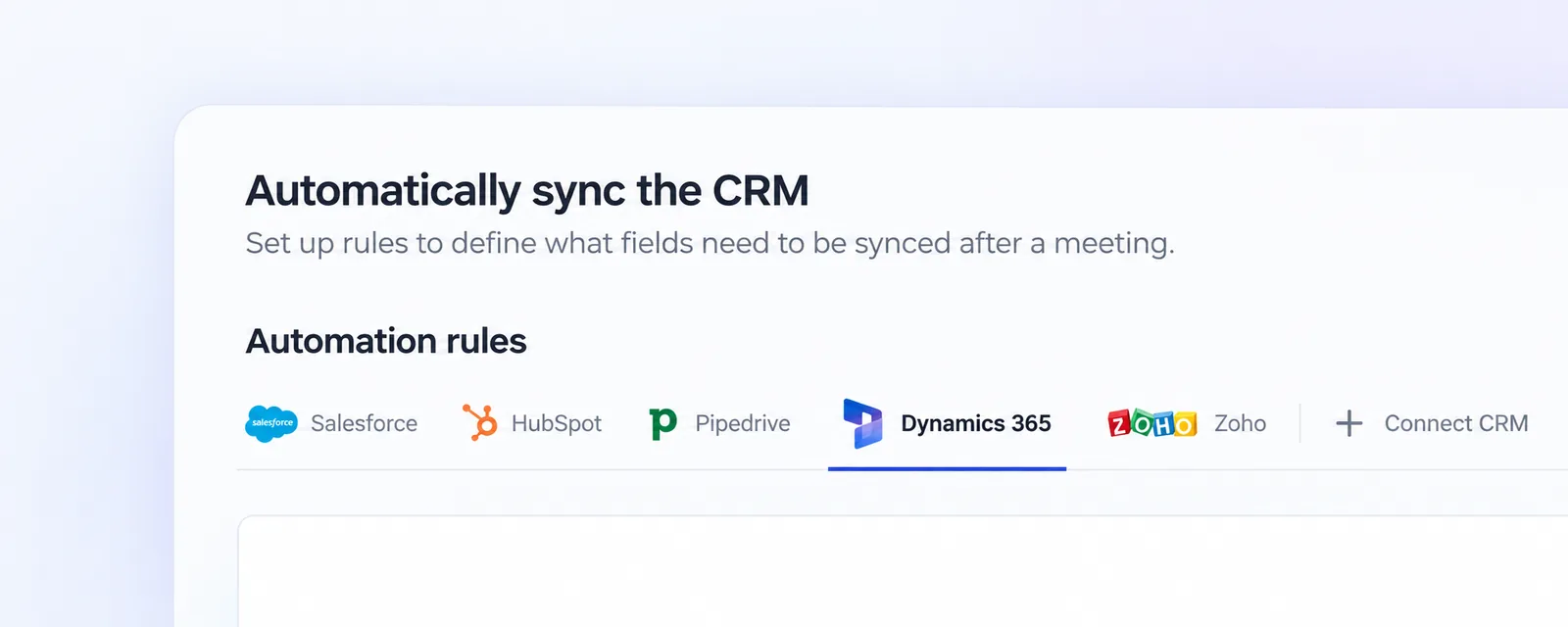
On plans that include Automatic CRM Sync, company admins find Dynamics 365 among the CRMs to connect under Automations > Automatic CRM Sync. Once it is connected it gets its own tab there, next to the other CRMs, for setting up which records and fields get updated after a meeting.