Chrome
Updated February 1, 2022
- Click on the padlock icon in the browser address bar (in the top left corner next to URL)
- Click on Allow for Camera, Microphone, and Sound
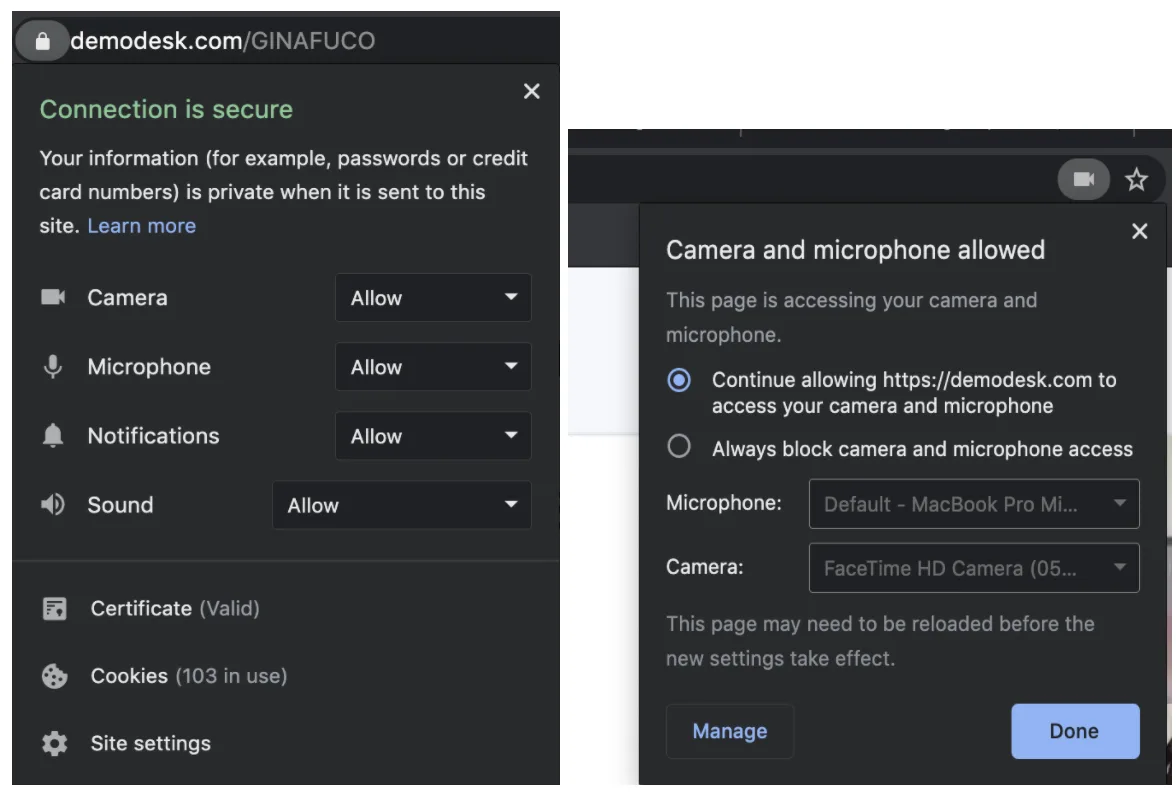
If it doesn't appear here, then you can check in your Chrome settings if permissions are given.
- Click the three dots in the upper right corner and click Settings
- Click Privacy & Security
- Click Site settings
- Click Filter website by site
- Enter name demodesk in the search bar
- Make sure that it says Allow next to each permission.
If this does not solve it, then probably your system is blocking permissions. Go here to solve it.
Related articles
More in this category
Still need a hand?
Our support team answers in the app chat, or at support@demodesk.com.