Joining via mobile: How to give permission on iOS/Android
Updated August 16, 2023
On this page
This article is for mobile devices. If you are on a computer, please check out this article.
When joining via a mobile phone, you may need to give Demodesk permission to access your audio. Depending on your device, the required steps differ. This article is designed to clarify how to do so via:
Android
How to allow microphone and camera access in the browser
Quick overview
Here is a quick overview on how to enable the microphone on Android. Please note that on different devices and operating systems, it can look different.
Step-by-Step guide
-
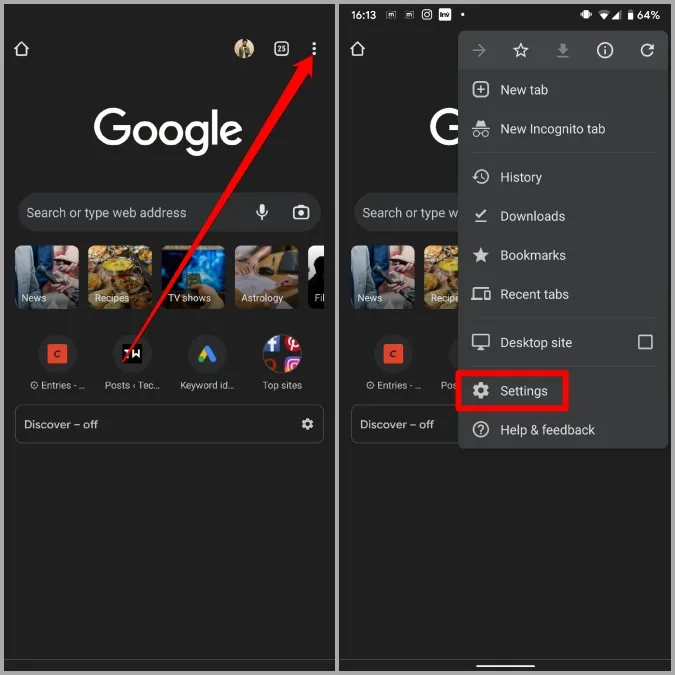
Use the three-dot menu icon in the top right corner to open Settings.
-
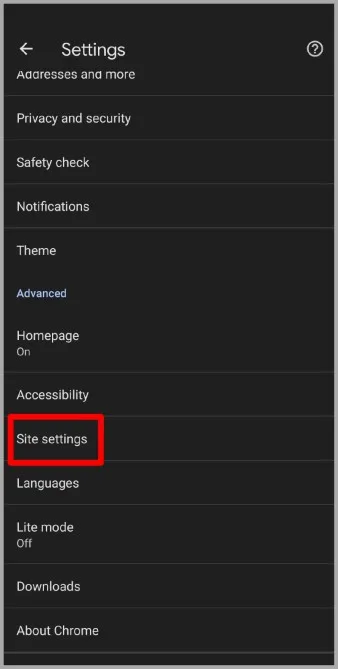
Scroll down to the Advanced section and tap on Site settings.
-
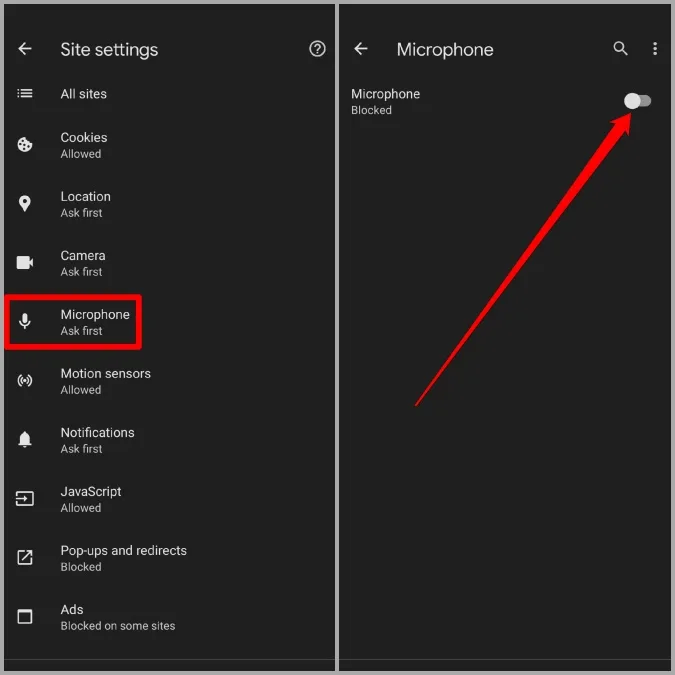
Now go back to the Site settings page, tap on Microphone, and toggle on the switch to enable it.
-
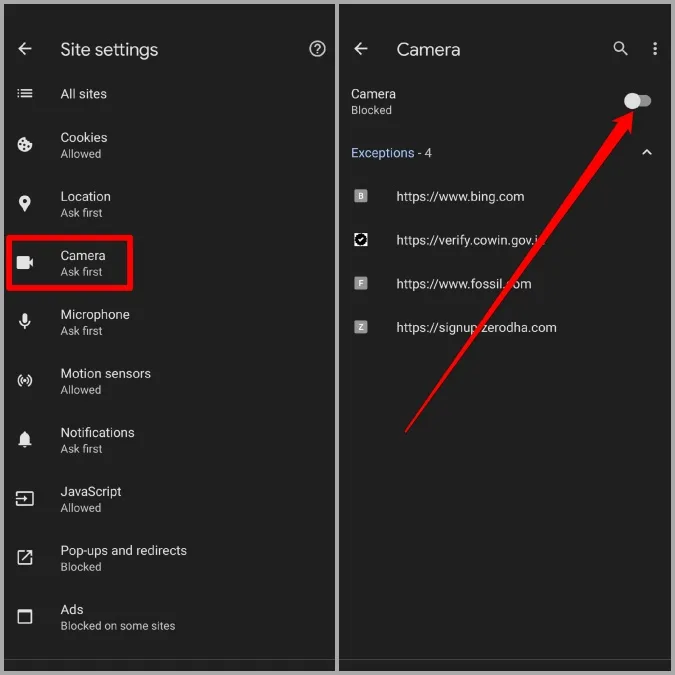
Go to the Camera option and toggle on the switch to allow websites to use it.
-
Go back to Demodesk and refresh the page for the changes to take effect. Your camera and microphone will only be used during your meeting.
How to allow microphone and camera access in system settings
If this has not worked, it means that your system blocks your microphone and camera permissions. We can solve that together! Kindly follow these instructions:
-
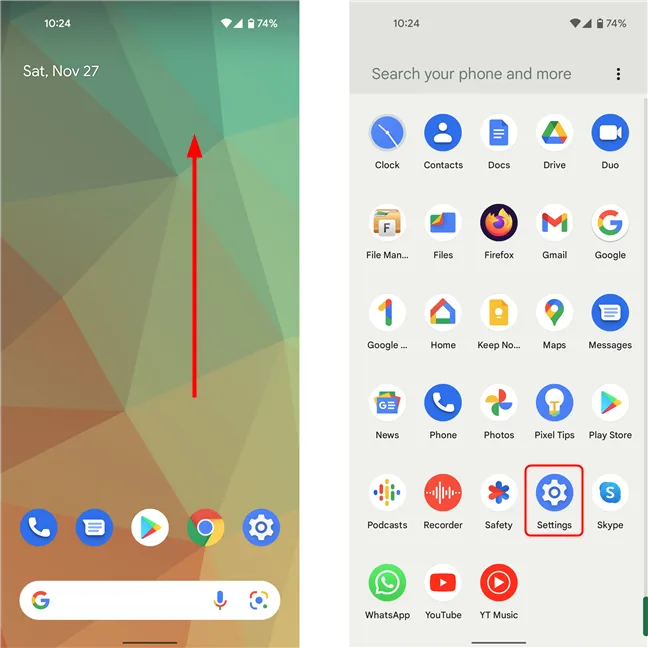
Open the Settings and go to Apps.
-
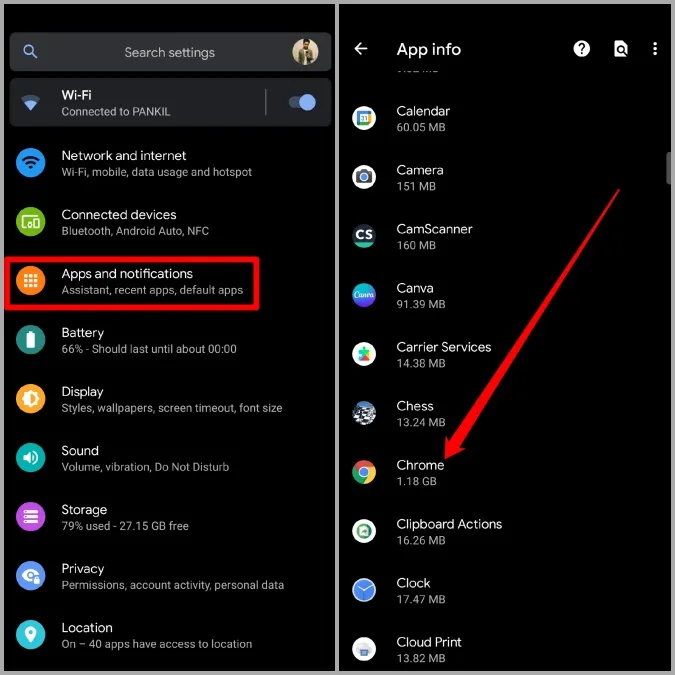
Scroll down to locate Chrome (or the respective browser you are using)
-
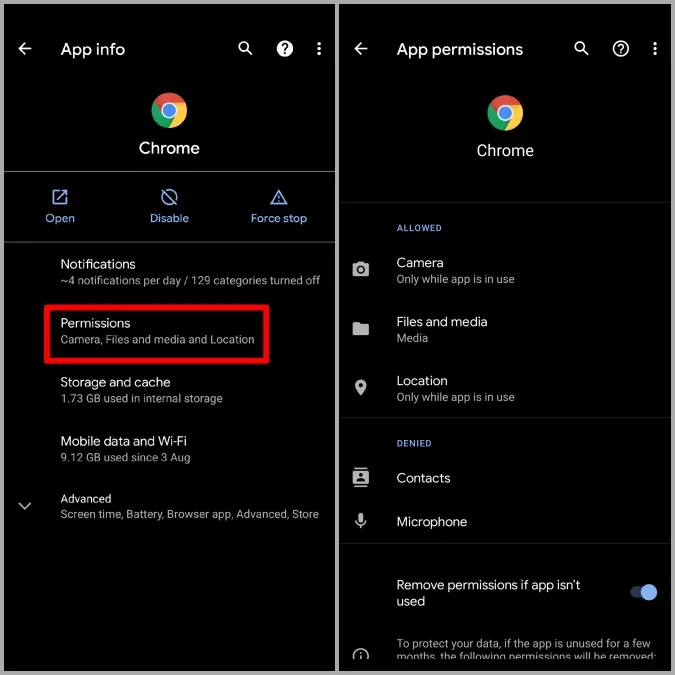
Tap Permissions
-
Change microphone and camera to Allow (All the time). Your camera and microphone will only be used during your meeting.
Quick solution: Dial into the meeting
If you are lost or you are short on time then you can always dial into the meeting.
-
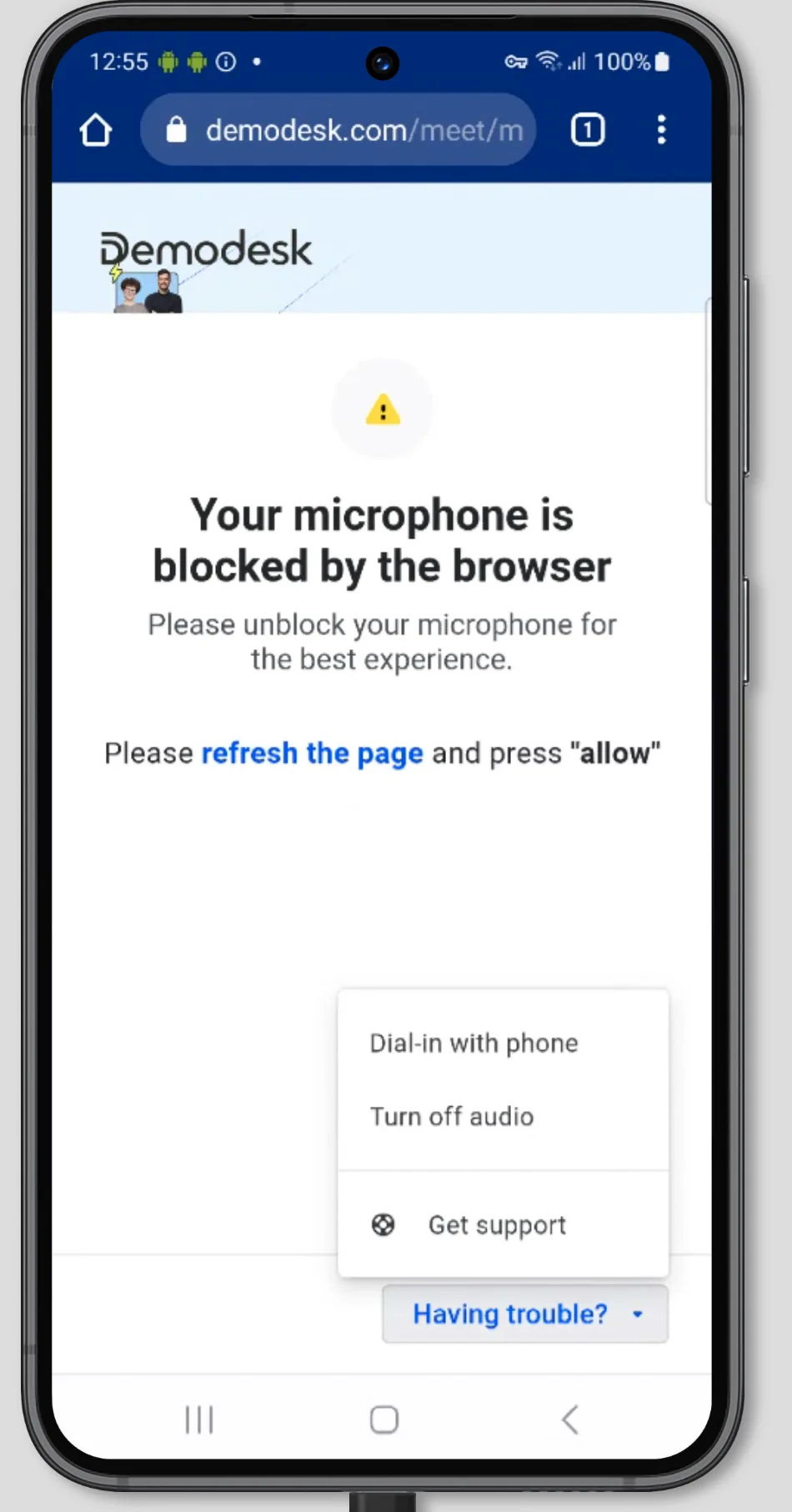
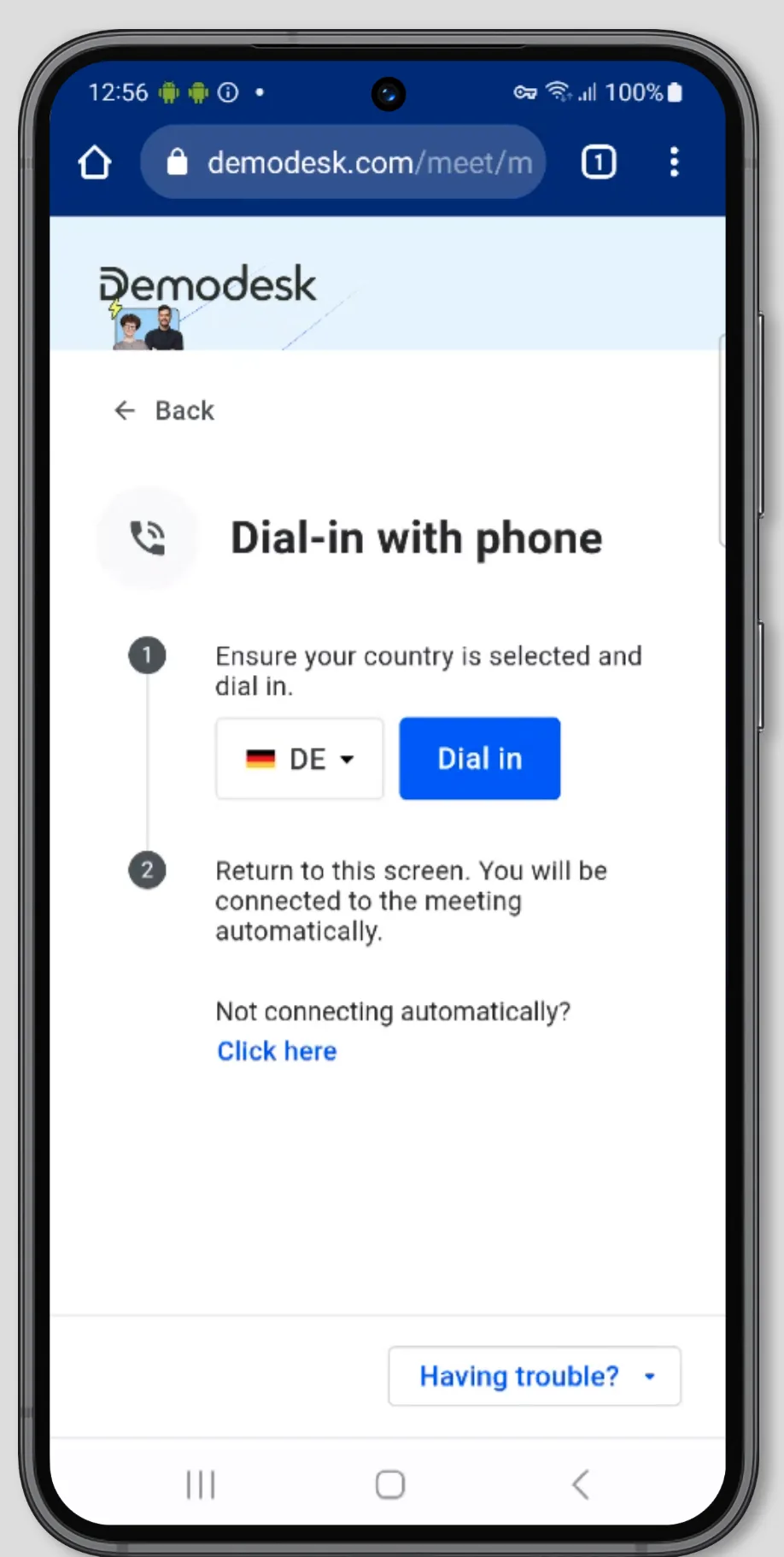
Cick on "Having trouble" and select "Dial-in".
-
Select your country and click on "Dial in"
-
Go back to the website and you will be redirected automatically into the meeting. Otherwise, click "Click here".
iOS
How to allow microphone and camera access in the browser
-
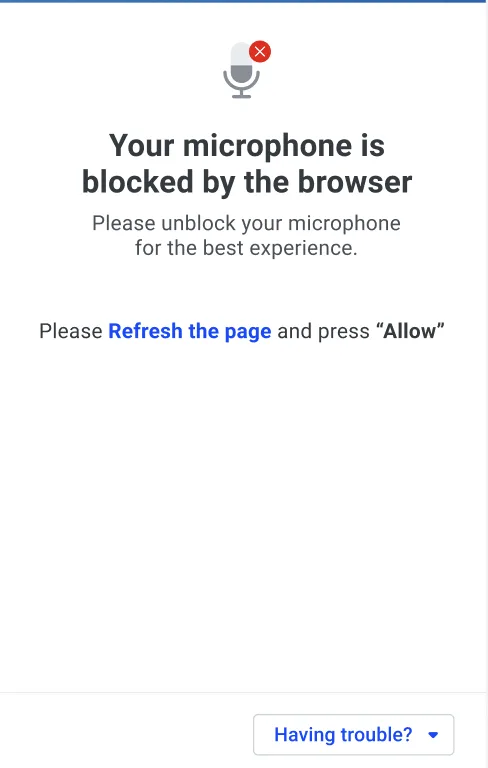
This error screen means your microphone and camera are blocked by the browser
-
Please refresh the page
-
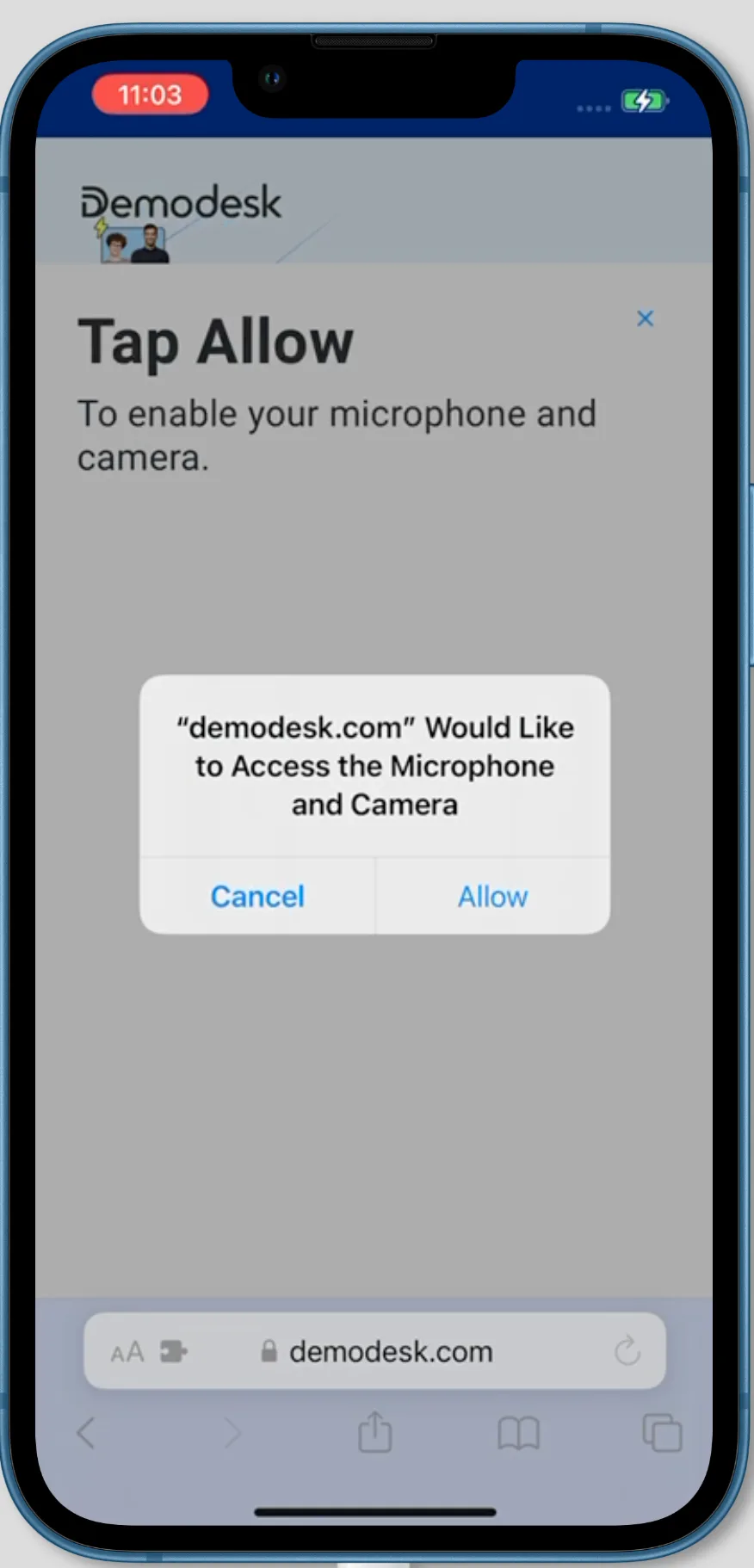
Click on "Allow"
Quick solution: Dial into the meeting
Related articles
More in this category
Still need a hand?
Our support team answers in the app chat, or at support@demodesk.com.