Pause shared screen
Updated December 19, 2023
We've all been there. You prepared for your meeting, but somehow you forgot to log into your account or some setup step is missing. It's especially frustrating for this to happen when a customer is already in your meeting.
With our new Pause Screen functionality this will no longer be an issue.
Now you can pause your screen on a certain page or slide, while making changes to your virtual browser without your customer being aware. This will help to ensure that they have a smooth sales experience.
Here is the step-by-step guide on how to do it:
-
Ensure you are on the new virtual browser.
-
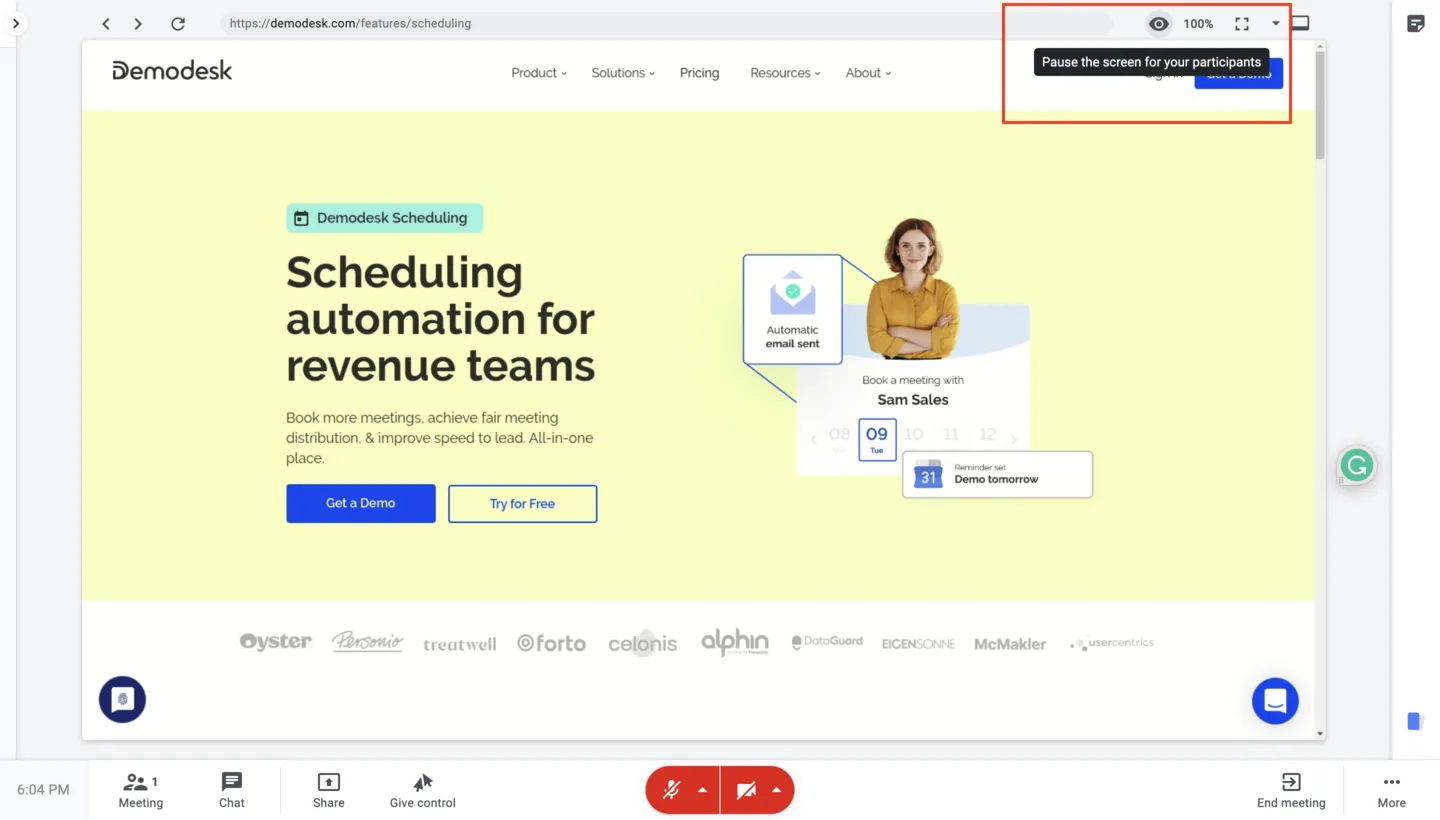
Click on the "pause screen" button. The last image of the screen that you shared before pausing will be the image that the customer continues to see.
-
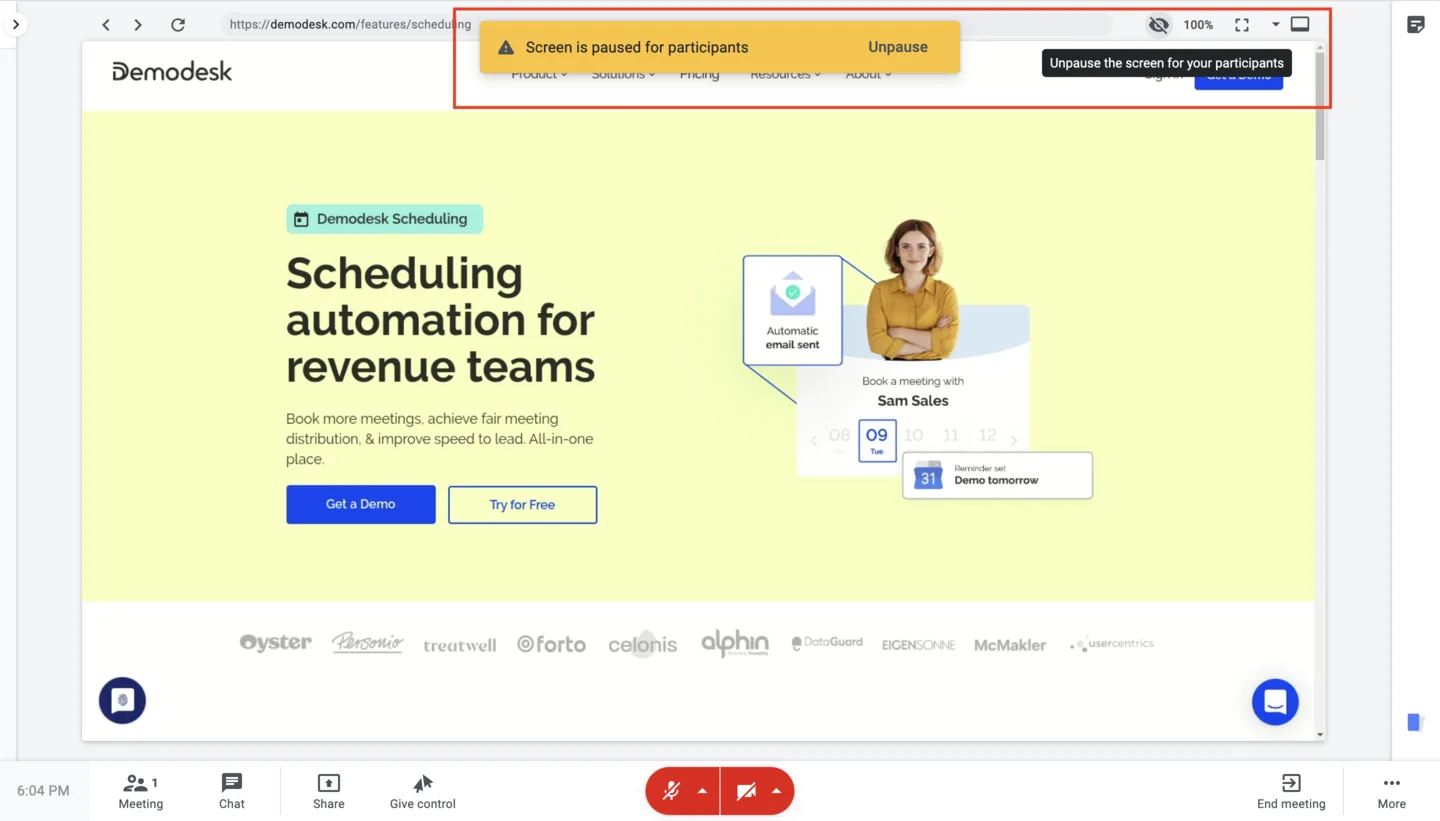
Your screen is now paused and you can change whatever you like in the virtual browser while your customers continue to view the image you paused on.
-
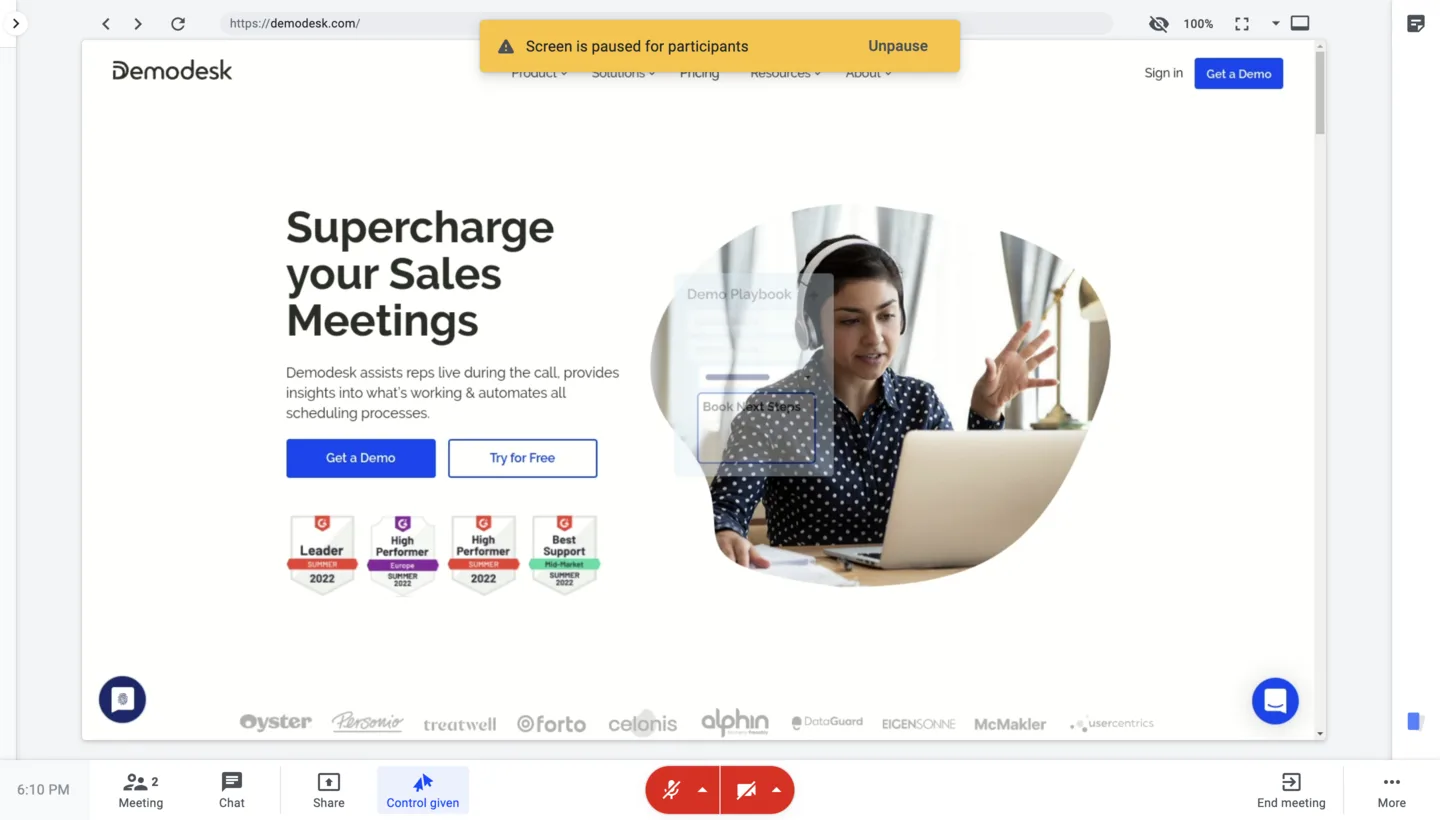
So even if you go to another page, your customer will not notice!
-
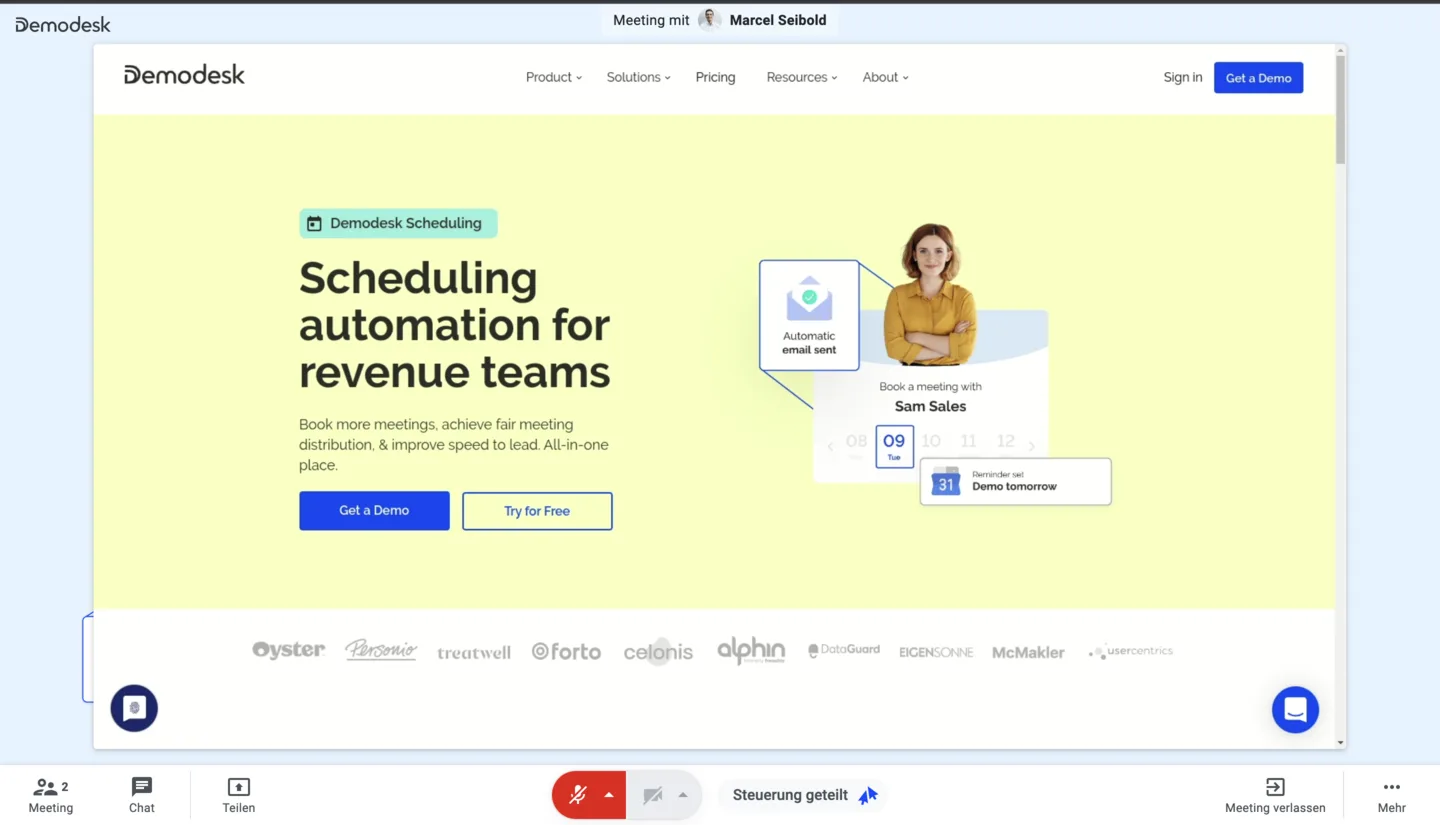
Only once you unpause the screen will your customer start to see it in real-time.
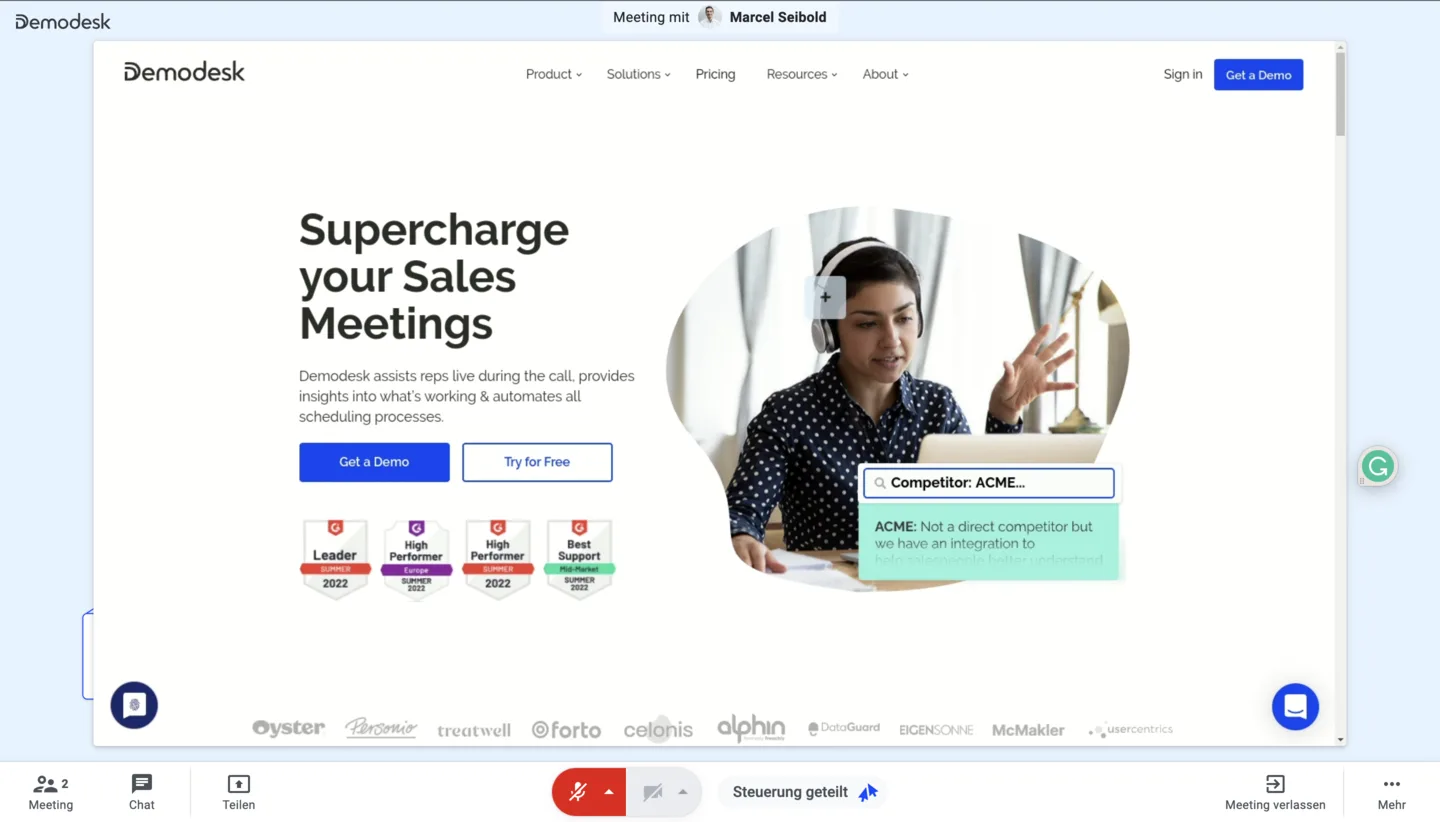
This is what your customer sees:
-
Screen is unpaused by host.
-
Screen is paused by host
-
Screen is paused by host, and host changes the page
-
Screen is unpaused by host
Related articles
More in this category
Still need a hand?
Our support team answers in the app chat, or at support@demodesk.com.