How to use virtual backgrounds
Updated February 2, 2023
Bored of your living room as a background for all your Demodesk meetings? Use our virtual meeting backgrounds to feel more confident and always provide a professional meeting experience!
The feature is easy to use, when entering a meeting, simply chose the background of your choice and you are good to go.
Please note that this feature is only available for the most recent Chrome browser versions.
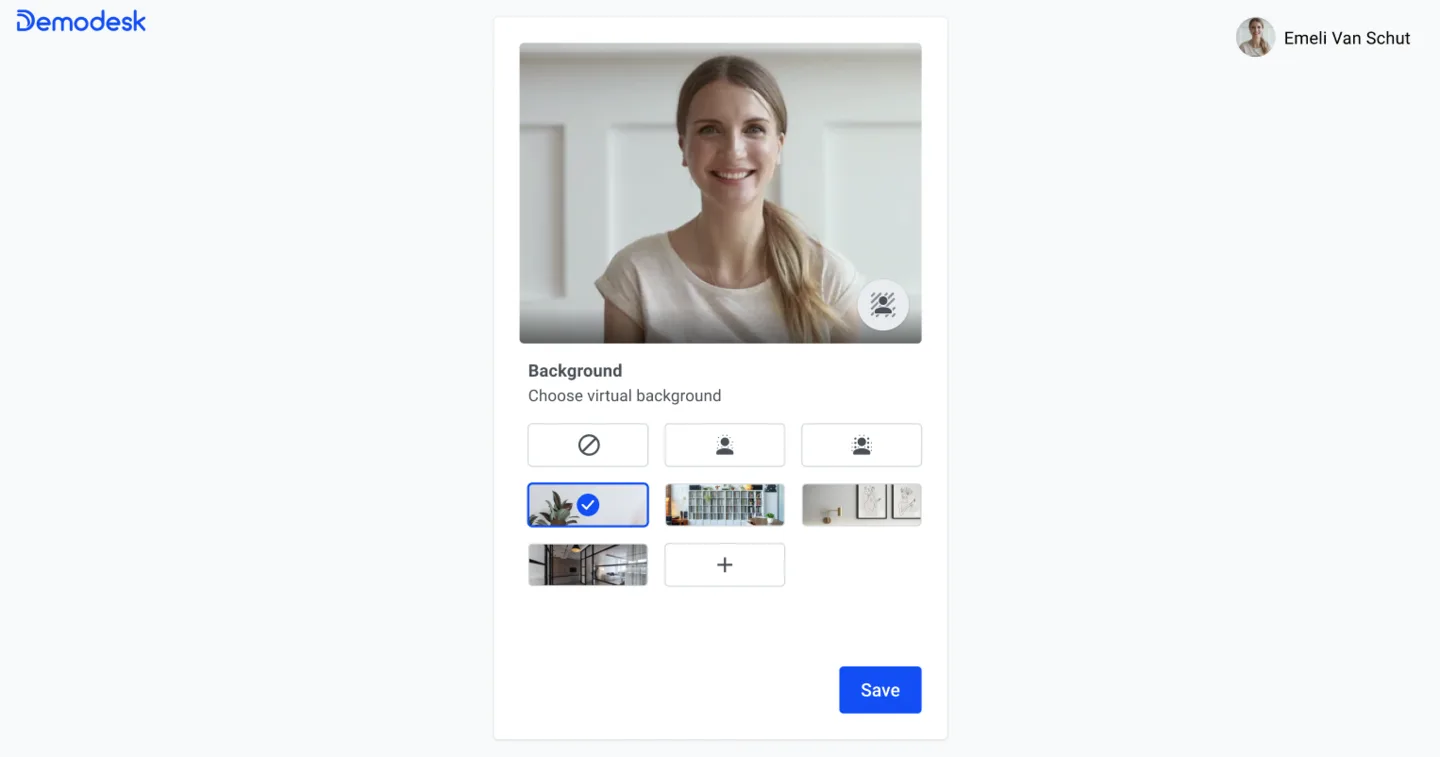
You can also set up your own virtual backgrounds, but before we discuss the two possible ways, lets quickly cover the basics you need to know:
- the file size is limited to 3 MB per file
- only jpg and png are supported formats. Aspect ratio 1.333- 1920x1440, 640x480 etc
- your team members will also have access to the backgrounds you set up
- you need to have the most recent Chrome version installed
- by default, we provide several different backgrounds, which can also be accessed by participants going forward
Set up the background in meetings
Users can set their virtual background in audio onboarding and during the meeting. Click on the three dots in the bottom right corner and go to change background. Adjust your set up here.
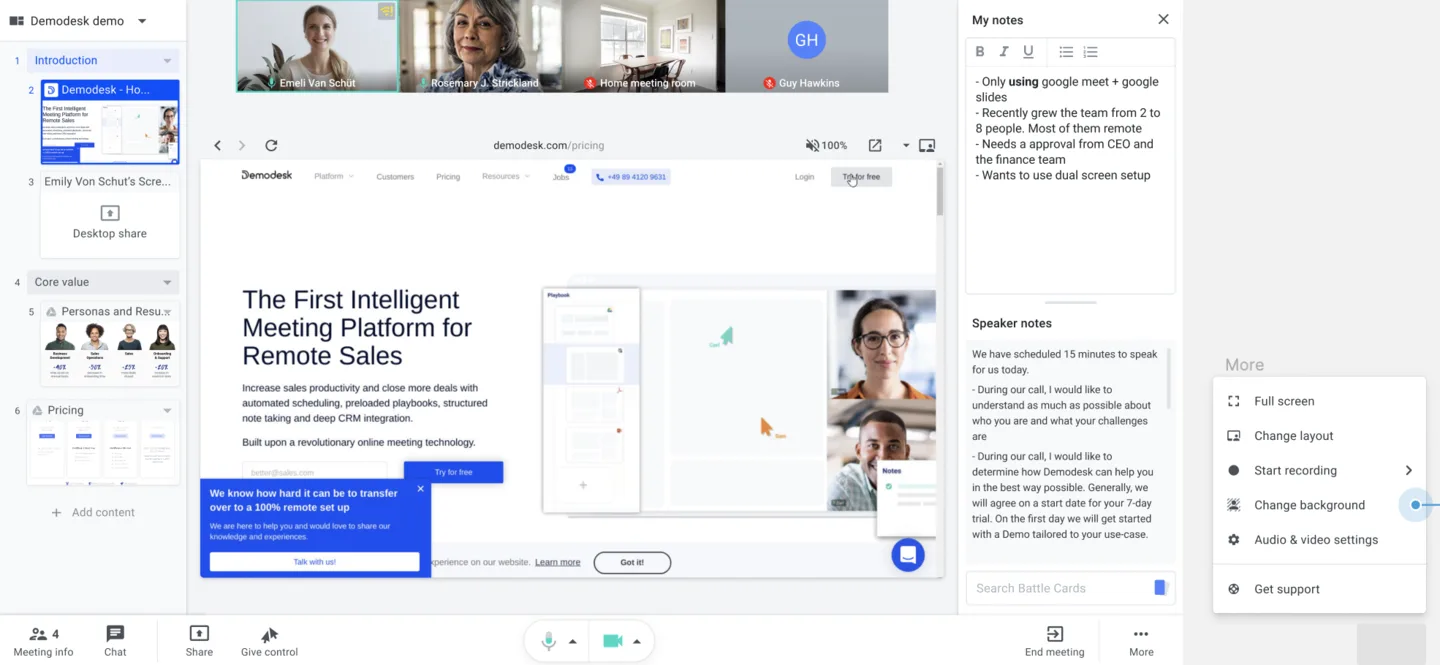
Set up the background in your settings
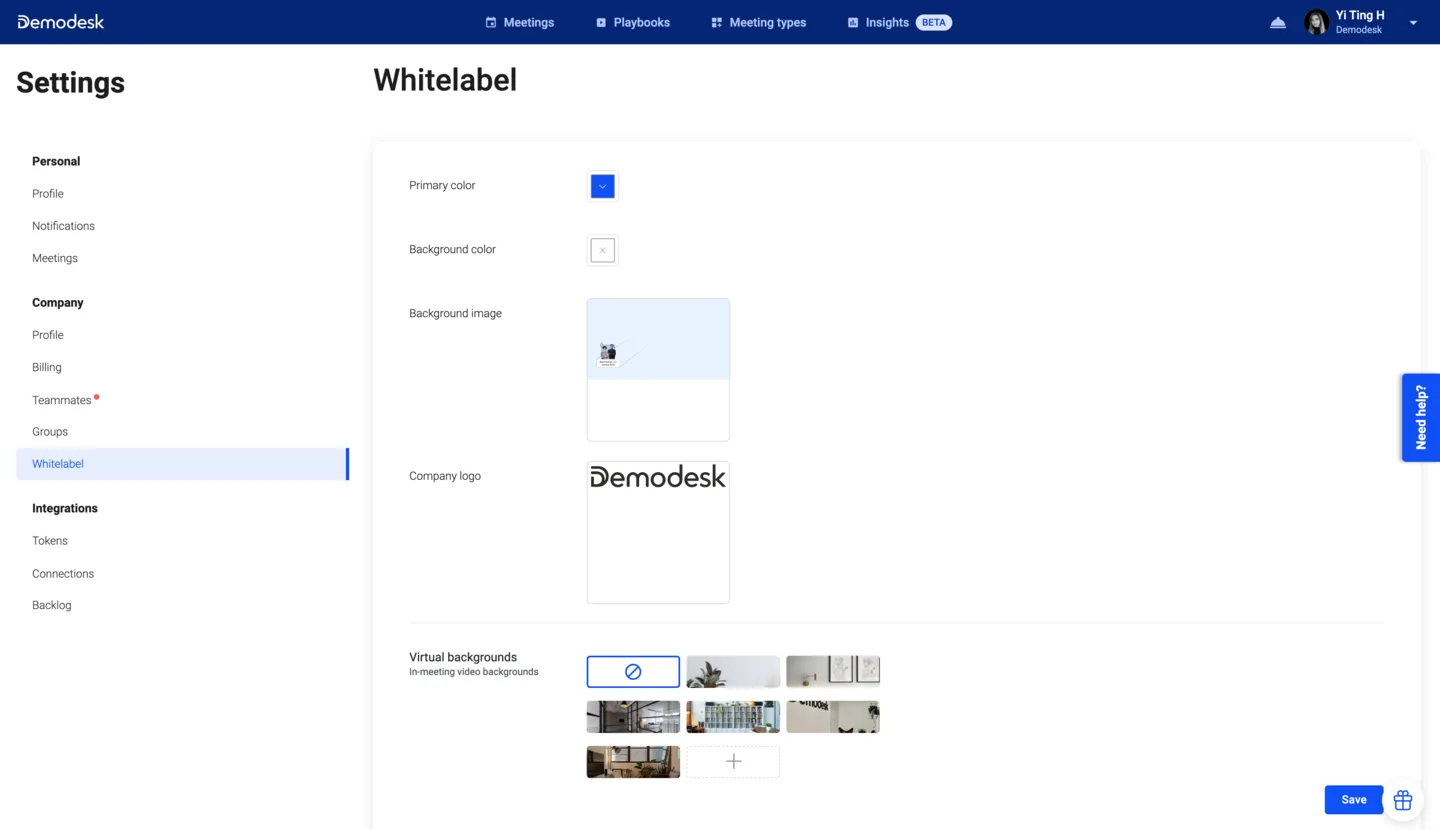
Admins can upload and delete custom virtual backgrounds that are available to all users. They can delete default virtual backgrounds provided by Demodesk. This does not impact the selection for participants.
Go to your settings and under Whitelabe l, you'll find everything you need to change and set up backgrounds.
Admins can set a virtual background as a default. Then every user will have that as a virtual background setting. Users can still change it in the audio onboarding afterwards, because we never know if there is a reason for someone to disable a background, e.g. based on performance issues.
Related articles
More in this category
Still need a hand?
Our support team answers in the app chat, or at support@demodesk.com.