GDPR Compliant Recording
Updated July 9, 2025
On this page
Why it matters
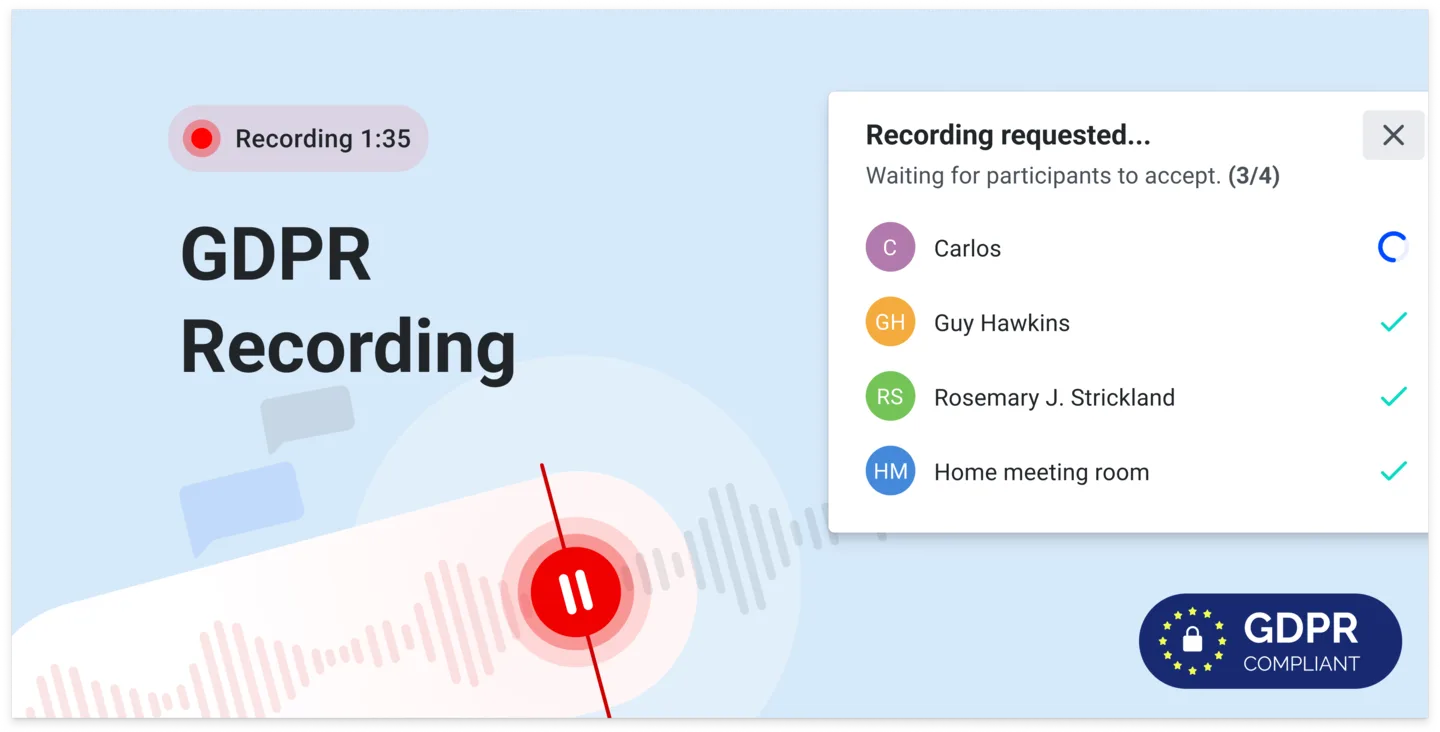
Record all your meetings automatically, while also obtaining and documenting explicit permission from participants to capture the conversation. Stay compliant at all times with this seamless recording workflow.
How to set it up
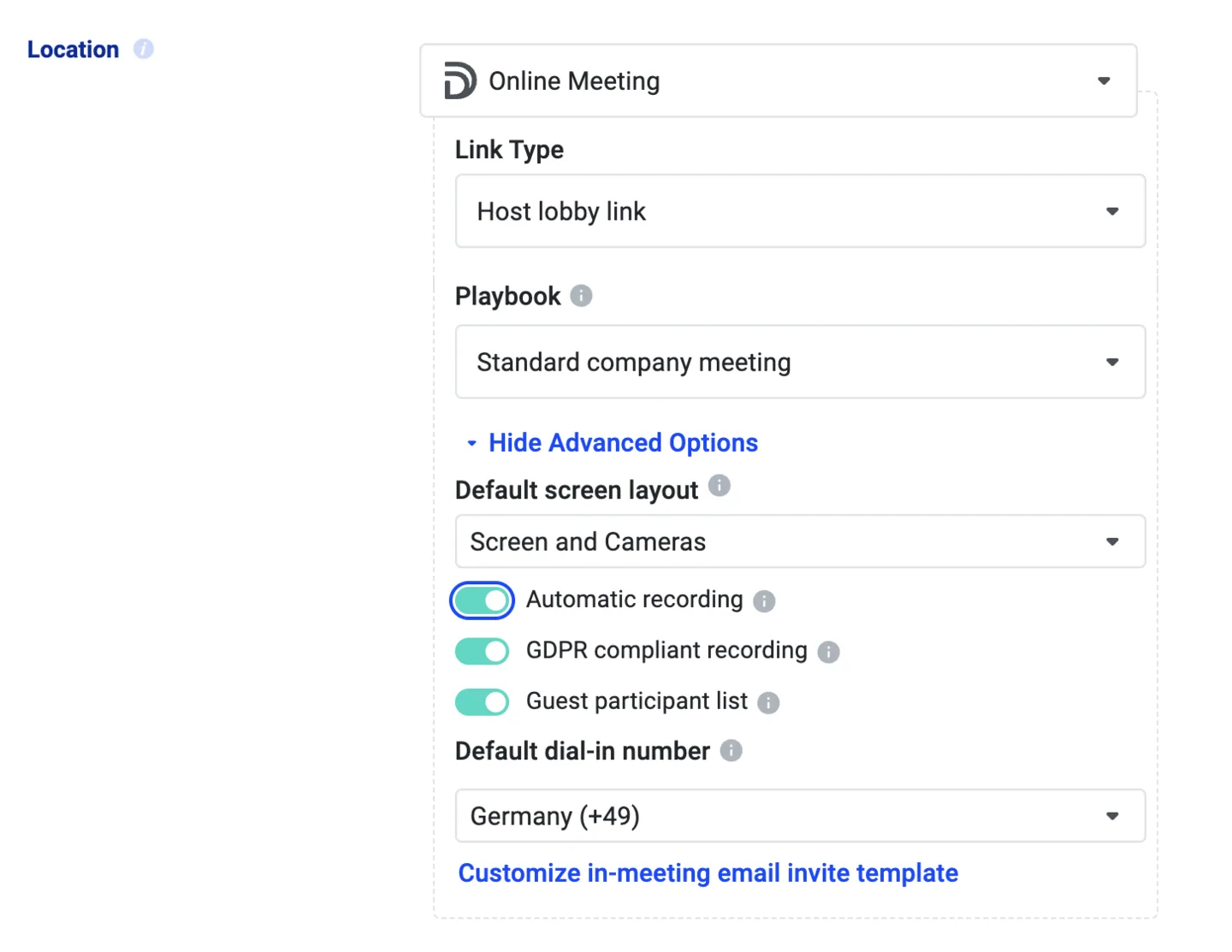
You can set up the GDPR-compliant recording on your event types. Setting it up can be useful for larger meetings where the consent of a participant is not expected and needed, e.g. webinars where everyone is muted.
- Go to the Meeting Type s tab
- Select the meeting type you want to adjust (e.g. Sales Demo)
- Scroll to Location
- Click Show Advanced Options
- Enable GDPR compliant recording
How it works
Getting consent:
If a recording is running we will ask participants to consent to the recording before joining the meeting. Otherwise they are asked during the meeting, the moment the host starts recording.
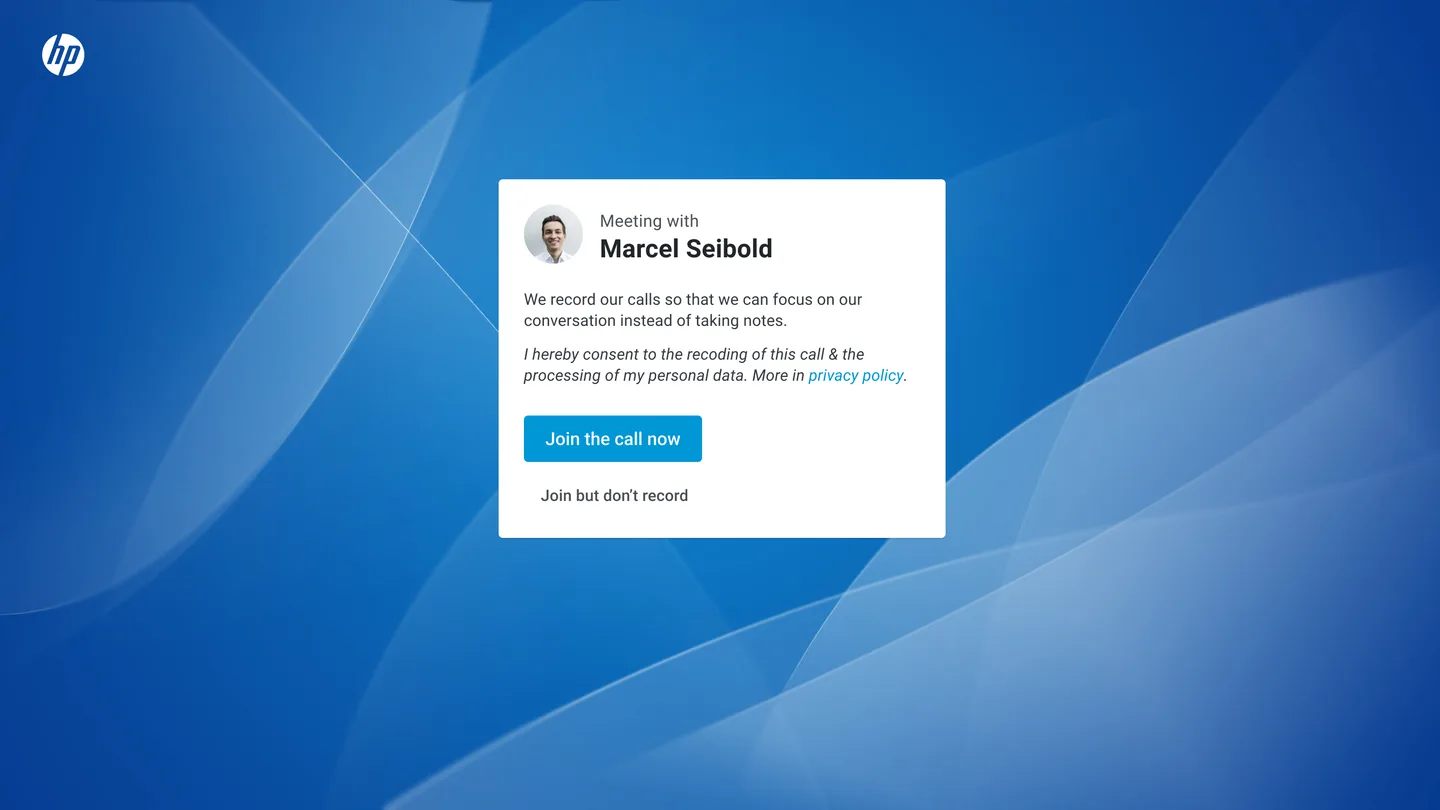
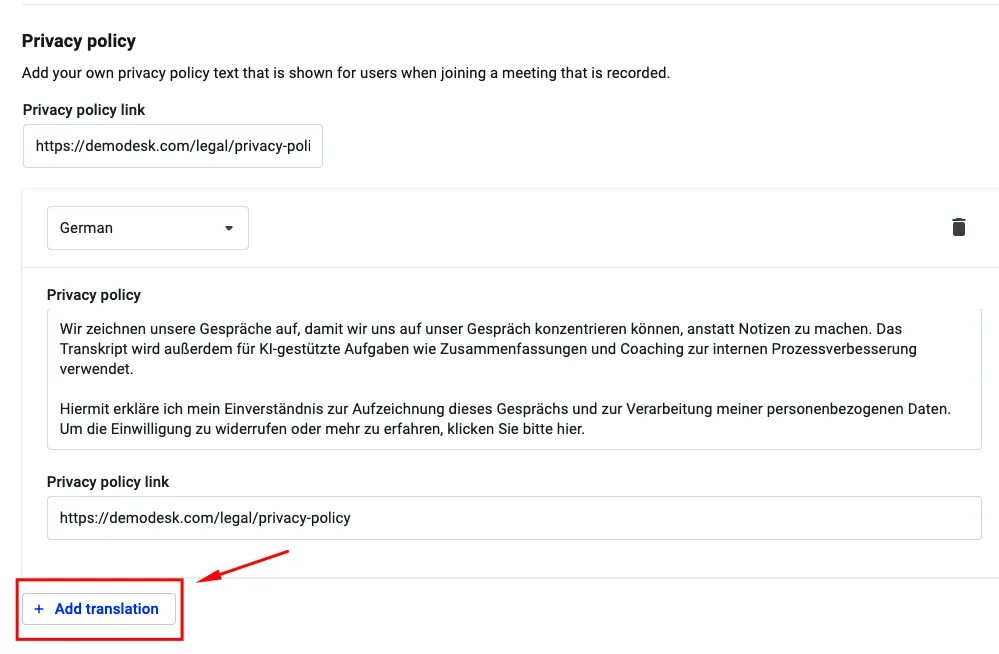
You can customize the privacy policy link and the consent text shown to participants when they join a recorded meeting:
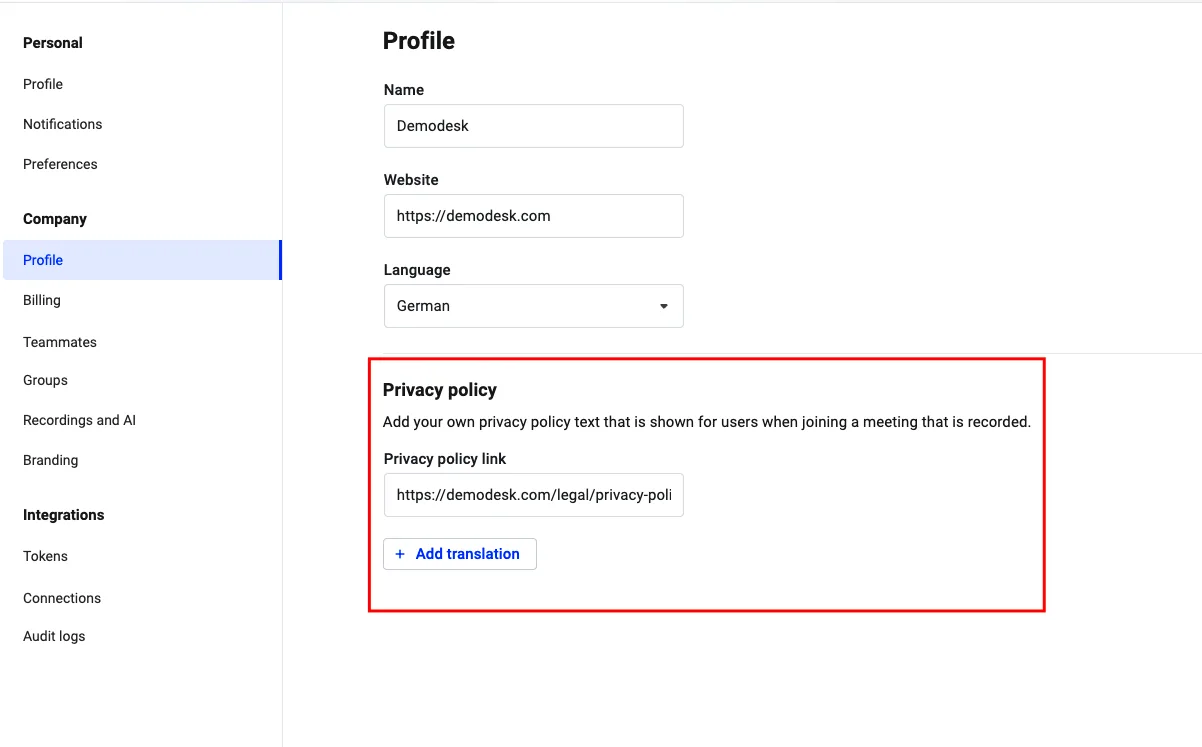
In your organization settings under Company settings > Profile, you can:
- Enter your own privacy policy URL to replace the default Demodesk link.
- Define custom text explaining why you record calls and how participant data is processed.
- Add translations in different languages for the consent text so participants see it in their preferred language.
If you don’t provide your own text, Demodesk’s standard consent message will be displayed.
How to handle participants not consenting:
If a participant doesn't consent, we stop the recording. Priority is for participants to be able to join the meeting. You can trigger the consent unlimited times if some participants have yet to consent. All participants that have not yet consented will be asked again.
We recommend to asking if they declined by mistake. For instance, you could ask, "I noticed you declined the recording consent. Was that intentional, or would you like another chance to opt in?" This approach allows you to clarify consent status in a professional and engaging manner.
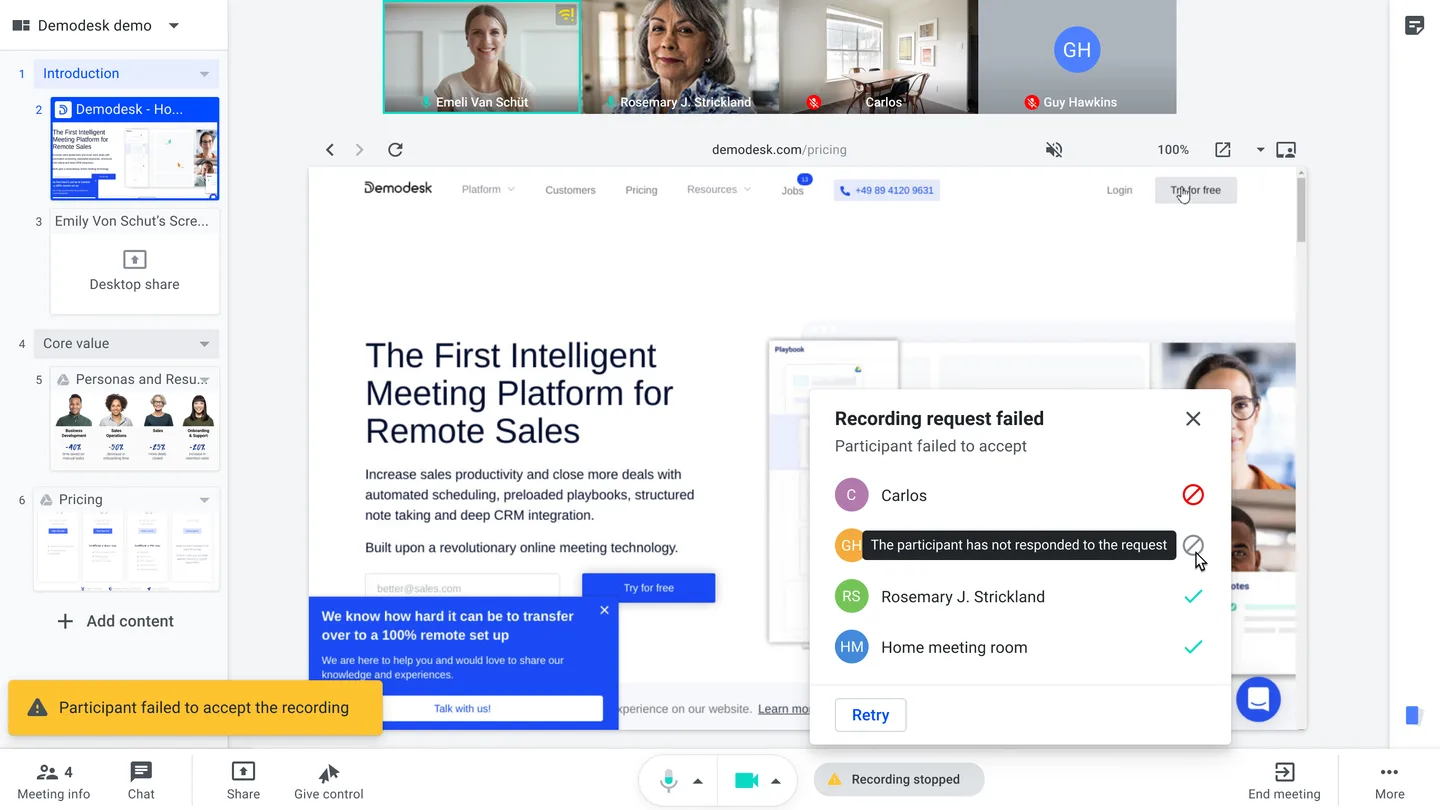
How to ask for consent again
Recording Retention
Under GDPR and similar privacy regulations, recordings can only be stored as long as they are needed for a specific use case. Therefore, we provide the option to expire recordings automatically so you can stay compliant at all times. Learn more here.
How to monitor
You get insights on how your team uses recording in the insights dashboard. Check the help center article about insights for more.
Related articles
More in this category
Still need a hand?
Our support team answers in the app chat, or at support@demodesk.com.