How to shadow a call
Updated October 23, 2023
On this page
If you ever need to join a meeting without the participants in the call knowing you are there, you can do that with Demodesk. It can be helpful if you're in a place not conducive for meeting, but you still want to listen in on the meeting. It's also useful for supervising and coaching new sales or customer success employees.
What is shadowing?
Shadowing a call means that you can only listen to a call. You will not be heard or seen by participants. Only the host and other colleagues within your Demodesk organisation will know that you are listening in.
But keep in mind, only registered Demodesk users can shadow calls!
It is possible to:
- Invite staff as shadowers for a scheduled meeting (e.g. for a meeting next week)
- Plan a shadowing event for yourself (e.g. for a meeting next week)
- Join ongoing meetings
Steps to shadow a call
Invite staff members as shadowers
-
Find all upcoming meeting links of your colleagues under Meetings > Upcoming Meetings > All Team members.
-
Click the three dots on the right side of the meeting in question > Add shadowing participant>Click "Send invitations" to have the shadowing calendar event sent to the selected participant.
Plan a shadowing event for yourself
- Find all upcoming meeting links of your colleagues under Meetings > Upcoming Meetings > All Team members.
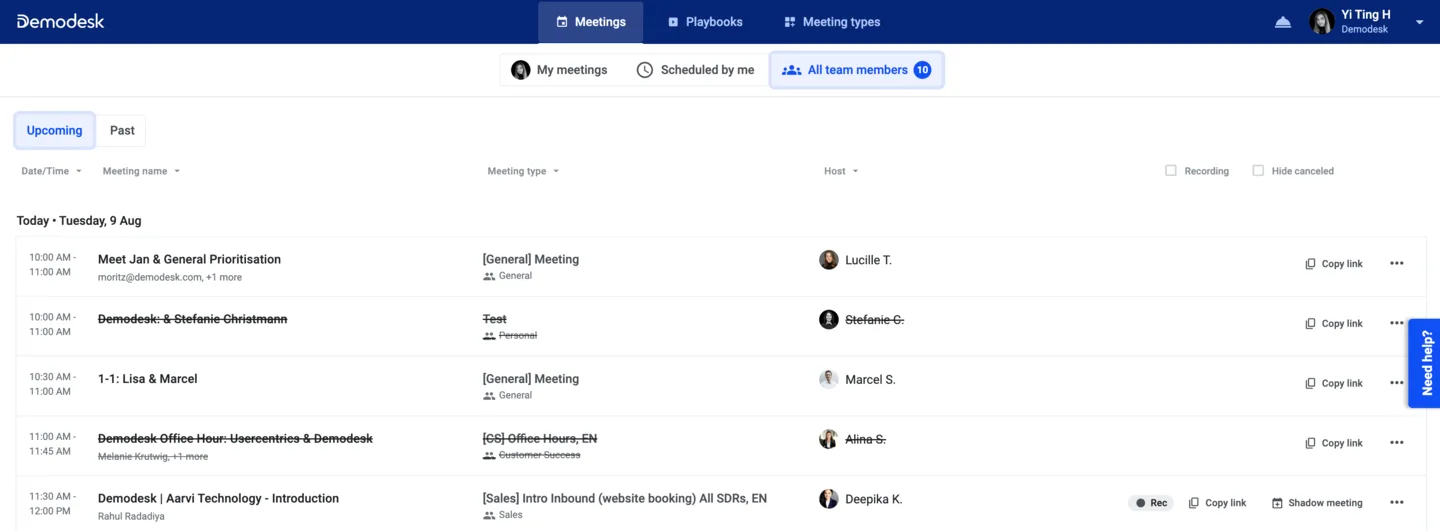
- Click "Shadow meeting" on the right of the meeting you'd like to shadow. Click Confirm to have the shadowing calendar event sent to you.
Shadow ongoing meetings from the Virtual Sales Floor
-
Click on the live meeting tile to shadow
-
You can toggle the Shadow button on and off before joining. To ensure full power to the host, they will still need to let you into the meeting.
-
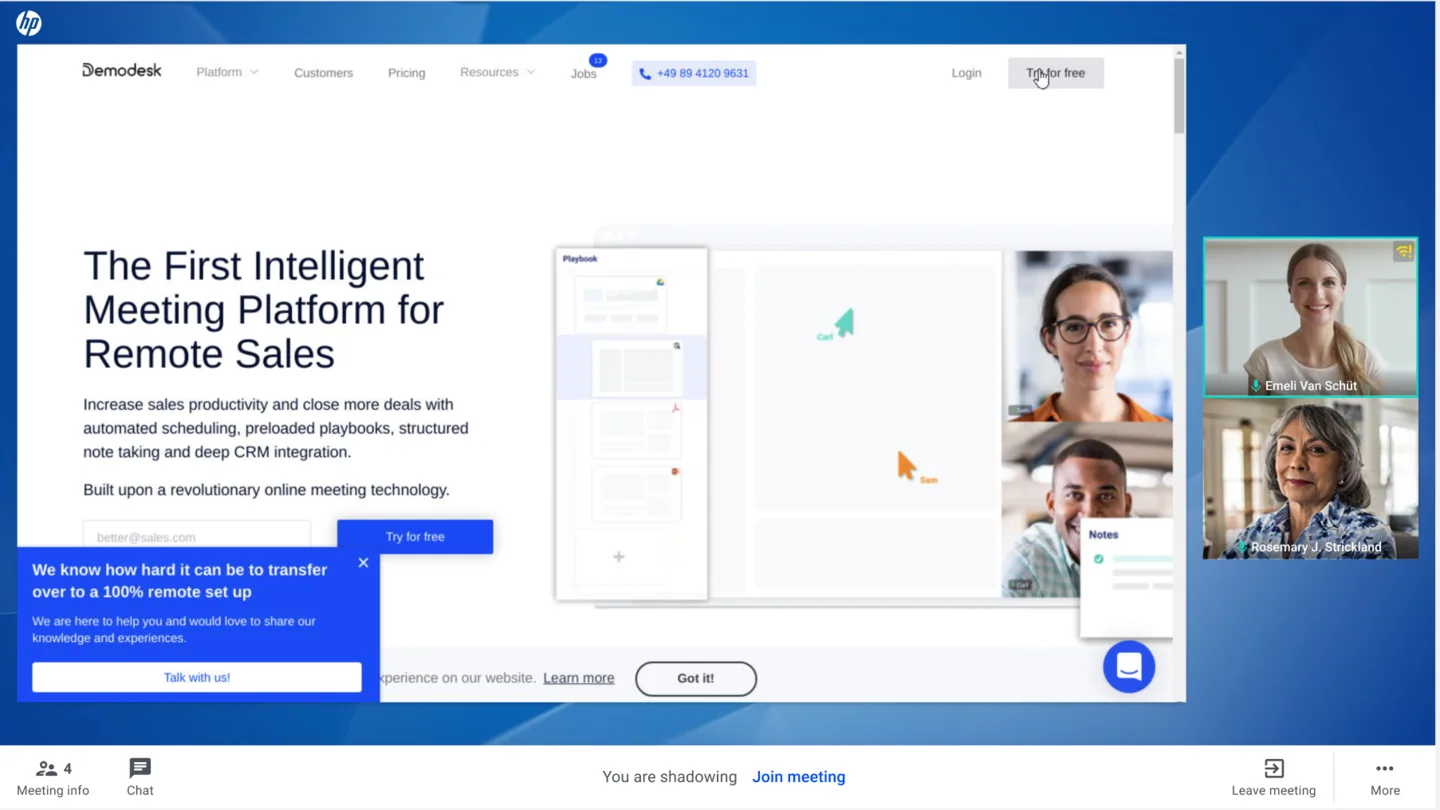
Now you are connected to the meeting as a shadow. Only the host and other colleagues with a Demodesk account will know you are there. If you want to join the meeting, you can click the join meeting button in the bottom bar.
Automated updates of shadowing events
If the main Event changes, the shadowing event will be adjusted accordingly. Here's what's going to happen:
- Synced properties: Demo basics like date/time changes, duration, name, ... (via dashboard, customer booking, backsync).
- Handover (via dashboard): we delete the old shadow event and create a new one in the new host's calendar.
- A general known limitation: When changing the event, we also change the response status of participants to "needs action / no response".
What is the virtual Sales Floor
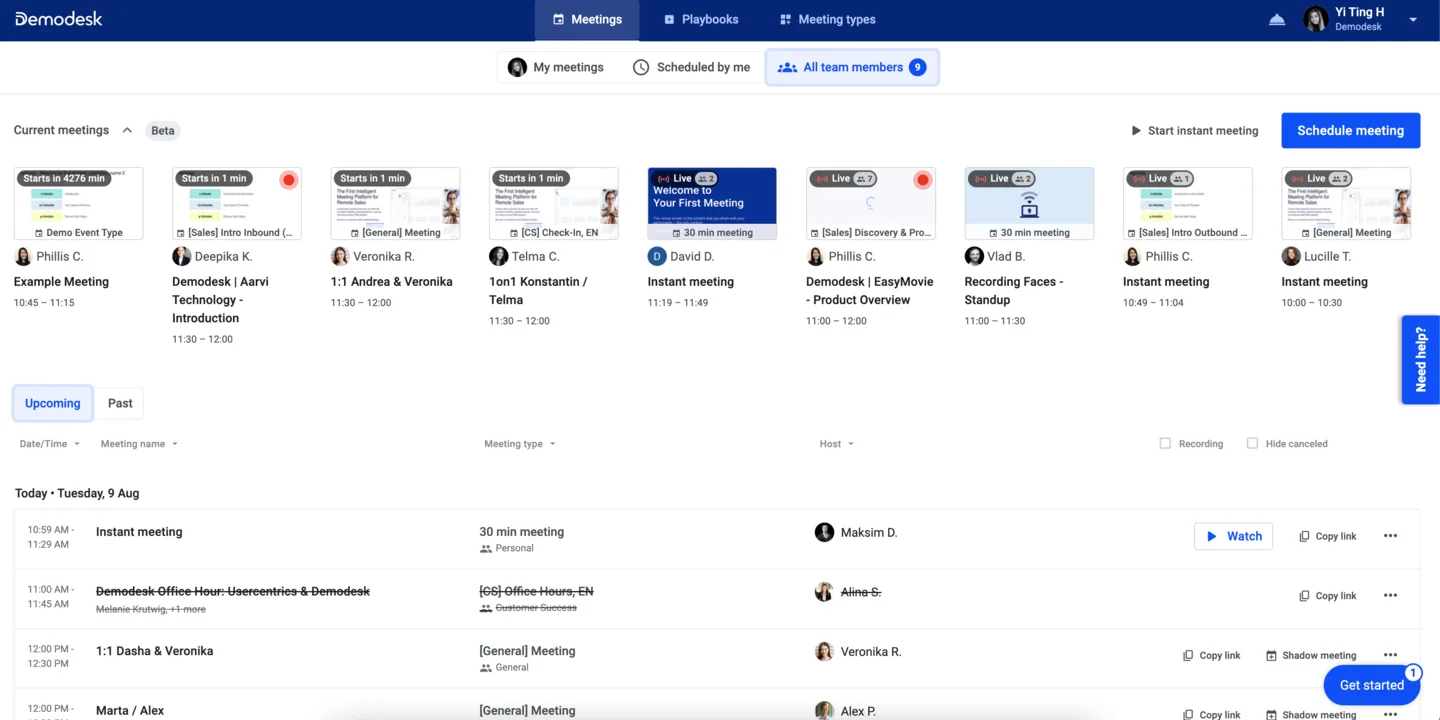
- Live meetings are shown on the "Scheduled by me" and "All team members" tab
- The all team members tab is accessible by everyone (both permissions, admin and user).
- The number indicates how many meetings are running and starting within the next 15 minutes at a specific moment.
- Live tiles show live and upcoming meetings (starting within the next 15 minutes):
- The image shows the slide currently shown in the meeting.
- When hovering over a live tile, users can shadow the meeting, and see the slide progress as well as the time that has passed.
- The link in the event will automatically enable the shadow option in the audio onboarding (through a URL parameter).
FAQ
Q: Are we allowed to shadow customer calls without their explicit consent in European countries (GDPR)?
Q: Who can create shadowing events?
Q: I do not see the shadower as part of the original meeting. Can my guests see the shadower event?
Q: I am afraid my shadowers use the wrong settings and join as a participant. How do you prevent this from happening?
Q: How to cancel a shadowing event?
Related articles
More in this category
Still need a hand?
Our support team answers in the app chat, or at support@demodesk.com.