User Roles and Permissions
Updated August 21, 2025
Are you interested in granting a user admin rights while restricting access to specific features? This might include limiting admin access to certain groups, company and billing settings, or company integrations. If so, the Demodesk Manager role is what you are looking for! This article outlines the following:
Overview of Demodesk Admin and Manager Roles
The following table provides a comparison of the features accessible to a Demodesk admin and manager.
| Admin | Manager | User | |
|---|---|---|---|
| Create and Update Meeting Types | ✅ | ✔️* | ✔️ (only personal) |
| Create and Update Playbooks | ✅ | ✔️* | ✔️ (only personal) |
| Insights Dashboard Access | ✅ | ✔️* | ❌ |
| Create & Handover Meetings | ✅ | ✔️* | ✔️ (only own meetings) |
| Create and manage Scorecards and automations | ✅ | ✅ | ❌ |
| Company Settings: Profile Billing Teammates Groups Branding Tokens Audit logs | ✅ ✅ ✅ ✅ ✅ ✅ ✅ | ❌ ❌ ✔️** ✔️* ❌ ❌ ✅ | ❌ ❌ ❌ ❌ ❌ ❌ ❌ |
| Add Users - invite users - who sign up through demodesk.com | ✅ ✅ | ❌ ❌ | ❌ ❌ |
*Restricted to the groups they belong to
This is how a user with manager role sees the settings.
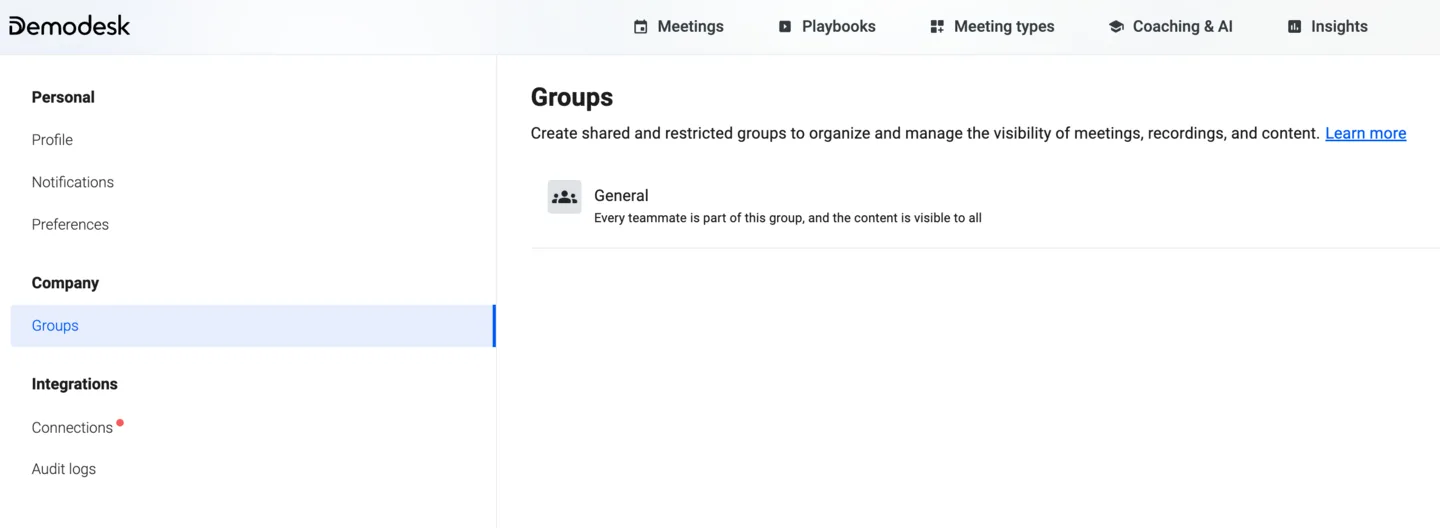
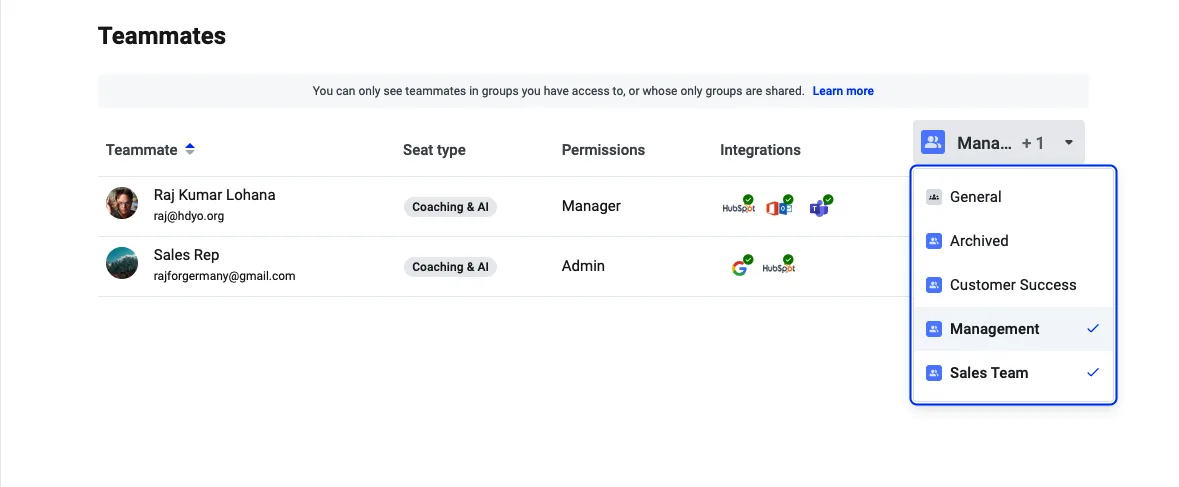
** Please note that while Managers can access the Team Members tab, they will only see teammates who are part of groups they already have access to, or whose groups are shared with them. This allows Managers to see which of their team members belong to which groups. However, they won’t be able to invite new members or remove existing ones.
How to Grant Demodesk Manager Rights to a User?
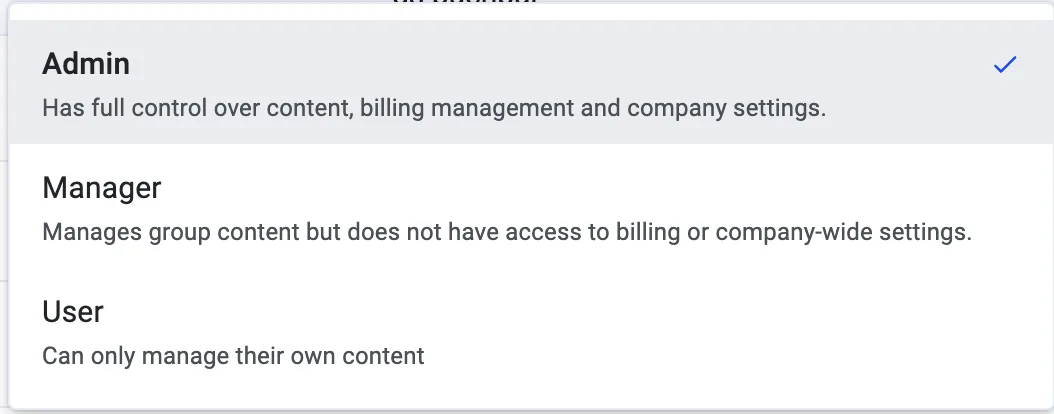
When inviting a user or editing a teammate's role via the Demodesk teammates page (accessible here), you can adjust the user's permissions and assign them one of three roles: Admin, Manager, or User, as illustrated below:
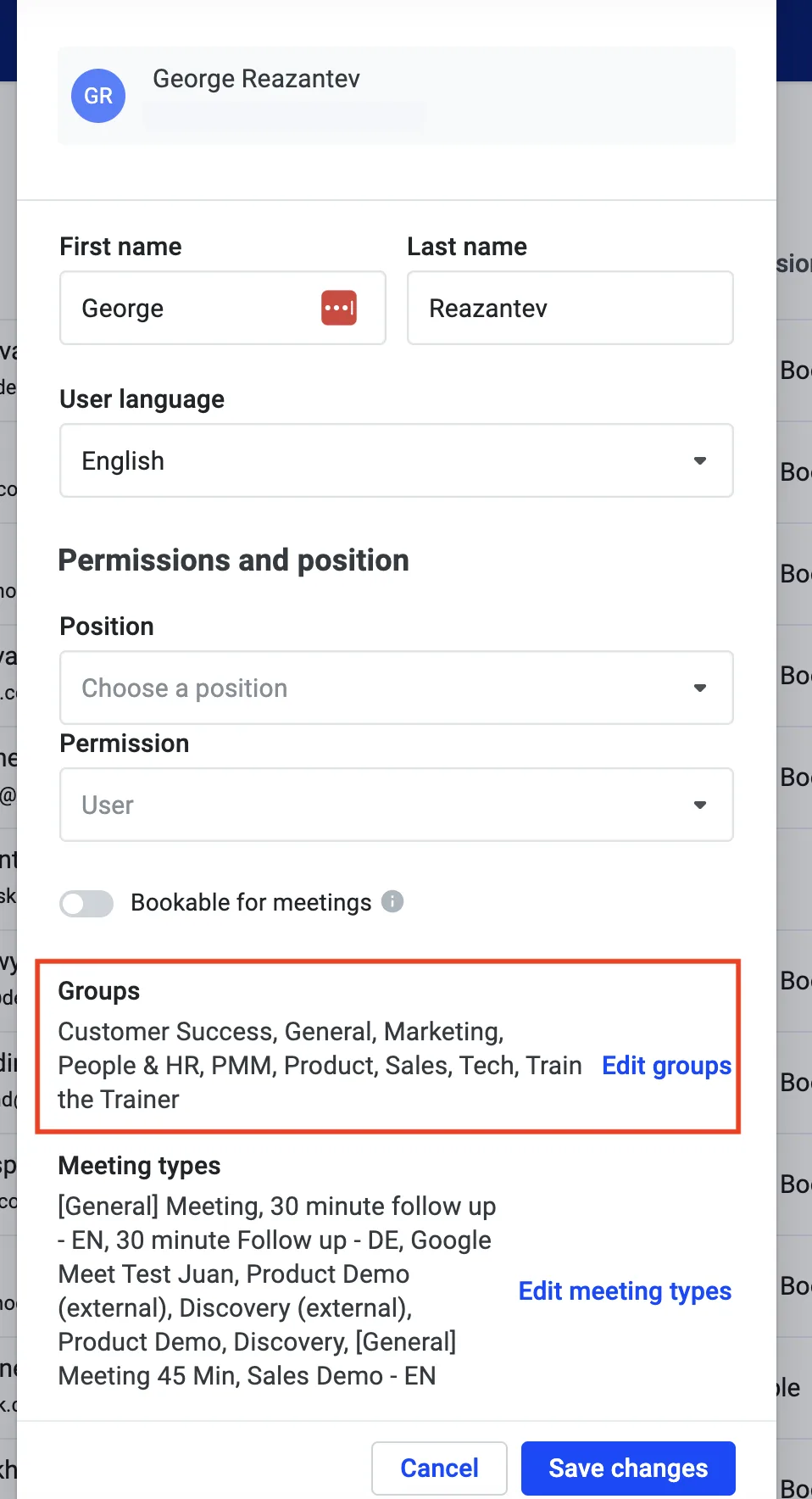
Once you assign a user as a "Manager," you can include them in the groups where you want them to have the respective roles, as explained here. The image below illustrates how you can achieve this from the teammates page (here). Note, adding the user to a set of groups, enables them to manage only those specific groups.
Related articles
More in this category
Still need a hand?
Our support team answers in the app chat, or at support@demodesk.com.