Deleting team members, Playbooks and Meeting Types
Updated October 13, 2023
On this page
Maintaining a neat and organized workspace is appreciated by everyone. With the expansion of your team, you'll see an increase in the number of Playbooks, Meeting types, and team members. Over time, certain Playbooks and Meeting types may fall out of favor as your team identifies which ones are more effective or better suited for specific sales meetings. When such a realization occurs, it's a good opportunity to tidy up and remove the templates that are no longer in use 🧹.
- What happens if I delete a team member?
- What happens if I delete a meeting type?
- What happens if I delete a playbook?
- I accidentally deleted notes from my playbook. How can I get them back?
What happens if I delete a team member?
Please make sure that all scheduled meetings are handed over before deleting a team member.
Deleting the host of an already scheduled meeting will result in these meetings getting canceled. See this article on how to hand over these meetings beforehand.
Recordings and past meetings will still show in the meeting list and recording library.
What happens if I delete a meeting type?
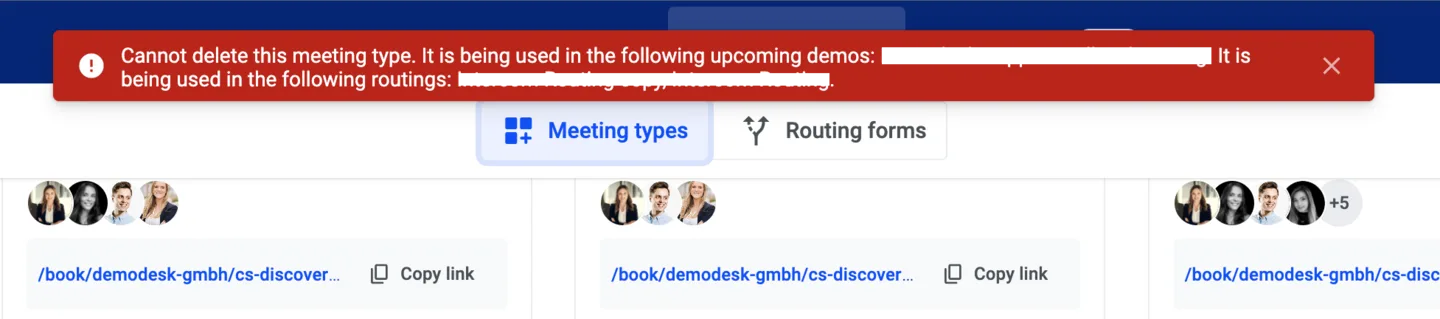
It is not possible to delete a meeting type if it is being used in outstanding scheduled meetings. Demodesk will show you a popup warning message informing you which routings and/or upcoming meetings it is still in use:
An alternative is to archive a meeting type by:
-
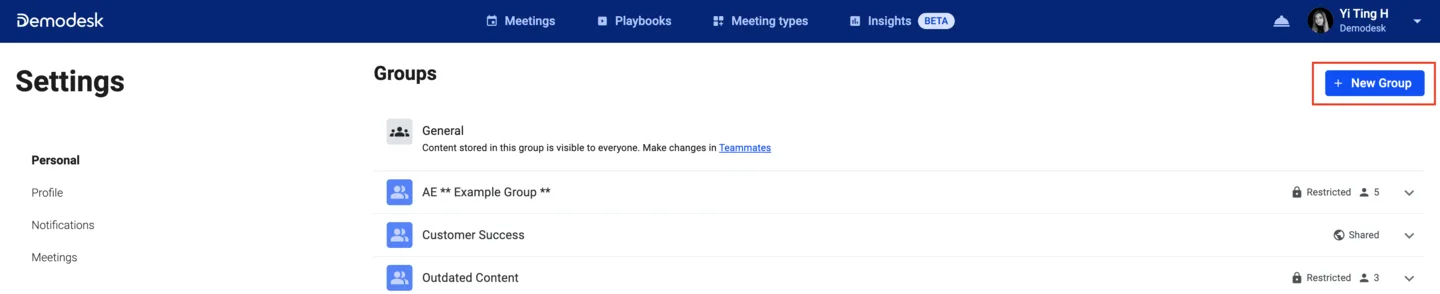
Going to your settings and creating a new group
-
Name it e.g. 'Archive' > under
Visibility, selectRestrict to group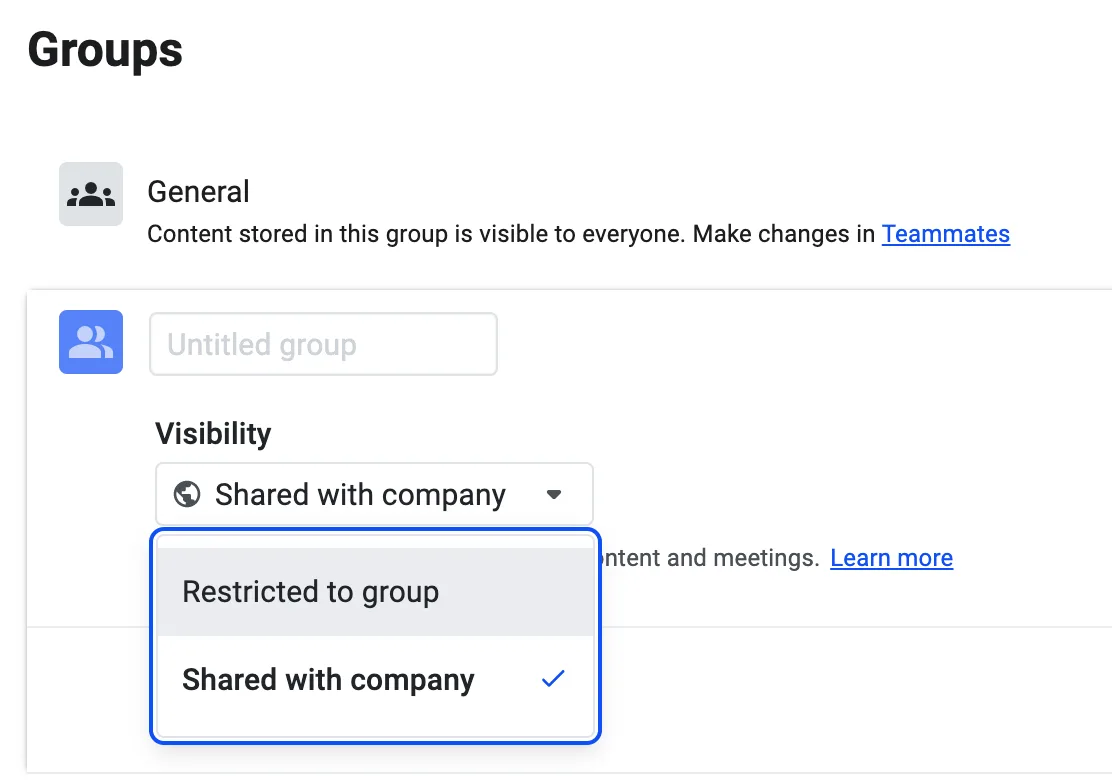
-
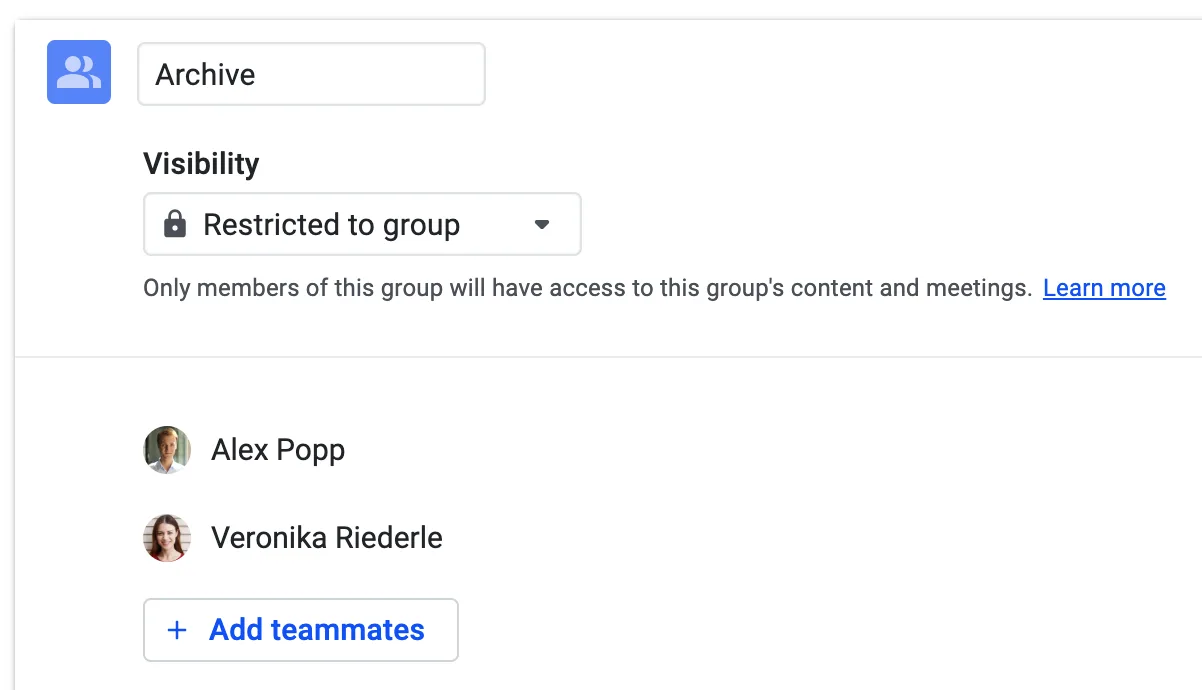
Add the admins who manage meeting types
-
Go to the meeting type you wish to delete and remove everyone from the
Team assignmentsection, except for the one admin (or add them if not added yet)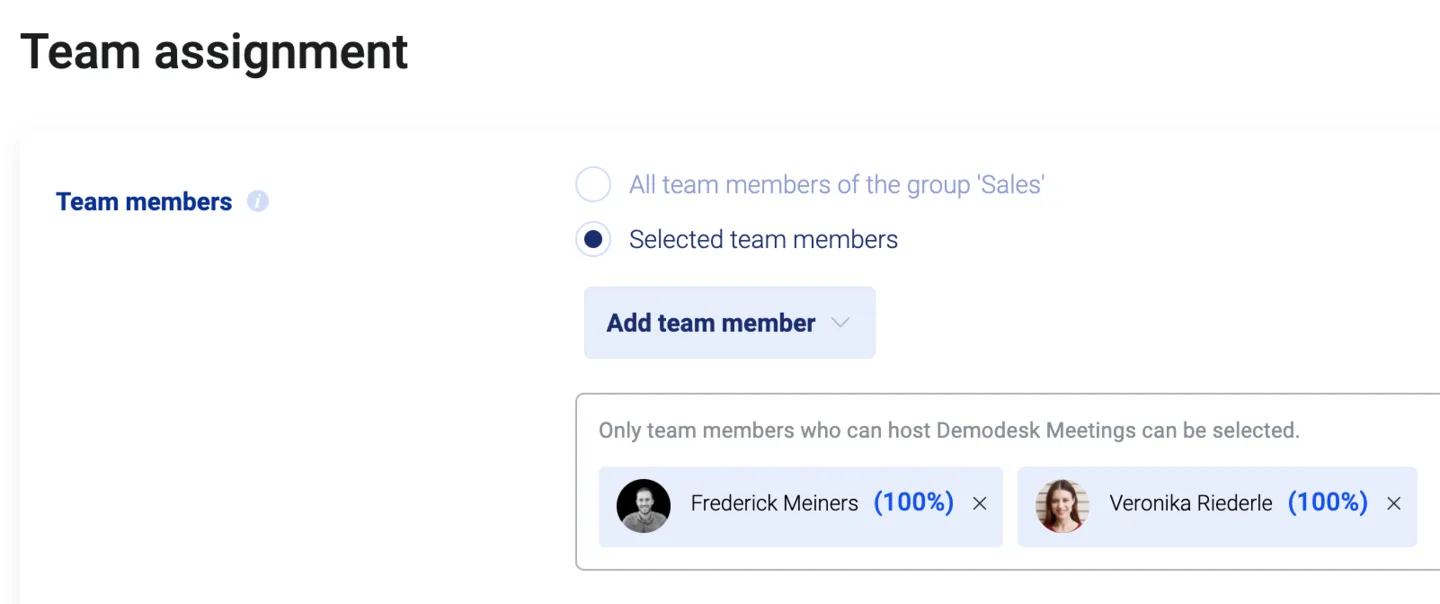
-
Move the respective meeting type(s) to group "Archive"
As a result, scheduled meetings will then still be available on the dashboard for hosts, but other team members can no longer use the meeting types to schedule new meetings.
What happens if I delete a playbook?
You can only delete a playbook if it is no longer being used in any meeting types. Demodesk will prevent you from deleting a playbook that is still in use by showing you the following popup warning message:

Similarly, you can move the intended playbook to a private group where no one else besides the admin (who are in the group) have access.
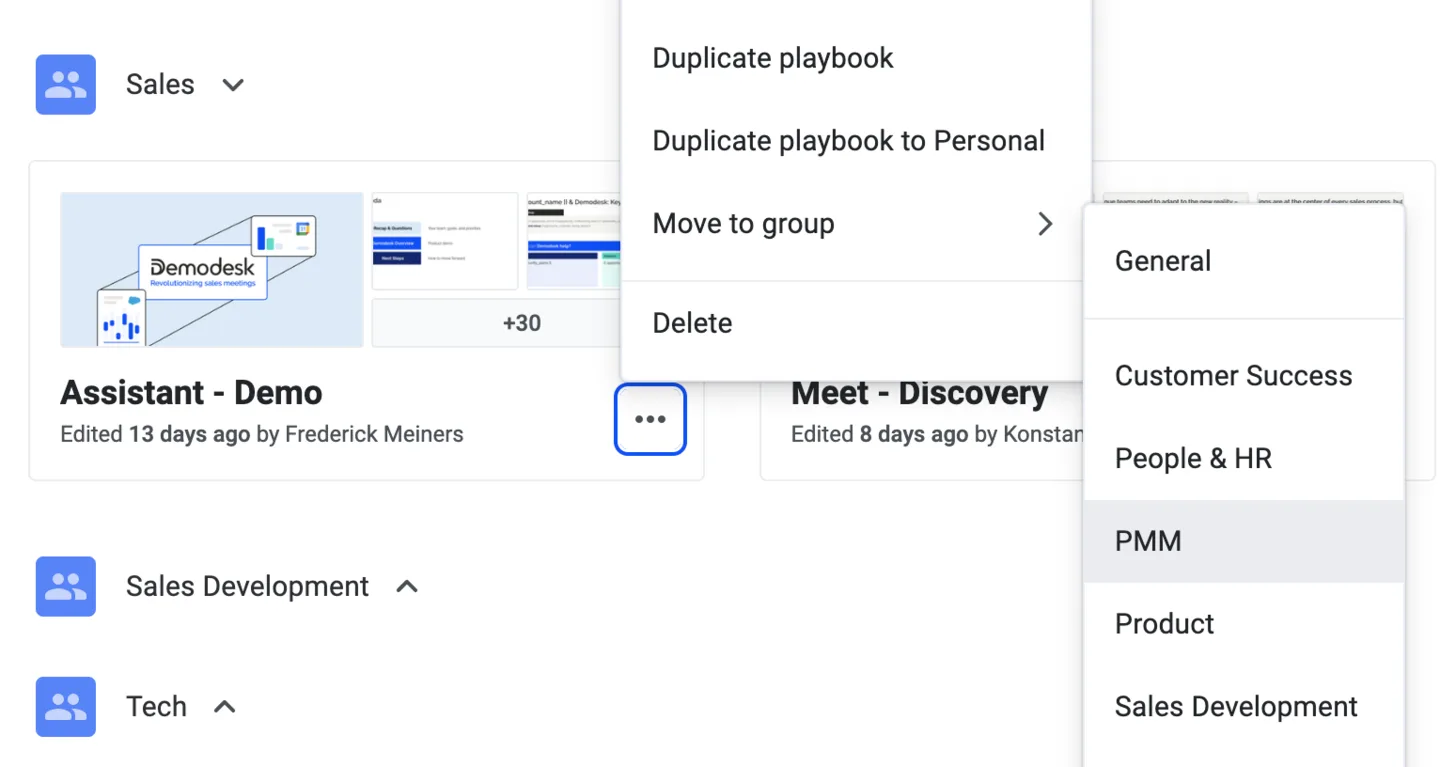
As a result, scheduled meetings will still be able to use the archived playbook, but it won't be part of newly scheduled meetings.
I accidentally deleted notes from my playbook. How can I get them back?
Since changes made to a playbook are auto-saved, there is no way to revert the changes right away.
There are two special conditions that might help:
-
If you have the notes field still open you might be able to undo your action with CMD + Z.
-
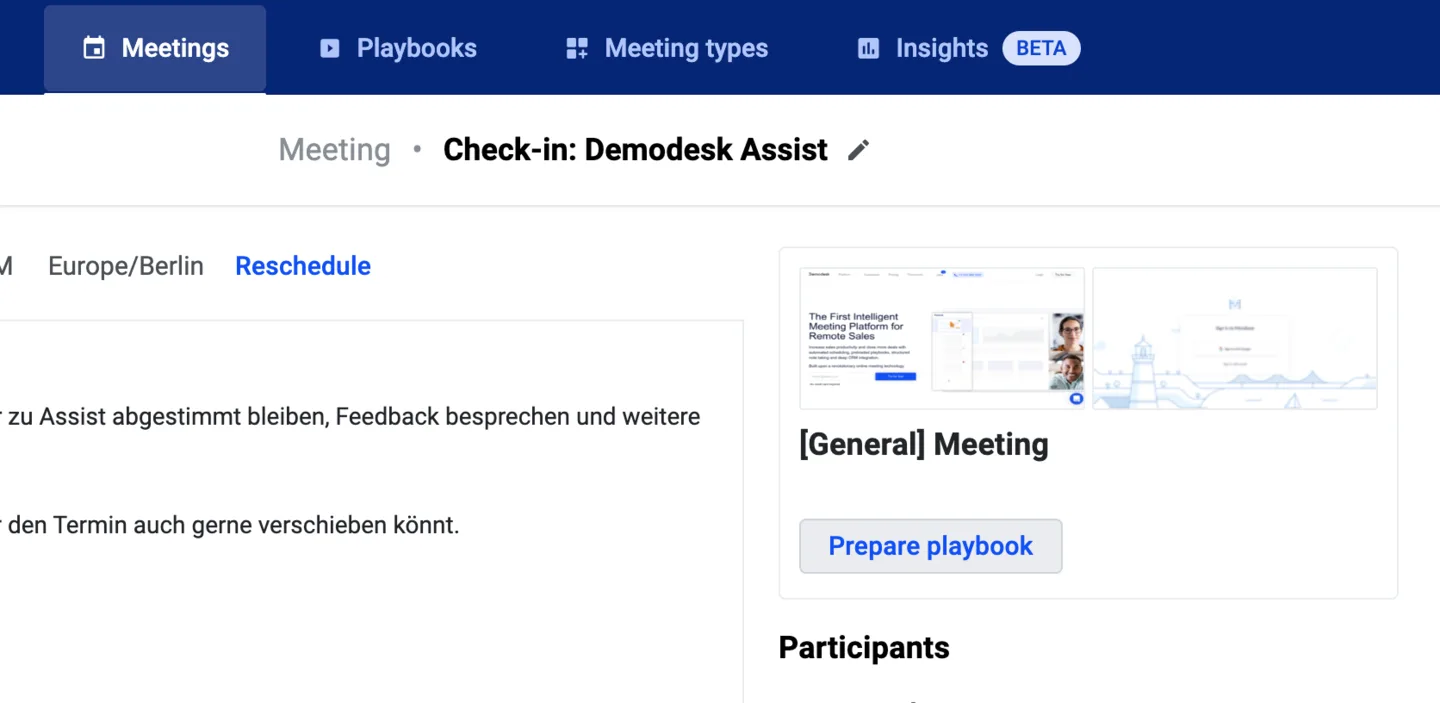
If you have previously used the playbook in earlier meetings, you can find it in the dashboard > click into it > click
Prepare playbook. This will bring you to the meeting-specific version of the playbook, hopefully including some of the notes that you wanted to preserve.
Related articles
More in this category
Still need a hand?
Our support team answers in the app chat, or at support@demodesk.com.