How to manage your employees in Demodesk
Updated October 26, 2026
On this page
As a Demodesk Admin, you have additional rights to manage your team. This article provides you with a first overview of everything you can do.
How to open the company settings
- Click your profile picture in the top right corner.
- Choose Company settings.
- Admins land on Profile, managers land on Groups.
- In the sidebar under Company, click Teammates to manage the people in your workspace.
Which actions and settings can be accessed?
When inviting or editing colleagues the right switch grants the new user admin rights:
An admin is able to perform the following actions:
- create and edit Team Playbooks
- create and edit Team Meeting types
- create and edit Team Battle cards
- create and edit Team Routing
Admins can access the company settings
- Change white label
- manage admin rights of other users
- edit custom tokens
- add new users
- delete unnecessary users
- access invoices
- access insights
How to manage the teammates accounts
For you to delete a user, it only takes a few steps:
- Jump on your employee page
- Scroll down > click the 3 dots to the right
- Click delete and type REMOVE
On the other hand, if you wish to make a teammate an admin as well, then add the following steps:
- Click on the 3 dots and then on edit
- Scroll down and toggle the option for admin
- Save your modification
Please note that while Managers can access the Teammates page, they will only see teammates who are part of groups they already have access to, or whose groups are shared with them. This allows Managers to see which of their team members belong to which groups. However, they won’t be able to invite new members or remove existing ones.
What happens to a user's recordings when I delete them?
Deleting a user does not delete their meetings. Their past meetings, recordings, transcripts and summaries stay in your workspace and keep the sharing settings they had.
- Recordings shared with everyone in the company or with a group stay visible to the same people as before.
- Recordings the person kept private stay private. A recording whose Internal access is Only host can't be opened by anyone else, including admins and managers. A recording set to Host & Internal participants can still be opened by the internal participants of that meeting.
- Upcoming meetings that the Notetaker had imported from that person's calendar are removed.
- Upcoming meetings they host that were scheduled through Demodesk are canceled. Demodesk doesn't send the guests a cancellation, so let them know yourself.
- Their calendar and their other connections are disconnected.
Admins and managers can't open or change recordings set to Only host or Host & Internal participants. Only the host can change them. Before you delete someone, ask them to open each private recording your team still needs, click Share and change Internal access so the right people keep access. After the deletion, nobody can change these settings anymore.
How to invite new users
Please log into Demodesk and go to your invitation settings.
Here, add your colleagues row by row by entering their name and email address.
Admin rights allow your colleague to invite employees, create and change team templates and upgrade your account.
Scheduling rights make your colleague bookable on team templates, without granting admin rights.
If you disable both, your colleague will only be able to hold instant meetings and schedule meetings for other team members.
Choose a default Meeting Type and Playbook for the new users.
Please note that users need to connect their calendars before their availability can be taken in account and become part of bookings. Nevertheless, it will be shown as the default Meeting Type from the beginning on.
Auto-sign up
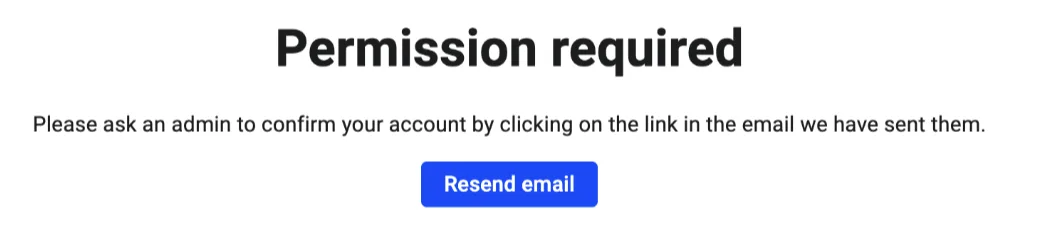
Demodesk provides an auto sign-up functionality. If a user signs up to Demodesk using the same email domain as yours, they will be added automatically to your account, awaiting confirmation that they are allowed to.
All admins in the account will receive an email (Subject: Please confirm <username>’s Demodesk account) to accept or decline the invite.
This is what users will see before getting permission.
Why can't I see the company settings or Teammates?
Company settings only appears under your profile picture if you are an admin or a manager. With the User role the entry is not in your menu, and a link to the Teammates page does not open for you.
Ask one of your admins to make the change for you, or to give you the role you need. They can do it under Company settings > Company > Teammates.
Related articles
More in this category
Still need a hand?
Our support team answers in the app chat, or at support@demodesk.com.