AI Agents
Updated August 27, 2026
On this page
- What is an AI Agent?
- When can an agent run?
- What can an agent do?
- Read meeting data
- Work with CRM data
- Communicate
- Remember things
- Manage Demodesk settings
- Connect to external tools
- Real-world use cases
- Real-world examples
- What are Custom Integrations?
- Billing & Pricing
- Admin Controls
- FAQs
- How do I create an agent?
- After creating any agent
- Sharing an agent with your team
After a call ends, there's always a list of things to do. Write the follow-up. Update the CRM. Check how the rep scored. AI Agents handle all of it for you, quietly running in the background while your team focuses on what they actually enjoy, talking to customers.
Set a goal. Choose a trigger. Done.
What is an AI Agent?
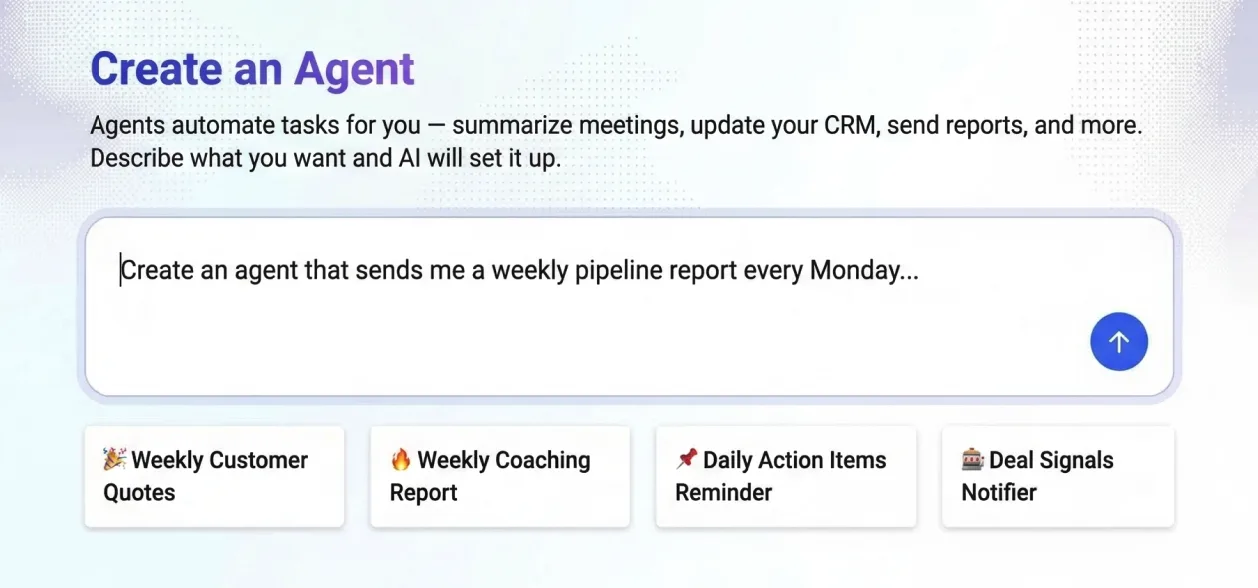
An AI Agent is an automated task runner inside Demodesk. You give it a goal (written as a prompt), tell it when to run, and it handles the rest on its own. No manual steps needed.
When can an agent run?
| Trigger | What it means | Example |
|---|---|---|
| Schedule | Runs at a fixed time | Every Monday at 9 am |
| Meeting event | Runs when a meeting ends | After every sales call |
| External (webhook) | Runs when an outside tool sends data to Demodesk | A form is submitted and needs to be routed |
What can an agent do?
Read meeting data
| What it can do | Example use |
|---|---|
| Pull up details about a specific meeting | Check who attended and when |
| Search across past meetings | Find all calls with a specific customer |
| Read AI-generated summaries | Use the summary to write a follow-up |
| Read scorecard results | Check how a rep performed on a call |
| See how much each person talked | Flag calls where the customer barely spoke |
| Get meeting tags | Filter meetings by topic or outcome |
Work with CRM data
| What it can do | Example use |
|---|---|
| Search for contacts, deals, or companies | Find all open deals in a territory |
| Read CRM data tied to a meeting | See what deal stage a call was linked to |
| Get deal insights | Surface risks or next steps on a deal |
Communicate
| What it can do | Example use |
|---|---|
| Send a notification inside Demodesk | Alert a manager when a threshold is crossed |
| Send an email to you | Email yourself a digest of what the agent found |
| Draft an email in Gmail or Outlook | Prepare a follow-up for you to review and send |
Agents never send email to your customers. An agent can email you, and it can write a draft into your own Gmail or Outlook for you to review and send. Drafting requires email permissions on your connected account, see Connect your Calendar and Email.
Remember things
| What it can do | Example use |
|---|---|
| Store and retrieve information across runs | Remember a customer preference mentioned in a past call |
Manage Demodesk settings
| What it can do | Example use |
|---|---|
| Create or update other agents | Build an agent that manages other agents |
| Manage scorecard templates | Update scoring criteria automatically |
| Manage prompts/skills | Keep AI instructions up to date |
Connect to external tools
| What it can do | Example use |
|---|---|
| Call an external system via a Custom Integration | Push meeting outcome to your CRM after a call |
Real-world use cases
| Use case | Trigger | What the agent does |
|---|---|---|
| Weekly team digest | Every Monday morning | Searches last week's meetings, reads summaries, sends a team notification |
| Auto follow-up draft | Meeting ends | Reads summary and scorecard, writes a follow-up draft into your Gmail or Outlook drafts folder |
| CRM hygiene check | Meeting ends | Checks for missing CRM fields and flags them |
| Coaching alert | Every day | Checks scorecard results, sends a notification if a rep scored below a threshold |
| External system sync | External (CRM update) | Receives a signal from your CRM and pushes meeting data back into it |
What are Custom Integrations?
This is how agents talk to tools outside of Demodesk, for example, your CRM, internal database, or any tool with an API.
An admin sets up the connection once: they give it a name, add the API address, set which actions are allowed, and store the API key securely. After that, agents can use it automatically.
| Rule | What it means |
|---|---|
| Agents can only call allowed endpoints | Your admin decides what the agent is and isn't allowed to do |
| API keys are stored encrypted | The agent uses them without ever exposing them |
Billing & Pricing
AI Agents have two billing components that work independently:
Workflow Runs and AI Compute Credits.
| Workflow Runs | AI Compute Credits | |
|---|---|---|
| What it measures | How often autonomous agents execute | The LLM usage inside each agent run |
| What it covers | Infrastructure, triggers, scheduling, CRM writeback, routing, and related execution costs | AI processing, based on the amount of context, reasoning, and generation required |
| Included | Starter: 1,000 runs/month | €5 one-time free compute credit per user |
| Paid packages | Growth: 5,000 runs/month for €299. Scale: 25,000 runs/month for €999. Enterprise: custom pricing / unlimited runs | Top up AI Compute Credits before agents run |
| When usage runs out | Agents pause until you upgrade to the next package tier | Agents stop running until you top up your credit balance |
| Expiry | Credits never expire | |
| Controls | Execution tracking and usage visibility | Spending caps, alerts, and usage visibility |
| Platform fee | Included in run package pricing | Token cost + 10% platform fee |
A Workflow Run is counted each time an autonomous agent executes. For example, one agent running once per day uses about 30 workflow runs per month.
AI Compute Credits pay for the LLM usage inside each run. Simple agents usually consume very little credit, while heavier agents can consume more, especially if they process many transcripts, analyze CRM data, or generate long reports.
Typical compute costs vary by agent complexity:
| Agent type | Example | Typical compute cost |
|---|---|---|
| Simple agent | One field check plus notification | €0.01 to €0.05 |
| Medium agent | Analyze deal, update CRM, draft email | €0.10 to €0.30 |
| Complex agent | Process 10 transcripts and generate a report | €0.50 to €2 |
| Heavy batch agent | Scan full pipeline or 50+ deals | €2 to €5 |
Admin Controls
Admins can control and monitor AI Agent usage through execution tracking, spending caps, and alerts. This helps teams manage who can run agents, how much compute they consume, and when usage approaches package or credit limits.
When first setting up agents, we recommend testing them manually and checking execution history to understand how many Workflow Runs and AI Compute Credits each agent consumes.
Note: A single complex or batch run can consume a meaningful share of the free €5 compute credit, especially if the agent processes many meetings, transcripts, or CRM records.
FAQs
How do AI Compute Credits differ from Workflow Runs?
A Workflow Run is one execution of an autonomous agent. AI Compute Credits pay for the LLM usage inside that execution. Both are billed separately.
What counts as a Workflow Run?
Each time an autonomous agent executes, it counts as one run. This includes scheduled runs, meeting-triggered runs, manual runs, and webhook-triggered runs.
What happens when my run package runs out?
Agents pause until you upgrade to the next package tier. You will receive alerts before hitting the limit so you can upgrade proactively.
What happens when my compute credits run out?
Agents stop running until you top up your credit balance. Spending caps and alerts help prevent surprise charges.
Do AI Compute Credits expire?
No. AI Compute Credits never expire.
Do unused Workflow Runs roll over?
Yes, unused Workflow Runs roll over to the next month.
What is the 10% platform fee?
It is a platform fee applied on top of the underlying LLM token cost for AI Compute Credits.
Do existing AI features change?
No. AI Assistant, AI Coach, AI Analyst, and AI CRM Concierge remain unlimited and included in the Coaching & AI plan. Billing for Workflow Runs applies to custom autonomous agents.
How is billing handled?
Workflow Run tiers are billed as part of your subscription and renew monthly, including for annual-plan customers. AI Compute Credits are prepaid. Billing happens automatically when you top up.
How do I create an agent?
The easiest way is by asking the AI Analyst directly in plain language.
For example: "Create an agent that runs every Monday and sends me a summary of last week's meetings."
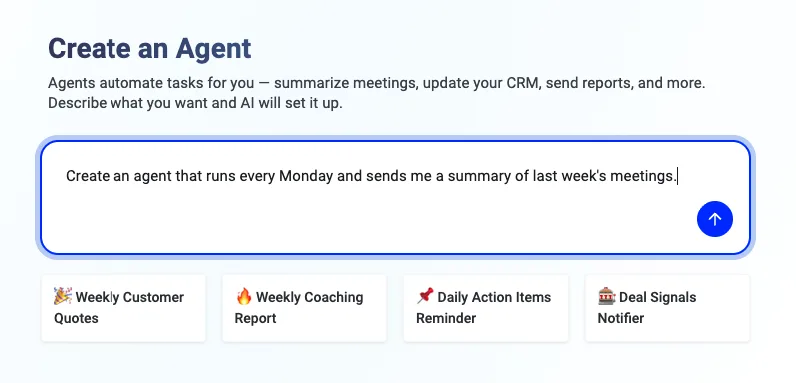
The AI Analyst builds the agent for you, including the trigger and prompt. You can then review it, make changes, or enable it straight away.
After creating any agent
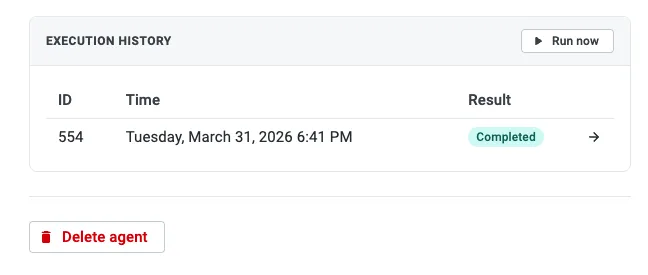
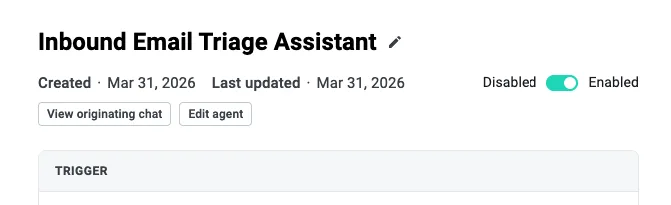
| Action | When to use it |
|---|---|
| Run now | Test the agent manually before waiting for the trigger |
| Execution history | Check past runs and whether they completed successfully |
| Edit agent | Update the prompt at any time without recreating the agent |
| Enable / Disable toggle | Pause an agent without deleting it |
| Collaborators | Share the agent with teammates so they can view, edit, and run it |
Sharing an agent with your team
A collaborator is a co-maintainer of the agent. They can change everything about the agent, perform manual runs (which run as, and are charged to, the agent owner), see the results of all runs, and add or remove other collaborators.
To manage collaborators:
- Open the agent.
- In the sidebar, find the Collaborators section and click Manage.
- Search for teammates and select those you want to add. To remove someone, click the × next to their name.
- Click Save. Added and removed teammates are notified by email.
Related articles
More in this category
Still need a hand?
Our support team answers in the app chat, or at support@demodesk.com.