Best Practices Guide: AI Analyst
Updated January 2, 2026
On this page
It brings together all summaries, coaching feedback and conversations into a single interface where you can ask questions, generate summaries, uncover patterns, and even visualize trends.
This guide helps you understand what’s possible, then gives you ready-to-use prompts based on your role.
What Can You Do with AI Analyst?
You can ask the AI things like:
- “Which objections were raised in our deals last month?”
- “Compare speaking time between AEs and prospects in QBRs.”
- “Show filler word trends across the CS team. Who improved?”
- “Summarize all mentions of pricing in our Sales calls.”
- “Which deals had no clear next steps documented?”
You’ll also get:
- Deep Search across all conversations, summaries and feedback
- Automatic charts for numerical insights
- Threaded summaries across recurring meetings
- Smart suggestions grounded in call content, not guesswork
Admins
Admins can use the AI Analyst to analyze performance and trends across the org. Think enablement, coaching, feedback loops, not just CRM hygiene.
1. Identify Top Feedback Topics
Summarize recurring product feedback mentioned by customers across all Sales and CS meetings in September.
2. Extract Filler Word Insights by Team
Compare filler word usage across Sales and Success teams. Highlight top 3 speakers per team and improvement over time.
3. Chart Weekly Meeting Volume
How many meetings were recorded per team last week? Group by department and visualize in a bar chart.
4. Enablement Content from Objection Handling
Find coaching moments where reps misunderstood objections. Extract quotes and add timestamps.
5. Creating and managing scorecards with AI Analyst
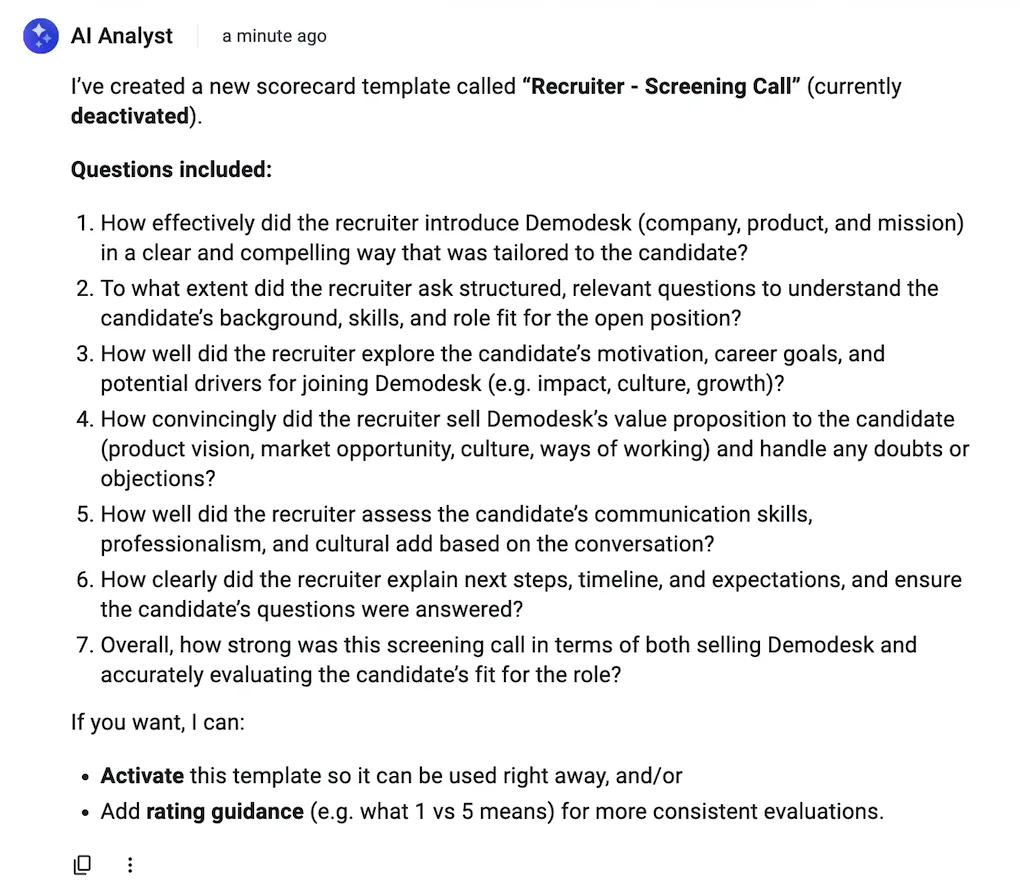
The AI Analyst can create, update, and manage scorecard templates directly through chat. Instead of manually configuring scorecards, you can describe your use case in natural language and let the AI Analyst generate or modify the scorecard for you.
This is especially useful when you want to quickly tailor scorecards to specific roles, call types, or evaluation frameworks.
What you can do
- Create a new scorecard template by describing the meeting type or evaluation goal
- Refine existing scorecards by adding, removing, or rephrasing questions
- Adjust the number of questions to match your desired level of detail
- Get an overview of existing scorecards, including their status and edit links
- Activate scorecards once they are ready to be used in automations or reviews
Example use cases
Creating a new scorecard
“Create a scorecard for a recruiter screening call.”
AI Analyst will generate a scorecard with relevant questions, such as how well the recruiter introduced the company, assessed candidate fit, and explained next steps.
Refining a scorecard
“Update our qualification scorecard to include questions about timeline, stakeholders, and next steps. Keep it to 5 questions and rewrite them to be short and easy to score.”
The AI Analyst will update the scorecard instantly, adding the new criteria and refining the questions for clarity and consistency. You can also ask it to shorten or expand the scorecard while keeping the most important evaluation points.
Managing existing scorecards
“Give me an overview of all scorecard templates.”
AI Analyst can return a structured overview of your scorecards, including whether each one is activated or deactivated, plus direct edit links. This makes it easy to audit what you have and update templates quickly.
Activating a scorecard
“Activate this scorecard so it can be used.”
AI Analyst can activate the scorecard when it is ready. Once activated, it becomes available for use in evaluations and can be selected in automations and workflows.
Best practice
Use AI Analyst to iterate on scorecards collaboratively. Start with a rough version, review the questions, then ask the AI Analyst to refine tone, scope, or length. This approach is significantly faster than manual setup and helps ensure scorecards stay aligned with your evolving evaluation needs.
Managers
Managers can uncover what top reps do differently, ensure consistent workflows, and turn AI into a team coach.
1. Deal Risk Signals
Find meetings where next steps or stakeholder names were not mentioned clearly.
2. Winning Pattern Analysis
Compare closed-won and closed-lost deals from Q3. What behaviors or topics were different in the winning ones?
3. Rep Coaching Opportunities
List reps with the highest filler word usage or lowest prospect talk ratio last month. Add meeting examples.
4. Personalize AI Coaching
Create a feedback message for a rep who didn’t summarize the agenda at the start of 3 recent calls.
Users
Reps can get fast insights from their own meetings, prep better, and improve performance on their own terms.
1. Objection Review
Show all objections raised in my meetings last week. Add timestamp ranges.
2. Self-Coaching Insights
What filler words did I use in this meeting? Suggest 2 ways I can improve next time.
3. Meeting Prep Summary
Summarize what was discussed in the last 3 calls with this customer, including challenges and open questions.
Tips for Better Prompts/Messages
- Be specific about what you want: timeframes, fields, speaker roles.
- Use clear intent verbs: “Compare,” “List,” “Summarize,” “Visualize,” etc.
- Ask for charts when analyzing numeric trends (e.g. “Show in bar chart”).
Related articles
More in this category
Still need a hand?
Our support team answers in the app chat, or at support@demodesk.com.