How can I whitelabel the appearance of Demodesk?
Updated October 21, 2021
On this page
To change the appearance of Demodesk, go to your whitelabel settings:
In there, you will find different options for white labelling.
Primary color
Changes the appearance of the customer viewer, such as buttons and the dial-in options.
Background color
The Background color changes the color of the background of the booking table.
Background image
Background image sets the background of the customer side viewer of your demo.
Instead of setting a background color, you could also upload a background image and your logo. If you decide to upload a logo, please make sure that it is in the 2560x1440 layout and a .png file.
Company logo
If you upload your logo, make sure it's either a .png file with transparent background or a .svg file.
Scheduling-Page Interface:
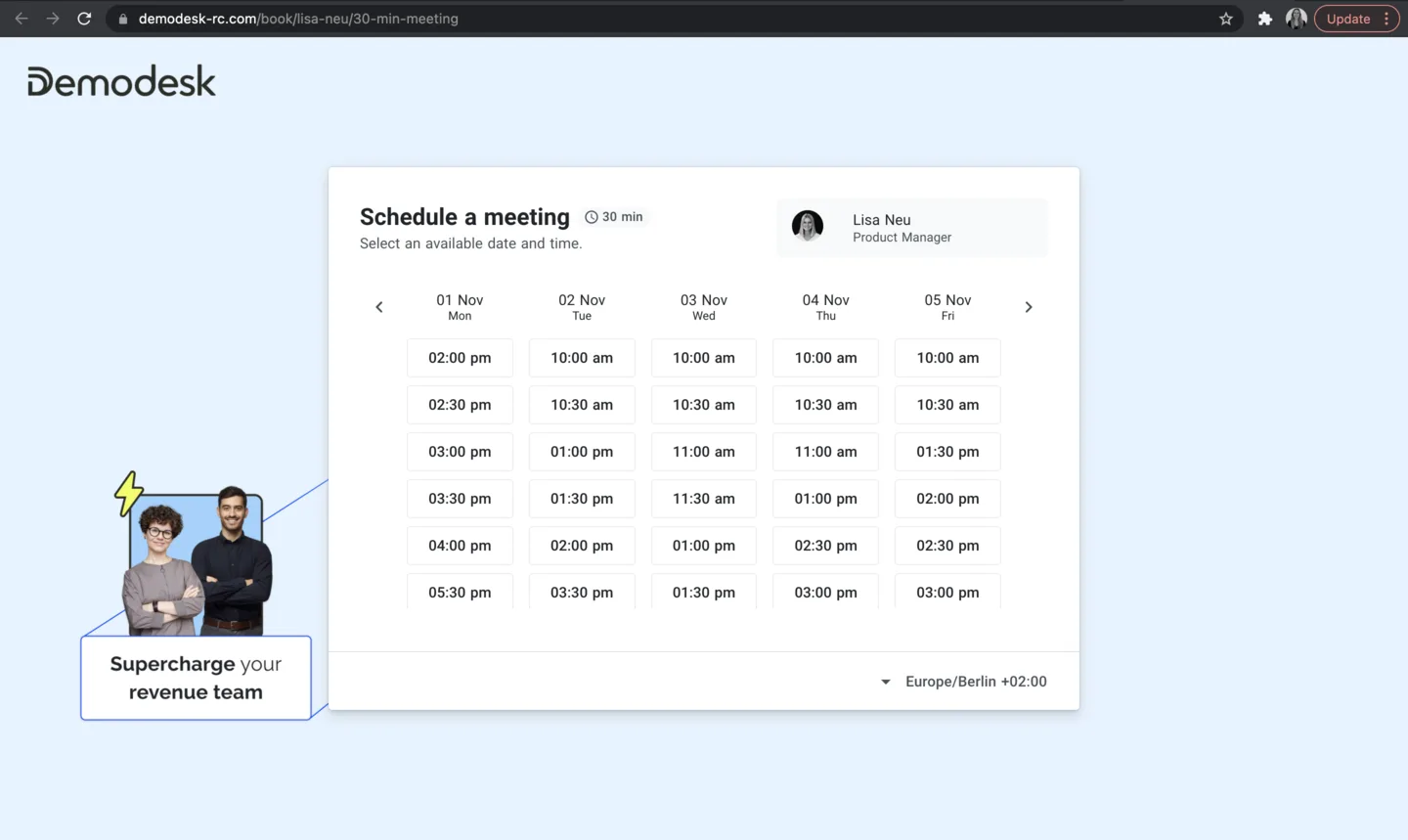
Edit Scheduling header color and Scheduling page logo. The logo will appear on your scheduling-page (customer side). You can also edit the scheduling header color with your company color.
Meeting Interface:
Edit Background image and Company logo. The logo will appear on the customer side when entering the demo and during the screen share in the bottom center (Where currently the Demodesk logo is displayed).
Before:
After:
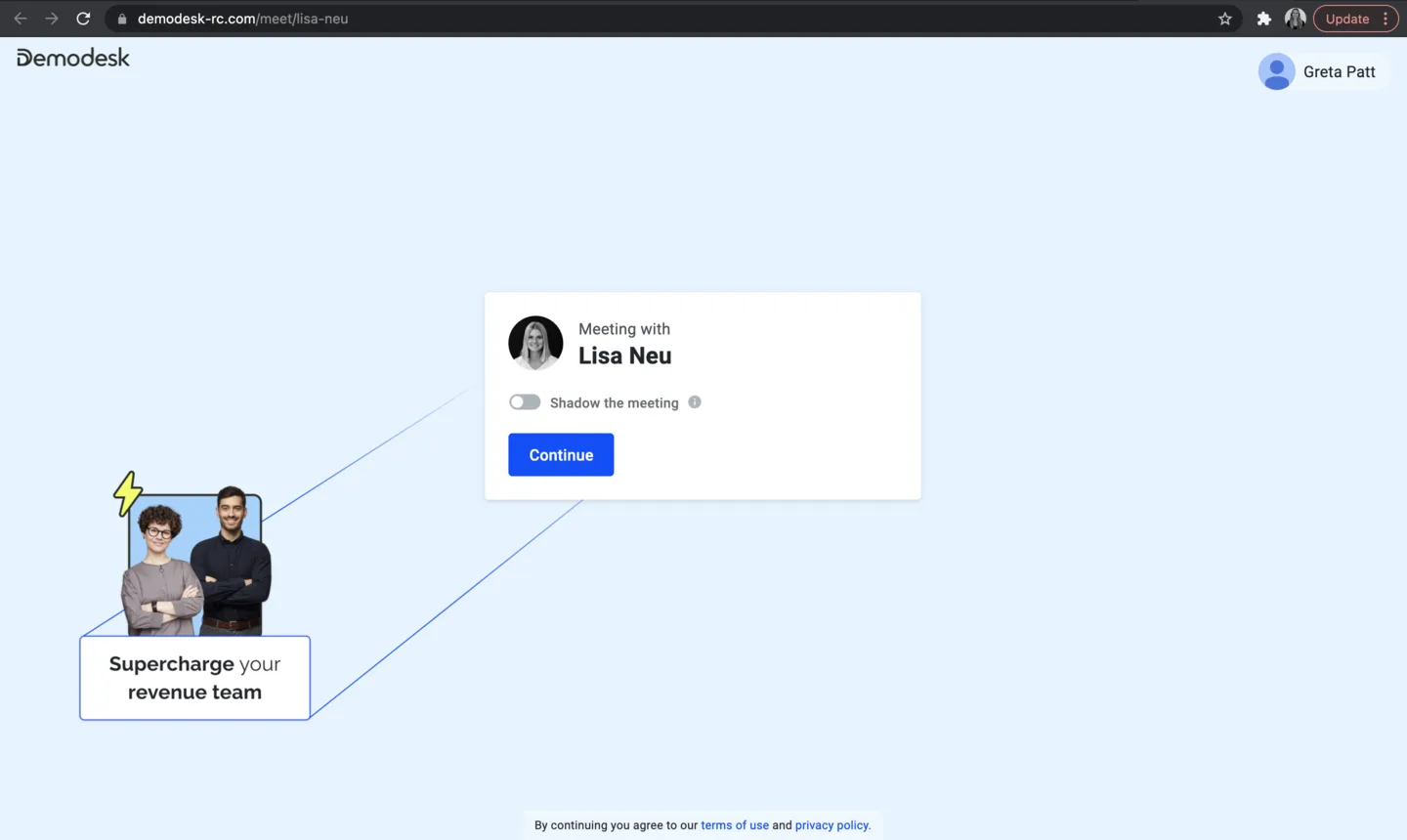
Before:
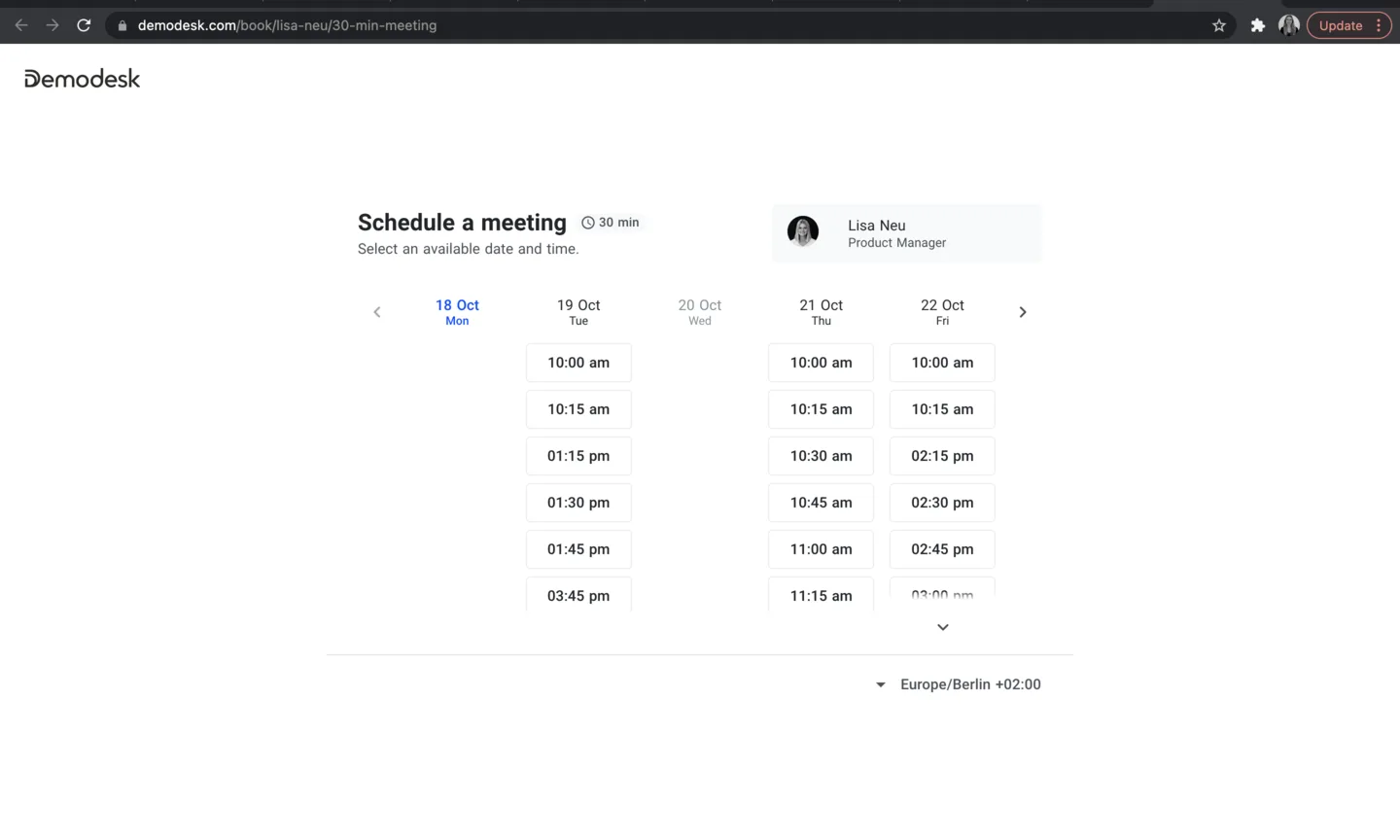
After:
Related articles
More in this category
Still need a hand?
Our support team answers in the app chat, or at support@demodesk.com.