How can I show mobile apps in my demo?
Updated September 8, 2023
We will walk you through the most common steps: Windows and Mac with an iOS device.
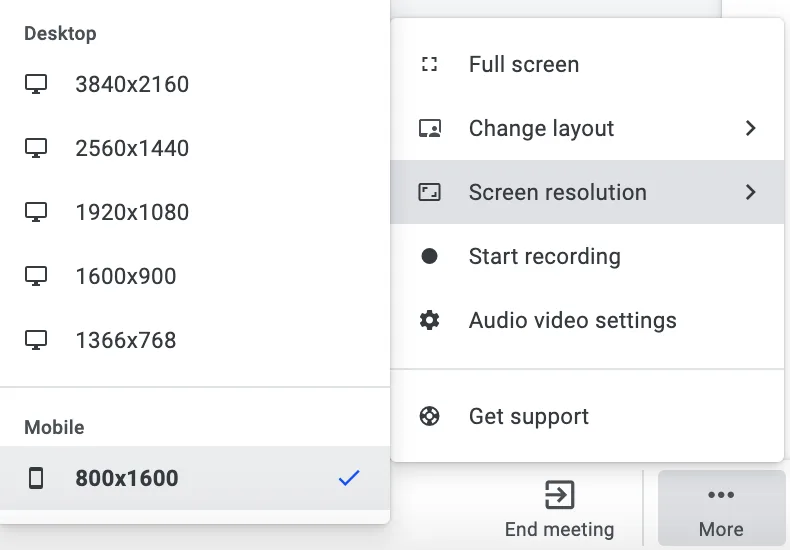
To optimize the view during the meeting we recommend setting the Resolution in your settings (over more) to Mobile:
Windows
There are many apps that allow you to screen cast your device to your PC. We have made a good experience with LetsView, but other apps work as well. Download the Windows installer to your PC and the according app to your device and follow the setup instructions. Then, start the application on your Windows computer and follow the pairing instructions on the screen - make sure that both devices are in the same WIFI network. Once that is finished, on your iOS device open the control center and click on Screen Mirroring:
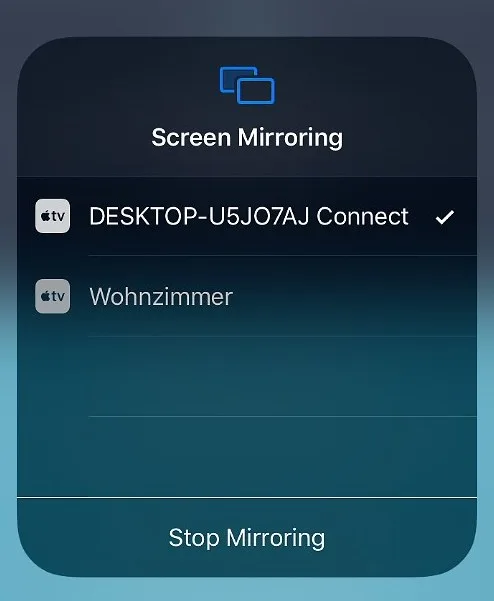
Connect with the computer you want to mirror your iOS device to and you should immediately see the iOS screen in a new window on your PC:
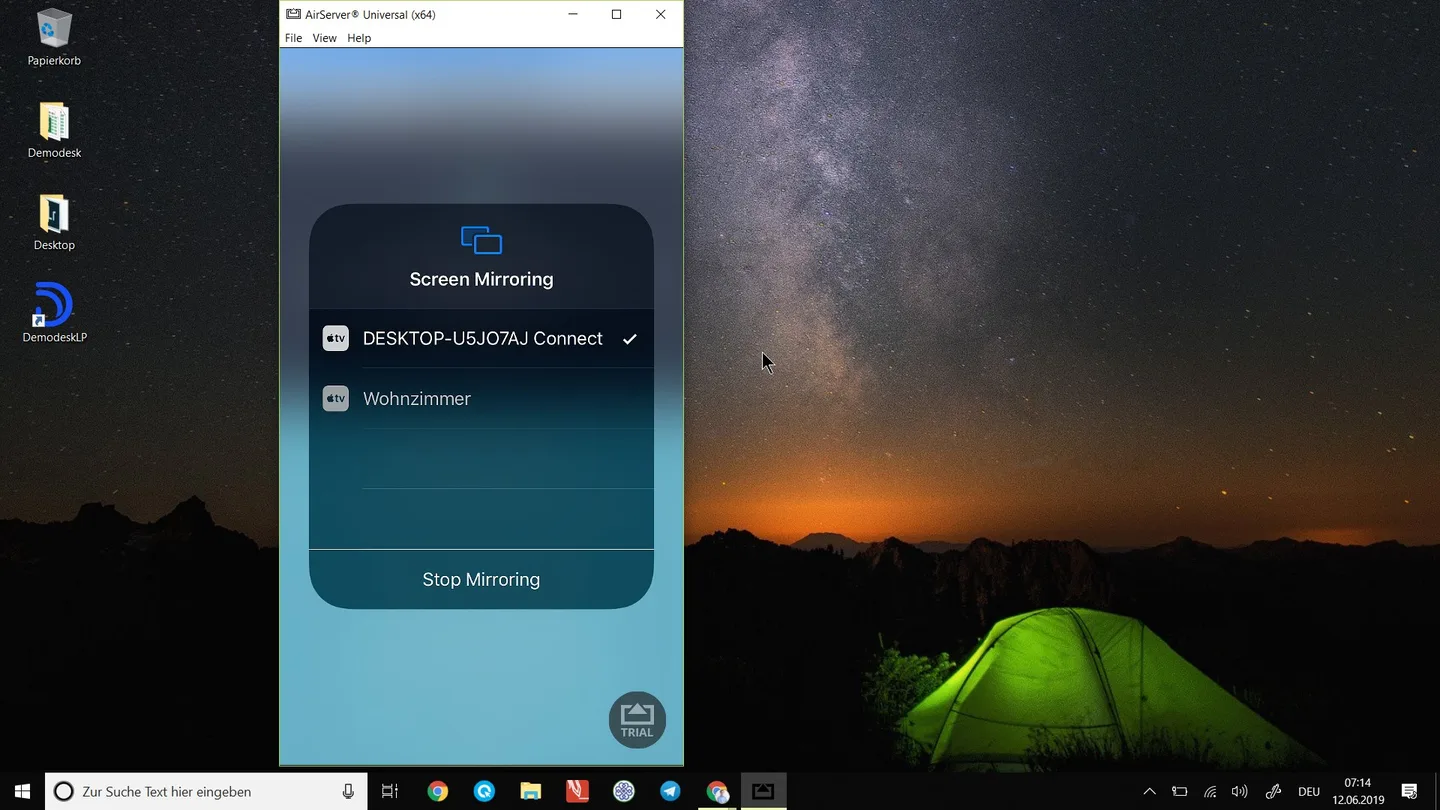
Now, go to your Demodesk demo and select local screen sharing to show the window in your meeting. You can choose to just show the window of the mirroring application:
Mac
Connect your iOS device to your Mac via USB cable and open Quicktime.
In Quicktime, go to File and select New Movie Recording.
Within the recording window, there is a small drop-down arrow right next to the record button. Click it to select the iOS device as your source and immediately you will see the display of your iOS device mirrored to your Mac in real-time.
Now, go to your Demodesk demo and select local screen sharing to show the window in your meeting. You can now share just the window of the mirroring application.
If you need any help with this topic, please don't hesitate to contact our support:
Related articles
More in this category
Still need a hand?
Our support team answers in the app chat, or at support@demodesk.com.