Connect Webex to Demodesk
Updated March 27, 2026
On this page
Demodesk integrates with Webex so you can support Webex meetings with AI Notetaker, automatic meeting import, summaries, and follow-up workflows.
How to connect Webex?
-
In Demodesk, go to Settings
-
Click Connections
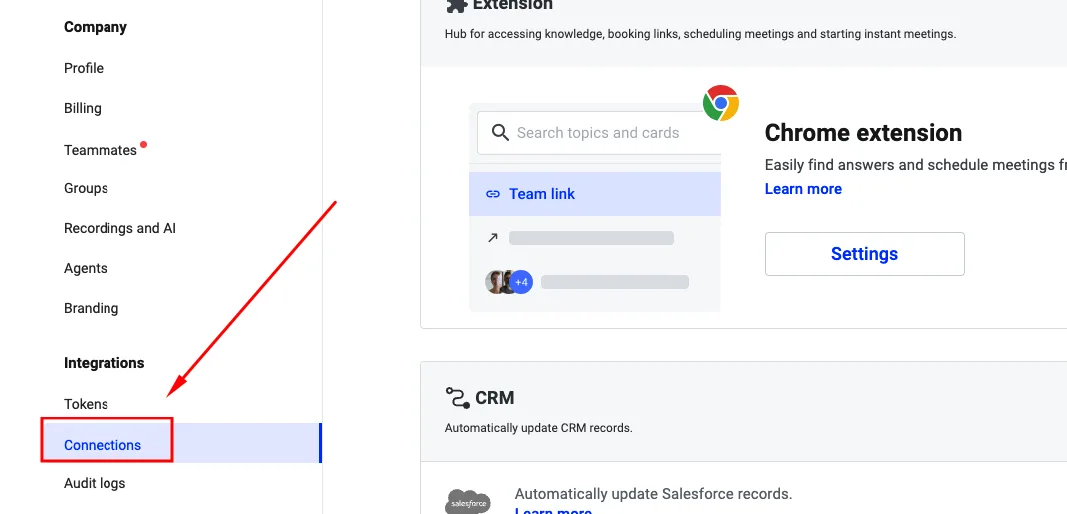
-
Scroll to Video conferencing
-
Click Connect next to Webex
-
Sign in to your Webex account
-
Authorize the connection
Once connected, your Webex account will show as Connected.
What you can do with the Webex integration
After connecting Webex, Demodesk can:
- import your Webex meetings
- support AI Notetaker for Webex meetings
- generate summaries after meetings
- create follow-up content based on the conversation
Manage your connection
You can disconnect Webex at any time from Settings → Connections.
FAQ
Do I need a Webex account?
Yes. You need a Webex account to connect Webex to Demodesk.
Where do I connect Webex?
Go to Settings → Connections and connect Webex under Video conferencing.
What happens after I connect Webex?
Your Webex meetings can be supported in Demodesk for meeting import and AI-powered post-meeting workflows.
Can I disconnect the integration later?
Yes. You can disconnect Webex at any time from the same Connections page.
Related articles
More in this category
Still need a hand?
Our support team answers in the app chat, or at support@demodesk.com.